


Published Versions
Every time you press Publish in the builder, the platform captures the current saved Working Copy as a numbered, immutable snapshot and adds it to the Published Versions list. The newest entry is what users see at the Application URL.
The Versions Tab
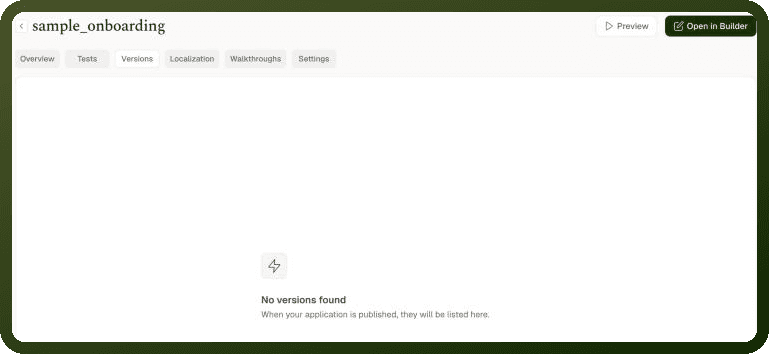
Navigate to the app detail page and open the Versions tab to see the full published history, listed newest first. Until the application has been published at least once, the tab displays: No versions found — "When your application is published, they will be listed here."
Versions Tab Columns
| Column | Description |
| Version Number | Sequential number assigned at publish time (V1, V2, V3, …). The currently live version is marked with a Current badge. If a tag was applied at publish time, it appears alongside the number. |
| Version Notes | Free-text notes entered in the publish dialog describing what changed in this release. Empty if no notes were provided. |
| Published By | Name of the user who triggered the publish action. |
| Published On | Date and time the version was published. |
Steps: Viewing a Past Version
Open the app detail page and click the Versions tab.
Click the version row you want to inspect. The version opens in a read-only view labelled V{n} | Created on {date}.
Use the page switcher inside the read-only view to navigate between pages of that historical release. No changes can be made from this view — it is for inspection only.
Close the view or navigate back to the Versions tab when finished.
Steps: Restoring a Published Version
In the Versions tab, click the version you want to restore.
Click Restore this version. A confirmation dialog appears with the message: "Don't worry — your live app won't be affected until you publish."
Confirm the restore. The platform shows "Application restored successfully."
The builder opens with the restored Working Copy. Open Preview to verify the result before shipping it.
When ready, click Publish. The platform creates the next sequential version number with the restored version's content — version numbers never rewind.
Note: Restoring sets up the rollback; publishing ships it. You are always safe to restore and review in Preview before committing to a publish. The live application is untouched until you explicitly publish the restored state.
Publishing from the Builder
When you publish from inside the builder, the current saved Working Copy becomes a new entry in the Published Versions list with optional metadata you supply at publish time. For the full publish steps, see Preview & Publish.
Version tag — A short identifier (must start with a letter; no spaces; only
-and_allowed as special characters). Displayed alongside the version number in the Versions tab.Version notes — Free-text changelog entry. Treat these as a commit message: describe what changed and why, so teammates can read the list as a release history.
Changes since last published — A per-area summary (Application, Pages, Modules, Walkthroughs, Icons) with addition and removal counts. Click any row to open its changes in Compare versions; use Review all changes to see the full diff.
If no new saves have been made since the last publish, the dialog shows "Up to date with V{n} — No changes since the last published version." Publishing in this state does not create a new version number.
Saved Versions
Saved Versions are a fine-grained, automatically generated edit history maintained inside the builder. The builder saves every edit automatically, and every auto-save creates a new entry. You never need to name or create a saved version; the platform does it for you.
Note: Versions are auto-captured — you cannot manually name or create one. Each entry in the Saved Versions panel reflects the exact application state at the moment of a save. The list grows continuously as you work.
The Saved Versions Panel
Open the Saved Versions panel from the builder's left rail. Until the application has been saved at least once, the panel displays: "No saved versions available. Save your changes to create the first version."
Select an entry to compare it with the save before it. The comparison opens beside the panel.
Saved Version Entry Fields
Field | Description |
|---|---|
Entity type icon | Visual indicator of whether the change affected the whole application or a specific page. |
Change type | One of Created, Updated, Deleted, or Restored — describes the nature of the save action. |
Name | Name of the entity that changed (page name, application name, etc.). |
Timestamp & Author | When the save occurred and which user triggered it. |
Version pill | Shows V# (for example V3) on entries that were published and S# on entries that were only saved — links the fine-grained save to a published version number. |
Entries have no Restore button of their own. Select an entry, then click Restore this version in the builder's top bar. A confirmation modal opens before anything is restored.
Filtering Saved Versions
The panel provides filters to narrow the list:
Scope — Filter by App (all application-level saves) or Page (saves for a specific page; a page picker appears when Page is selected).
Version — Show All entries, only Saved entries, or only Published entries (those with a V# pill).
Author — Filter to saves made by a specific team member.
Clear all / Apply — Reset filters or apply the current selection.
Date — A separate filter next to the Filter button that limits the list to saves within a date range.
Steps: Restoring from Saved Versions
Open the Saved Versions panel from the builder's left rail.
Use filters (Scope, Version, Author, Date) to locate the entry you want to restore.
Select the entry, then click Restore this version in the builder's top bar. A confirmation modal opens, naming the save date, the impact of the restore, and whether it is app-scoped or page-scoped. Under What will happen, the modal warns that newer items will be removed.App-scoped entry — Reverts the entire application's Working Copy: all pages, data sources, and settings. Items created after that save are removed.Page-scoped entry — Reverts only the selected page; the rest of the application is untouched. Items created on that page after the save are removed.
Confirm the restore. The builder reloads with the restored state. Any collaborators currently in the builder are prompted to reload.
Verify the result in Preview, then publish when ready to ship the rolled-back state to users.
Note: Restoring a collaboratively-edited app prompts all editors to reload. Any unsaved work by collaborators in the builder at the moment of the restore will be lost. Coordinate with your team before restoring in a shared editing session.
Creating a New App from a Saved Version
If you want to salvage a historical state without overwriting the current Working Copy, the Saved Versions panel offers an option to create a new application from any app-level entry: select the entry and use the + Create new app button in the top bar. The new app is an independent copy frozen at that historical state; editing it does not affect the original.
Comparing Versions
The Compare Versions view gives a diff-style breakdown of what changed between any two points in the application's history, including the live current edits.
Steps: Comparing Two Versions
In the publish dialog, click Review all changes (or click an area row to jump straight to that area's changes). Alternatively, click an entry in the Saved Versions panel to compare that save with the one before it.
Set the Base version (the older point) and the Compare version (the newer point) using the pickers. Options include all published versions, "Current edits", and "Last published".
Browse changes grouped by area: Application, Pages, Modules, Walkthroughs, Icons.
Within a page, changes are further broken down by: Page config, Blocks, Steps, Variables, Functions, Data sources, and Translations. App-level settings appear under Application as App config. Deleted pages are marked Deleted page.
Adjust the view using the controls: Split vs. Unified — side-by-side or inline diff. Show context only vs. Show all lines — focus on deltas or see the full config. Extracted vs. Raw — human-readable structured view or raw serialized config. Breakpoint filter — Desktop, Tablet, or Mobile.
Click Open in Builder on any change row to jump directly to that area in the builder.
Note: A page deleted between the two compared versions is marked Deleted page and can't be previewed. To see it again, restore a version that still has the page.
Key Concepts at a Glance
Concept | Details |
|---|---|
Auto-capture | Every auto-save creates a Saved Version automatically; no manual naming required. |
Restore from the top bar | Select a saved version, then click Restore this version in the builder's top bar. |
Restore is draft-only | Restoring loads the historical config into the Working Copy; the live app is unchanged until you publish. |
Collaborator reload | When a restore runs, all collaborators currently in the builder are prompted to reload. |
Version numbers never rewind | Restoring V1 and publishing creates the next sequential number (e.g., V3), not a new V1. |
Compare from the panel | Selecting an entry in the Saved Versions panel opens a comparison with the previous save beside the panel. |