


Overview
The Settings tab on an app's detail page governs access and security. Its side navigation has two groups:
Governance — Users, Teams, Roles, Permissions. Manage who has access and what they can do within the app. On workspaces where impersonation is enabled, Impersonation also appears here.
Security — Privacy Settings, Content Security Policy, Device Permissions, Password Policy. Control how the app is accessed and hardened.
Note: The Settings tab in the Applications manager covers access and security only. The app's name, design system, navigation, and branding are configured in the in-builder Settings area. Content Security Policy and Device Permissions also appear there, under Security — see App Configuration.
Note: If the app belongs to a package, its settings are determined by package-level configurations. A Package Settings button takes you there instead of the individual app settings.
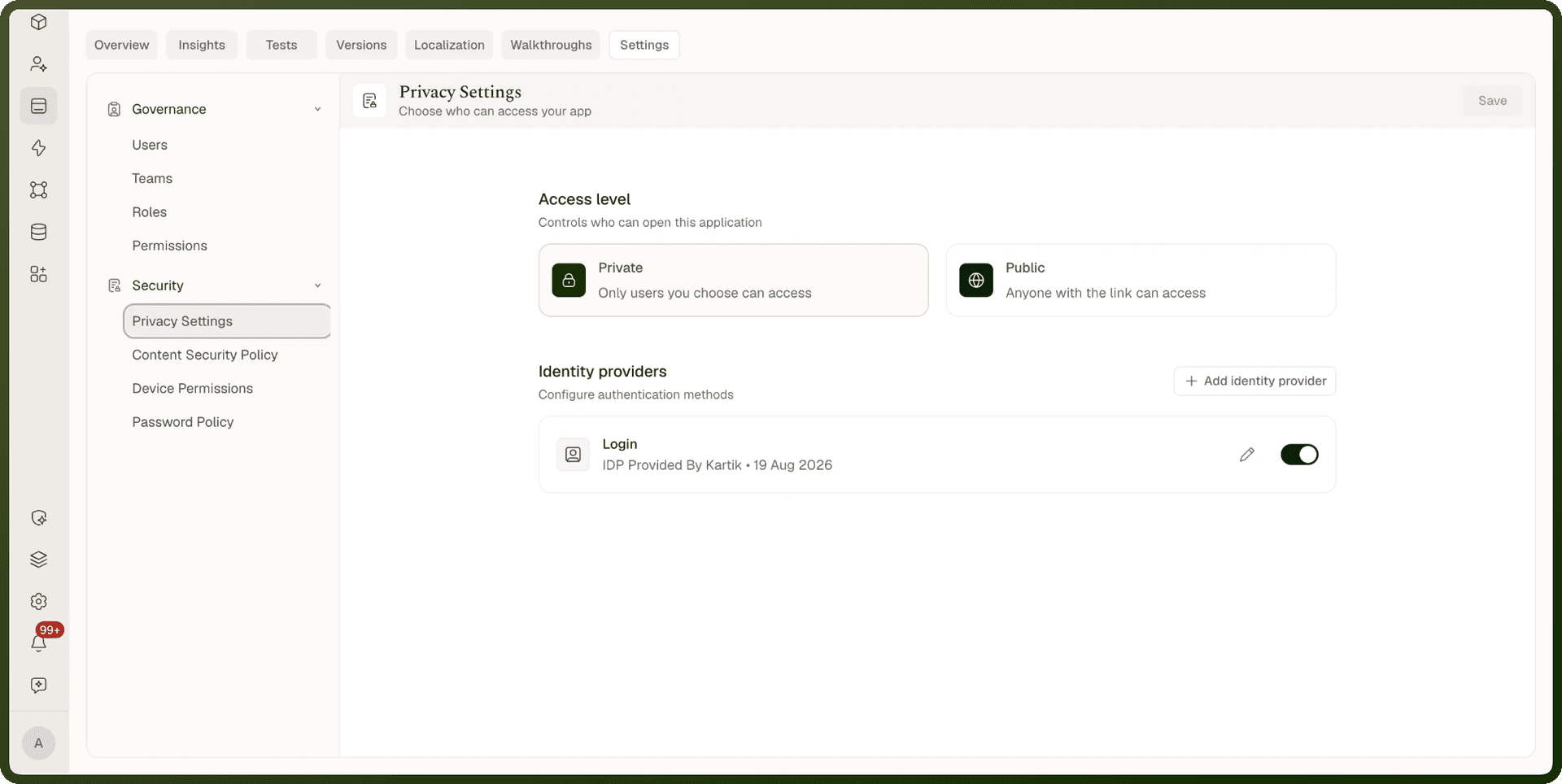
Privacy Settings — Access Level
Privacy Settings sets the app's fundamental access control: who can open the application at all.
| Access level | Who can open the app | When to use |
| Private | Only users you specifically grant access to. Sign-in is required. | Internal tools, employee-facing applications, anything requiring authentication. |
| Public | Anyone with the link — no sign-in required. | Public-facing landing pages, survey forms, reference portals open to the internet. |
Identity Providers (Private apps)
When the app is set to Private, the Privacy Settings panel also lists the Identity providers users can sign in with. Built-in providers are listed first, starting with the one named Login. Each provider can be switched on or off for the app. Only users who can authenticate through an enabled provider are permitted to sign in to the private app. Click Save to apply your changes — the same Save applies the access level and every provider switch.
Use Add identity provider to create a sign-in provider for this app (for example, SAML or OIDC SSO). The form shows the fields for the sign-in method you choose. A provider you add here belongs to this app only.
Warning: If you switch every provider off, nobody can sign in to the app, and no warning appears. Leave at least one provider on. The last remaining provider can't be deleted.
For mobile apps, enable Biometrics Login here before you use the Manage Biometrics action, so users can sign in with Face ID, Touch ID or fingerprint. See Mobile Security.
Tip: Setting the app to Private controls who gets past the login screen. What each signed-in user can see and do once inside — specific pages, features, and data — is controlled by the Governance group (roles and permissions). Use both layers together for fine-grained access control.
Governance: Users, Teams, Roles, Permissions
The Governance section is where you manage the people and groups who have access to the app and their roles:
Users — add or remove individual users from the app.
Teams — manage team-level access (a team's members inherit the team's access).
Roles — define roles that bundle permissions together.
Permissions — view and manage the permissions assigned in each role.
Managing these lists is itself permission-gated — you need the matching global grants and edit access on the app. On a system app provided by UnifyApps, the buttons for adding and editing entries are hidden.
Content Security Policy (CSP)
Content Security Policy helps protect your web app by controlling which external resources and content it can trust. It governs two things:
Which external resources may load — scripts, images, fonts, and other content from third-party origins (the Resource Control list).
Which sites may embed your app — the Frame-ancestors list, preventing unwanted framing of your app.
Enabling CSP
Open Settings → Security → Content Security Policy: If CSP is off, the screen reads: "Content Security Policy (CSP) is disabled — Enable CSP to secure your app by specifying which external resources are allowed to run in your app and which websites can embed your content."
Turn on the switch in the header: The Resource Control and Frame-ancestors lists appear.
Add URLs: In Resource Control, click Add URL and enter each outside address the app may load from, with a Description. In Frame-ancestors, add each site that may embed the app (the address of the host page, for example
https://intranet.example.com).Save and publish: Click Save, then publish the app. Outside visitors get the policy from the published version.
In the builder's Settings panel, the same lists are labelled Allowed sources and Who can embed this app.
Note: The platform's own addresses are always allowed to embed the app for previews, on every request, whether or not you've published. This allowance is applied by the server and never appears in your frame-ancestors list. Older apps may show a leftover Test studio preview entry; it no longer does anything and can be removed.
Device Permissions
Device Permissions lets you choose what this app, and the sites it embeds, may use in a web browser: Camera, Microphone, Location and Fullscreen. For each one, you can also choose whether sites embedded in the app may use it (Also allow sites embedded in this app). Until you change them, each one is allowed for the app and for the sites embedded in it. Click Save to apply your changes.
Note: Mobile app builds ask the device for permission instead and ignore this setting.
Password Policy
Password Policy configures authentication requirements for the app's users. It applies to the built-in Email ID and Password sign-in. Users who sign in through an outside service, such as company SSO, follow that service's rules instead. Settings are organized in three groups, and a single Save button in the header applies them:
Basic Requirements
Setting | Range | Description |
|---|---|---|
Password Length — Min | 8–64 | The shortest password the app will accept. |
Password Length — Max | 8–64 | The longest password the app will accept. |
Security Rules
Rule | Default |
|---|---|
Require uppercase letters (A-Z) | On |
Require lowercase letters (a-z) | On |
Require numbers (0-9) | On |
Require special characters (!@#$%^) | On |
Block common passwords | On |
Block personal information | On |
Password Lifecycle
Setting | Description |
|---|---|
Password Expiry | Number of days before a password must be changed. If left empty, passwords expire after 90 days. |
Minimum Password Age | Number of days before a user may change their password again. Prevents rapid password cycling. |
Prevent Password Reuse | How many previous passwords are remembered and blocked from reuse. |
Related Pages
Permissions — page-level and block-level access control for the content inside the app.
Runtime & Access — how the published app is served, public vs. private pages, and embedding.
Runtime & Access Control — a short summary of the same topics.
App Configuration — the in-builder Settings panel.
Mobile Security — Secure View Mode and biometric login for mobile apps.
User Management — managing users, roles, and integrations for authentication.