


The Excel node's media operation lets you embed an image into a specific location on a spreadsheet sheet — useful for inserting logos, charts exported as images, QR codes, or other visual assets into automated reports before they are stored or distributed.
Overview
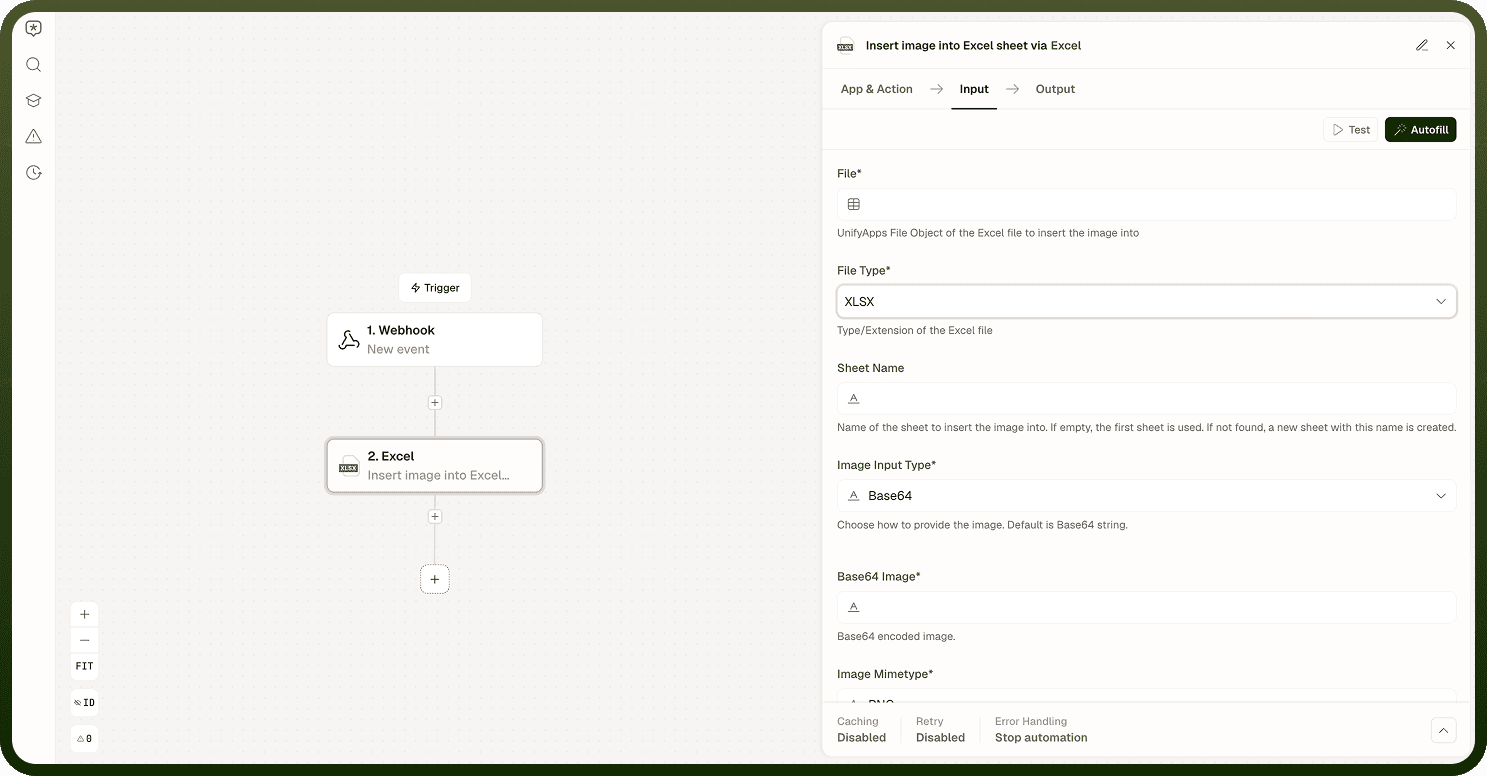
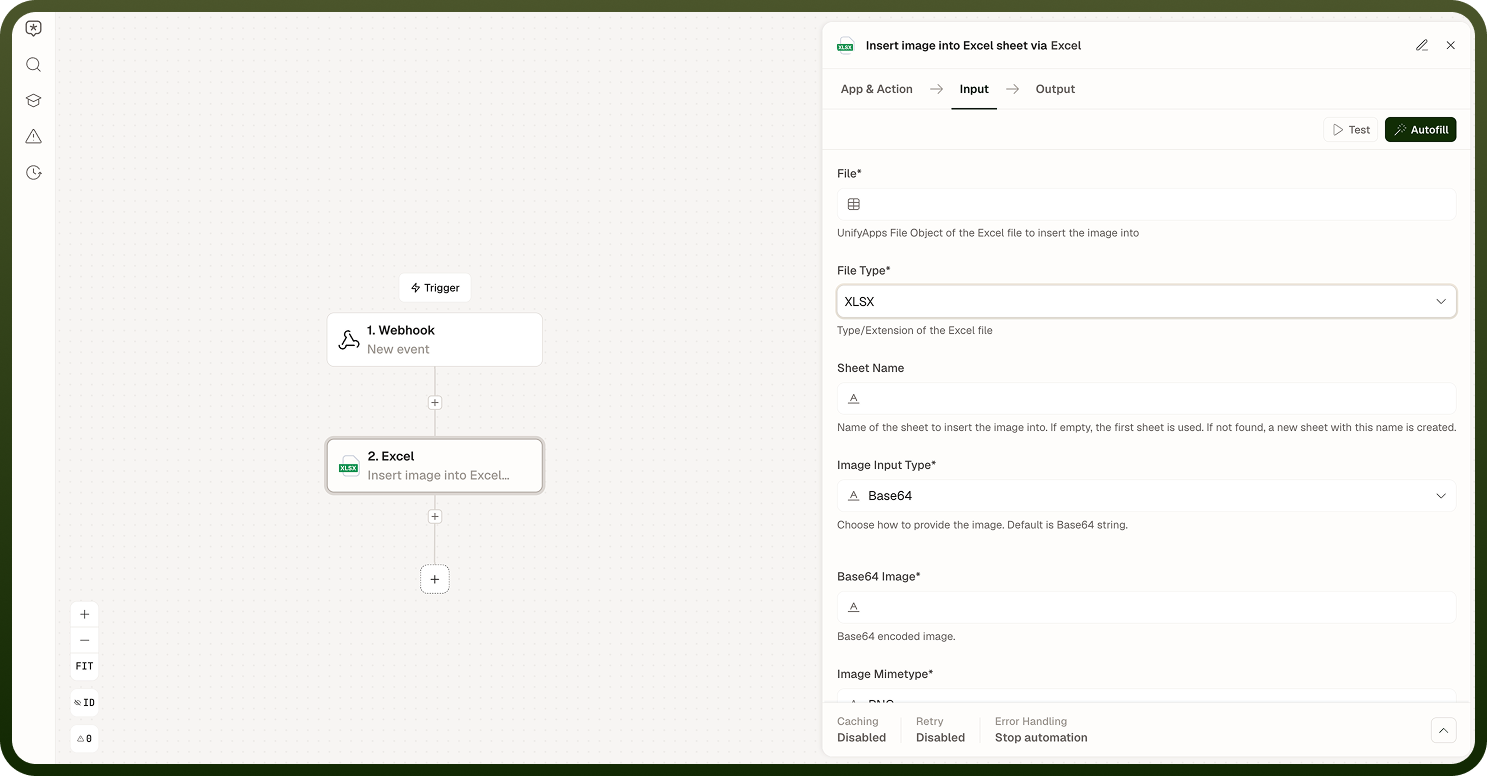
Insert image into Excel sheet takes an image — supplied either as Base64 text or as a file object — and places it on a named sheet of an Excel workbook. You control where the image is anchored (after the last row, after the last column, or at a specific cell) and how it is sized (its original size, a scale factor, or a span across a number of columns and rows). The image is embedded in the workbook file itself, so it travels with the file when it is stored or sent. This operation works on XLSX or XLS files; use the Format Conversion operations to convert a workbook into one of those formats beforehand if needed.
Operations
Operation | Description | Key inputs |
|---|---|---|
Insert image into Excel sheet | Embeds an image (provided as Base64 text or a file object) into a sheet of an Excel workbook. The image is anchored using the chosen Anchor Mode and sized using the chosen Sizing Mode. | File, File Type, Sheet name, Image Input Type, Image Mimetype, Anchor Mode, Sizing Mode |
Input
Field | Type | Required | Description |
|---|---|---|---|
File | File reference | Yes | The Excel workbook into which the image will be embedded. Must be in XLSX or XLS format (set via File Type). |
File Type | Enum | Yes | Type/extension of the Excel file: XLSX or XLS. Defaults to XLSX. |
Sheet name | String | No | Name of the sheet to insert the image into. If left empty, the first sheet is used. If the named sheet is not found, a new sheet with that name is created. |
Image Input Type | Enum | Yes | How the image is provided: Base64 (a Base64-encoded string) or File Object (a UnifyApps file object). Defaults to Base64. |
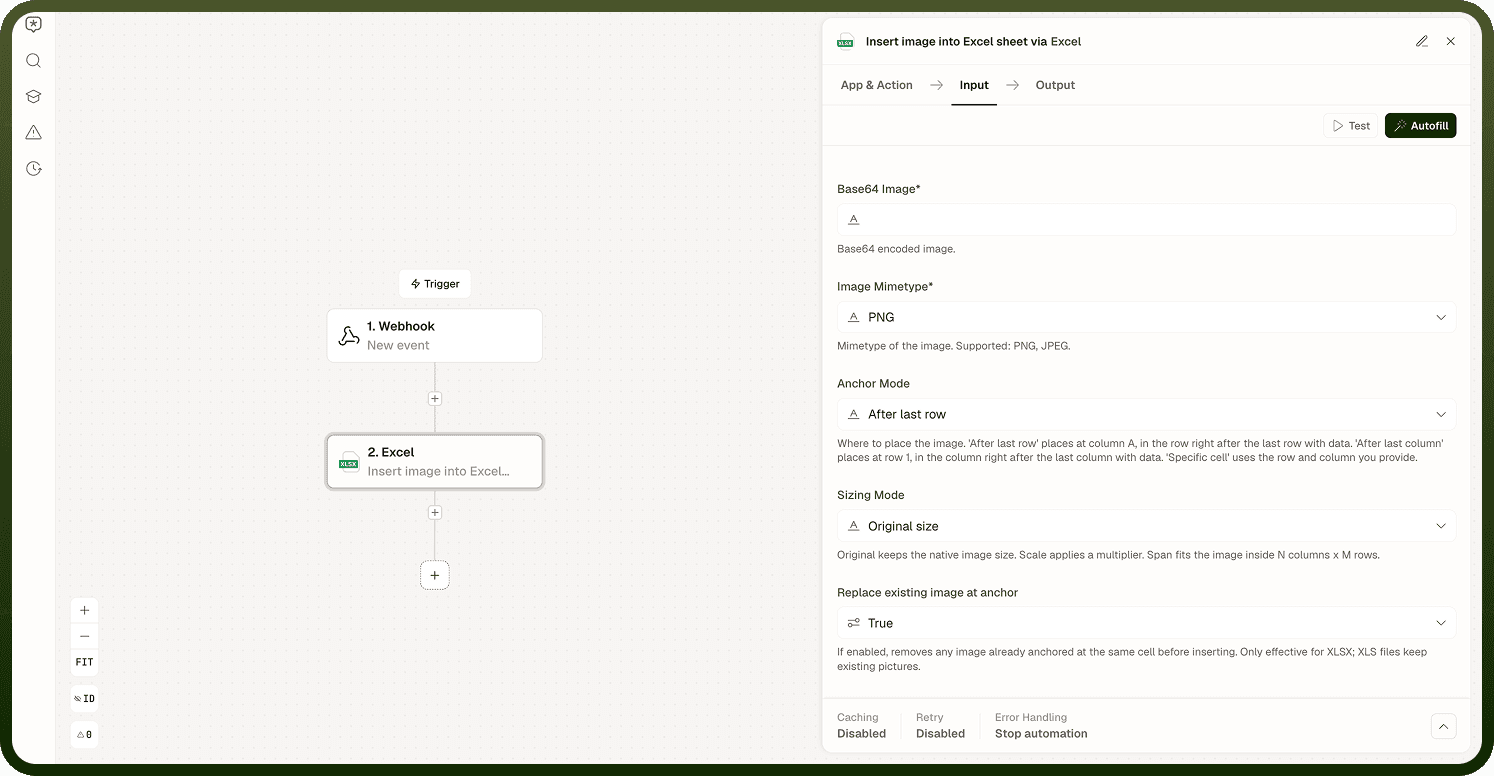
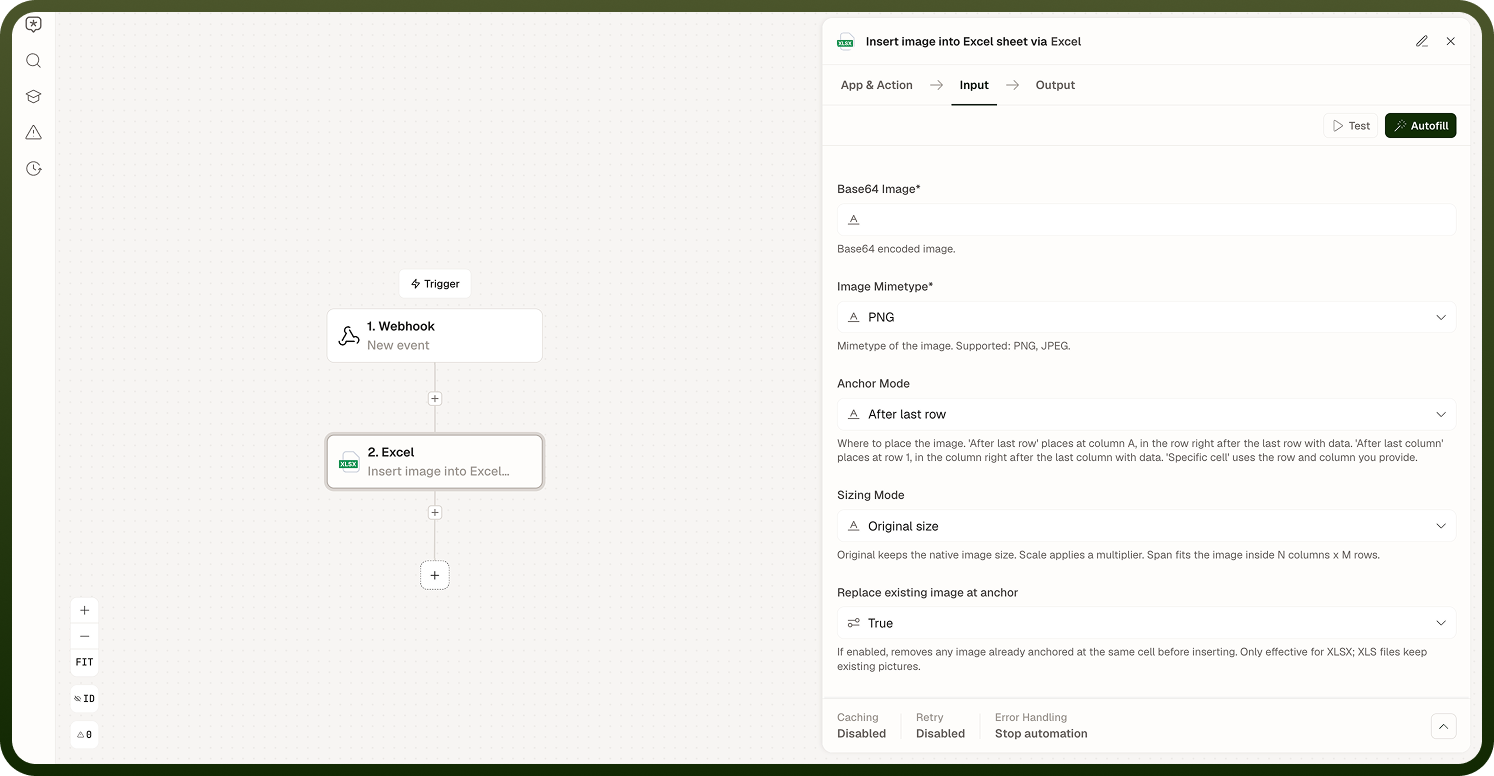
Base64 Image | String | Yes — when Image Input Type is Base64 | The Base64-encoded image to embed. |
Input File | File reference | Yes — when Image Input Type is File Object | UnifyApps file object containing the image to embed. |
Image Mimetype | Enum | Yes | Mimetype of the image: PNG or JPEG. Defaults to PNG. |
Anchor Mode | Enum | Yes | Where to place the image: After last row (column A, in the row right after the last row with data), After last column (row 1, in the column right after the last column with data), or Specific cell (uses the Anchor Row and Anchor Column you provide). Defaults to After last row. |
Anchor Row | Integer | Yes — when Anchor Mode is Specific cell | Row index (0-based) for the top-left corner of the image. |
Anchor Column | String | Yes — when Anchor Mode is Specific cell | Column letter for the top-left corner of the image (e.g. A, B, AA). |
Sizing Mode | Enum | Yes | Original size keeps the native image size, Scale factor applies a multiplier (Scale Factor), and Span N x M cells fits the image inside a number of columns and rows (Span Columns, Span Rows). Defaults to Original size. |
Scale Factor | Number | Yes — when Sizing Mode is Scale factor | Multiplier applied to the original image size (1.0 = 100%). |
Span Columns | Integer | Yes — when Sizing Mode is Span N x M cells | Number of columns the image should span. |
Span Rows | Integer | Yes — when Sizing Mode is Span N x M cells | Number of rows the image should span. |
Replace existing image at anchor | Boolean | No | If enabled, removes any image already anchored at the same cell before inserting the new one. Only effective for XLSX; XLS files keep existing pictures regardless of this setting. Defaults to true (enabled). |
Output
Returns a single Success boolean confirming whether the image was inserted — the action does not return a new file object.
Notes
Image insertion requires the workbook to be in XLSX or XLS format (set via File Type). If the source file is XLSB, use Convert Excel file format to convert it to XLSX or XLS before inserting the image.
The image is anchored according to the chosen Anchor Mode — after the last row, after the last column, or at a specific cell (set via Anchor Row and Anchor Column). If rows or columns above or to the left of the anchor are added or removed after insertion, the image position relative to the sheet data may shift.
Sizing Mode controls how the image is scaled: Original size keeps the native image size, Scale factor applies a multiplier via Scale Factor, and Span N x M cells stretches the image to fit inside a number of columns and rows via Span Columns and Span Rows.
Enable Replace existing image at anchor to remove any image already anchored at the same cell before inserting the new one. This only applies to XLSX files — XLS files keep existing pictures regardless of this setting.
Images are embedded directly in the workbook file. Large or high-resolution images will increase the file size accordingly. Resize or compress images upstream if file size is a concern.
To insert images on multiple sheets or at multiple positions, chain multiple Insert image operations, each receiving the file output of the previous step.
XLSX or XLS required: The Insert image operation requires an XLSX or XLS workbook (set via File Type). If your source file is XLSB, run Convert Excel file format first to convert it to XLSX or XLS.