


The Media, Compression & Export operations in the Utility node watermark documents, compress files, generate barcodes, zip and unzip archives, and export UnifyApps pages or datasources to portable formats. Use them to finalize documents before delivery, reduce file sizes for storage, or produce machine-readable codes alongside automated content.
Overview
Eight operations cover media transformation, archiving, barcode generation, and UnifyApps-native export. They are the last-mile steps in a document automation — stamp a watermark, shrink an image, bundle multiple files into a zip, or export a rendered application page as a PDF or PNG.
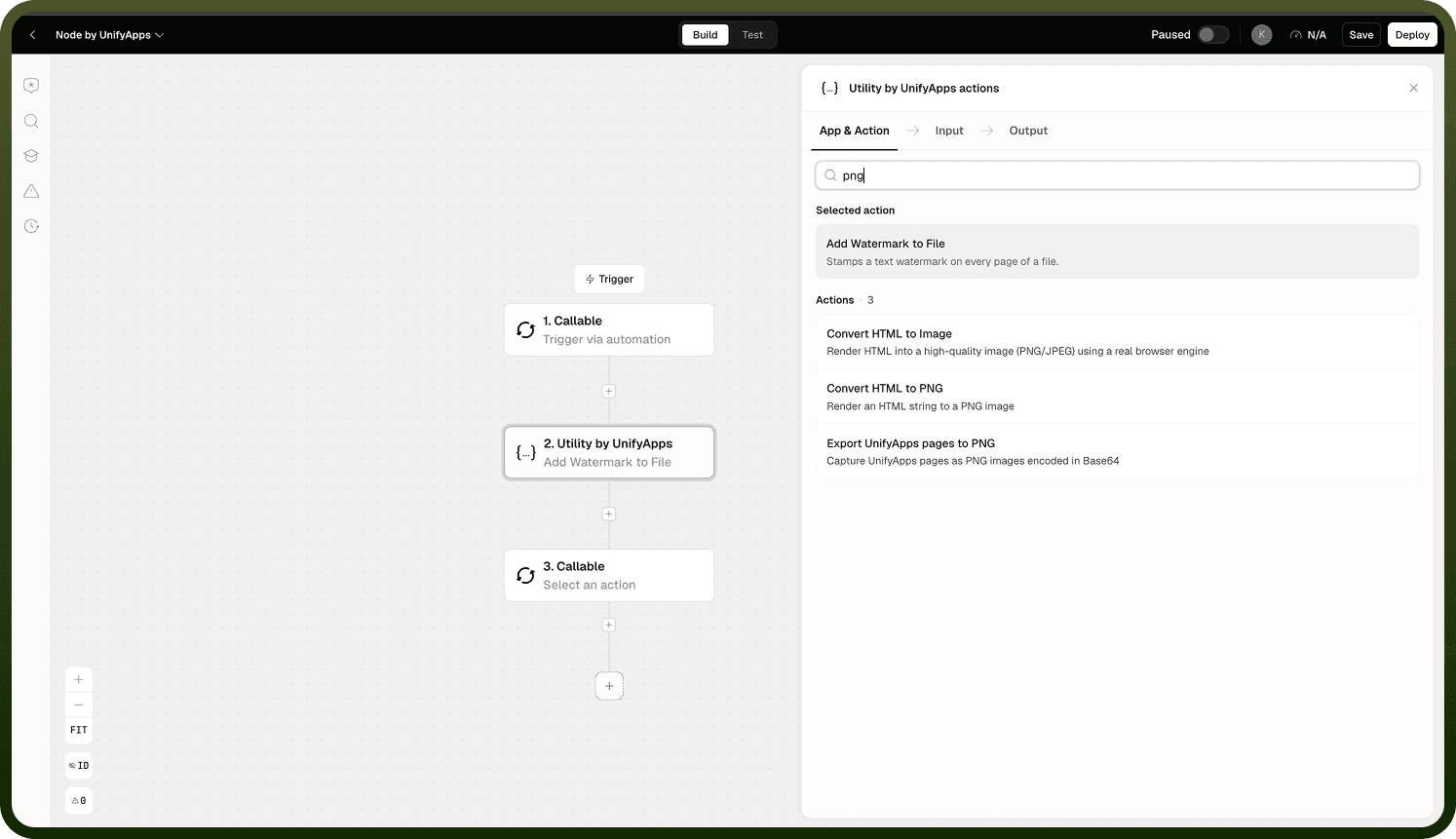
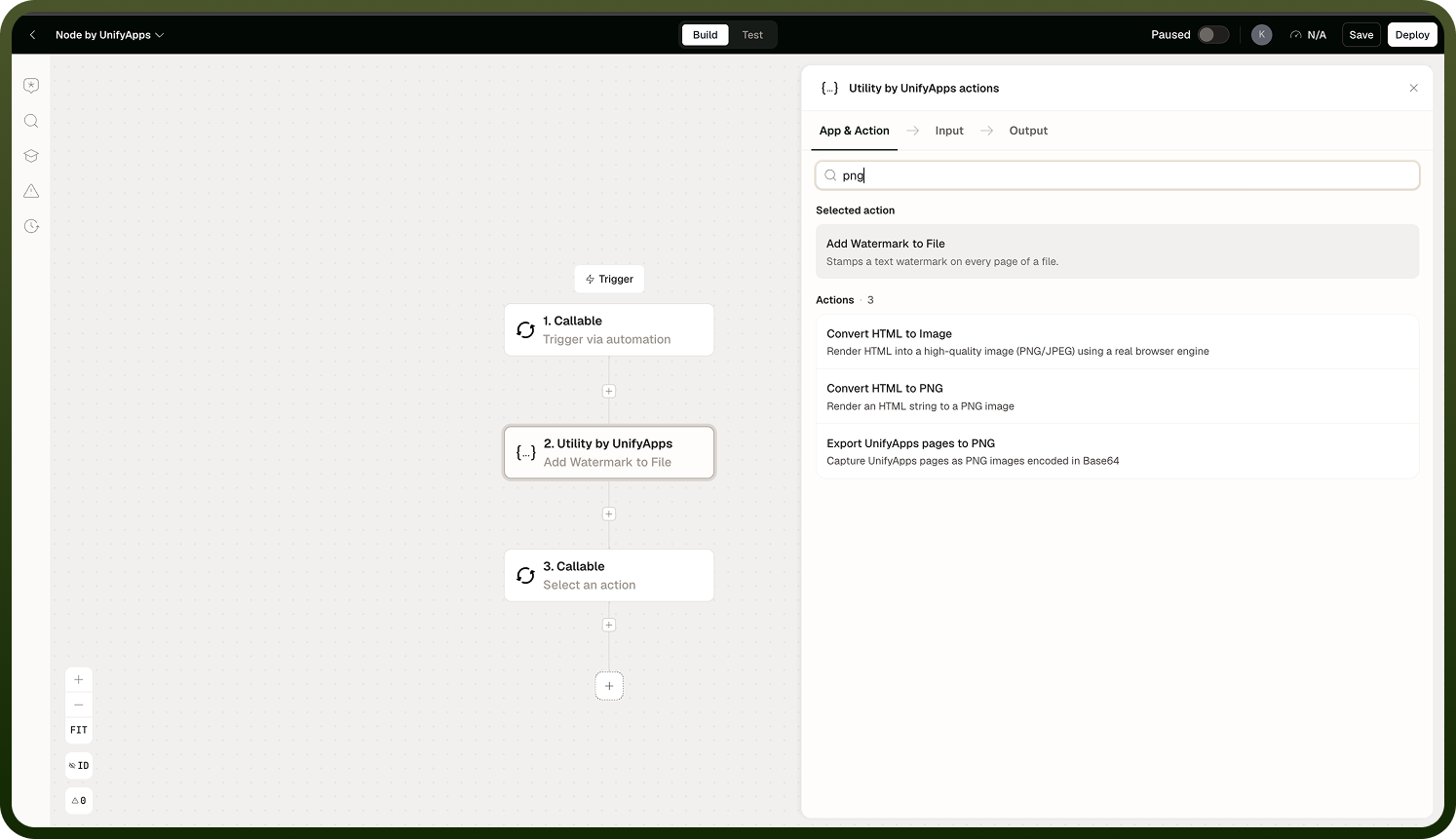
Operations
Operation | What it does |
|---|---|
Add Watermark to File | Stamps a diagonal text watermark on every page of a PDF file. Supports adjustable font, color, opacity, and rotation. PDF only — passing any other file type will cause the step to fail. |
Compress media content | Reduces file size using per-type controls: image quality percentage, video bitrate, PDF image quality and DPI, and DOCX-specific compression options. Can run asynchronously for large files. |
Generate barcode | Generates a barcode image in a common symbology (for example, QR code, Code 128, EAN). |
Unzip file | Extracts files from a ZIP, TAR.GZ, or GZ archive. GZ is single-file only. Mac system files (such as .DS_Store) are skipped automatically. |
Zip list of files | Packages a list of files into a ZIP, TAR.GZ, or GZ archive. ZIP archives can be password-protected. Duplicate filenames within the archive are auto-renamed to avoid collisions. |
Export UnifyApps pages to PDF | Renders one or more UnifyApps application pages and exports them as a PDF document. |
Export UnifyApps pages to PNG | Renders one or more UnifyApps application pages and exports each as a PNG image. |
Export Application Datasource | Exports data from an UnifyApps application datasource to a portable file format. |
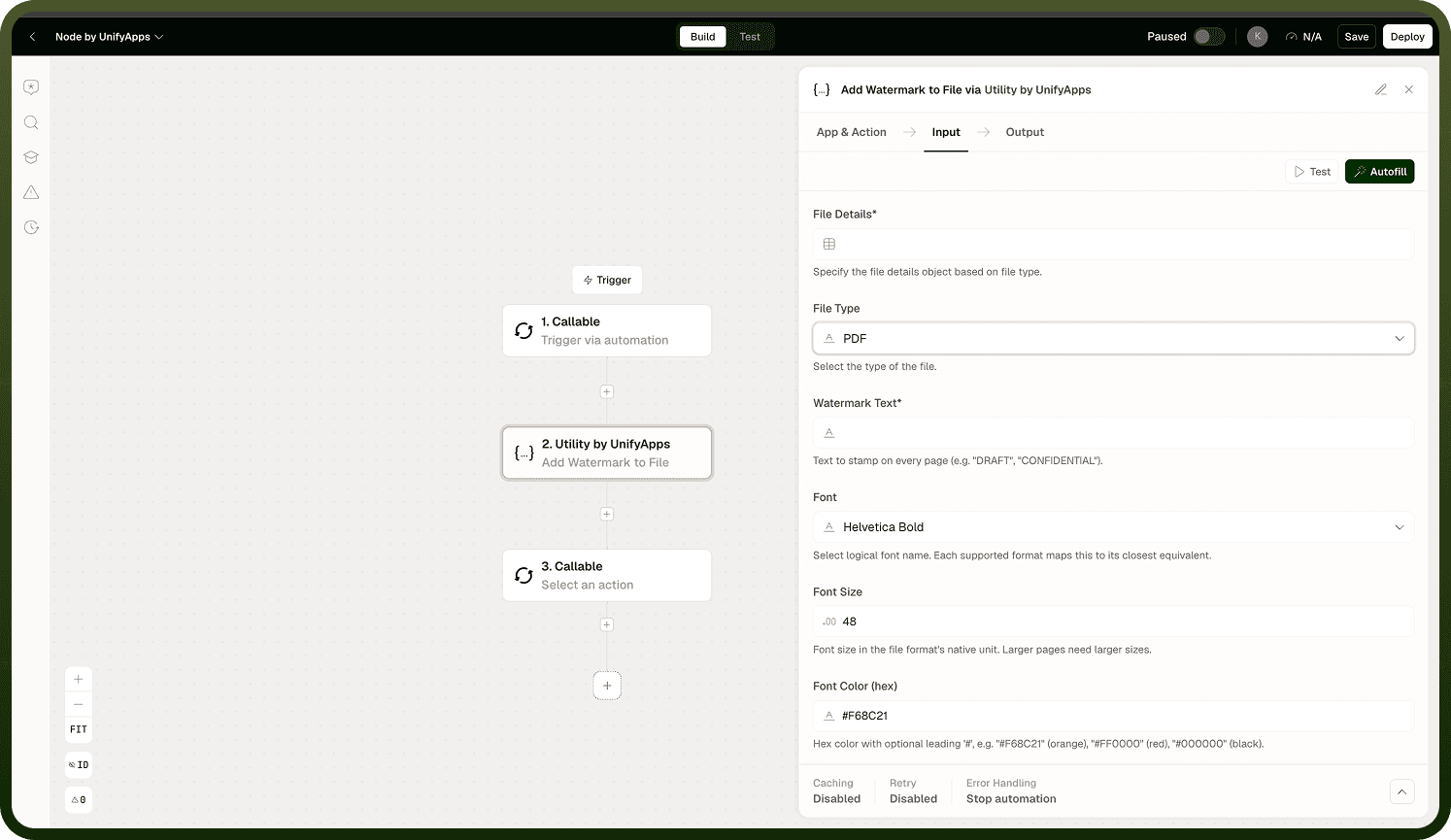
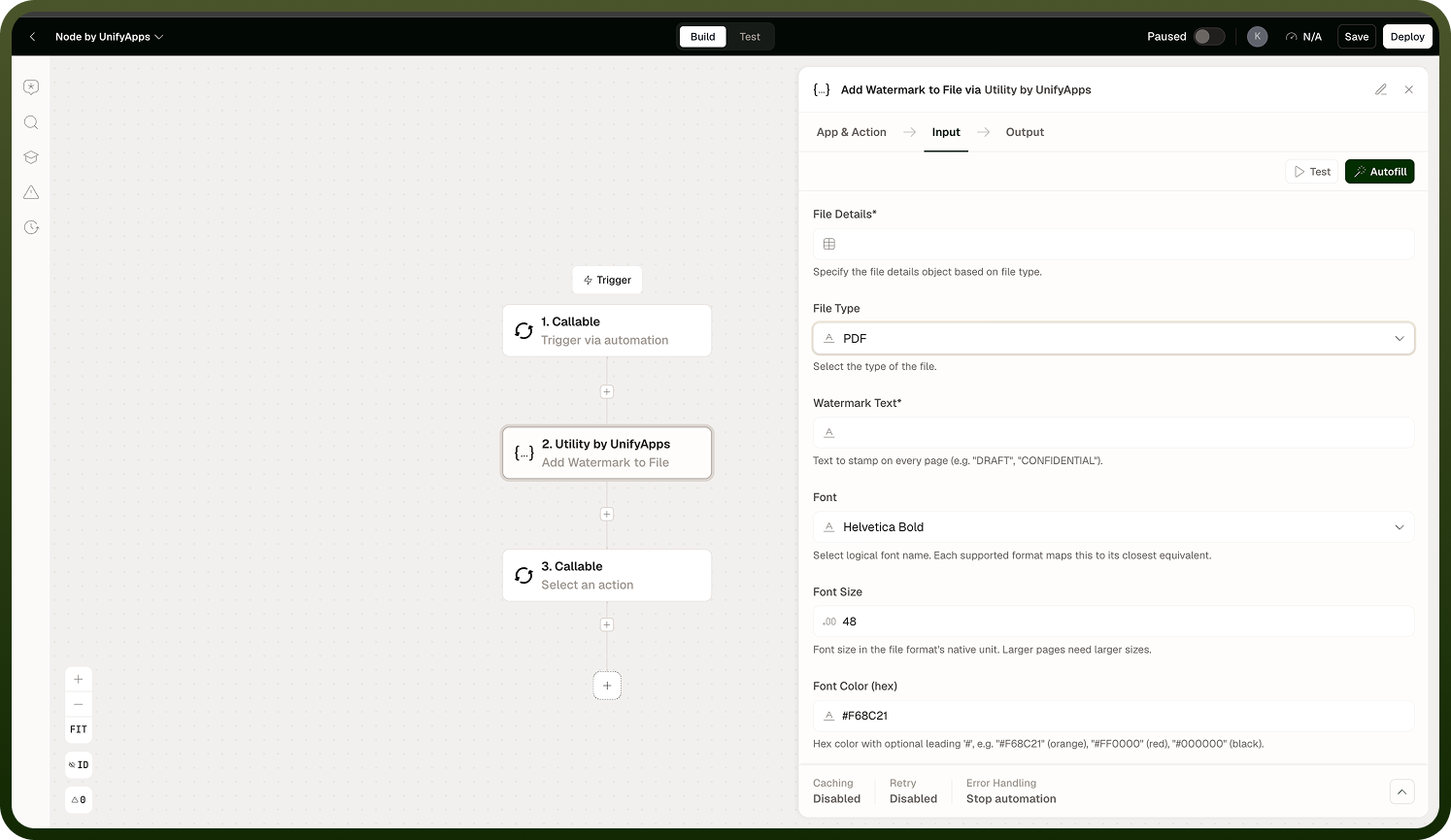
Add Watermark to File supports PDF only. Passing a non-PDF file will cause the step to fail. Convert the file to PDF first using the Convert to PDF operation, then apply the watermark.
Notes
Keep the following in mind when using these operations.
Add Watermark to File supports PDF only. Other file types will error. The watermark is applied to every page; there is no option to target specific pages.
Compress media content has per-type controls — image quality, video bitrate, PDF image quality and DPI, and DOCX options. Unsupported file types will error. The operation can run asynchronously for large files.
Zip list of files: GZ format is single-file only; use ZIP or TAR.GZ for multi-file archives.
Duplicate filenames in a zip archive are auto-renamed (for example, by appending a counter) to prevent collision — all files are preserved under distinct names.
Unzip file skips Mac system files (such as .DS_Store) automatically on extraction.
ZIP archives created by Zip list of files can be password-protected; configure the password in the node settings if the output archive should be encrypted.