


A test case is a saved testing scenario that specifies what data your automation's trigger appears to have received, how each subsequent step should behave during the run — executed live or replaced with fixed mock data — and a set of assertions that verify step outputs match expected values. Because live step execution can be replaced with deterministic mock data, a test case produces the same result every time, independent of whether external systems are available.
Overview
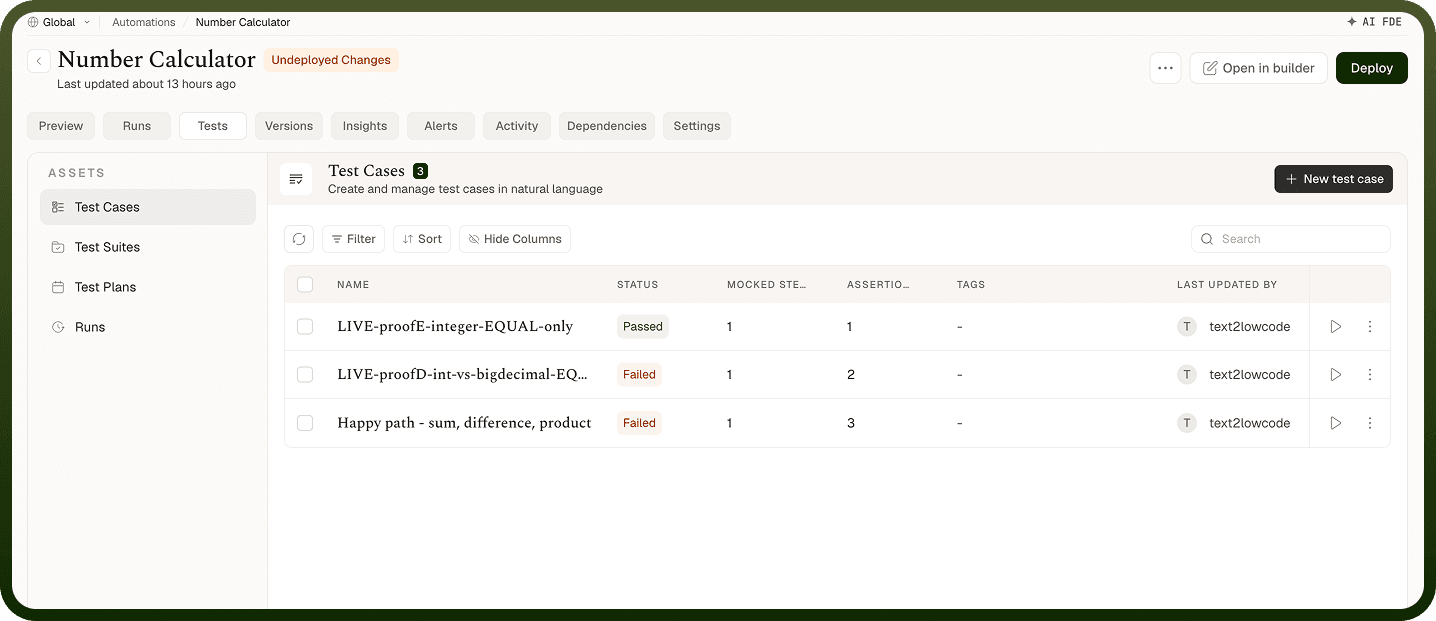
Test Studio organizes testing around reusable test cases. Each test case is authored once and run as many times as needed — before a deploy, after a configuration change, or as part of a test suite. Unlike a one-off test run that fires your automation against a real trigger payload, a test case replaces live step execution with mock data you control, making it possible to test edge cases, error paths, and conditional branches that a real trigger payload might never produce on its own.
What Is a Test Case
A test case records three things: a trigger output (supplied as sample data), the mock behavior of every step in the automation, and any assertions that check step outputs against expected values. When a test case runs, the trigger is never executed against a live system — you supply a payload that stands in for its real output. Each downstream step then runs live, produces mocked output data, or returns a simulated error, depending on how you have configured it.
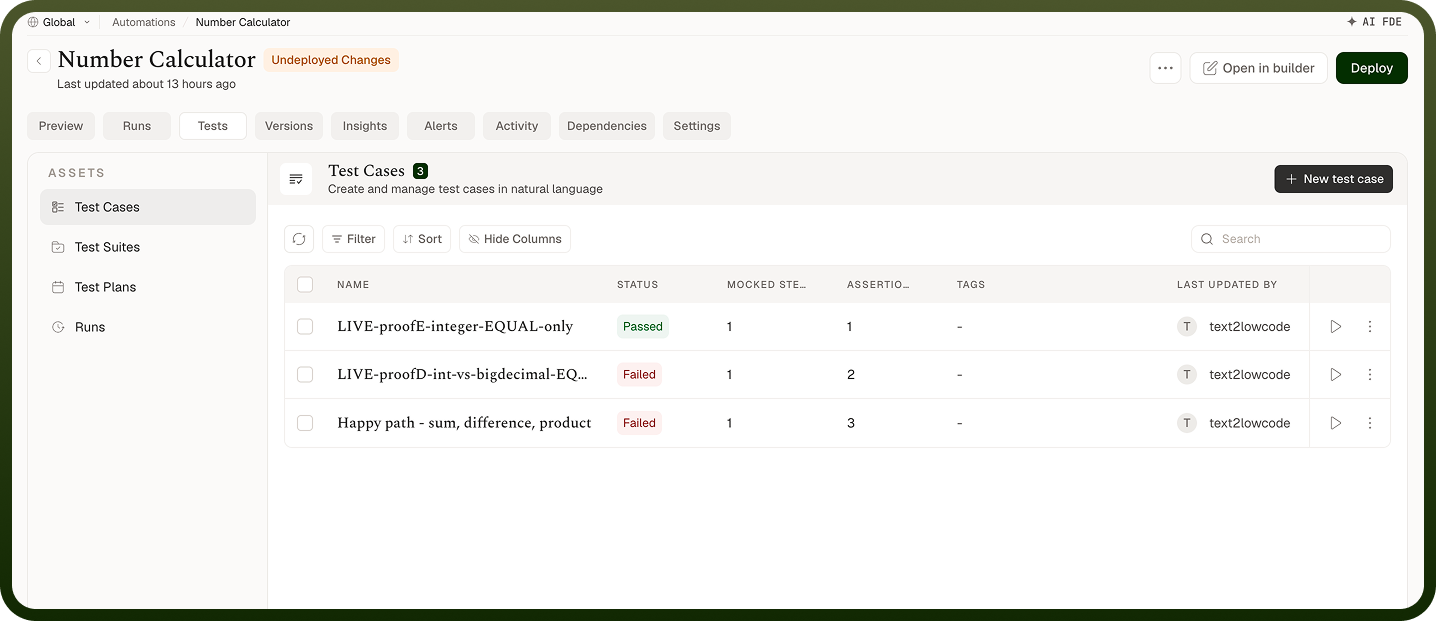
Each test case exposes the following properties on the Test Cases screen:
Property | Description |
|---|---|
Name | A label that identifies this test case in the list. Use a descriptive name that reflects the scenario being tested — for example, Empty API response or High-priority ticket path. |
Tags | Optional free-form labels for organizing and filtering test cases. You can apply more than one tag to a single test case. |
Mocks | The count of steps configured with mocked output data or mocked error data in this test case. |
Assertions | The count of output assertions configured across all steps in this test case. |
How to Create a Test Case
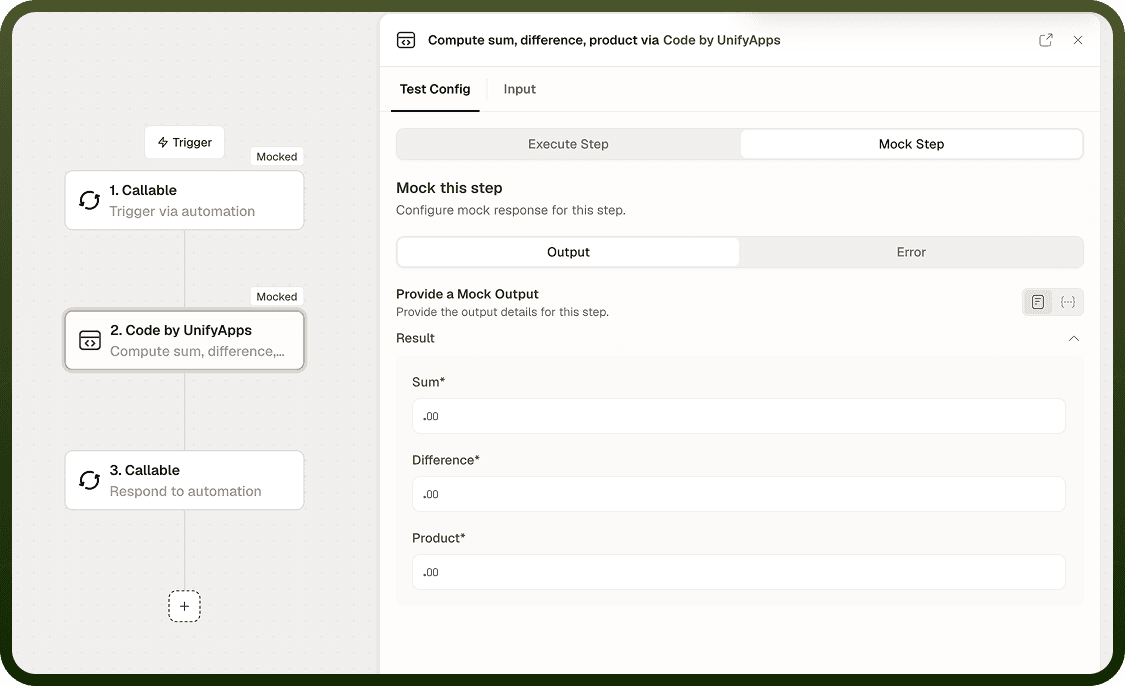
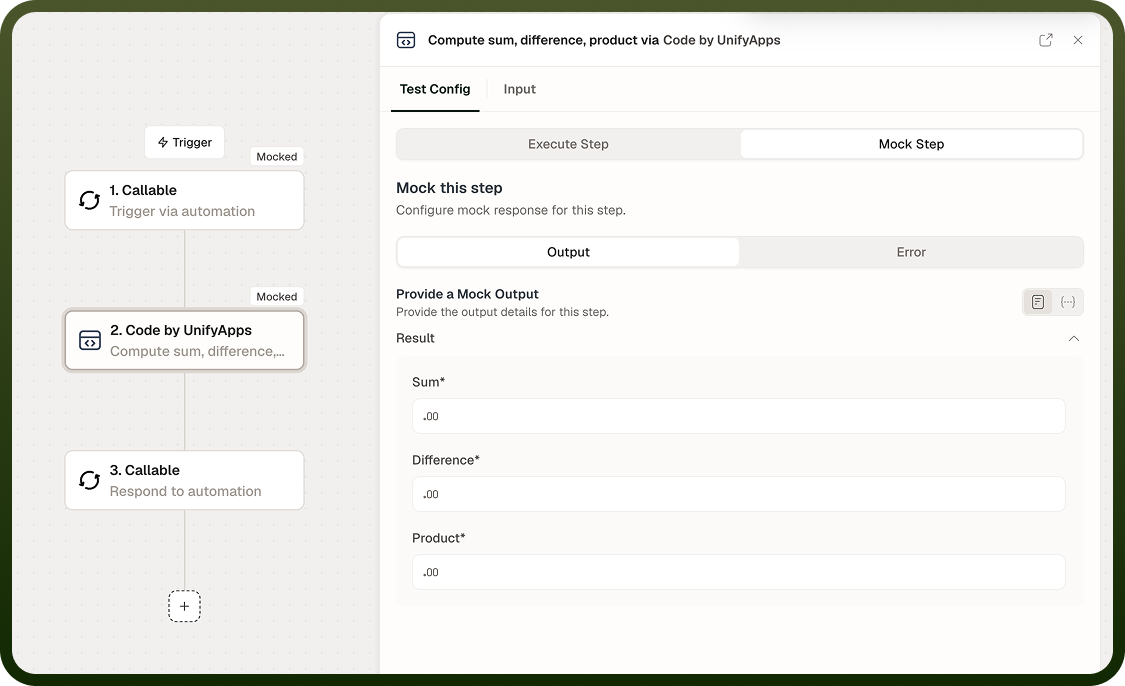
Test cases are built on the automation canvas. You configure the trigger's sample output and then set the mock behavior for each step in the automation.
Open your automation and navigate to the Test Cases screen.
Click New Test Case.
Enter a Name for the test case. Optionally, add one or more Tags.
On the automation canvas, click the trigger node and select Mock this trigger.
In the Provide Trigger Output panel, enter the sample data that the trigger should appear to have produced. Use the Form view to fill in fields individually, or switch to JSON to paste a raw payload.
For each subsequent step in the automation, click the step and choose one of the three mock behaviors described below.
For steps whose outputs you want to verify, add assertions to the step.
Save the test case.
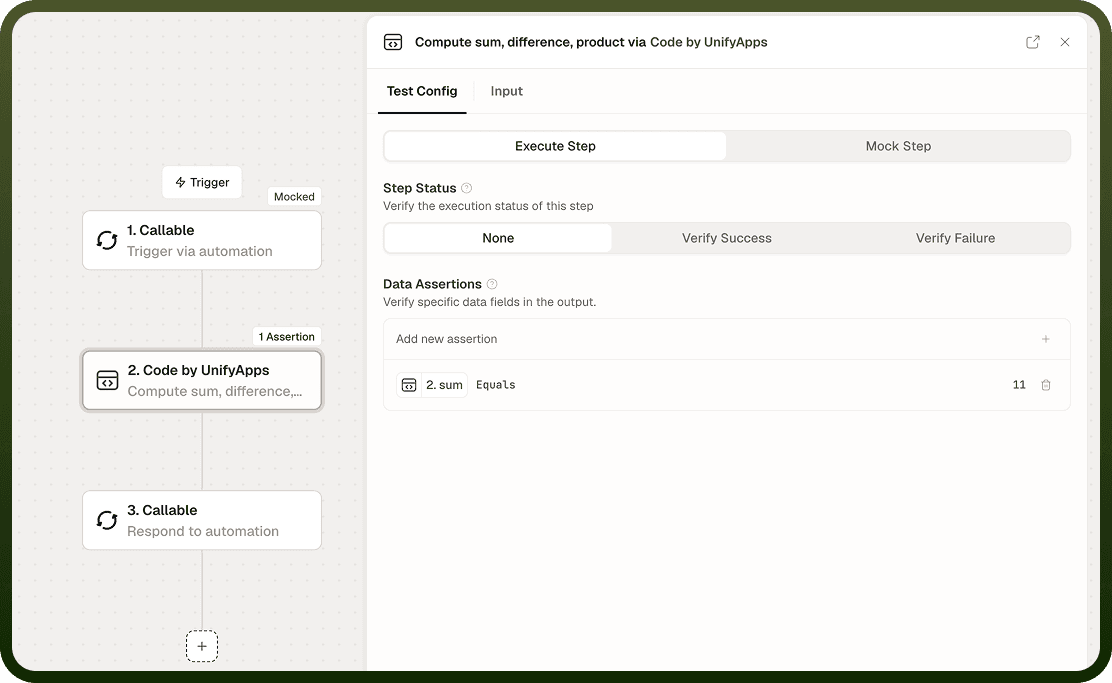
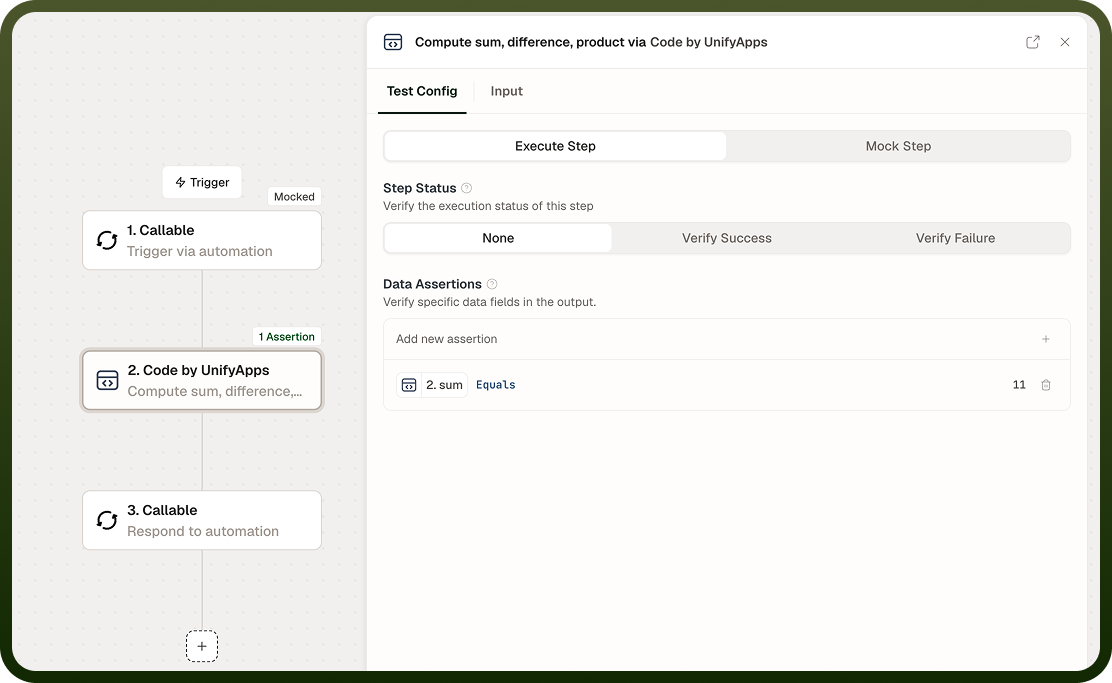
Note: Triggers in test cases cannot be executed to produce data. You must always supply sample data as the trigger's output using Mock this trigger. The prompt reads: "Triggers in test cases can't be executed to produce data. Instead, use sample test data as output."
Configuring Step Behavior
For each non-trigger step, you choose one of three behaviors using a three-way toggle. The choice determines whether the step runs against a live system or is replaced by fixed data during the test case run.
Mock Setting | Behavior |
|---|---|
Do Not Mock | The step executes against live systems in real time. Use this when a step must call a real API or write to a real system as part of the test scenario. The step's actual output is used by downstream steps. |
Mock Output Data | The step is skipped. Its output is replaced with the fixed data you provide. Downstream steps receive the mock data as if the step had executed normally. |
Mock Error | The step is skipped and a simulated error output is returned. Use this to test how your automation handles failures in a downstream system. |
When supplying mock output data, three input methods are available:
Form — Fill in output fields individually using a form generated from the step's output schema.
JSON — Paste or type a raw JSON payload that represents the step's output.
Pick from previous run — Select the output from a real execution of this step to use as mock data. This is the fastest way to get realistic mock data.
Note: When a step is mocked, test data replaces actual execution output for all downstream steps in the test case run. The live system is not contacted for mocked steps.
Assertions
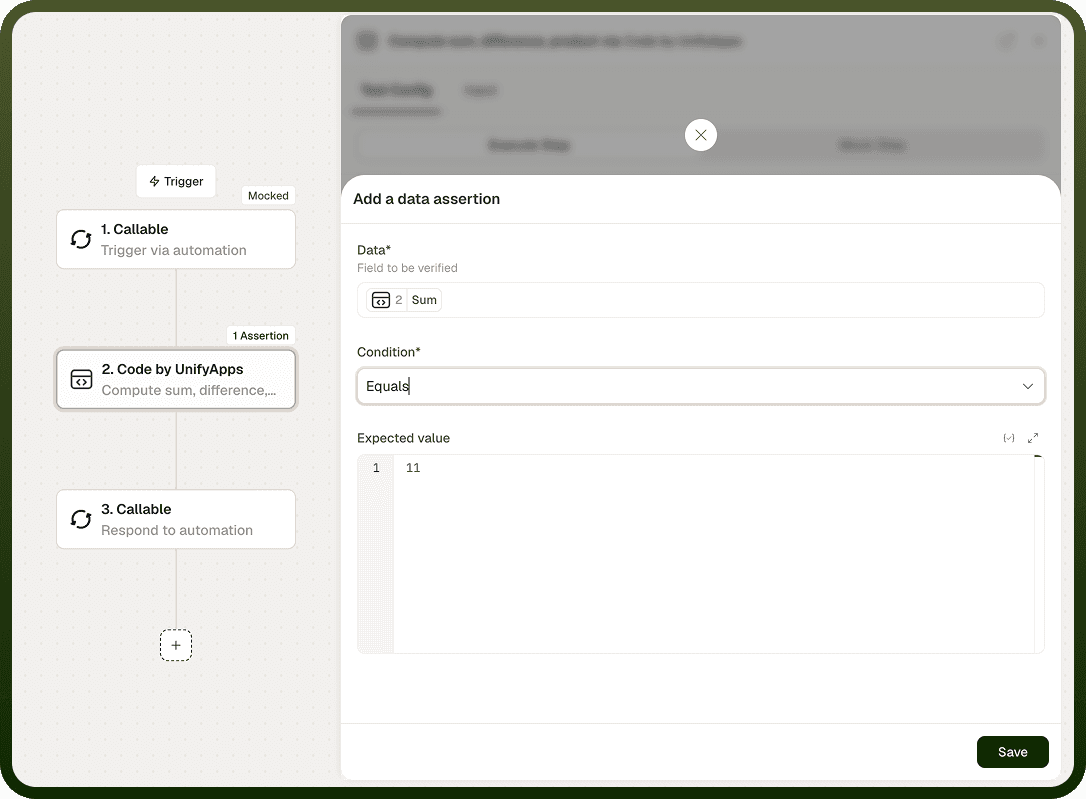
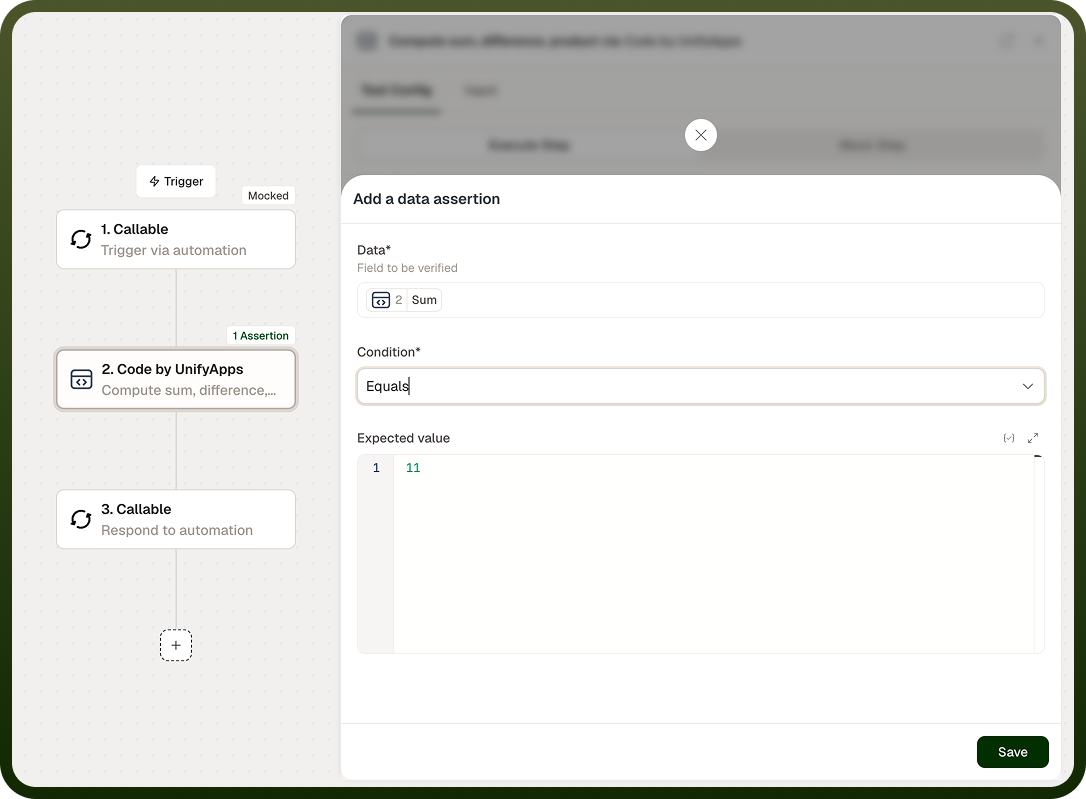
Assertions are checks attached to individual steps that verify the step's output during a test case run. Add assertions to any non-trigger step to confirm that its output values match what you expect. Each assertion you configure adds to the Assertions count shown on the test case card.
Assertions are the primary mechanism for turning a test case into a regression guard: if a change to your automation causes a step to return a different value, the assertion catches the discrepancy during the next test suite run without requiring you to manually inspect each node's output.
Managing Test Cases
All test cases for an automation appear on the Test Cases screen. The following actions are available for each test case in the list:
Action | Description |
|---|---|
Search | Filter the test case list by name to locate a specific scenario quickly. |
Edit | Open the test case in the builder to modify its name, tags, mock settings, or assertions. |
Clone | Duplicate the test case. Use this to create a variant of an existing scenario without rebuilding the mock configuration from scratch. |
Delete | Remove the test case permanently. A confirmation prompt is shown before deletion. |
Notes
Test cases give you a library of repeatable, deterministic scenarios that you can run against your automation at any time. To get the most coverage from them:
Name each test case after the scenario it covers — for example, Empty list response or Downstream API failure — so the results list is readable at a glance without opening individual cases.
Use Pick from previous run when populating mock output data; it captures exactly what the live system returned, producing more realistic mock data than a manually typed payload.
Add assertions to every step whose output feeds a branch condition or a critical downstream step — these are the most common sources of regressions after automation changes.
Include at least one test case per suite that uses Mock Error on a key step, to confirm your automation handles external failures gracefully and not only the happy path.
Use Clone to create variants of an existing test case when two scenarios differ by only one or two mock values — it is faster than rebuilding the configuration from scratch.
Tag test cases to group related scenarios; filtering by tag is useful when a change is scoped to one part of the automation and you want to run only the relevant subset.
A complete test case library covers at least the main success path, each significant conditional branch, and at least one error path per step that contacts an external system.