


Saved versions record every edit you make as you build, while deployed versions are the deliberate snapshots you publish to run live — understanding the difference lets you navigate version history and roll back with confidence.
Overview
UnifyApps tracks two distinct kinds of version records for every automation: saved versions and deployed versions. Understanding the difference helps you use version history to review your edit trail, roll back safely, and know exactly which configuration is running live at any moment.
Saving happens automatically as you edit. Deploying is a deliberate action you take to promote your work to the live, running state. The two records coexist in the version panel; when a snapshot also happens to be a deployed version, it is marked so you can tell them apart at a glance.
Saved Versions
A saved version is an autosaved snapshot of your automation captured as you build. Every change you make produces a new entry in the Saved Version list, labelled with the exact date, time, and the name of the person who made the change.
Saved versions form your complete edit history. You can open any snapshot to view its flow on a read-only canvas and confirm it is the state you want before taking further action. From there you can restore it to the builder, which loads that snapshot as your working definition so you can continue editing or re-deploy it.
To find a specific snapshot, filter the Saved Version list by date-and-time range, by the person who updated it, or limit the list to snapshots that are also deployed versions.
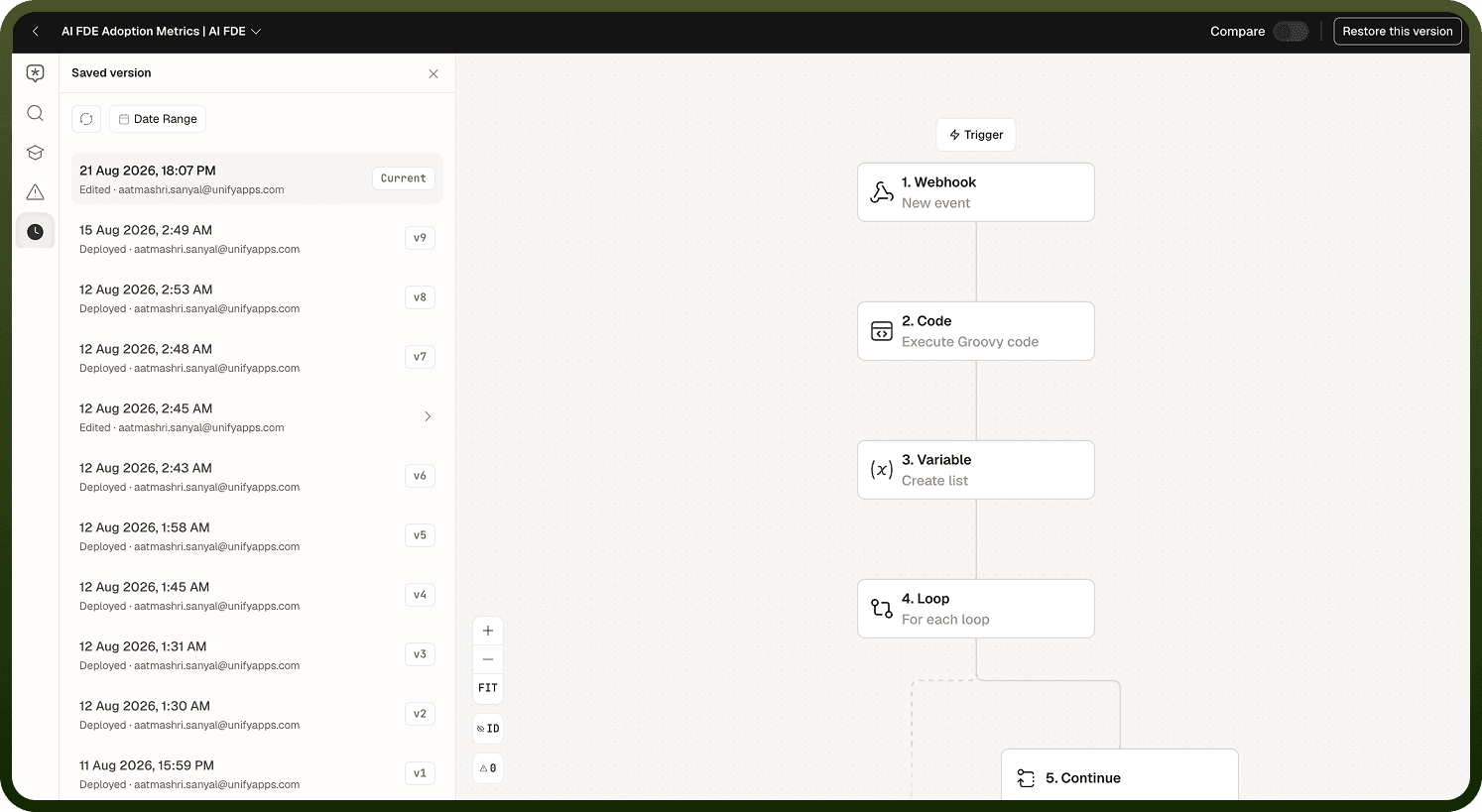
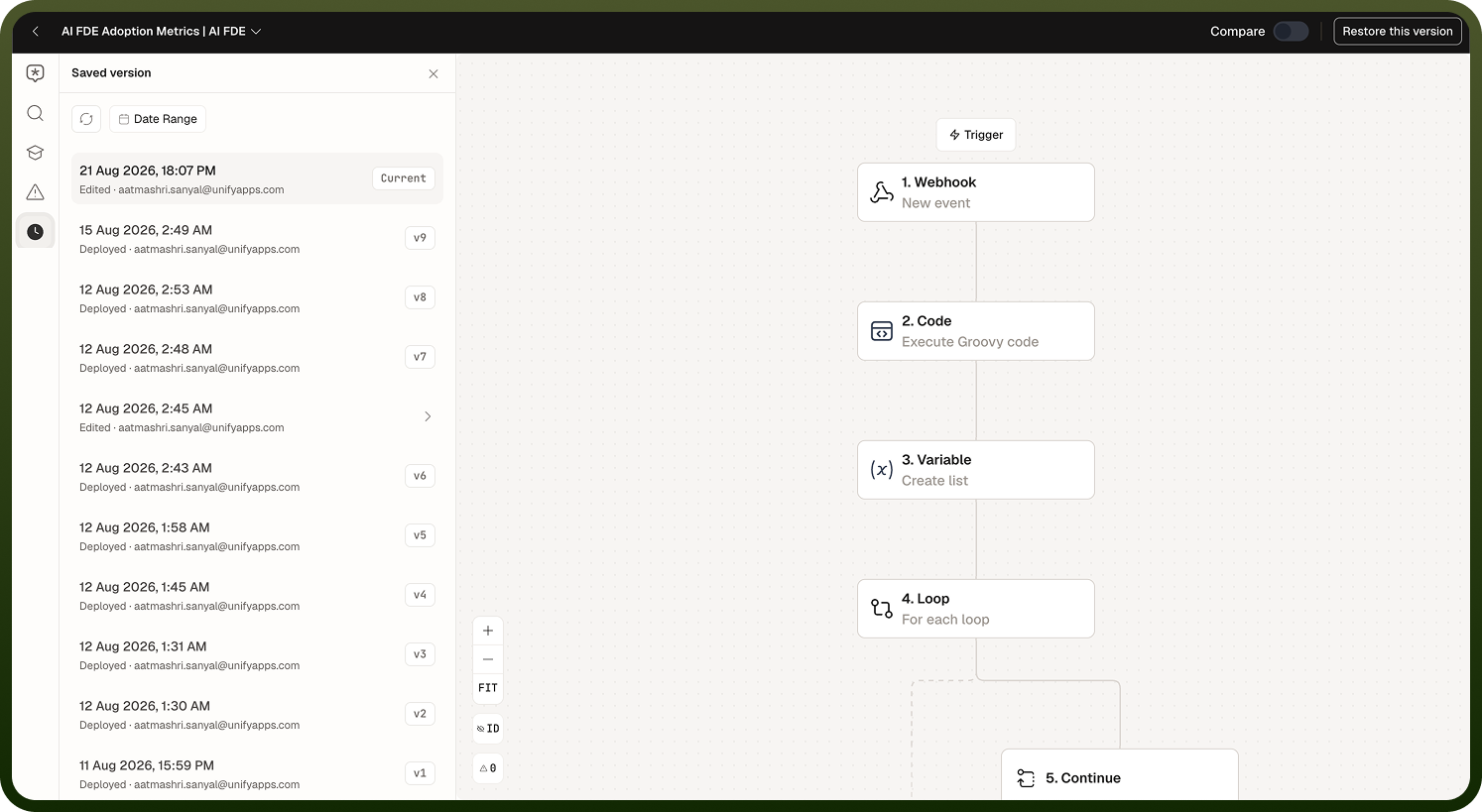
Note: If you have unsaved changes in the builder when you restore a saved version, you will see an "Unsaved changes detected" warning. Confirming the restore overrides your current unsaved changes; cancelling leaves them intact.
Deployed Versions
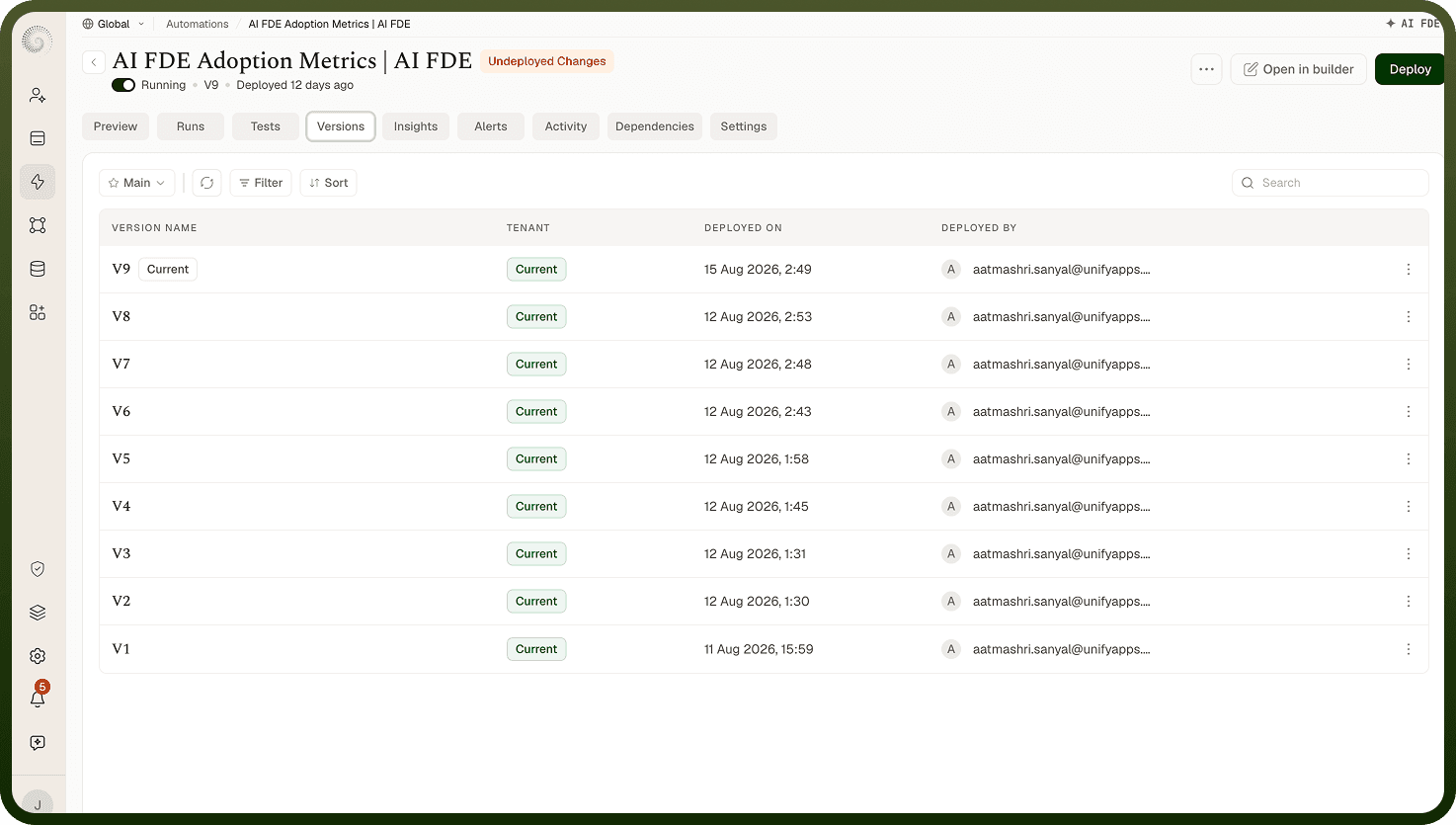
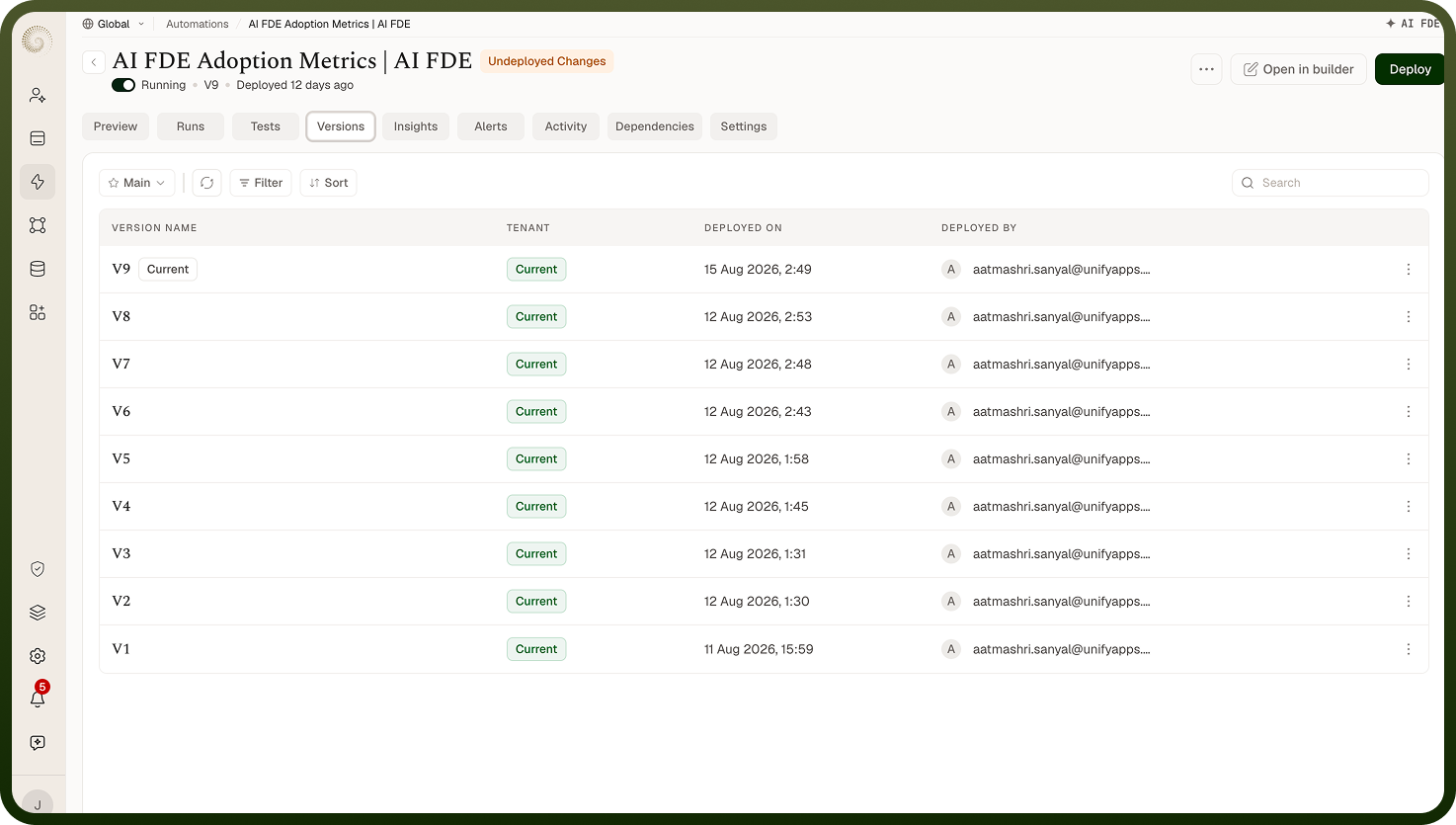
A deployed version is a snapshot you have explicitly published using the Deploy action. Each deployed version receives an automatically assigned version number — V1, V2, V3, and so on — an optional tag, the name of whoever deployed it, and the date and time. Once created, a deployed version is immutable: its configuration is preserved exactly as it was at the moment of deployment.
The Versions tab lists all deployed versions in reverse chronological order; new deploys appear at the top. The version that is currently running is marked with a purple Current badge. You can search the list by tag to locate a specific release quickly.
Opening any deployed version shows its flow on a read-only canvas with a header displaying its version label, tag (if any), and the date it was created. From this detail view you can compare it against another version or restore it to the builder.
Until you deploy, your edits remain as saved work and do not affect live runs. Deploying validates the automation first — if any node has a configuration error, the deploy is blocked and the problem nodes are surfaced for you to fix before publishing.
Key Differences
Attribute | Saved Version | Deployed Version |
|---|---|---|
How it is created | Automatically, as you edit | Manually, when you click Deploy |
Where it appears | Saved Version panel | Versions tab |
Version number | Not assigned; identified by timestamp | Assigned automatically (V1, V2, V3 …) |
Tag | Not applicable | Optional, added at deploy time |
Affects live runs? | No — draft only | Yes — the current deployed version runs live |
Immutable? | Yes — each snapshot is a fixed point in edit history | Yes — configuration is frozen at deployment time |
"Current" indicator | Not applicable | Purple "Current" badge on the live version |
Can be restored? | Yes, via Restore Version in the Saved Version panel | Yes, via "Restore this version" in the version detail view |
Notes
Saved versions and deployed versions complement each other: saved versions give you a granular edit trail for day-to-day review, while deployed versions mark the deliberate milestones you have published to production. To make the most of it:
Use the Saved Version filter options (date range, user) to narrow down a long edit history quickly.
Check the Versions tab before restoring a deployed version to confirm the current version number, so you know what will change.
Remember that restoring any version — saved or deployed — loads the chosen configuration into the builder; nothing goes live until you deploy again.
When a saved snapshot is also a deployed version, the panel marks it explicitly so you can distinguish between the two record types in a single view.
Restoring a version restores the automation's configuration, not its run history; past runs remain in the Monitor tab regardless of which version is active.
Together, saved and deployed version records give you a granular edit trail for day-to-day review alongside stable, immutable checkpoints marking every release you have published.