


The flow builder canvas lets you add, remove, reorder, and restructure steps without leaving the editor. Every change — adding a step, renaming it, skipping it, or grouping it — is made on the canvas or through the right-click menu, and takes effect immediately in the saved draft.
Adding Steps
Click the dashed + button below the last step, or the add affordance that appears between two existing steps. A picker opens where you choose an app and action, a control-flow step (condition, branch, loop, scope), or a built-in utility. The new step connects to the one above it automatically; open its properties panel to configure its connection and inputs.
Note: The add button only appears when you have edit access. A read-only automation shows the flow but no add control.
Right-Click Menu
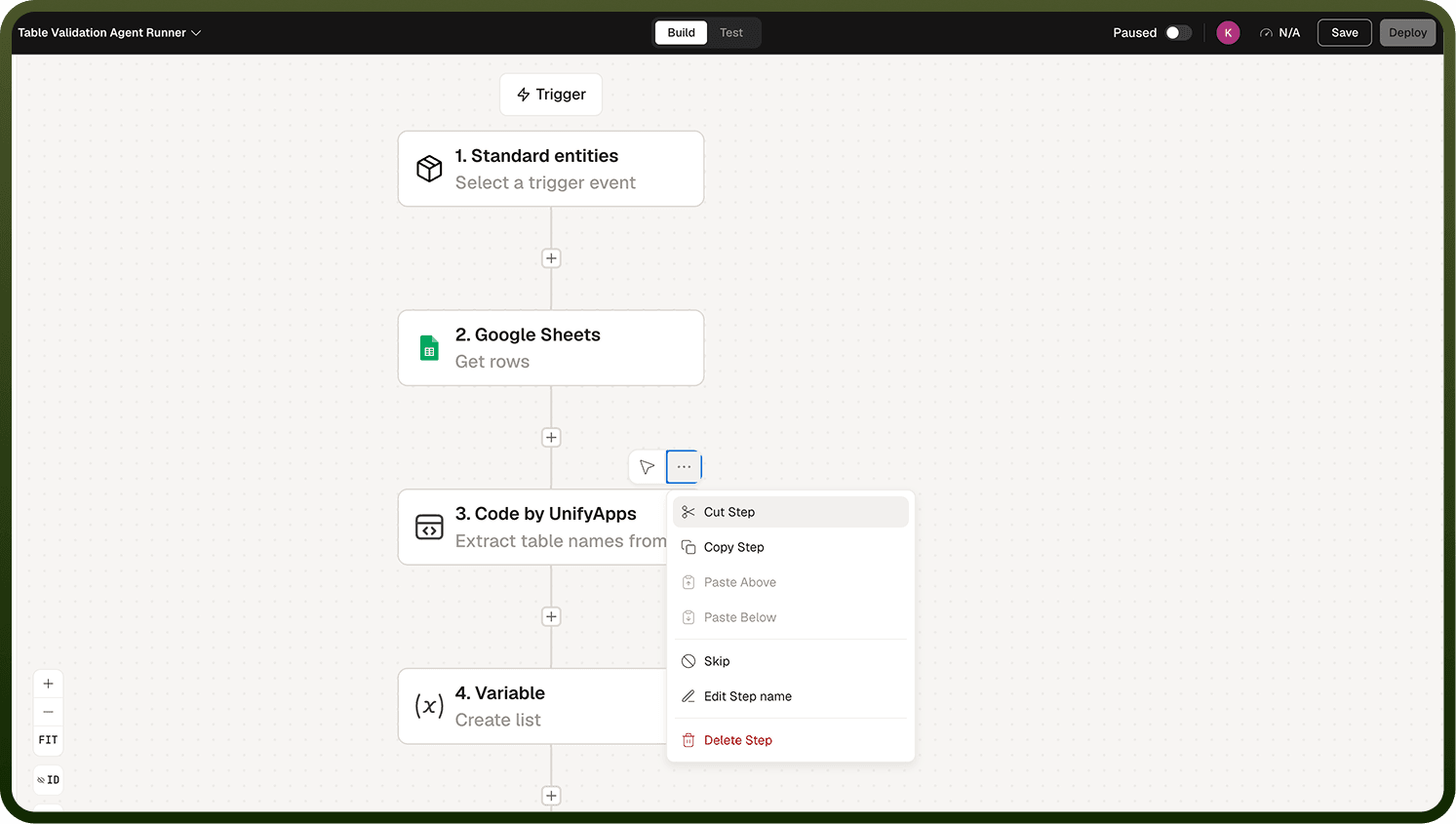
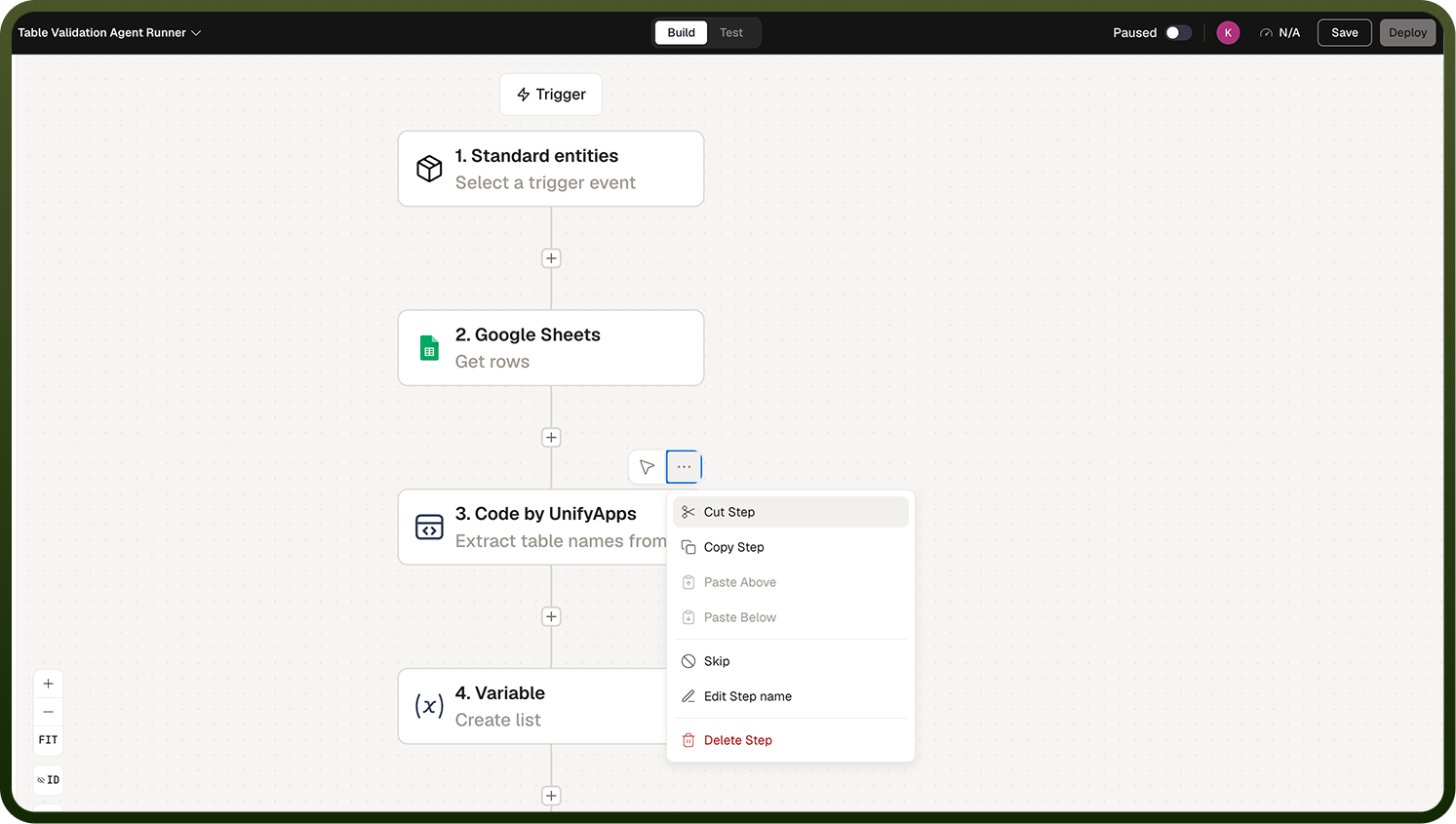
Right-click any step on the canvas to open a quick action menu. The options available depend on the step type:
Cut — removes the step and places it on the clipboard. An Undo option appears immediately.
Copy — copies the step to the clipboard without removing it.
Paste above / Paste below — inserts the clipboard step relative to the selected step. Only appears when the clipboard holds a step.
Skip / Unskip — marks the step to be bypassed during runs without deleting it.
Rename step — edits the step's display name inline.
Delete step — removes the step permanently (Undo is available immediately after).
The trigger step cannot be skipped or deleted from the right-click menu.
Copy, Cut, and Paste
Select one or more steps and use Copy or Cut (from the right-click menu or standard keyboard shortcuts on the canvas). Then Paste to drop them back — including into a different automation, since steps are copied as portable data. Connections between the copied steps are preserved. The trigger and end markers are never included in a copy or cut.
Working with Multiple Steps
Select multiple steps at once. A bulk actions bar appears showing how many steps are selected. From it you can:
Cut, Copy, Skip, Unskip — applied to all selected steps at once.
Group into a sub-automation — collapses the selection into a reusable child automation.
Delete — removes all selected steps together.
This is the fast way to restructure a section of a flow without touching each step individually.
Skipping Steps
Skip marks a step so it is bypassed when the automation runs — the flow continues as if that step were not there, without deleting it. Use it to temporarily disable part of a flow while testing or debugging, then Unskip to restore it. The trigger cannot be skipped.
Notes
The step editor works best when you follow these practices:
After a cut or delete, an Undo option appears immediately — use it if you change your mind before saving.
Pasted steps retain their original configuration, including data-pill references; check that those references still resolve in the new location.
Renaming a step updates its label on the canvas and in the run log; step IDs are not affected.
A well-configured set of editing steps reduces errors and keeps automations maintainable.