


Manual Run lets you trigger a deployed automation on demand from the Run History page, without waiting for a scheduled event or incoming webhook. Use it to start a real execution with your own trigger data and monitor the results directly in Run History.
Overview
A manual run lets you trigger a deployed automation on demand from the Run History page. You use the Run button at the top of Run History to open the Trigger New Run dialog, supply trigger data, and start a real execution of the automation. The resulting run appears in Run History alongside all other executions — scheduled, webhook-triggered, or re-run.
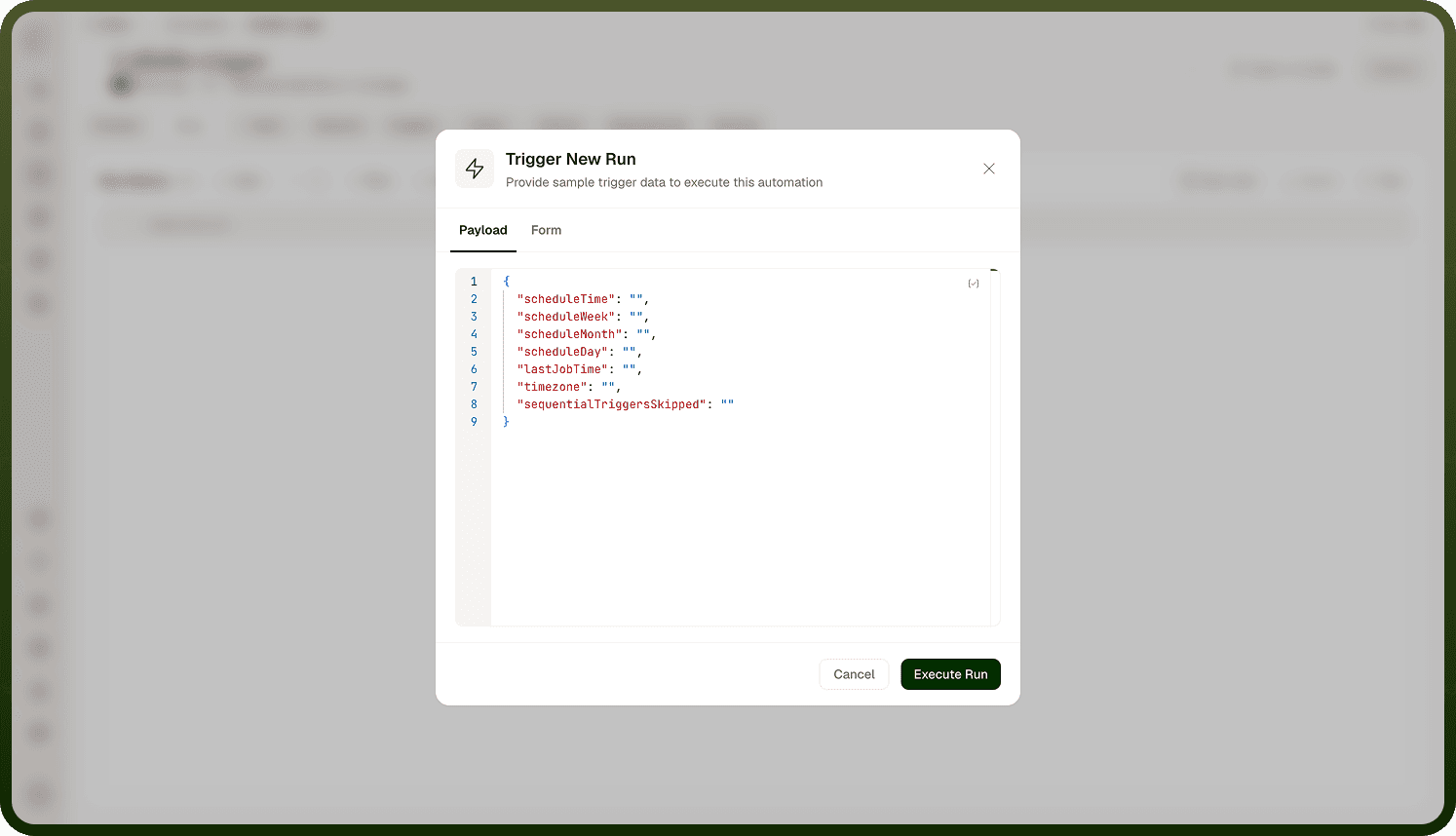
This is not a test run. Manual runs are actual executions of the deployed automation that use live connections and produce real results. They are recorded in Run History, not Test History.
Note: The Run button is disabled until the automation has been deployed at least once. If the button is not clickable, its tooltip reads Deploy the automation to execute it.
How to Run an Automation Manually
Open the automation and navigate to the Run History page.
Click the Run button at the top of Run History. The Trigger New Run dialog opens with the message "Provide sample trigger data to execute this automation."
Supply the trigger data that the automation expects.
Click Execute Run to start the execution.
The run appears in Run History. Open it to inspect step-by-step results, timing, and any errors.
Providing Input Data
The Trigger New Run dialog gives you two ways to supply trigger data:
Tab | Description |
|---|---|
Payload | A JSON editor where you enter the trigger data as a JSON body. |
Form | A form generated from the trigger's schema, with individual fields for each expected input. |
A Generate with AI button is available to auto-fill realistic sample data for you, which you can then review and adjust before executing.
Manual Run vs. Testing
Manual runs and test runs serve different purposes. Run History shows real executions of a deployed automation — triggered live, re-run, or started manually with sample data. Testing (a separate screen) lets you trial-run the automation before deploying, with step-through debugging and breakpoints, and keeps its own Test History separate from Run History. Use Run History to monitor production; use Test to validate changes first.
Notes
To make the most of manual runs:
Manual runs use live connections, so any writes or API calls they make are real — use test accounts or sandbox environments when you do not want to affect production data.
The automation must be deployed before you can use the Run button. If the button is disabled, deploy the automation first.
After a manual run, you can use Repeat Run from the run's details to re-run it — either the complete workflow from the trigger or from a failed step.
Use the date-range filter in Run History to locate past manual runs alongside scheduled and event-triggered executions.
If run history appears empty, check that run logging is enabled for the automation.