


Execute SQL Update runs a write SQL statement — an INSERT, UPDATE, or DELETE — against the platform's analytics and reporting store. Use it when your automation needs to modify data in the reporting layer rather than read from it.
Overview
Where Execute SQL Query is for reading, Execute SQL Update is for writing. It runs a data-modification statement against the analytics and reporting store and confirms how many rows were affected. You can bind runtime values safely using named placeholders, keeping your statements free of hardcoded data.
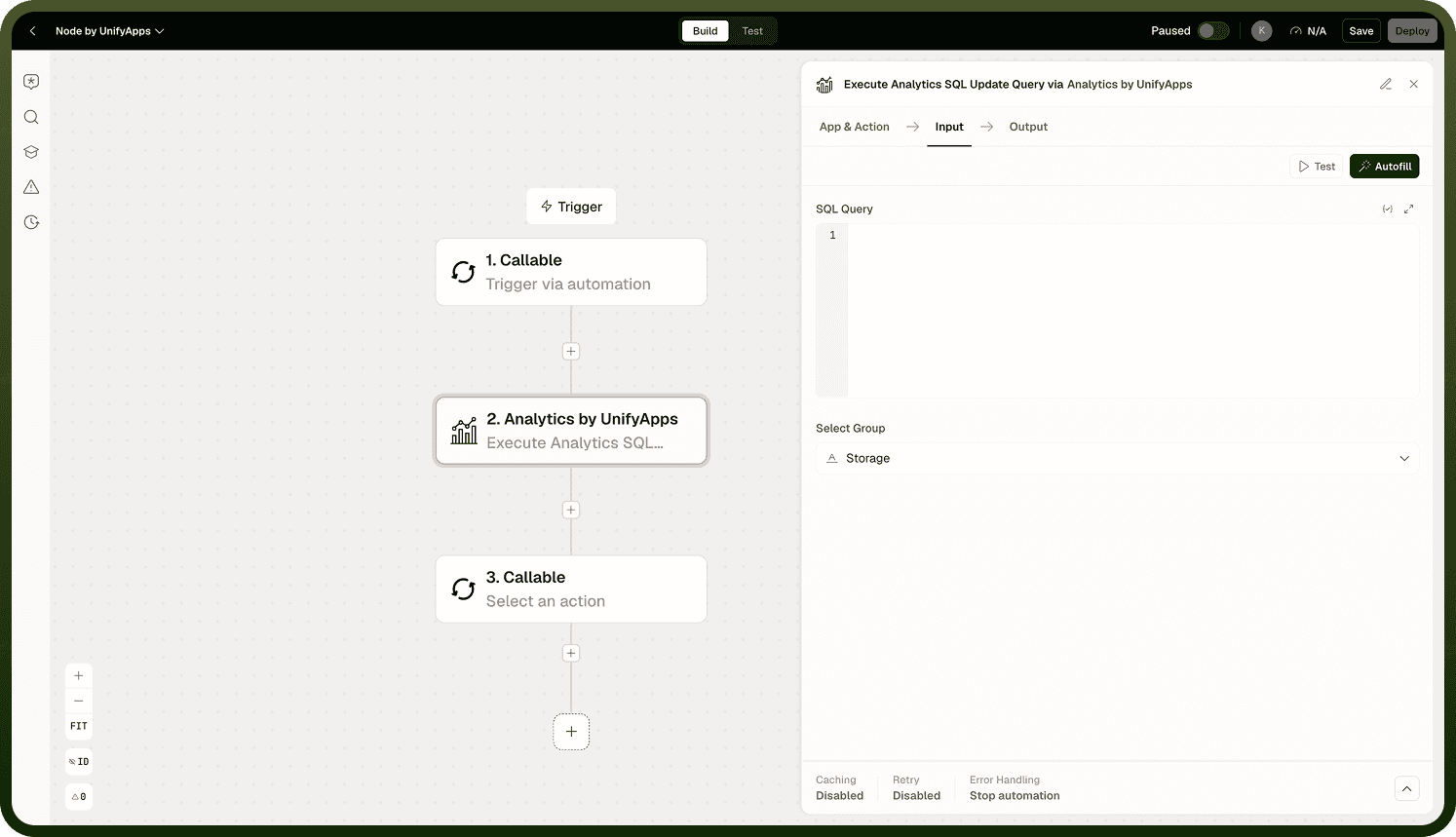
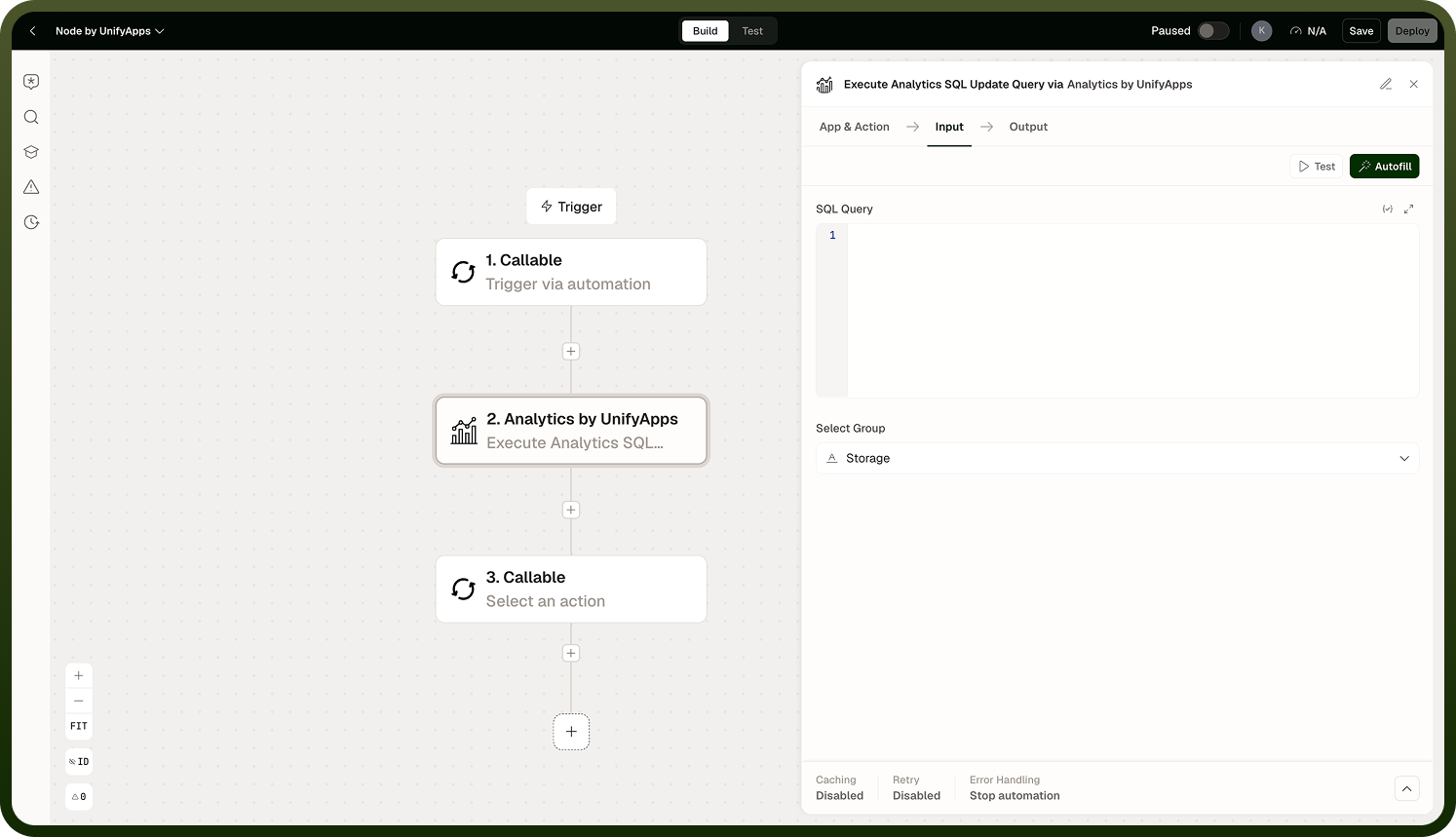
Common uses include marking records as processed after a workflow step, inserting audit entries, or clearing stale data on a schedule. Because this action modifies the reporting store directly, treat it with the same care you would any destructive database operation — verify your WHERE clause before deployment.
Input
Field | Description | Required |
|---|---|---|
SQL Statement | A valid INSERT, UPDATE, or DELETE statement to run against the analytics and reporting store. Use named placeholders in the form :name rather than positional ? markers. | * |
Parameters | Key-value pairs that bind runtime values to the named placeholders in your statement. Each key must match a :name placeholder exactly. |
Output
The action returns a result object confirming the outcome of the write operation:
A rows affected count indicating how many rows were inserted, updated, or deleted by the statement.
A success or failure status so downstream nodes can branch on whether the operation completed.
Notes
Keep the following in mind when using Execute SQL Update.
Use named placeholders (:name) for all variable values — positional ? markers are not supported.
This action modifies data in the analytics and reporting store. It does not affect workflow execution logs or the log store.
Always include a WHERE clause in UPDATE and DELETE statements unless a full-table operation is intentional — an unguarded statement will affect every row.
A rows affected count of zero is not an error; it means the statement ran but matched no rows. Handle this case explicitly if your automation logic depends on a modification having occurred.
For reading data from the reporting store, use Execute SQL Query instead — this action does not return row data, only an affected-row count.
Test write statements against a non-production dataset first, particularly DELETE statements. Data modifications through this node are applied directly to the reporting store and cannot be automatically reversed by the automation platform.