


Test Studio is a dedicated test management area within the automation builder that goes beyond single, one-off test runs.
Overview
While the Test tab lets you execute your automation against a trigger payload and inspect each node's inputs and outputs, Test Studio provides a structured environment for defining reusable test cases — each with controlled inputs, mocked step outputs, and verifiable assertions — and grouping them into test suites for organized, repeatable validation.
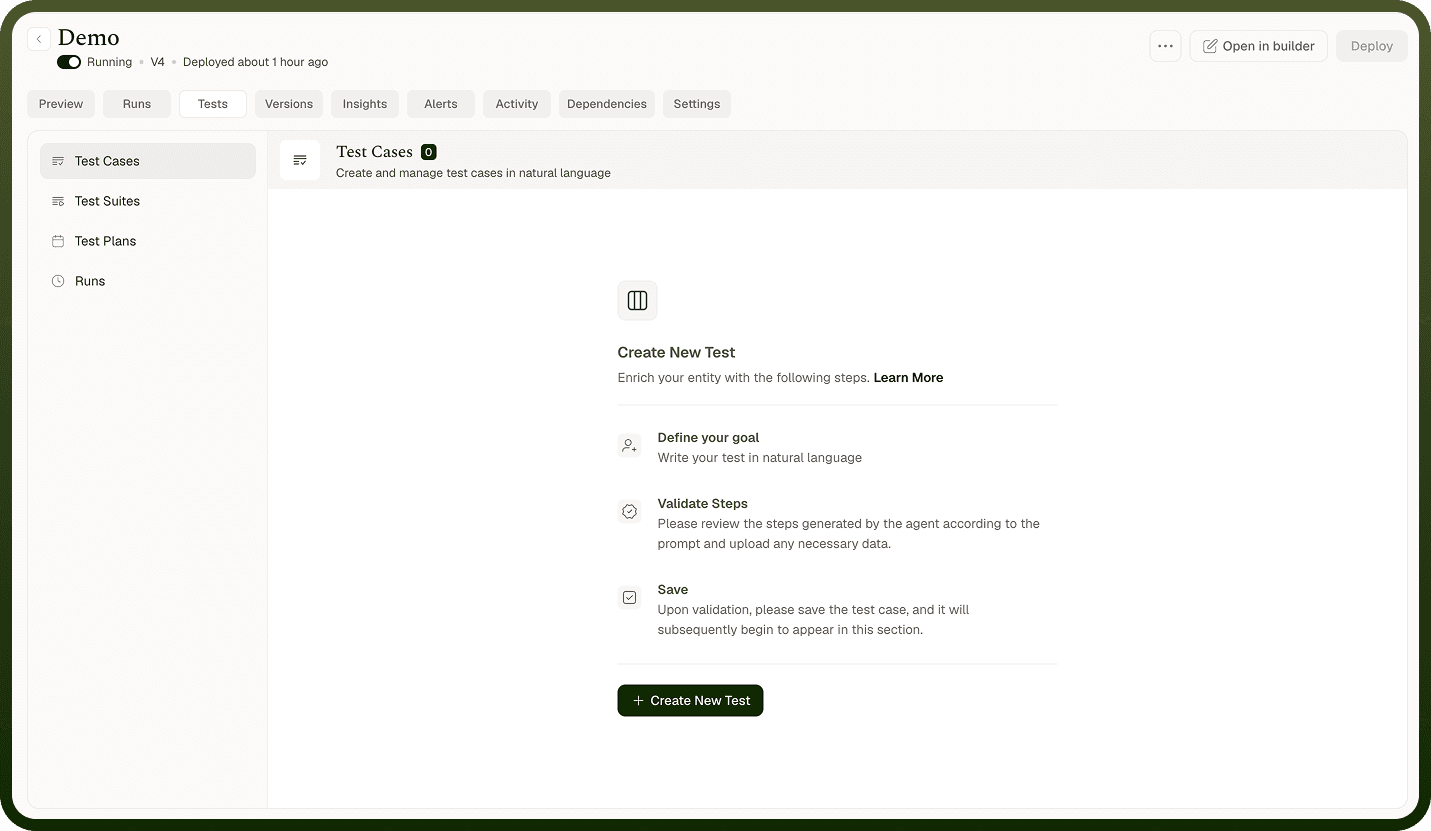
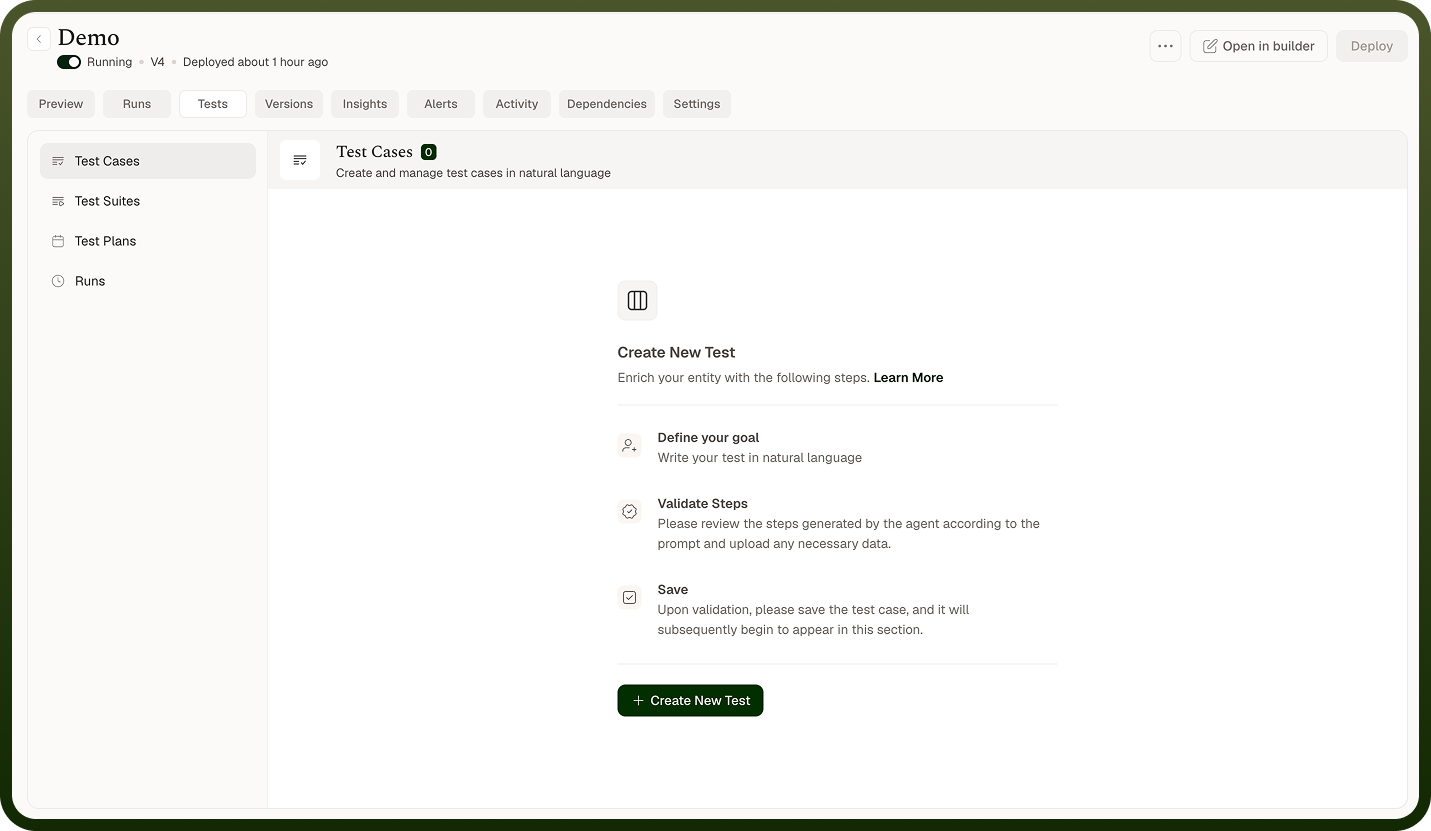
Use Test Studio to:
Define saved scenarios that cover different branches and edge cases in your automation logic
Replace live external calls with fixed mock data, making tests reliable and independent of external systems
Run test suites before deploying changes and review outcomes from the Runs tab
Note: A basic test run executes your automation live against a real trigger payload. A Test Studio test case replaces live step output with fixed mock data instead, so it produces the same result every time.
Test Cases
This section covers:
What a test case is
Creating a test case
Configuring step mock behavior
Assertions
Managing test cases
What is a Test Case?
A test case is a saved testing scenario for your automation. It records trigger sample data, each step's mock behavior (live, mocked output, or mocked error), and assertions that verify step outputs.
Each test case displays the following properties on the Test Cases screen:
Property | Description |
|---|---|
Name | Identifies the test case in the list, e.g. "Empty API response". |
Tags | Optional free-form labels for organizing and filtering test cases. |
Mocks | Count of steps configured with mocked output or mocked error data. |
Assertions | Count of output assertions configured across all steps. |
Creating a Test Case
Open your automation, navigate to the Test Cases screen, and click New Test Case.
Enter a Name for the test case. Optionally, add one or more Tags.
Click the trigger node, select Mock this trigger, and enter sample trigger data as Form or JSON.
For each subsequent step, click it, choose a mock behavior, and add assertions to verify its output.
Save the test case.
Note: Triggers in test cases cannot be executed to produce data. Always supply sample data as the trigger's output using Mock this trigger.
Configuring Step Mock Behavior
For each non-trigger step, choose one of the following behaviors using a toggle:
Mock Setting | Behavior |
|---|---|
Do Not Mock | The step executes live. Use this when it must call a real API or system as part of the scenario. |
Mock Output Data | The step is skipped; downstream steps receive the fixed output you provide, as Form or raw JSON. |
Mock Error | The step is skipped and returns a simulated error output, as Form or JSON, for testing failure handling. |
Assertions
Assertions are checks attached to a step that verify its output during a test case run. Add them to any non-trigger step — each one becomes a regression guard, flagging the next suite run if a change causes the step's output to differ.
Managing Test Cases
Each test case in the list supports the following actions:
Action | Description |
|---|---|
Search | Filter the test case list by name. |
Edit | Open the test case in the builder to modify its name, tags, mock settings, or assertions. |
Clone | Duplicate the test case to create a variant without rebuilding the mock configuration. |
Delete | Remove the test case permanently, after a confirmation prompt. |
Test Suites
A test suite is a collection of test cases executed together as a group, so you can run your full set of scenarios — or a targeted subset — in a single operation before deploying a change.
Runs
The Runs tab on the Test Cases screen shows the outcomes of test case and test suite runs, scoped to the current automation. If no suite has been run yet, it displays a placeholder message instead.
Notes
Test Studio separates test authoring from test execution, giving you a library of reusable scenarios you can run on demand. To make the most of it:
Name test cases after the scenario they cover so the Runs tab is readable without opening each case.
Add assertions to every step whose output feeds a branch condition or a critical downstream step.
Run all test cases in a suite before deploying any change, and confirm all assertions pass in the Runs tab.
Use Mock Error on at least one test case per suite to verify failure handling, not just the happy path.