


The Activity tab provides a running timeline of every configuration change made to an automation — who performed each action and when.
Overview
The Activity tab provides a running timeline of every configuration change made to an automation — who performed each action and when. Use it to answer the question "who changed this and when?" rather than to review execution results, which appear on the Runs tab instead.
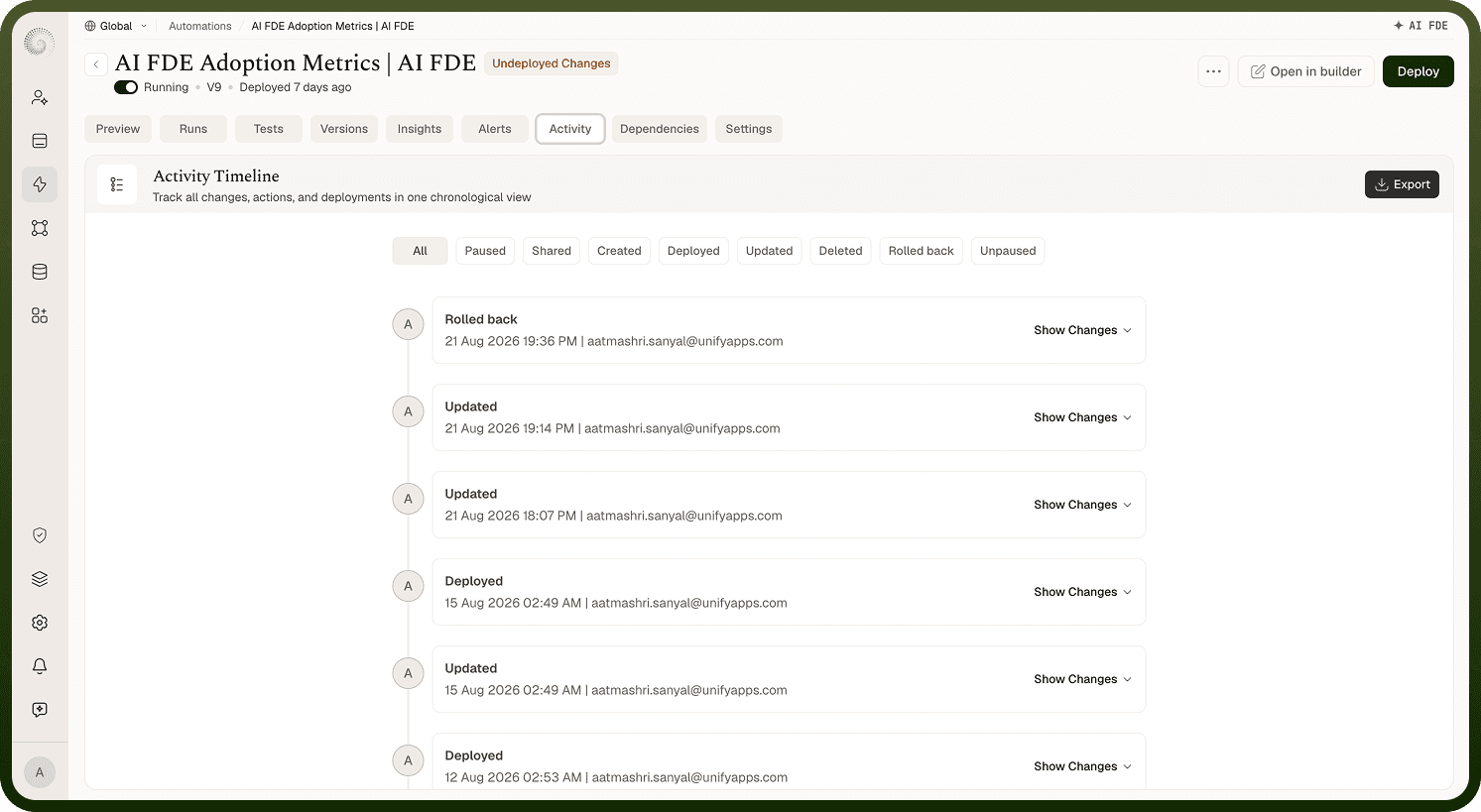
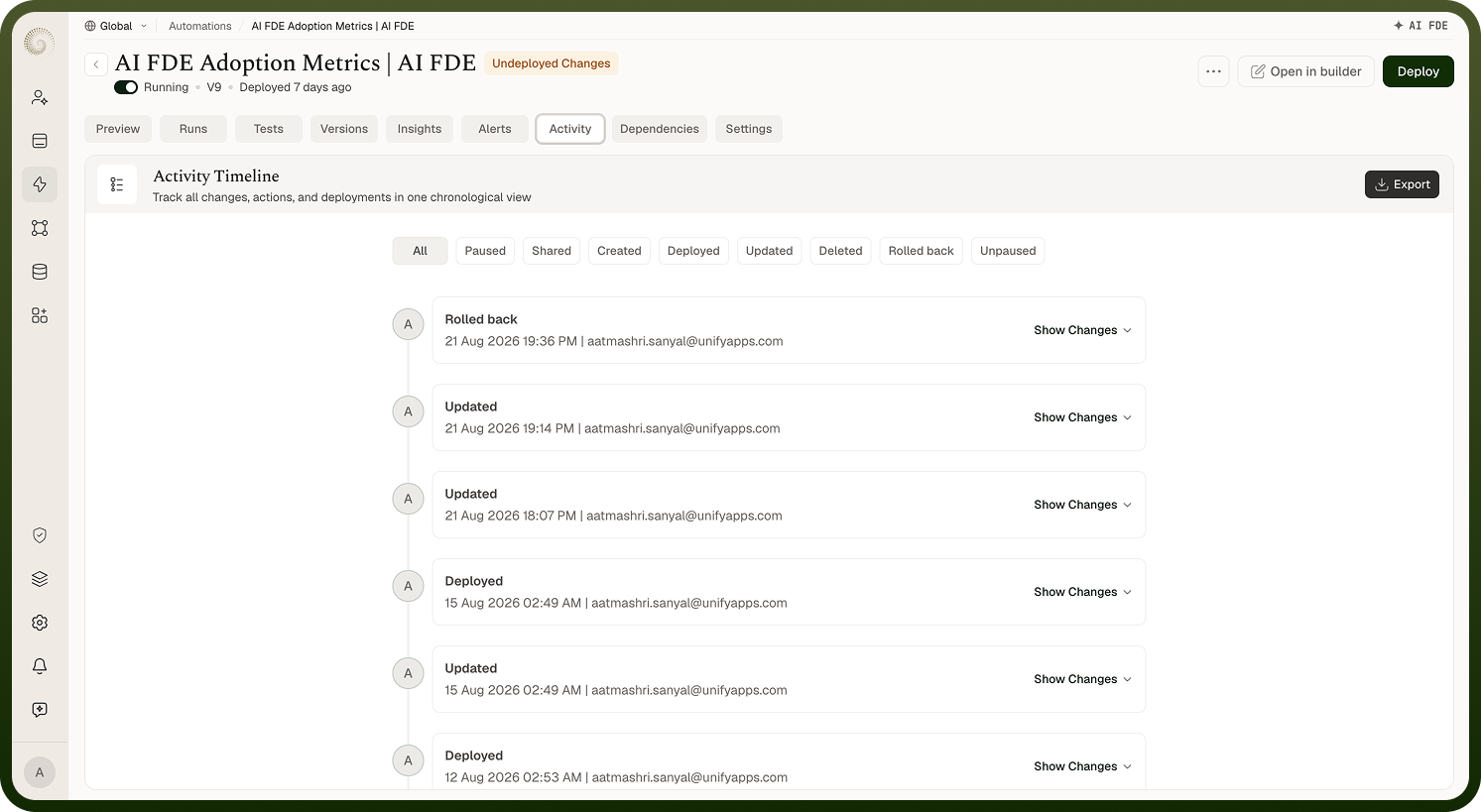
Activity is an audit trail for the automation's design and access settings. Each entry in the timeline records an action, the person or system that performed it, and the exact timestamp. The list loads newest-first and shows more entries as you scroll.
Note: Activity records changes to an automation's configuration and access — not its executions. Run history lives on the Runs screen. Version-to-version diffs are available on the Versions screen via Compare.
Navigating the Activity Log
Open the Activity log by selecting the Activity tab inside any automation's detail view. The timeline loads immediately and displays entries in reverse-chronological order — the most recent change is always at the top.
Each entry in the log shows:
Action — a description of what was changed (for example, a save, a deployment, or a sharing update).
Performed by — the name of the collaborator or system that made the change.
Timestamp — the date and time of the action.
Scroll down to load older entries. The log does not paginate; it extends continuously as you reach the bottom of the visible list.
Filtering Activity
The Activity tab does not currently offer a built-in filter or search control. All entries are displayed in a single chronological stream. To locate a specific change:
Scroll through the timeline and read the action descriptions and timestamps directly.
Use your browser's in-page find (Ctrl+F / Cmd+F) to search for a collaborator's name or a keyword within visible entries.
Who can see the Activity log?
Anyone with access to view the automation can open its Activity tab and read its full change history. The timeline reflects actions by every collaborator who has worked on the automation, each entry attributed to the person who made the change. There is no separate permission required beyond view access to the automation itself.
Exporting activity history
An export option appears only if your workspace has it configured. If you do not see an export control in the Activity tab, that capability is not enabled for your workspace. To preserve a record of specific entries, scroll the timeline and take a screenshot of the entries you need.
Notes
To make the most of it:
Check Activity before rolling back a version — confirm who deployed the version in question and when, so you have context before making changes.
Use Activity alongside the Versions tab: Activity tells you who deployed each version; the Versions tab lets you compare what changed between them.
When investigating an unexpected behavior, review Activity first to see whether a recent configuration change preceded the problem.
For shared automations, review Activity periodically to stay aware of changes made by other collaborators.