This reference defines the key terms and concepts — trigger, node, run, operator, callable, and more — used throughout Unify Automations documentation and the product interface, so you can navigate both with confidence.
Overview
This page defines the terms used throughout Unify Automations documentation and the product interface. Each entry explains what the term means, how it relates to other concepts, and where you encounter it when building automations.
Glossary
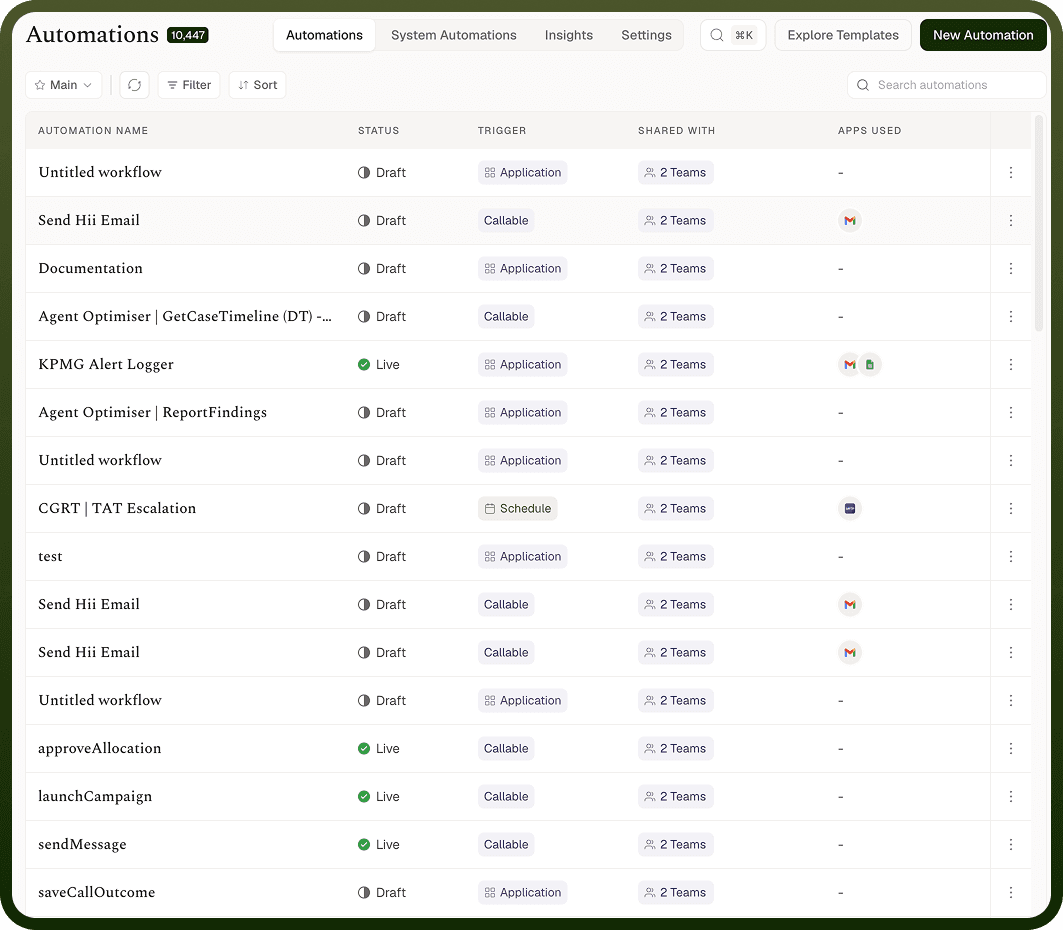
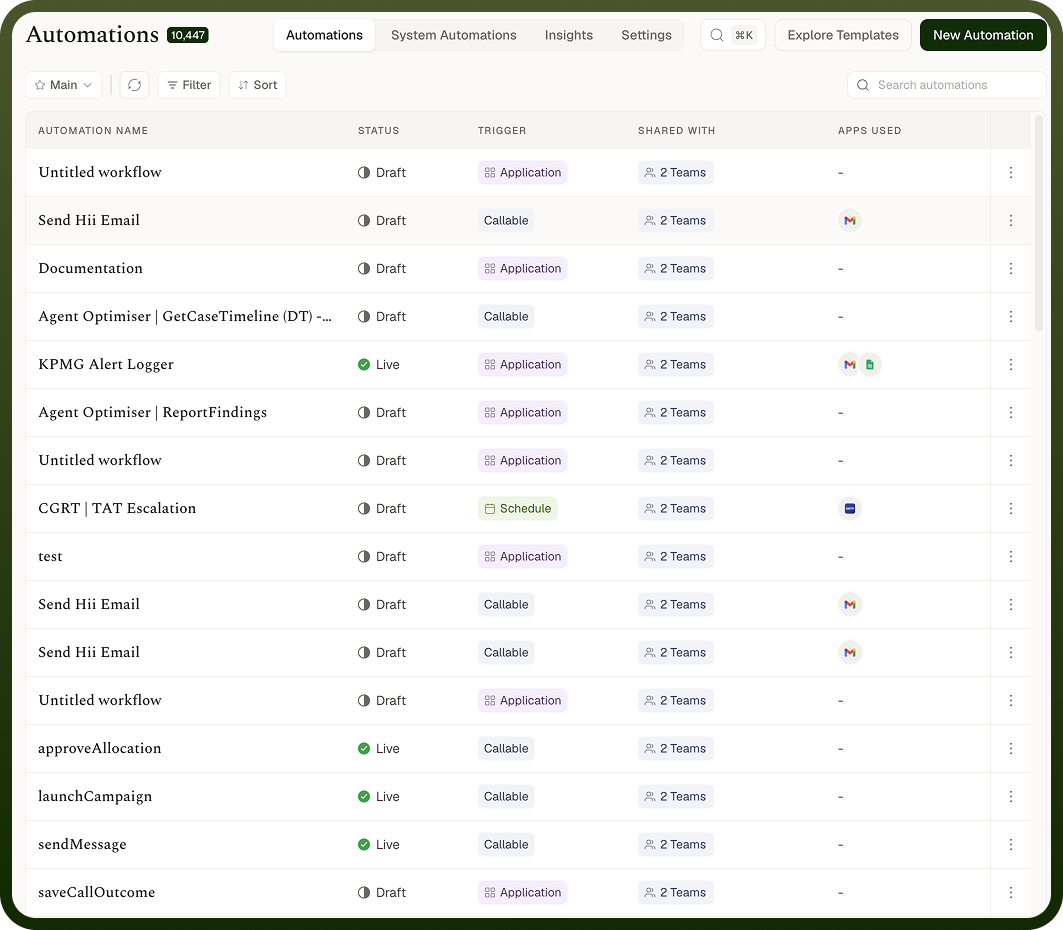
An automation is the top-level object you build in Unify Automations. It defines a complete workflow: one trigger and the actions that execute when that trigger fires. An automation exists as a named, versioned artifact in your workspace. It can be active (running in response to real events), inactive (paused), or in draft. You manage automations from the Automations section of the platform — creating, editing, versioning, and monitoring them there.
Example: An automation named "New Lead to Slack" listens for new CRM contacts and posts a summary message to a Slack channel whenever one is created.
The following terms are used throughout Unify Automations:
Trigger
Action
Run
Node
Data Pill
Operator
Connector
Workspace
Trigger
The trigger is the single event that starts a run of the automation. Every automation has exactly one trigger. The trigger defines what the automation is waiting for — an event in a connected app, an incoming HTTP request, a recurring schedule, or a direct call from another automation or external system. Nothing executes until the trigger fires.
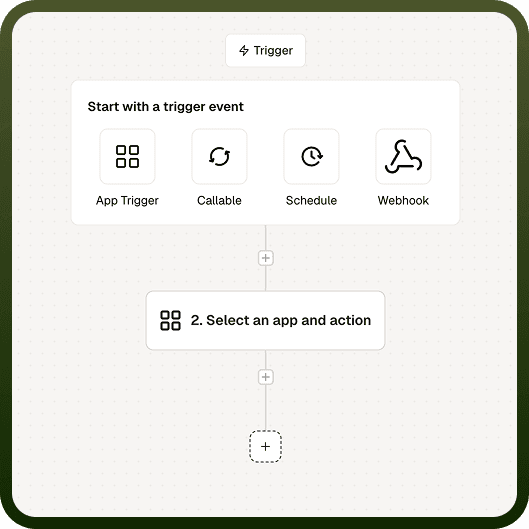
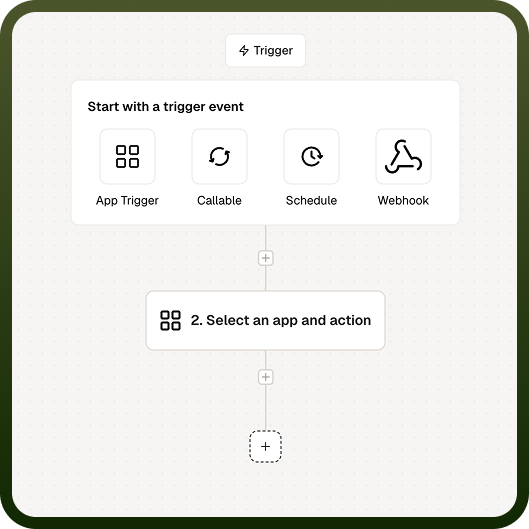
Trigger types:
Trigger | What starts it | Key detail |
|---|---|---|
Application Trigger | An event on a connected third-party app, or an event on the UnifyApps platform itself | Two variants — App Trigger (third-party app event) and Platform Event (platform-internal event); both expose the event's data as data pills to downstream steps |
Webhook | An inbound HTTP request to the automation's unique URL | Request body, headers, and query parameters are available to downstream steps; send a response back with the Respond to Webhook node |
Schedule | A recurring timetable defined as an interval or cron expression | Timezone-aware; minimum interval is 15 seconds; runs can be set to sequential or concurrent |
Callable | Another automation (or an external API call) invoking it like a function | Can run synchronously (parent waits for result) or asynchronously (fire-and-forget); optionally runs in the calling user's context |
Example: A Scheduler trigger set to run every weekday at 09:00 starts the automation regardless of any external event.
Action
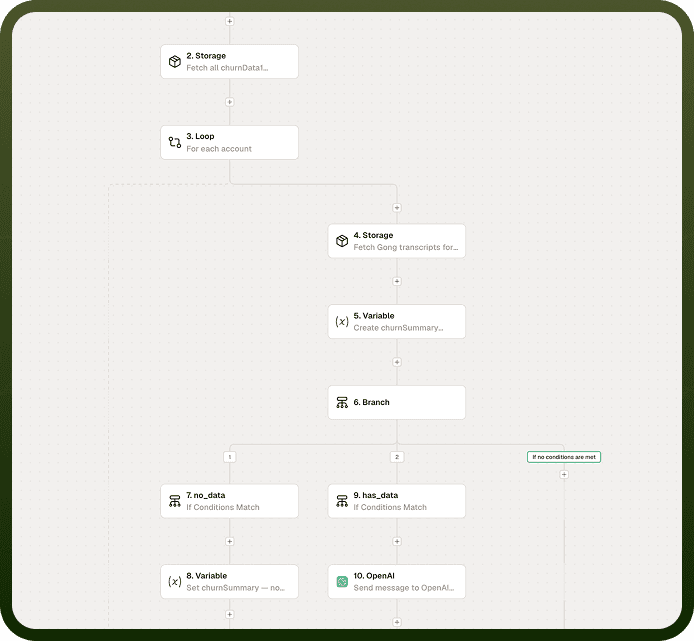
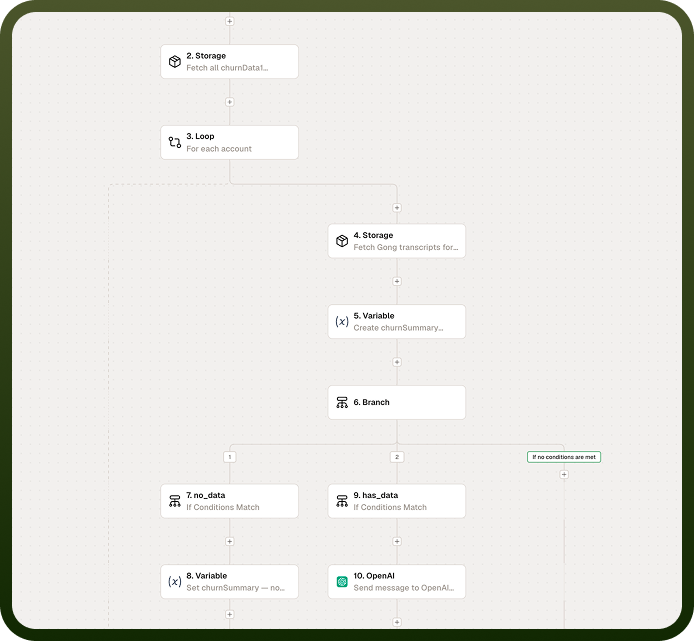
An action is a step that executes after the trigger fires. Actions do the work of the automation: they call external apps, manipulate data, or control the flow of execution. A single automation can have any number of actions. Actions are grouped into three categories:
Logic tools — Condition, Branch, Loop, and Delay. These control how execution flows through the automation without calling any external service.
UnifyApps actions — built-in platform capabilities including Storage by UnifyApps (key-value and structured storage), Variables by UnifyApps (run-scoped variables), and Code by UnifyApps (inline JavaScript, Groovy, Python, or Java).
Connector actions — app-specific operations such as "Post message in Slack" or "Create record in Salesforce". The available list reflects the connectors configured in your workspace.
Example: After a trigger fires, an action "Post message in Slack" sends a formatted notification to a channel, followed by a "Create record in Salesforce" action that logs the event.
Run
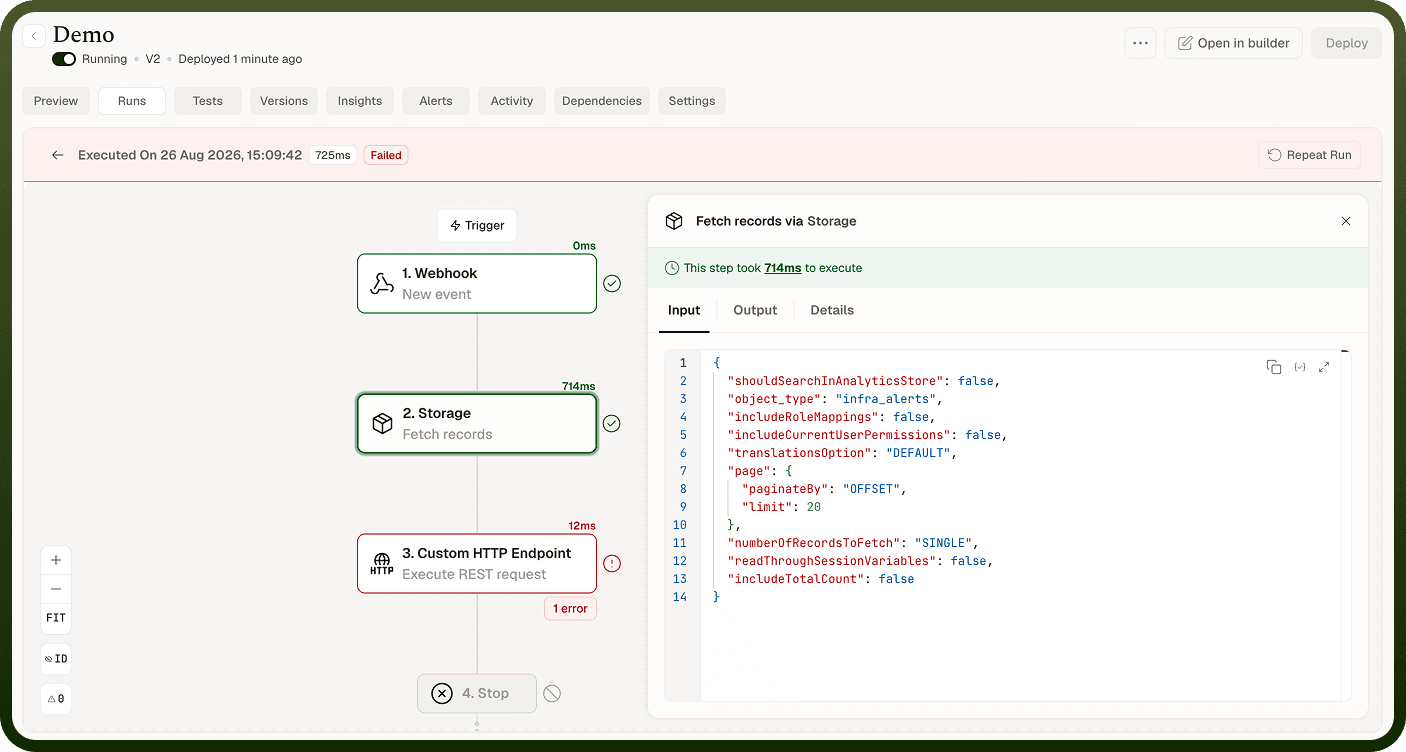
A run is one complete execution of an automation — from the moment the trigger fires to the final action completing (or an error halting execution). Every run is recorded independently. You inspect runs in the Monitor tab, where each run shows its overall status, the timestamp it started, and the input and output of every node that executed. A single automation can have thousands of historical runs, each a separate record.
Example: If your automation triggers 50 times in a day, the Monitor tab shows 50 individual runs, each with its own trace.
Node
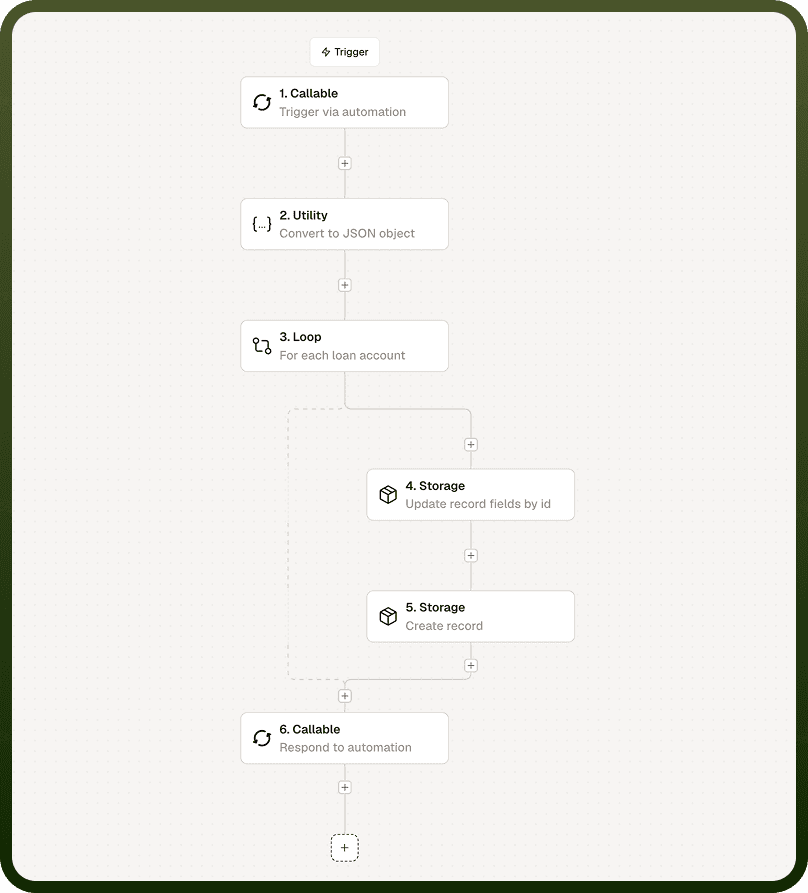
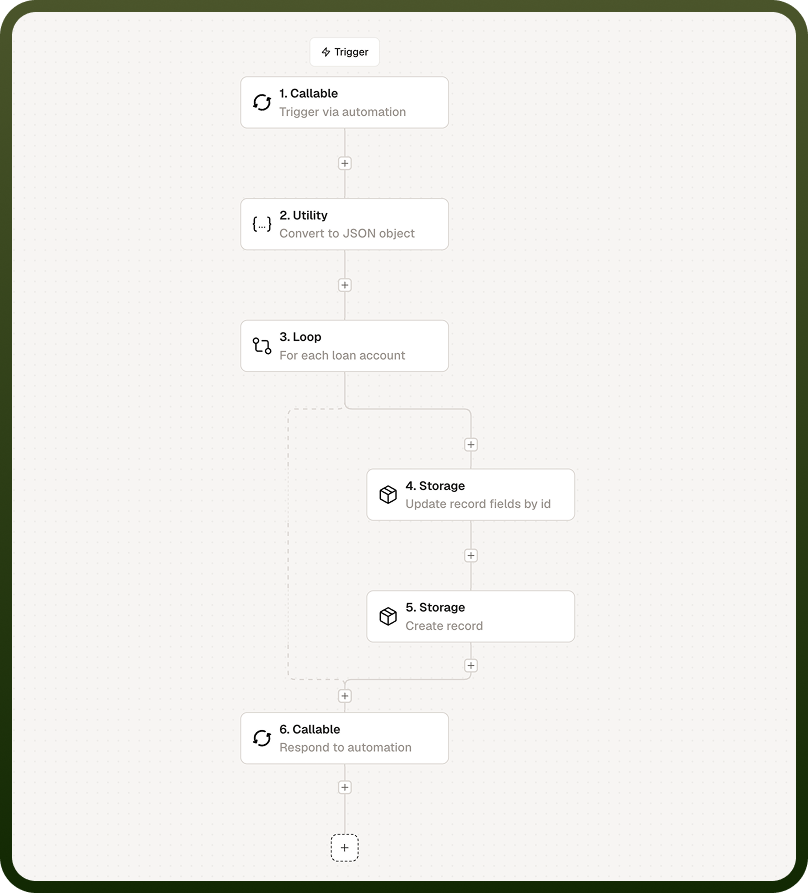
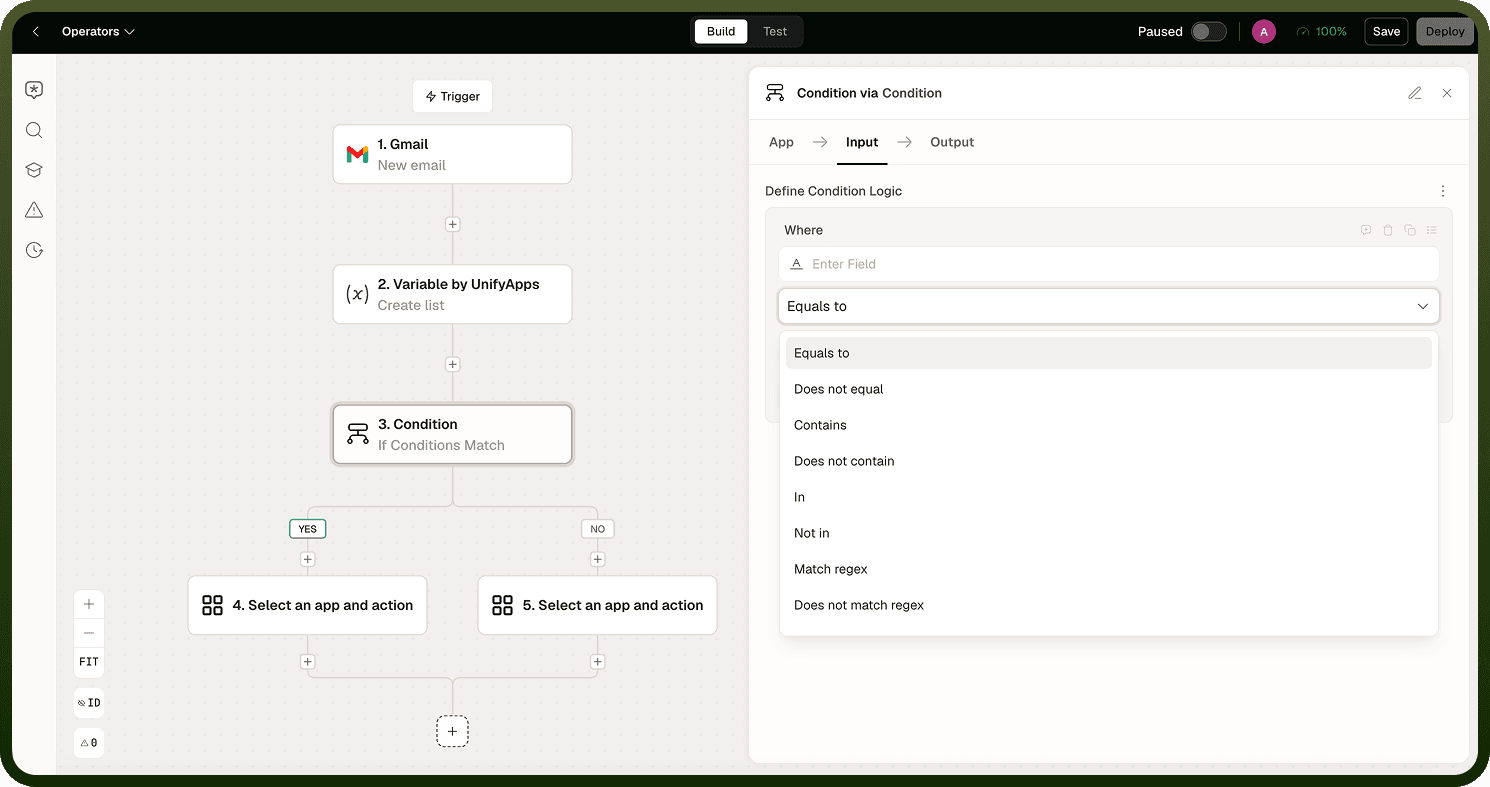
A node is any single step on the automation canvas — the trigger node plus every action node. Nodes are the building blocks of an automation. Each node has a configuration panel where you set its inputs, and after a test or live run it displays its output inline. Nodes are connected by edges that define the order of execution. In branching flows, different edges carry execution down different paths depending on conditions.
Example: A Condition node evaluates whether a field value exceeds a threshold and routes execution to one of two downstream nodes based on the result.
-new.png&w=1920&q=75)
-new.png)
Data Pill
A data pill is a dynamic reference to a field in the output of a previous node. Instead of typing a static value into an action's input field, you select a data pill to pass the actual value produced at runtime by an earlier step. Data pills are available in the input fields of any node that follows the node whose output you want to reference. They appear as labeled chips in the input field and resolve to their real values during each run.
Example: In a "Send Email" action, you set the recipient address using a data pill that references the email field from the "Get CRM Contact" node earlier in the flow — so each run sends to the correct address for that contact.
Operator
A workspace is the top-level organizational unit in UnifyApps. All automations, connections, templates, and team members belong to a workspace. Settings configured at the workspace level — such as connected apps, AI generation availability, and published templates — apply to every automation within that workspace. When you open Unify Automations, you are working within your workspace's scope: the automations you see, the connectors available, and the template library all reflect what has been set up for that workspace.
Example: Your team's workspace has the Slack and Jira connectors configured. Every automation your team builds can use those connectors without any additional setup.
Connector
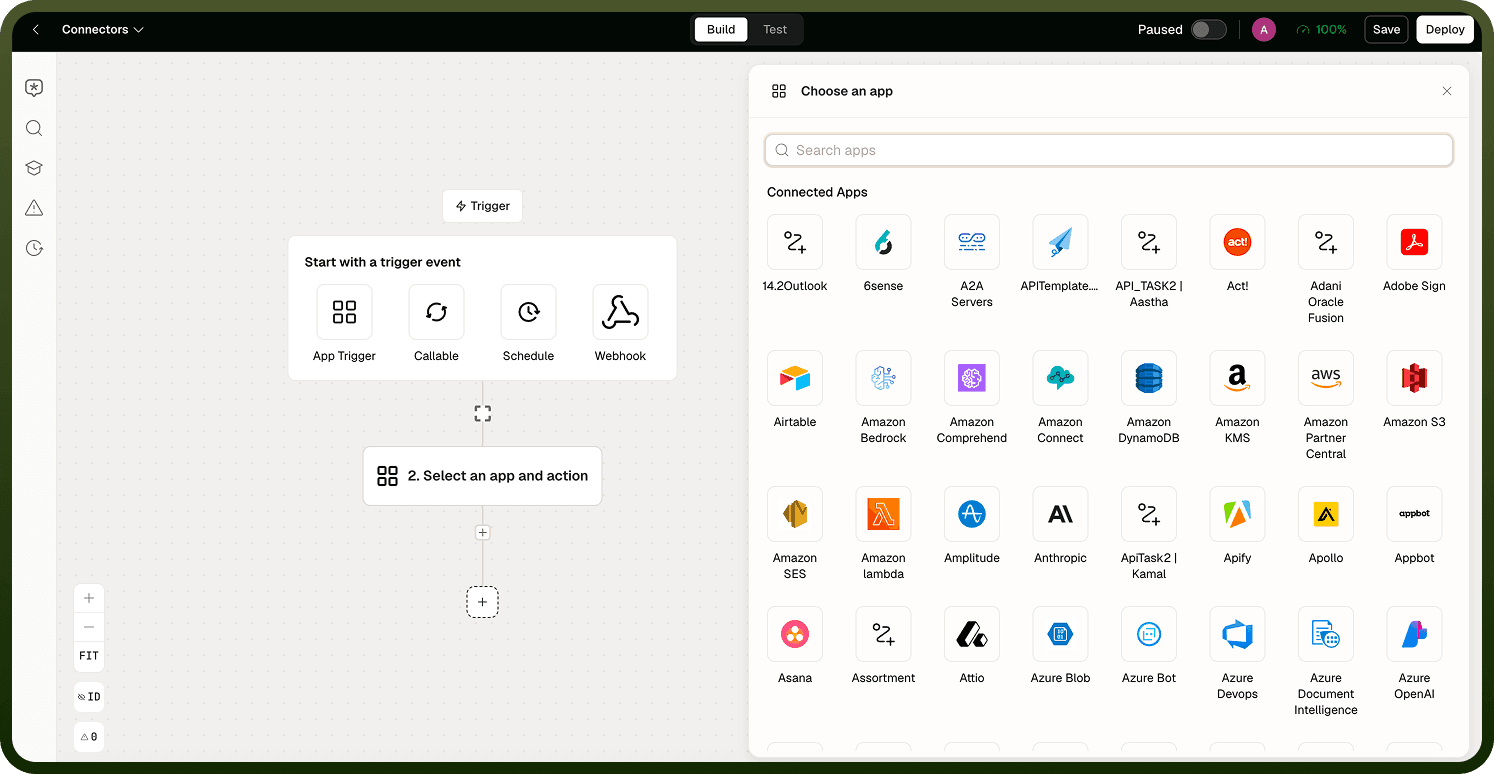
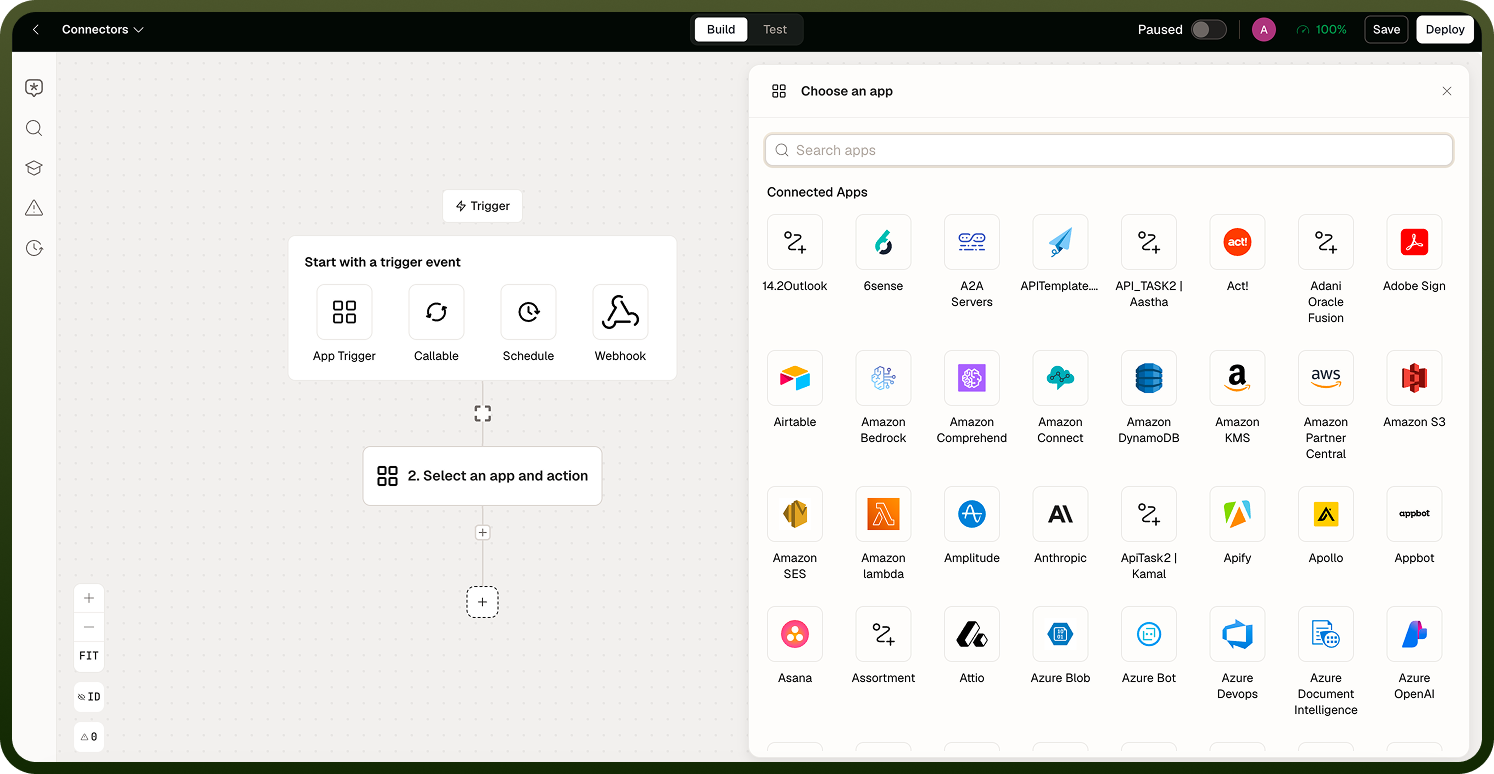
A connector is a pre-built integration with an external app or service — Slack, Salesforce, Gmail, Zendesk, and so on. Connectors provide both trigger events (things the app can signal to start a run) and actions (operations you can perform in that app). Connectors are configured at the workspace level with a connection (authentication credentials and settings). Once a connection is established, any automation in the workspace can use that connector's triggers and actions. The connector library is shared across the entire UnifyApps platform.
Example: The Salesforce connector provides a "Record Created" trigger event and a "Create Record" action. After you connect your Salesforce account once, every automation in the workspace can use both.
Workspace
A workspace is the top-level organizational unit in UnifyApps. All automations, connections, templates, and team members belong to a workspace. Settings configured at the workspace level — such as connected apps, AI generation availability, and published templates — apply to every automation within that workspace. When you open Unify Automations, you are working within your workspace's scope: the automations you see, the connectors available, and the template library all reflect what has been set up for that workspace.
Example: Your team's workspace has the Slack and Jira connectors configured. Every automation your team builds can use those connectors without any additional setup.