


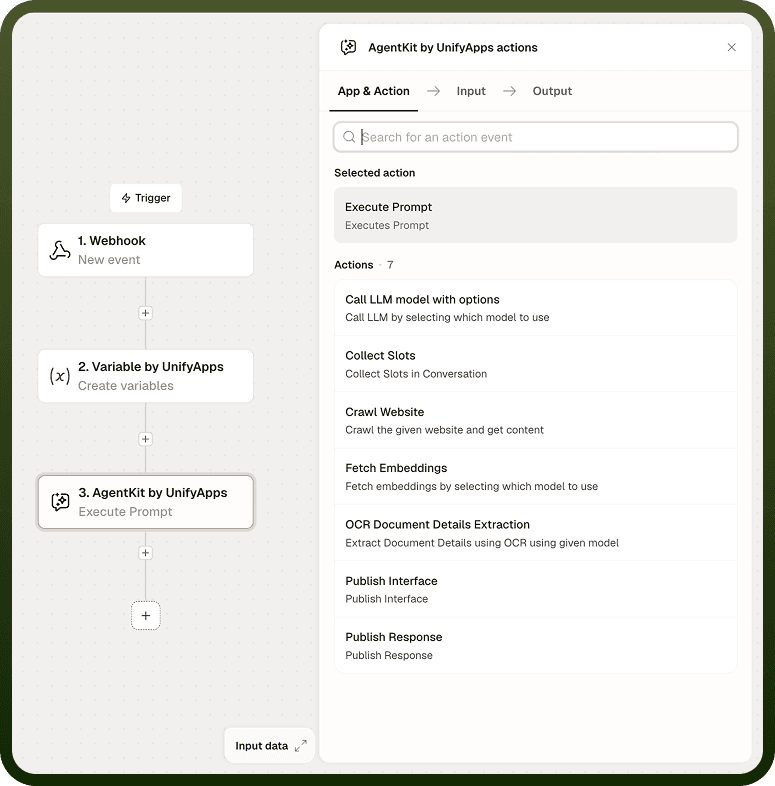
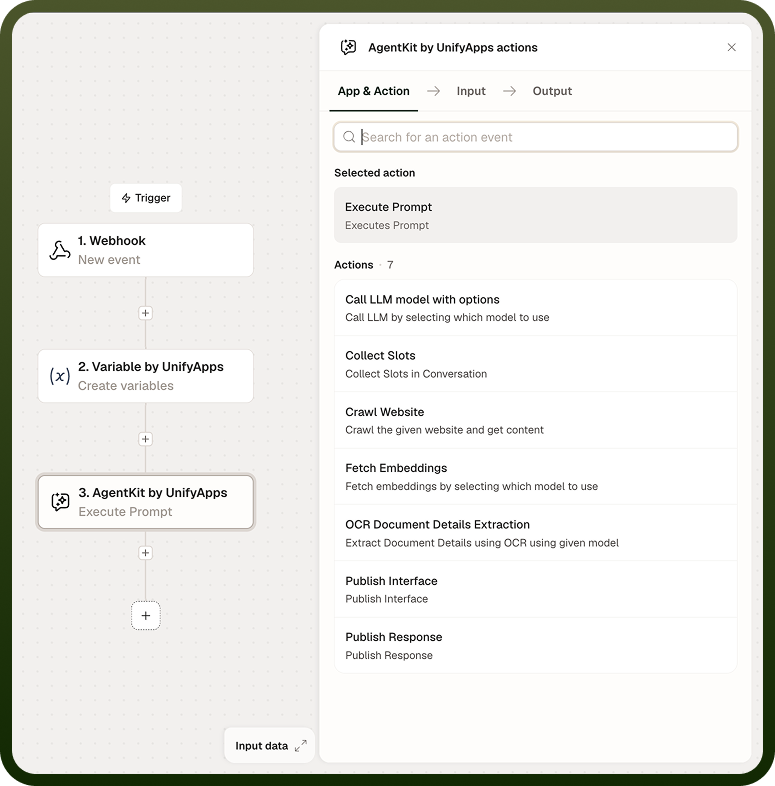
Execute Prompt runs a saved prompt template against a language model from within an automation. You reference the template by name and supply values for any placeholders it contains; the node handles the model call and returns the result. Use it to reuse prompt logic across automations without duplicating prompt text in each one.
Overview
Execute Prompt separates prompt authoring from automation wiring. Prompt templates are created and managed outside the automation builder; this node references one by name and executes it at run time. At run time, variables are injected into the template's placeholder fields before the call is made. If the template has no placeholders, the Variables input is not needed. Keeping prompt logic in named templates makes it easier to update a prompt in one place and have the change take effect across every automation that references it.
Input
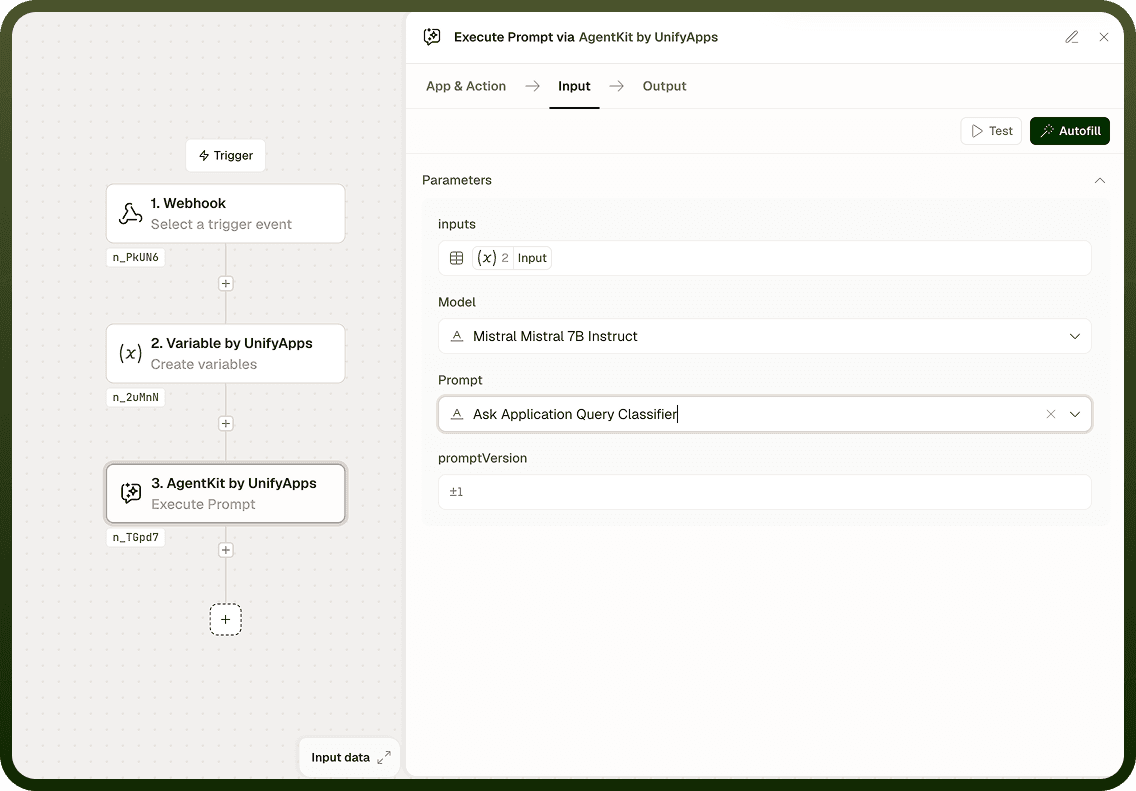
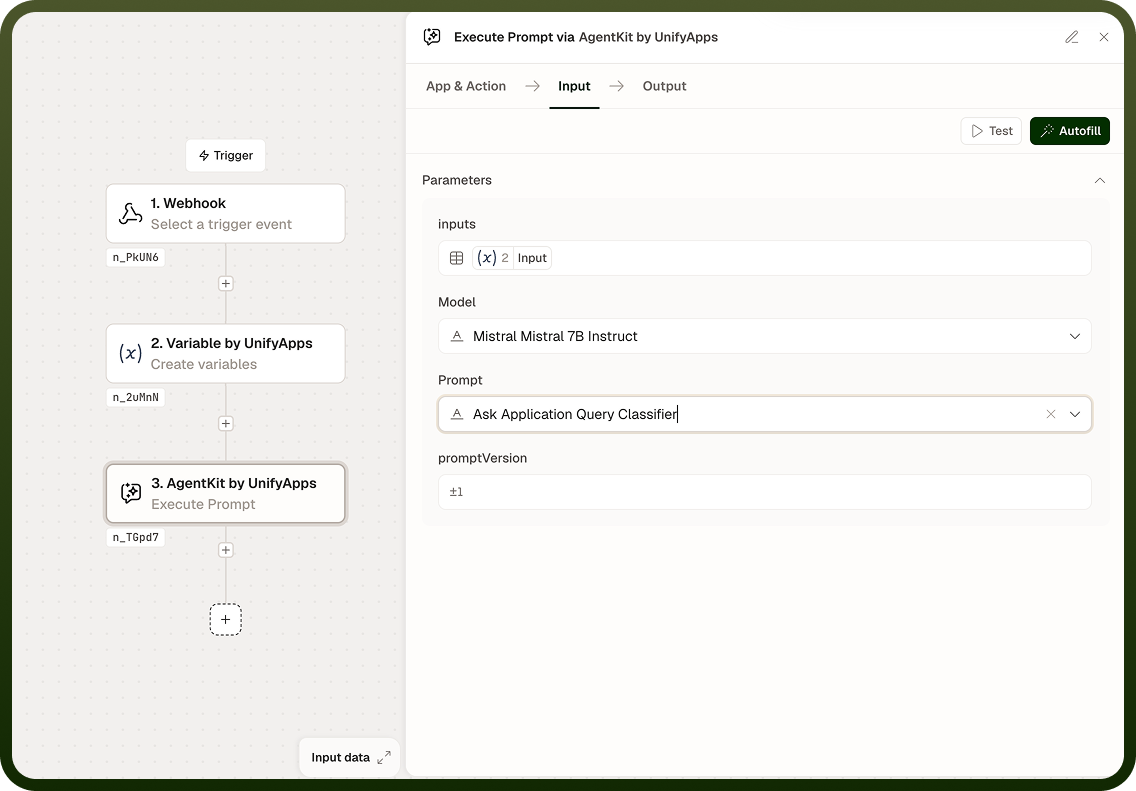
Field | Description | Required* |
|---|---|---|
Prompt Template | The saved prompt template to execute. The template must be created and saved before it can be referenced here. | Yes |
Variables | Key-value pairs injected into the template's placeholder fields at run time. Only required when the template contains placeholders. | No |
Output
The node returns one value:
Result — the text output produced by running the prompt template against the model. This is the model's generated response and can be passed to any downstream step.
Notes
The prompt template must be saved and published before it can be selected in this node. If a template is updated after the automation is built, the automation picks up the changes the next time it runs.
Variables are optional when the template has no placeholders. If the template references a variable that is not provided at run time, the call may fail or produce unexpected output — verify that all placeholders have corresponding variable entries.
Use Execute Prompt when the same prompt logic is needed in multiple automations. For one-off prompts that are not reused, Call LLM Model with Options may be simpler.
Dynamic values from earlier steps in the automation can be supplied as variable values, allowing the prompt to incorporate run-time data.