


An Application Trigger turns your automation into part of an event platform — instead of running on a timer or waiting for an inbound request, it starts the instant something happens on an app: either a third-party app you've connected, or UnifyApps itself.
Overview
Think of every connected app, and the platform itself, as constantly emitting events — a ticket gets created, a record gets updated, a user logs in, a pipeline finishes. An Application Trigger is how your automation plugs into that stream: you pick one event to listen for, and from then on, every occurrence of that event starts a new run, with the event's details handed to the rest of your automation automatically. You're not polling anything or checking for changes yourself — the platform does that, and simply calls your automation the moment there's something to react to.
This is the trigger type most automations are built around, because most workflows exist to react to something that already happened — somewhere in the tools your team uses, or on the platform itself.
Where to find them: Automation builder > trigger step > Application
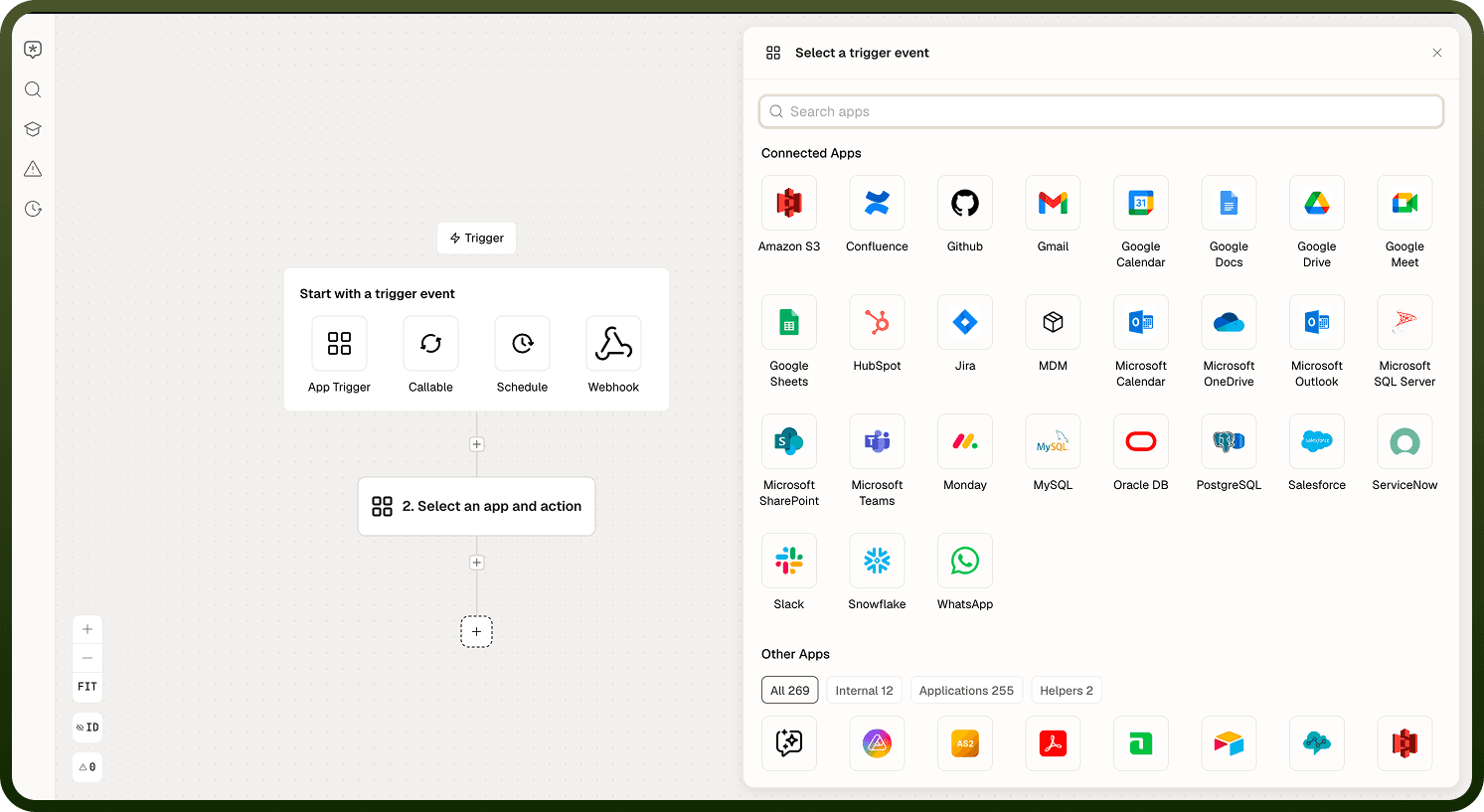
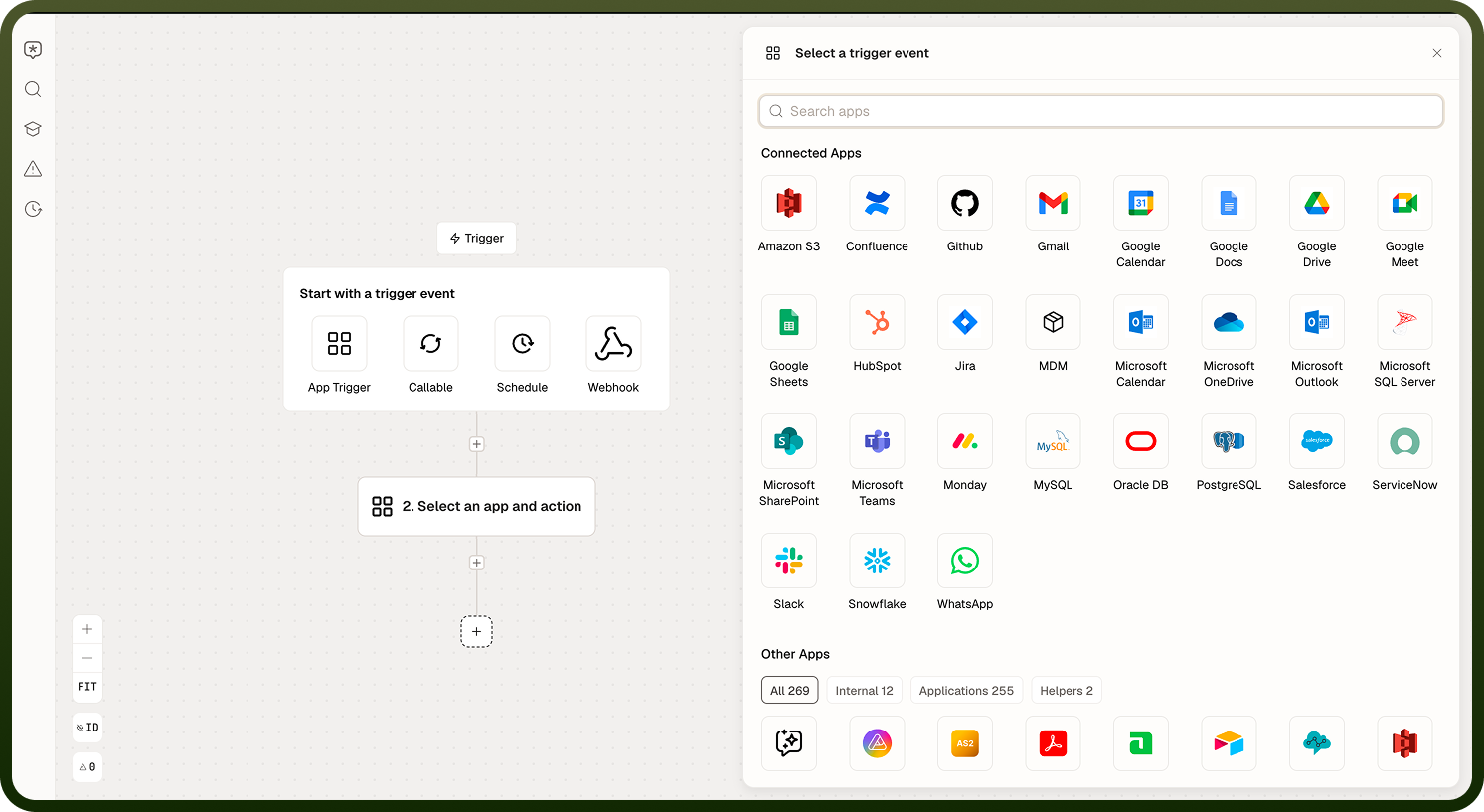
The Two Types of Application Trigger
"Application Trigger" is an umbrella term for two event sources — same mental model, different origin:
App Triggers
An App Trigger reacts to an event raised by a connected third-party app — a new email arriving in Gmail, a ticket created in Zendesk, a deal stage changing in HubSpot. Because most automations exist to react to something that already happened somewhere else, App Triggers are the starting point for the large majority of automations built on the platform.
Platform Events
A Platform Event reacts to something happening inside UnifyApps itself — a new user being created, a login failing, a connection changing, a change set being deployed, a pipeline completing. These exist to automate governance, security, and operational housekeeping around the platform.
App Trigger | Platform Event | |
|---|---|---|
Event happens in | A connected third-party app (Gmail, Zendesk, Salesforce, etc.) | UnifyApps itself |
Typical use | React to something that happened in a tool your team already uses | Govern or operate the platform (security, housekeeping, compliance) |
Delivery | Mostly real-time; a few connectors poll | Always real-time (webhook-style, no polling) |
Scope | One connection at a time | Platform-wide, with filter conditions to narrow it |
Examples | New email, ticket created, record updated | User created, login failed, change set deployed, pipeline completed |
How Application Triggers Behave
A handful of behaviors hold true across both types, and are worth knowing before you configure your first one:
One event per trigger. A trigger subscribes to exactly one app (or platform object) and one event at a time — not a whole app, and not "any event." If a workflow needs to react to two different events, build two automations rather than trying to combine them, and share logic between them with a Callable automation if they overlap.
Filter at the trigger, not downstream. Most events accept one or more filter conditions on the trigger's Setup tab (for example, "only when status equals Open"). Filtering here means the automation only runs for the events it was actually built to handle, instead of running on everything and discarding the rest with a Condition step further into the flow — and a filtered-out event never creates a run, so it never shows up in run history either.
Data pills flow downstream automatically. The moment a run starts, the trigger's event data is available as data pills — small, named fields — to every step after it. You don't fetch or re-type this data; you just insert the pill wherever you need it.
Fires once per matching event, not per batch. An automation with an Application Trigger runs once for every individual event that passes its filters — if ten matching events happen, you get ten separate runs.
Good to Know
A few details catch people out the first time they build with Application Triggers:
No Test button. Action steps have a Test button that runs just that step with sample input; triggers don't. Confirm a trigger is wired correctly by running the automation once (or waiting for a live event) and checking the run history.
An App Trigger watches one connection. To cover two accounts of the same app, build a separate automation per connection.
Not every trigger is instant. Most App Triggers are real-time, but a few poll instead (an RSS feed's "new item" trigger checks roughly every 10 minutes by default). Platform Events are always real-time.
Some Platform Event payloads can include secrets. API Access Profile Changed can carry credentials in its before/after payload — mask before logging or forwarding it.
"Completed" doesn't always mean "succeeded." The pipeline Completed event fires on both success and failure — check the status field. Automation Run Failed similarly fires for any kind of error.
Notes
Default to an App Trigger when the natural starting point for your workflow is something happening in a connected app; reach for a Platform Event when the automation is about governing or operating UnifyApps itself.
Apply filter conditions at the trigger to avoid run overhead for events you'd discard anyway further downstream.