

The Excel node's format conversion operations translate spreadsheet files between formats — exporting a sheet to plain CSV for downstream systems that cannot parse Excel, or switching the workbook between the XLSX, XLS, and XLSB binary formats when a specific format is required by a receiving application.
Overview
Convert Excel file to CSV exports the first sheet (or a named sheet) of an Excel workbook as a flat CSV file, with an option to evaluate formulas before export. Convert Excel file format converts a workbook between the supported Excel formats — XLSX, XLS, and XLSB — without altering its sheet data. Use this when a downstream system, or another operation such as pivot tables, requires a specific Excel format but the source file is in another one.
Operations
Operation | Description | Key inputs |
|---|---|---|
Convert Excel file to CSV | Exports one sheet from an Excel workbook as a CSV file. The output is a plain text file with cells separated by the chosen delimiter. | File, File Type, Sheet Name, Start from row, Delimiter, Quote character, Escape character, Evaluate formulae |
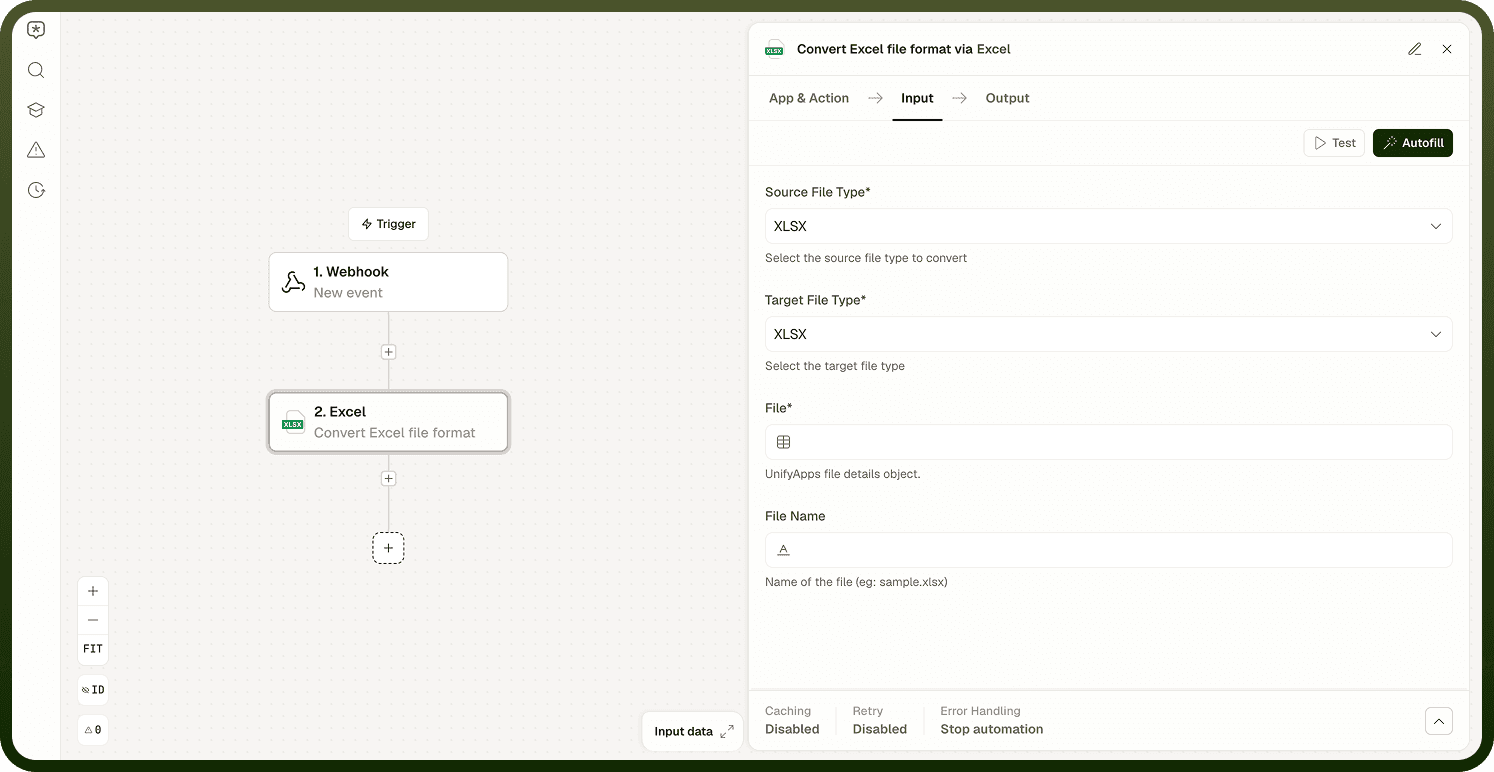
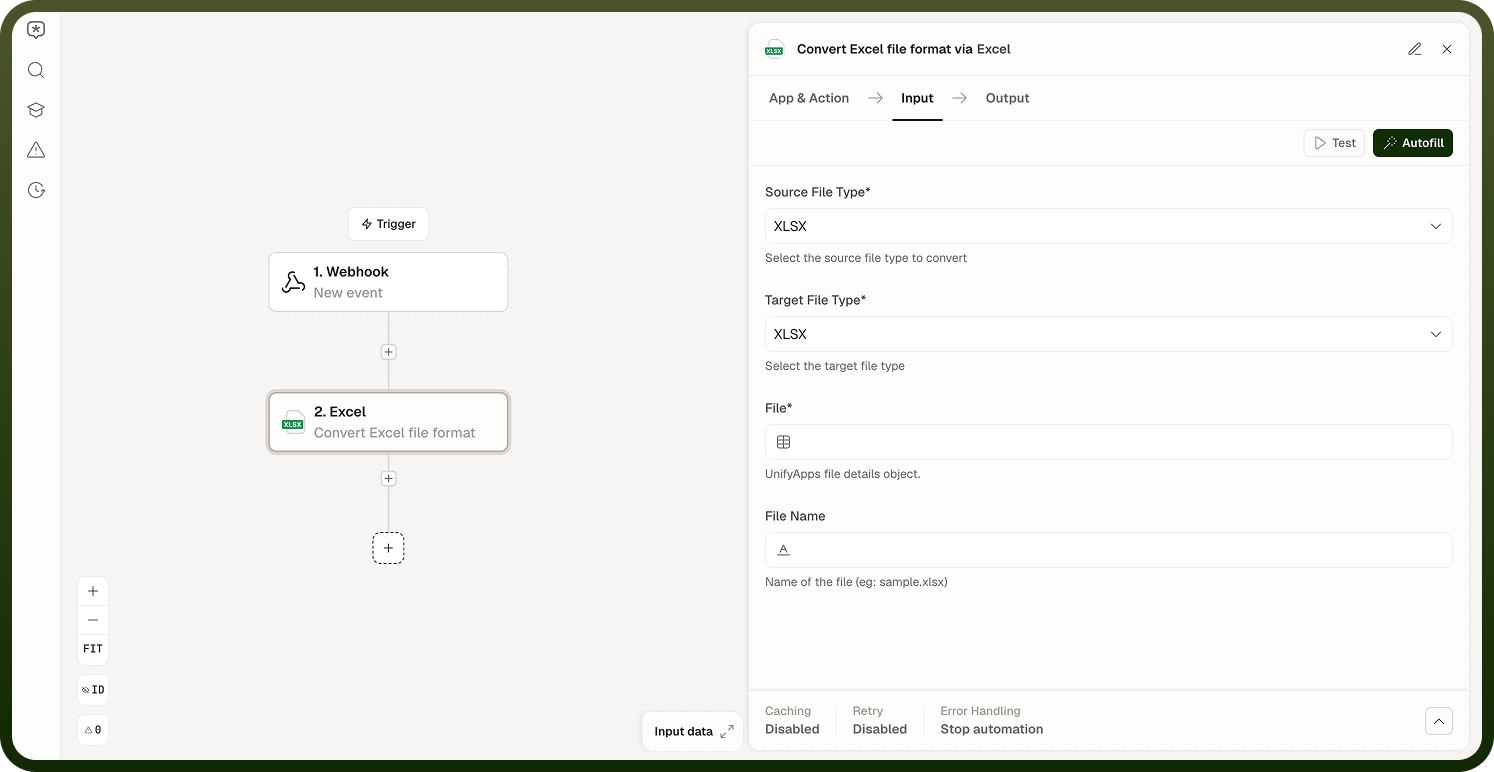
Convert Excel file format | Re-encodes the workbook from its current format into a target Excel format (XLSX, XLS, or XLSB). Sheet data, structure, and formulas are preserved through the conversion. | File, Source File Type, Target File Type, File Name |
Input
Field | Type | Required | Description |
|---|---|---|---|
File | File reference | Yes | The Excel workbook to convert. |
File Type | Enum | Yes — CSV export | Type of the source Excel file: XLSX, XLS, or XLSB. Defaults to XLSX. |
Sheet Name | String | No — CSV export | Name of the sheet to convert to CSV. If not provided, the first sheet is used. |
Start from row | Integer | No — CSV export | Row number to start processing from. Defaults to 1, minimum 1. |
Delimiter | String | No — CSV export | Delimiter character used in the CSV file. Free text — enter whichever character the receiving system expects (for example a comma, tab, or semicolon). |
Quote character | String | No — CSV export | Quote character used in the CSV file — typically applied to values that themselves contain the delimiter, quote character, or line breaks. |
Escape character | String | No — CSV export | Escape character used in the CSV file, for special characters appearing inside a cell value. |
Evaluate formulae | Boolean | No — CSV export | Whether to evaluate formulas in the Excel file before converting to CSV. Defaults to false (off) — formula cells are written using their last stored computed value. |
Source File Type | Enum | Yes — Format conversion | The current format of the input file: XLSX, XLS, or XLSB. Defaults to XLSX. |
Target File Type | Enum | Yes — Format conversion | The Excel format to convert the workbook into: XLSX, XLS, or XLSB. Defaults to XLSX. |
File Name | String | No — Format conversion | Name of the output file (for example, sample.xlsx). |
Output
Both operations return a fileDetails object for the converted file, with Name, Source, Source Type, and File Type fields.
Notes
CSV export reads only one sheet per operation (the first sheet, unless Sheet Name is set). For multi-sheet workbooks, run the operation once per sheet and collect each CSV file object separately.
By default, formula cells are written to the CSV using their last stored computed value. Enable Evaluate formulae to recalculate formulas as part of the conversion instead.
Cell formatting (colours, fonts, number formats) is not preserved in CSV output — only the raw cell values are exported.
When converting between Excel formats, choose XLSX as the target for maximum compatibility. Some features (such as pivot tables) are only fully supported in XLSX.
Converting to XLSB produces a binary workbook, which is more compact but less universally supported by third-party tools.