


Delete Record permanently removes records from a UnifyApps Storage object. Remove a single record by ID with Delete Record, or remove many records at once by matching a filter with Delete Records.
Overview
Both actions remove records permanently — there is no built-in undo within an automation. Delete Record targets exactly one record that you already know the ID of. Delete Records instead targets whichever records currently match a filter, which can be zero, one, or many records depending on what's in the object at the time the step runs. Use this action to clean up processed records, remove obsolete entries, or enforce data-lifecycle rules inside an automation.
Operations
Use Delete Record when you already know the ID of the one record to remove. Use Delete Records when you need to remove records matching a condition — for example, everything older than a date, or everything with a given status.
Delete Record
Locates a record by its ID in the specified Storage object and removes it.
Input Fields:
Object — The Storage object (table) containing the record to delete.
Entity ID — The ID of the record to permanently remove.
Write through session variables — When enabled, writes the record ID to session variables after the deletion.
Routing — Routing key for OpenSearch-backed objects with sharded indices. Leave empty to fall back to query-based deletion.
Output: a success flag. No record data is returned after deletion.
Note: This field is labeled Entity ID on Delete Record — unlike the equivalent field on Update Record and other single-record actions, which is labeled Record ID.
Delete Records
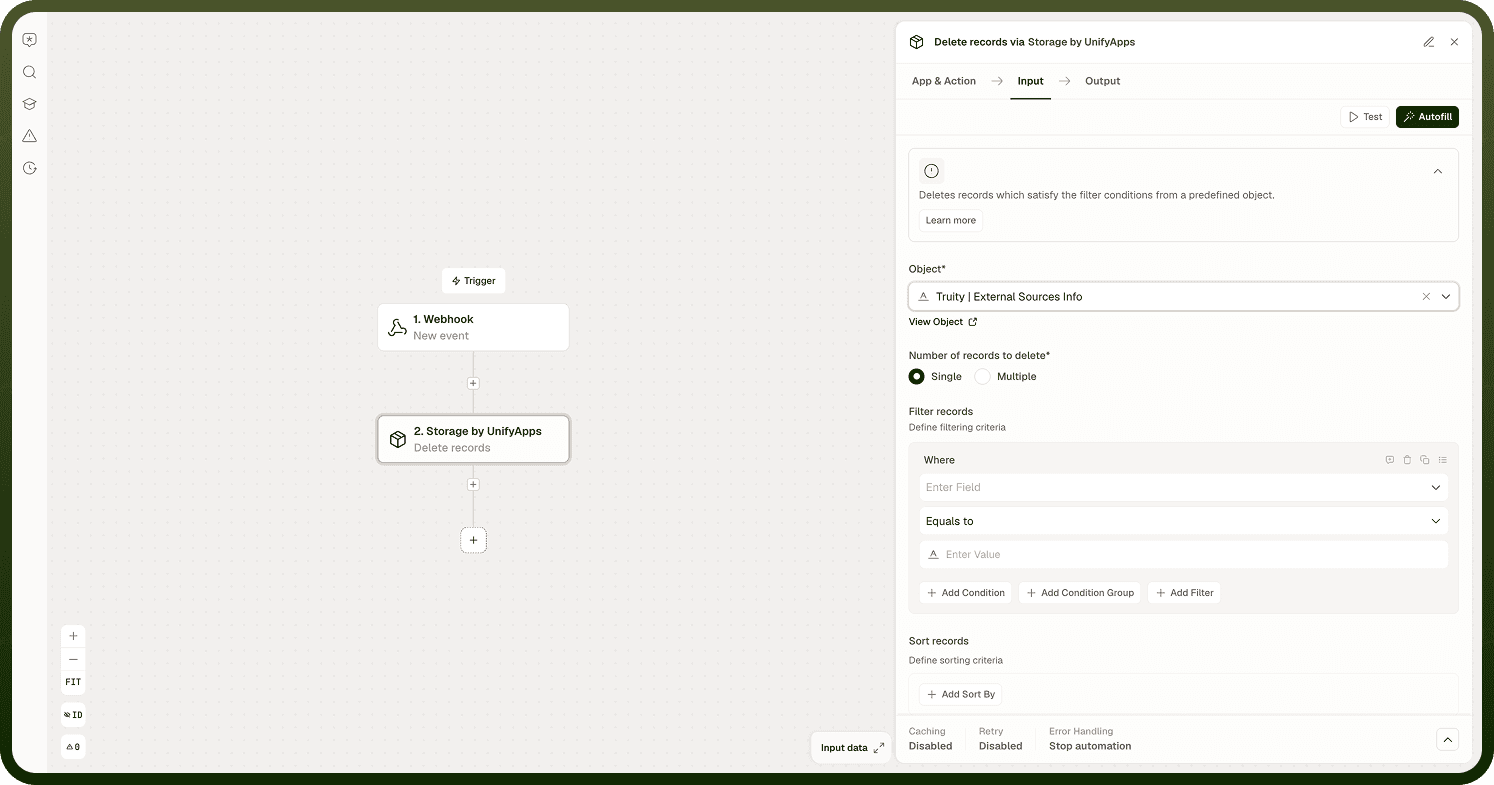
Removes all records in the specified object that currently match a filter, instead of requiring a specific ID.
Input Fields:
Object — The Storage object (table) to delete from. Limited to objects backed by Mongo, OpenSearch, Analytics by UnifyApps, or Azure Synapse.
Number of records to delete — Single or Multiple. Defaults to Single.
Filter records — Filter conditions on the object's fields; only matching records are deleted.
Sort records — Field and sort order (ascending or descending) applied before deletion, relevant when Number of records to delete is Single and more than one record matches the filter.
Page — Offset and Limit (defaults to 20). Shown only when Number of records to delete is Multiple.
Write through session variables — When enabled, writes the record ID to session variables after the deletion.
Additional — Additional raw parameters merged into the delete query.
Output: objects (the deleted records) and hasMore (whether more records still match the filter beyond this step's page).
Note: With Number of records to delete set to Single, Delete Records deletes only the first record the filter and sort order resolve to — set it to Multiple and configure a Page limit to delete more than one record in a single step.
Notes
Keep the following in mind when using either delete action.
Deletion is permanent — once a record is removed, it cannot be restored from within the automation.
Delete Record matches by ID; Delete Records matches by filter — verify your filter conditions carefully before running Delete Records against production data, since it can remove more than one record.
When the presence of a record is not guaranteed, use Fetch Records first to confirm it exists before calling Delete Record.
Neither action affects records in the Storage object that don't match the given ID or filter.
If data recovery matters for your use case, consider archiving records — for example, moving them to a separate object or marking them with a deleted flag — before removing them.