


The Browser Use Node controls a web browser from natural-language instructions, letting you automate any website — including those with no public API — by describing your goal in plain English rather than scripting each interaction.
Overview
The Browser Use node automates a web browser from natural-language instructions. You describe the goal — for example, "log in, go to orders, and export the last 30 days as CSV" — and an AI agent drives a real Chromium browser via Playwright to carry it out. The node runs in the UnifyApps cloud; no on-premises agent or local browser setup is required.
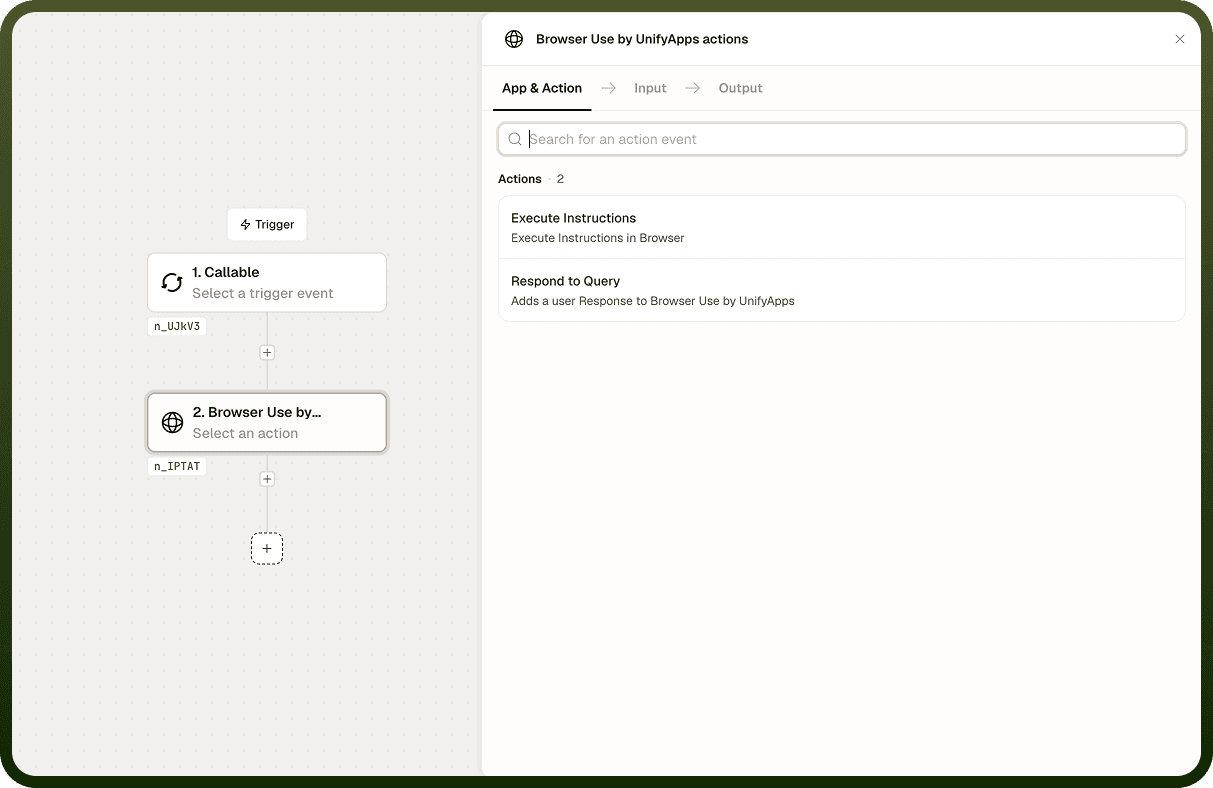
Use Browser Use to automate sites that have no API, to scrape or extract data that requires a login, or to handle repetitive web tasks that would otherwise need a person at a keyboard.
Note: If you need to run browser automation on your own infrastructure rather than in the UnifyApps cloud, use the separate On-Prem Browser node instead.
Where Automation builder › Browser Use
The Execute Instructions Operation
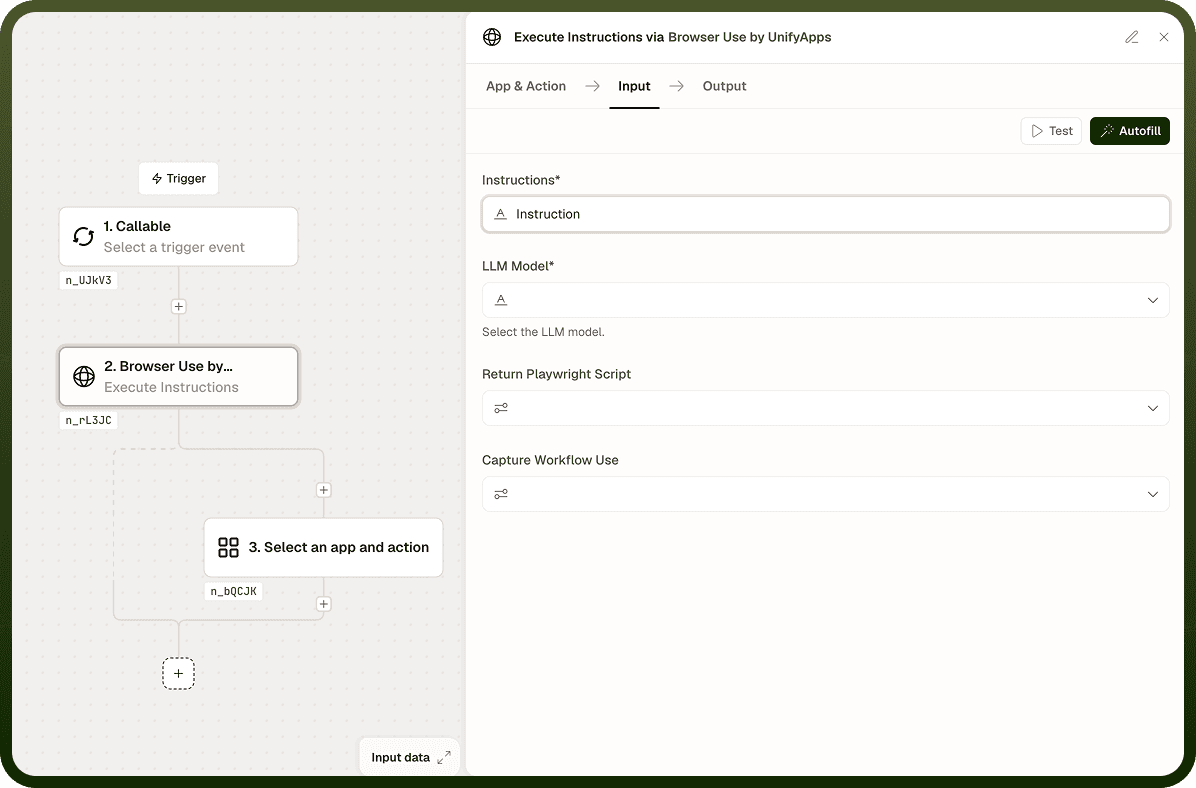
The main operation of the Browser Use node is Execute Instructions. You provide natural-language instructions describing what the browser should do, and the AI agent carries out the steps in a real Chromium session.
Input
Input Field | Description |
|---|---|
Instructions | Natural-language description of the goal for the browser session. Write this as you would tell a person what to do — describe the end result, not every individual click. |
Model | The AI model that drives the browser. Defaults to GPT-4o. You can point it at your own model by selecting an OpenAI, Azure OpenAI, Anthropic, or Google Gemini model that supplies its own credentials. |
Output
Because a browser run is agentic and can involve many steps, the output is a stream you iterate over rather than a single response. Each step in the stream reports:
The actions the agent took at that step
Content extracted from the page
Any files captured during the session
A final result at the end of the stream marks whether the run succeeded or failed.
Options
Option | Description |
|---|---|
Return generated Playwright script | Instead of executing the instructions, returns the Playwright script that would perform them. Use this to capture a repeatable script you can inspect, modify, or run directly. |
Respond to query | Allows the agent to pause mid-run and ask a question. Use this for interactive flows where the agent may need clarification from the user before continuing. |
Notes
To make the most of it:
Write instructions as goal descriptions rather than step-by-step click sequences — the AI agent figures out the individual actions, and high-level goals give it more flexibility to handle variations in page layout.
Iterate over the output stream to process progress as it arrives rather than waiting for the full run to complete; this lets downstream steps react earlier and gives you visibility into what happened if a run fails partway through.
Use the Return generated Playwright script option when you want a deterministic, reusable script for a task you have already validated with natural-language instructions.
Account for web-automation caveats in your error handling: slow page loads, login flows, and challenges such as CAPTCHAs can interrupt a run. Check the final result for success before relying on any extracted data.
Use Respond to query when the agent may need to resolve ambiguity at run time — for example, when the page presents choices that were not predictable at build time.