


The Loop node repeats a set of steps inside an automation — once for each item in a list, a set number of times, or as long as a condition holds. Drop the work you want repeated into the loop body, pick the mode that fits your data, and the node handles the iteration.
Overview
Use a Loop when you need to apply the same logic to multiple items or repeat an action until something changes. Three modes are available:
For Each — walk through a list, processing one item per pass.
For — count from a start value to an end value by a step size.
While — keep going as long as a condition remains true.
Iterations execute one at a time, in order — the loop does not run branches in parallel. Each pass completes fully before the next begins, so a later iteration can safely rely on what an earlier one did.
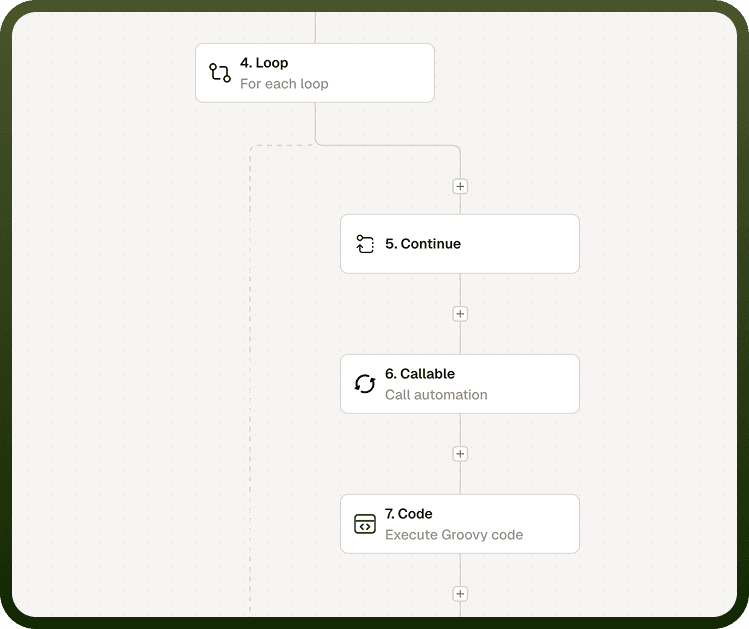
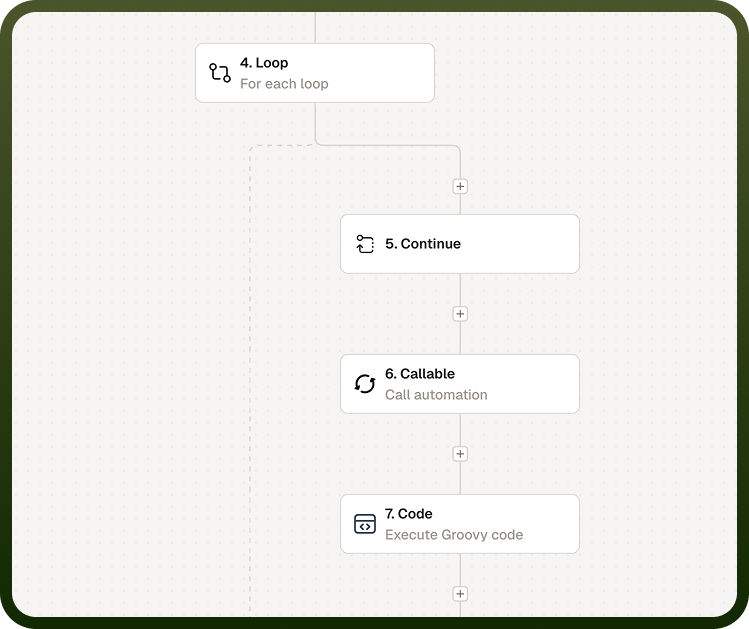
Use Case
A practical example: download a list of image URLs and upload each one to Amazon S3.
Pass a list of image URLs into a For Each loop.
Inside the body, use Files by UnifyApps to download each image from its URL.
Upload the downloaded file to Amazon S3 using the S3 node.
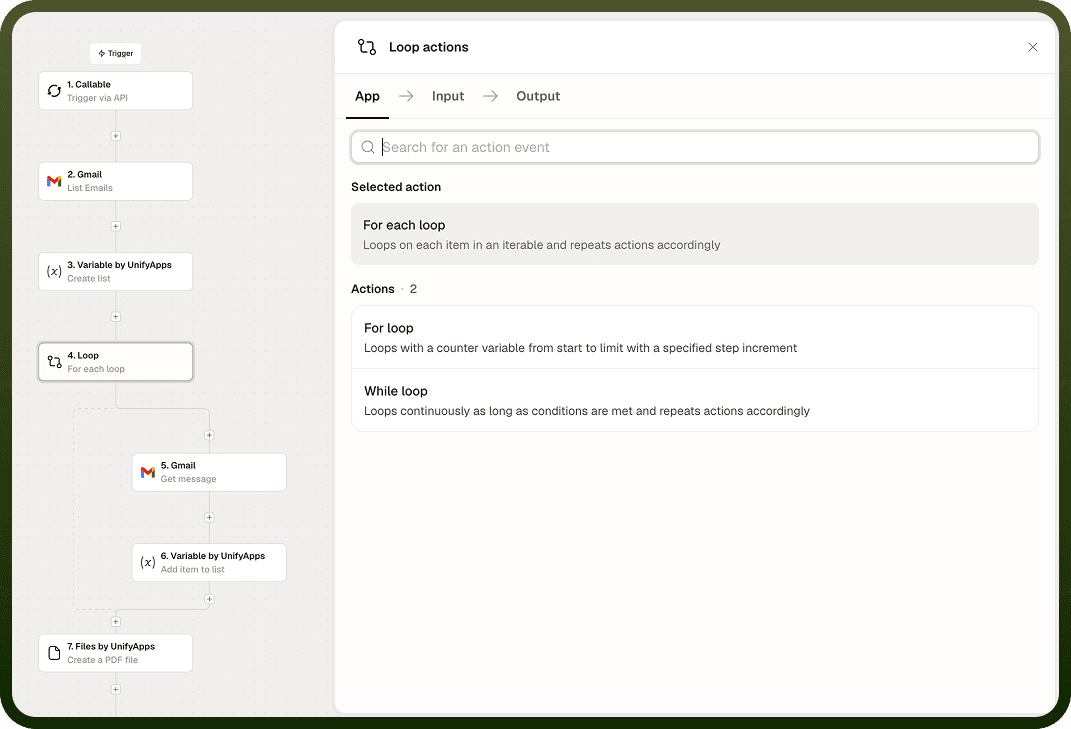
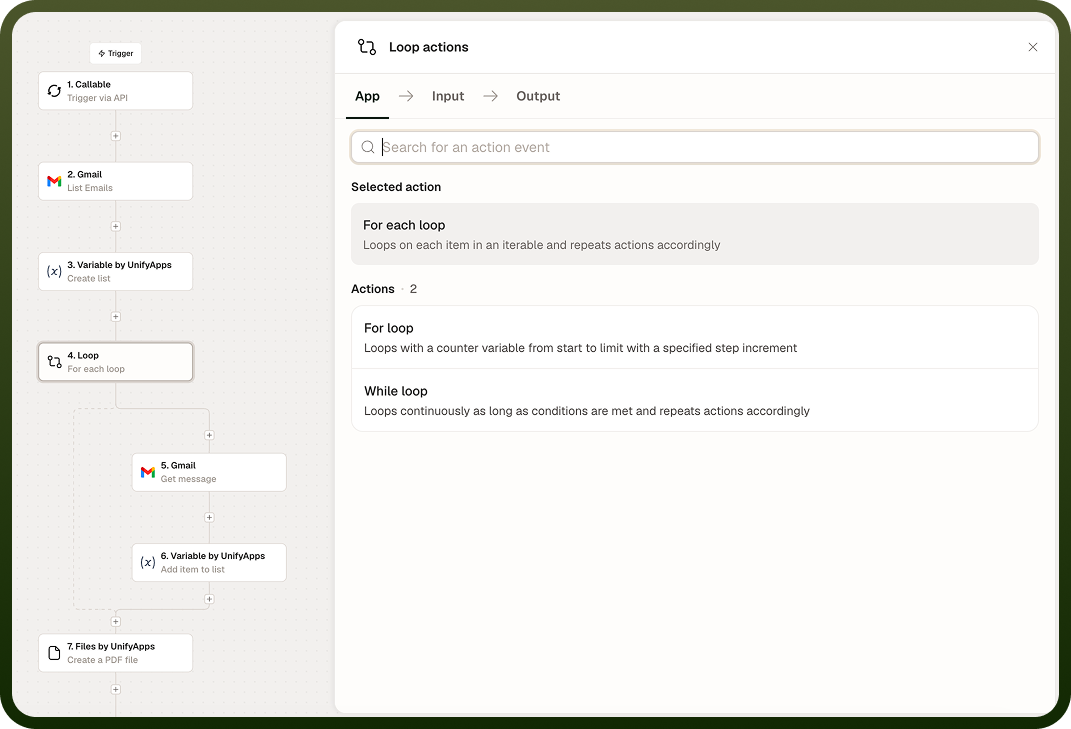
For Each
Use For Each to walk through a list and apply the same steps to every element. On each pass the loop exposes the current element as the item data pill.
Input fields:
List Source — the collection to iterate over.
Repeat Mode — choose single-item processing (one element per pass) or batch processing (up to 100 items per batch).
Loop node For Each mode — List Source and Repeat Mode configuration fields
For (Count)
Use For to repeat steps a precise number of times by counting from a start value to an end value. Provide a step size to control how the counter advances on each pass.
Input fields:
Start — the initial counter value.
End — the counter stops when it reaches this value.
Step — how much the counter increments on each pass.
Inside the body, the current counter value is available as the item data pill.
Loop node For (Count) mode — Start, End, and Step input fields
While
Use While to repeat steps for as long as a condition is true. The loop re-evaluates the condition before each pass and stops as soon as it becomes false.
Input fields:
Condition — a logical expression that evaluates to true or false.
Add Condition — combine multiple conditions.
Add Condition Group — organize conditions into hierarchical AND/OR groups.
Note: Always write While conditions so they will reliably become false. A condition that never turns false runs until the iteration limit is reached and the run stops with an error.
Loop node While mode — condition configuration with Add Condition and Add Condition Group
Loop Output Variables
On every pass, the Loop exposes these data pills so steps inside the body can act on the current element and know where they are in the run:
item — the current element (or the current counter value in a For loop).
index — the 0-based position of the current pass (the first item is 0, the second is 1, and so on).
isFirst — true on the first pass; use it to run setup or header steps once.
isLast — true on the final pass; use it to send a summary or trigger a completion action.
size — the total number of items in the collection, when the source can report it.
Reference these pills by name in any step inside the loop body. For example, send a summary email only when isLast is true, or label output rows with index.
Combine Loops
You can nest While and For loops inside the same automation. For example:
Use a While loop to repeat a Salesforce SOQL query while search result pages remain.
Inside it, use a For Each loop to process each record on the current page and retrieve contact details.
Notes
Keep the following in mind when building with the Loop node.
Pick the mode that matches your data: For Each for lists, For for counted repetitions, While for condition-driven iteration.
Iterations execute one at a time, in order — the loop does not run branches in parallel.
Use isFirst and isLast to run setup or teardown logic once per loop rather than on every pass.
Write While conditions so they will reliably become false; an unbounded condition runs until the iteration limit is reached and the run fails.
For more than 50,000 items, break the work into batches rather than relying on a single loop run.
Reference item, index, isFirst, isLast, and size as data pills in every step inside the loop body — you cannot access the current item without them.
A well-structured loop keeps its body focused: each pass should do one coherent unit of work, making the automation easier to debug and the iteration limit harder to hit by accident.