


The Standard Entities node lets automations export, import, submit, deploy, and roll back change sets programmatically. Change sets carry an approval workflow — submitting a change set moves it through approval levels before it can be deployed. Use these operations to automate governed deployment pipelines while keeping the approval gate in place.
Overview
Change Set Management in the Standard Entities node provides the operations needed to orchestrate the platform's governed deployment process. Change sets bundle configuration changes and move them through a defined approval workflow before they are applied to the platform. This is the key difference from the direct deploy operation, which publishes immediately with no approval gate. If your process requires human or system approval before a version goes live, the change-set path is the correct one.
Change Set Workflow
The change-set path enforces governance that the direct deploy operation does not. There are two separate flows, depending on whether you move a change set between environments as a file, or submit it in-platform for approval — they are not steps of a single five-step sequence.
Flow 1 — Export → Import → Deploy
Export — package one or more assets into a change set file, optionally password-protected.
Import — bring that file into the target environment. Import can optionally deploy the assets immediately (Deploy Assets) and/or overwrite assets that already exist in the target environment (Update Existing Assets).
Deploy — if the assets were not auto-deployed on import, apply them separately (via Deploy Automation for a single automation, or Deploy Entity for other asset types).
Flow 2 — Submit → Approval → Deploy
Submit — create a change set from the given assets and submit it directly into the platform's approval workflow. No file export or import is involved in this flow.
Approval — the change set moves through the configured approval levels. On Inbound Changeset Approval and On Inbound Changeset Rejected fire as it is approved or rejected at each level.
Deploy — once the change set clears every approval level, it deploys, firing On Inbound Changeset Deployment.
Rollback is a separate operation, not a step in either flow — it can be used after a deployment from either path to revert to a prior state.
Change Set workflow diagram showing the Export-Import-Deploy flow and the Submit-Approval-Deploy flow as two separate paths
Import Flags: Auto-Deploy and Update Existing
Import Changeset exposes two flags that both affect the target environment more than their names might suggest:
Deploy Assets (auto-deploy) — if turned on, the import immediately deploys the change set, bypassing the approval workflow entirely. If turned off, the changeset is created in a pending state instead.
Update Existing Assets — if turned on, assets in the change set that already exist in the target environment are overwritten with the imported version. If turned off, those existing assets are skipped instead, and only new assets are imported.
Treat both flags with care: Deploy Assets skips the approval workflow for that import — do not enable it in flows meant to enforce approval before deployment. Update Existing Assets can silently overwrite configuration already present in the target environment — only enable it when you specifically intend to replace those assets.
Change Set Operations
Operation | What it does |
|---|---|
Export | Packages one or more assets into a change set file for transport or review |
Import | Brings a change set file into the target environment; can auto-deploy on import (bypassing approval) and/or overwrite existing assets |
Submit | Creates a change set from the given assets and submits it directly into the configured approval workflow |
Get Changeset Details | Retrieves deployment analytics for a change set — status, asset counts, and per-asset errors |
Deploy (Deploy Automation / Deploy Entity) | Applies a saved or approved asset to the live platform |
Rollback | Reverts a deployed change set to its pre-deployment state, with the option to skip records modified since deployment |
Change Set Triggers
Five triggers fire as a change set moves through export or the inbound approval workflow:
On Outbound Changeset Submit/Export — fires when a change set is submitted or exported from this environment.
On Inbound Changeset Submit/Import — fires when an incoming change set is submitted or imported into this environment.
On Inbound Changeset Approval — fires when an inbound change set is approved at an approval level.
On Inbound Changeset Rejected — fires when an inbound change set is rejected.
On Inbound Changeset Deployment — fires when an inbound change set is deployed.
Action Details
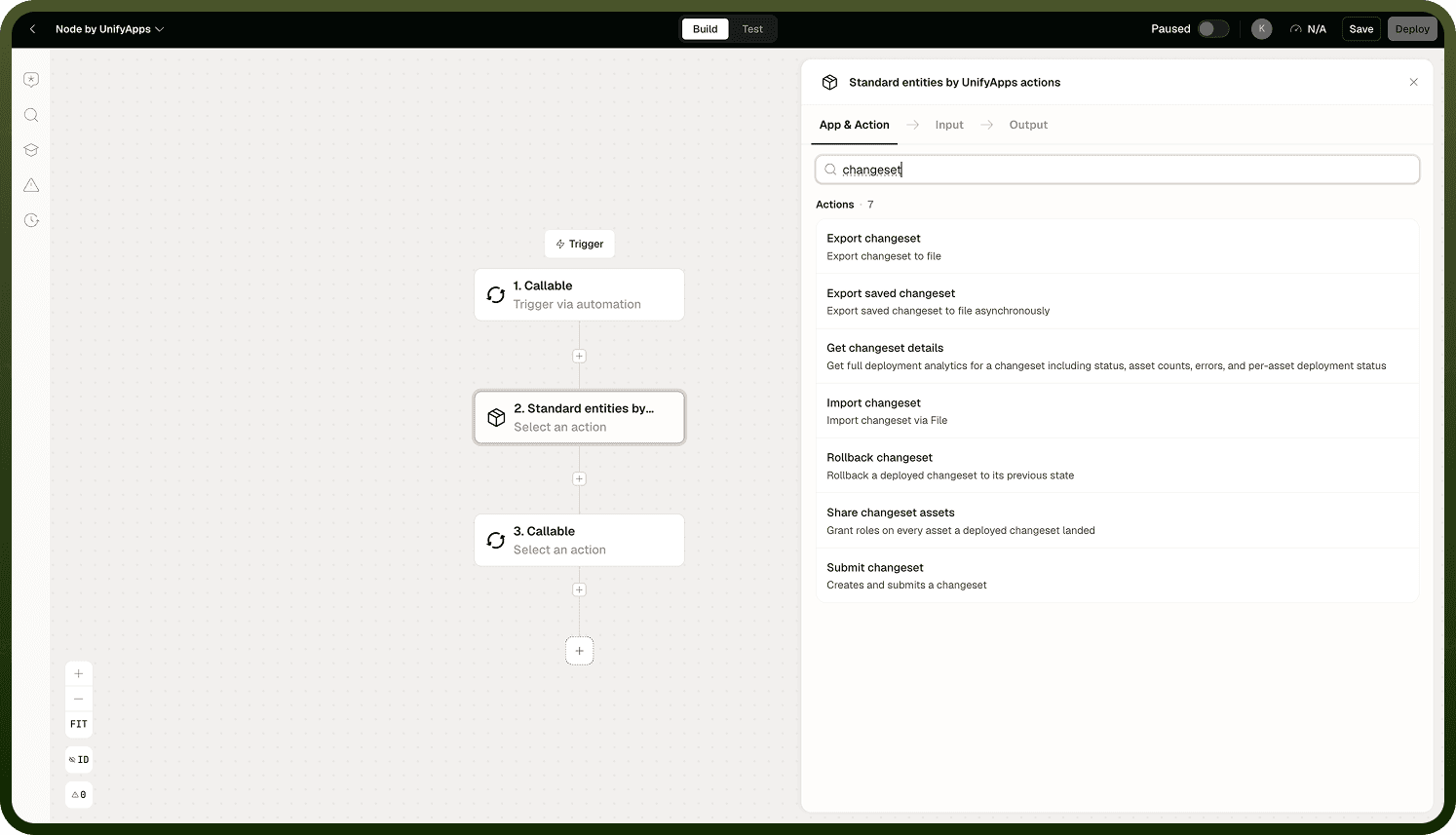
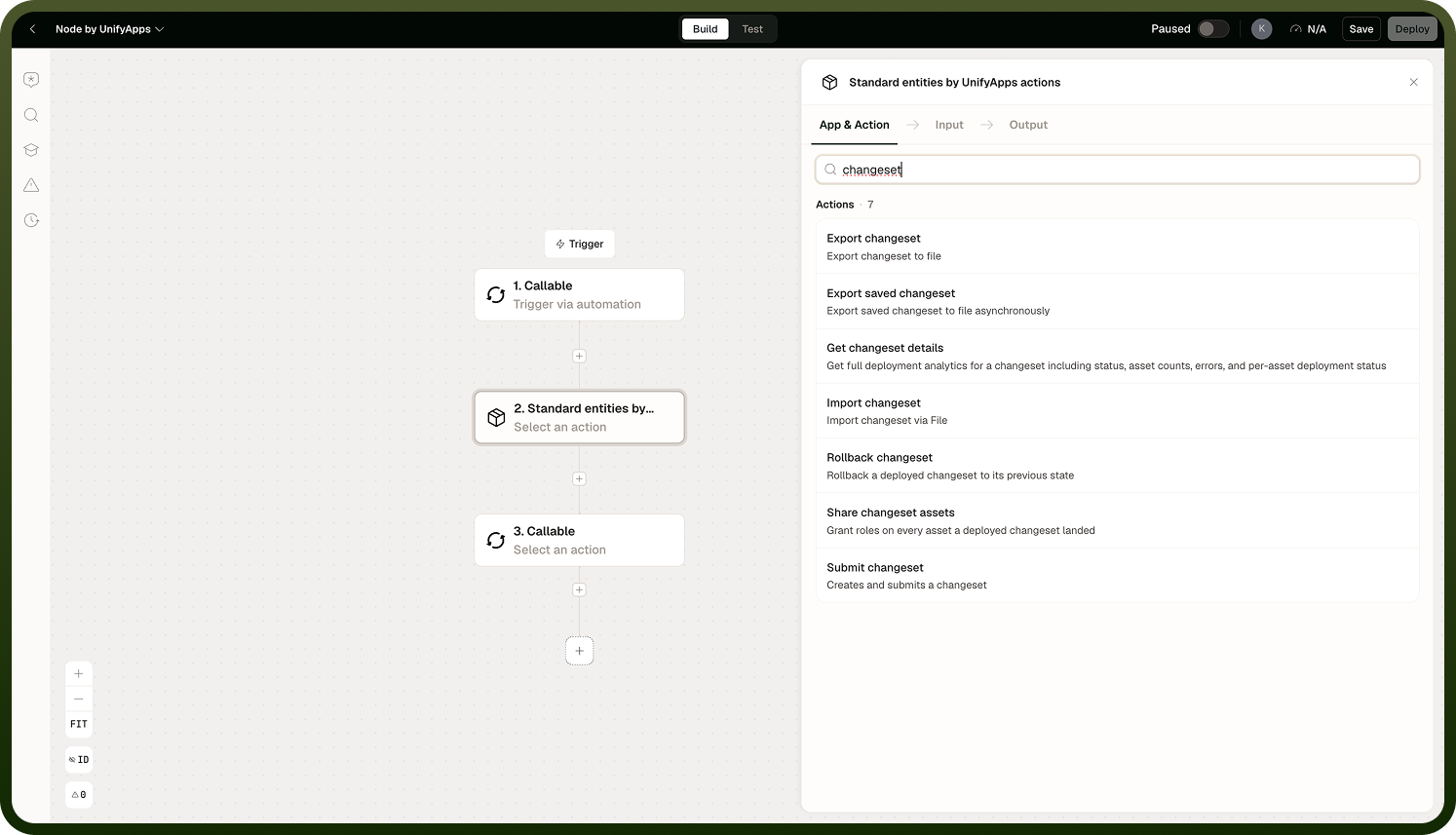
Export Changeset — Input: Name, Password (protects the exported ZIP file), Asset Details (the assets, and for versioned asset classes, the version, to include). Output: File Details (name, source, source type, file type).
Import Changeset — Input: File Details, Password (for the ZIP file), Deploy Assets (boolean — auto-deploy), Update Existing Assets (boolean — overwrite vs. skip existing assets, see above). Output: Success (boolean).
Submit Changeset — Input: Name, Environment IDs, Asset Details. Output: Success (boolean), Changeset ID.
Get Changeset Details — Input: Changeset ID. Output: Status, Total Asset Count, Imported Asset Count, Error Details (per-asset error messages), Asset Deployment Status.
Rollback Changeset — Input: Changeset ID, Skip Modified Records (boolean — see below). Output: Success (boolean).
Deploy Entity — the general-purpose deploy action, usable on change-set assets as well as individual entities. Input: Object (entity type), Entity ID, Deploy Child Entities (boolean), Deployment Tag, Deployment Notes. Output: the deployed entity, including its version and deployment state (who deployed it and when).
Notes
Change set operations affect the live platform — rollback in particular reverts state that may be in active use. Keep the following in mind.
Change sets are the correct path when deployment requires an approval gate — the direct deploy operation in Standard Entities has no approval workflow.
Export/Import and Submit/Approval are two separate flows, not steps of one sequence — Submit goes straight into the platform's approval workflow, while Export/Import moves a change set as a file between environments.
The Deploy Assets flag on import bypasses the approval workflow for that specific deployment; only enable it when approval is genuinely not required.
The Update Existing Assets flag on import can overwrite assets already present in the target environment; only enable it when you intend to replace them.
Rollback supports Skip Modified Records: set it to true to revert only the assets that were not modified since deployment, leaving anything changed afterward untouched; set it to false to revert every asset in the change set back to its pre-deployment state, discarding any modifications made after deployment.
Use Get Changeset Details to check a change set's status and any per-asset errors before deciding whether to proceed, retry, or roll back.
Permission checks on change-set operations are pre-flight and strict; a missing permission stops the automation with an error.
Build change-set automations as part of a broader deployment pipeline, not as ad-hoc operations, to preserve auditability.
If your deployment process must enforce approval, route changes through the Submit flow and keep Deploy Assets off on any Import step.