


Data moves through an automation via data pills — references that point to an earlier step's output. Instead of typing a fixed value into a field, you insert a pill, and at run time the automation resolves it to the actual value from that step's result. This is how the trigger's record flows into a fetch step, a fetch step's field flows into a message, and so on.
Data Pills
In a step's Input tab, click into any field that accepts a data pill. A picker opens showing the outputs of all earlier steps as a searchable tree. Select the field you want — for example, Trigger › record › email — and a pill is inserted into the field. At run time, the pill resolves to the actual value at that path in the upstream step's result.
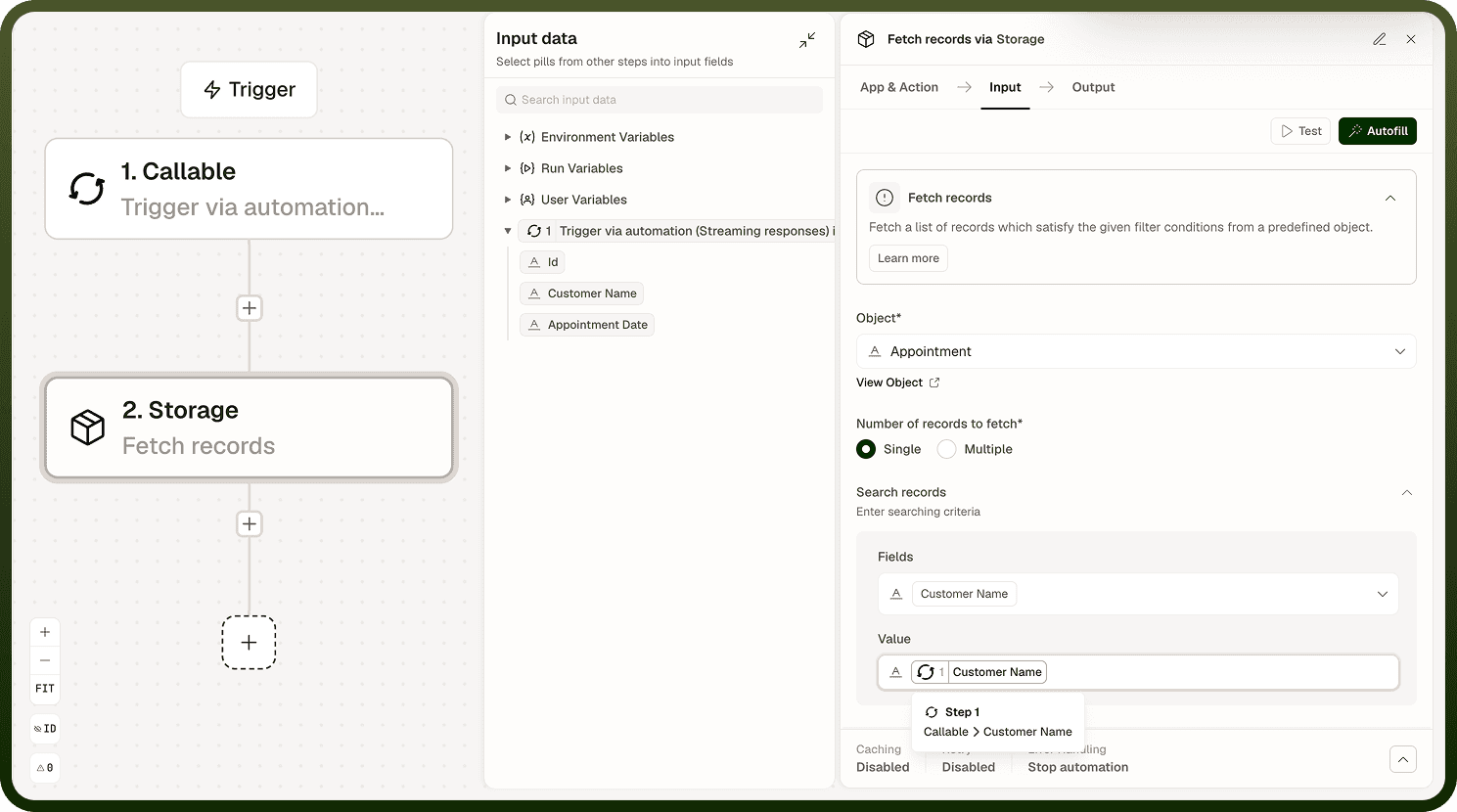
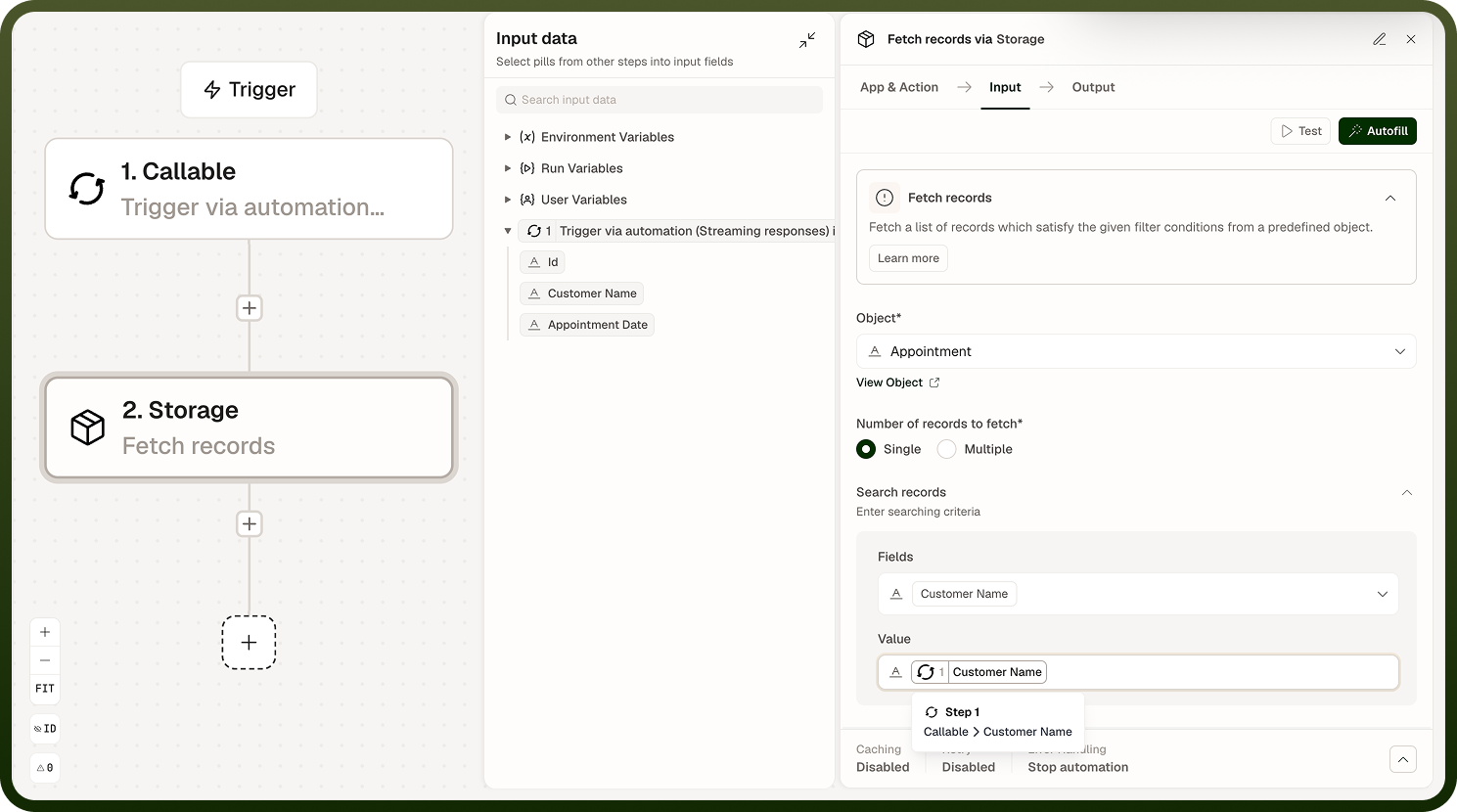
Pill references are specific to a step's output shape. If an upstream step's output changes (because you change its action or connection), any pills referencing its removed fields go invalid — the Input tab will highlight them.
Reading the Output Tree
Each step's Output tab shows its result as a navigable, searchable tree. After you test a step, the tree contains real data from that test run, and you can copy field references directly from it. Before a test run, the tree shows the expected output schema based on the action's definition.
Use the Output tree to discover which fields are available and what their actual values look like before mapping them downstream.
Autofill
Autofill is a shortcut that auto-maps a step's input fields from the output of an earlier step. Open it from the Input tab, choose the upstream step whose output you want to map from, and it fills matching fields automatically with data pills. You can then adjust any field that didn't map the way you intended.
Autofill is most useful when field names align between two steps — for example, passing a record from one app action into an update action for the same app.
Optional Fields
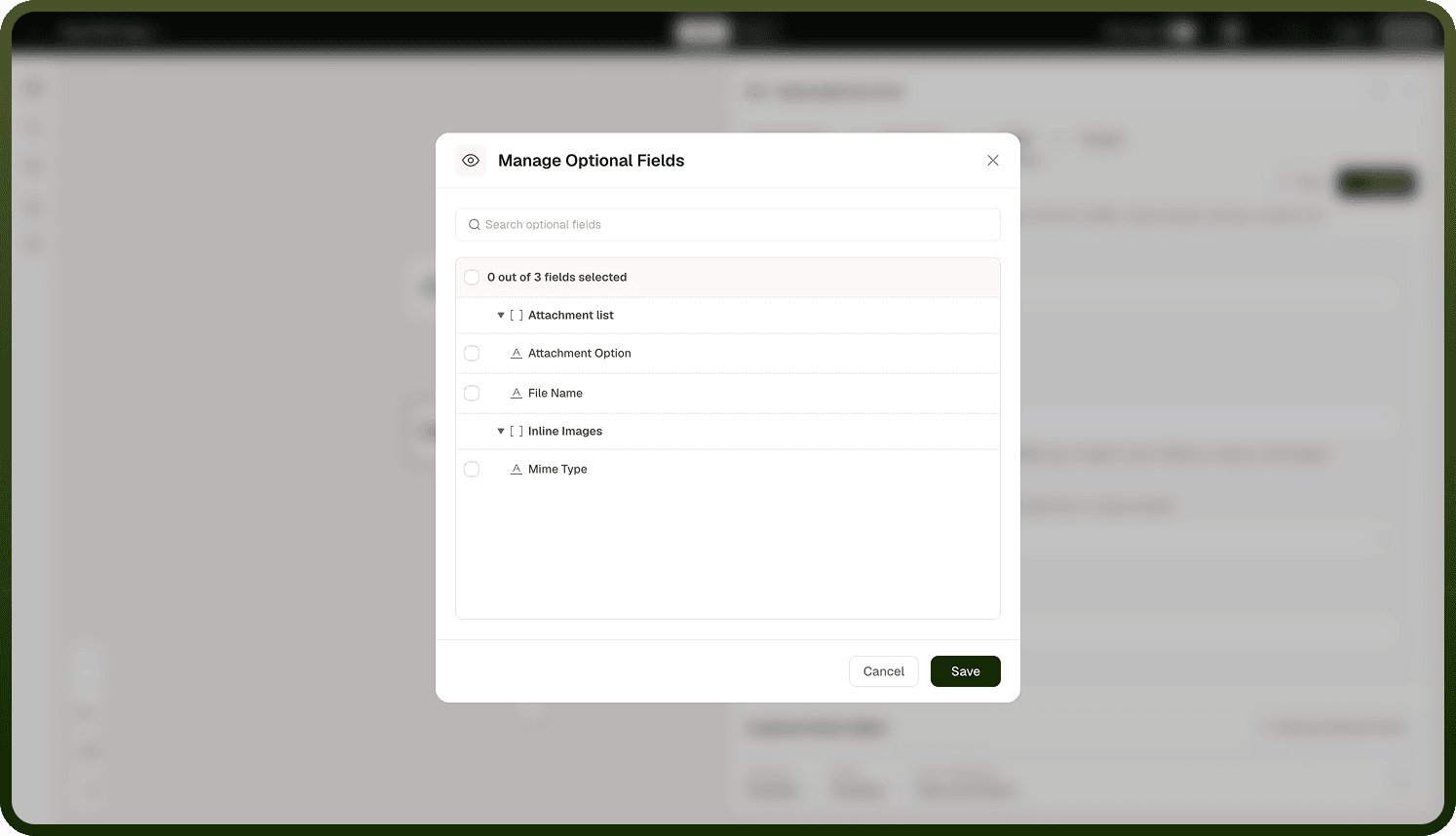
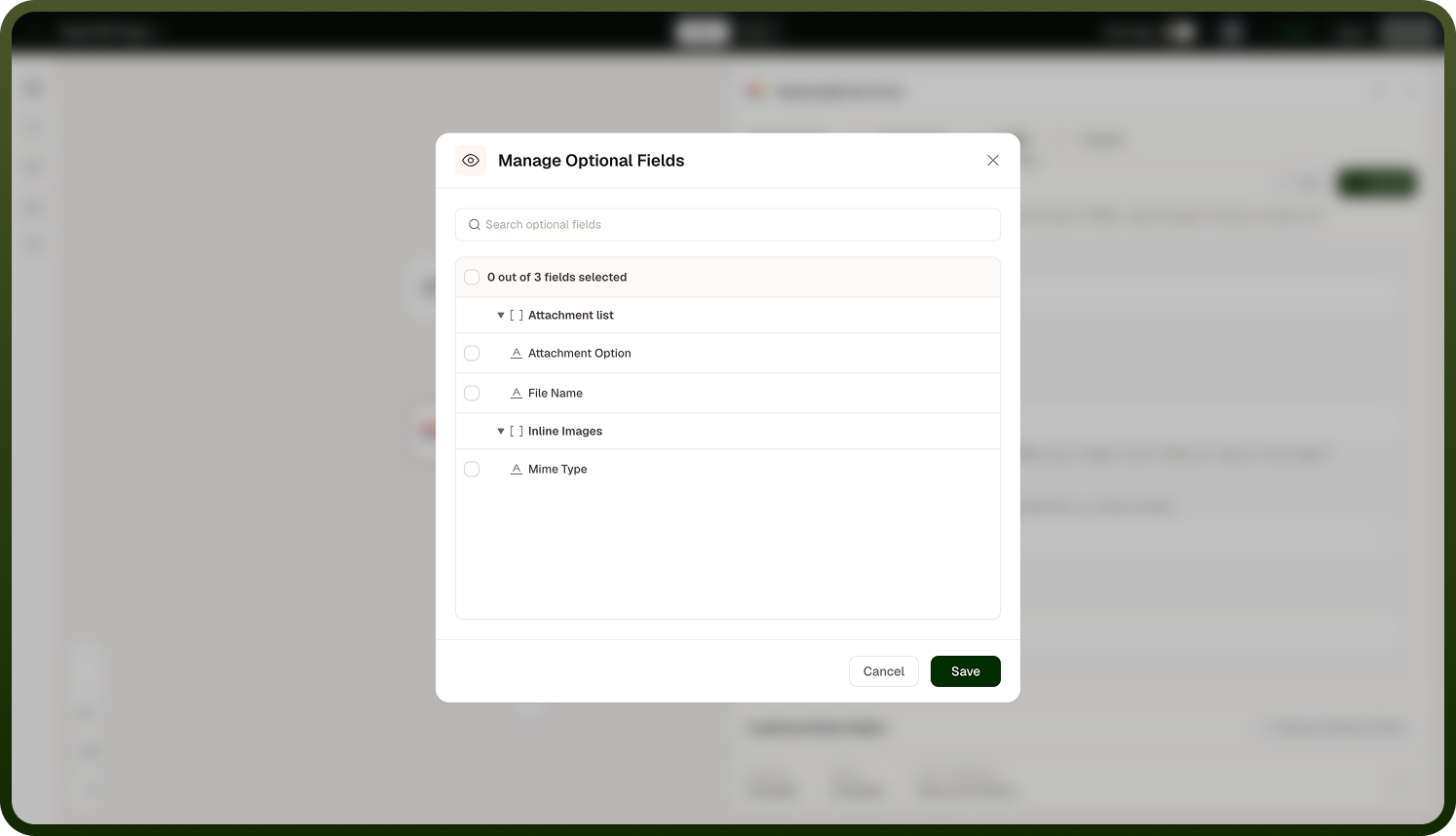
The Input tab shows required and commonly used fields by default. Use Manage optional fields to open a searchable list of all remaining optional fields for the action and tick the ones you want visible. This keeps the input form focused while still making every field reachable.
Notes
Keep these practices in mind when mapping data between steps:
You can mix fixed values and data pills in the same field — type a prefix and then insert a pill to combine them.
Test a step first to populate its Output tree with real data before mapping its fields downstream.
If a data pill shows as invalid (highlighted in red), the field it references no longer exists in the upstream step's output — re-map it.
Data pills from steps inside a loop are scoped to that loop's iteration; they are not accessible outside the loop container.
Well-structured data mappings make an automation easier to read, debug, and maintain as it evolves.