


Expression and code editor fields are the inline formula and scripting surfaces in a node's properties panel — use them to combine values, compute expressions, and build structured payloads without leaving the step or adding a separate transformation node.
Overview
Expression and code editor fields are larger input areas that accept formulas, code expressions, JSON, or scripts — with support for data pill insertion. Use them when a plain typed value or a single data pill is not enough: to combine fields, compute a value, format a number or date, or build a structured JSON body. These fields let you transform and compute data inline, without leaving the node configuration panel or adding a separate transformation node.
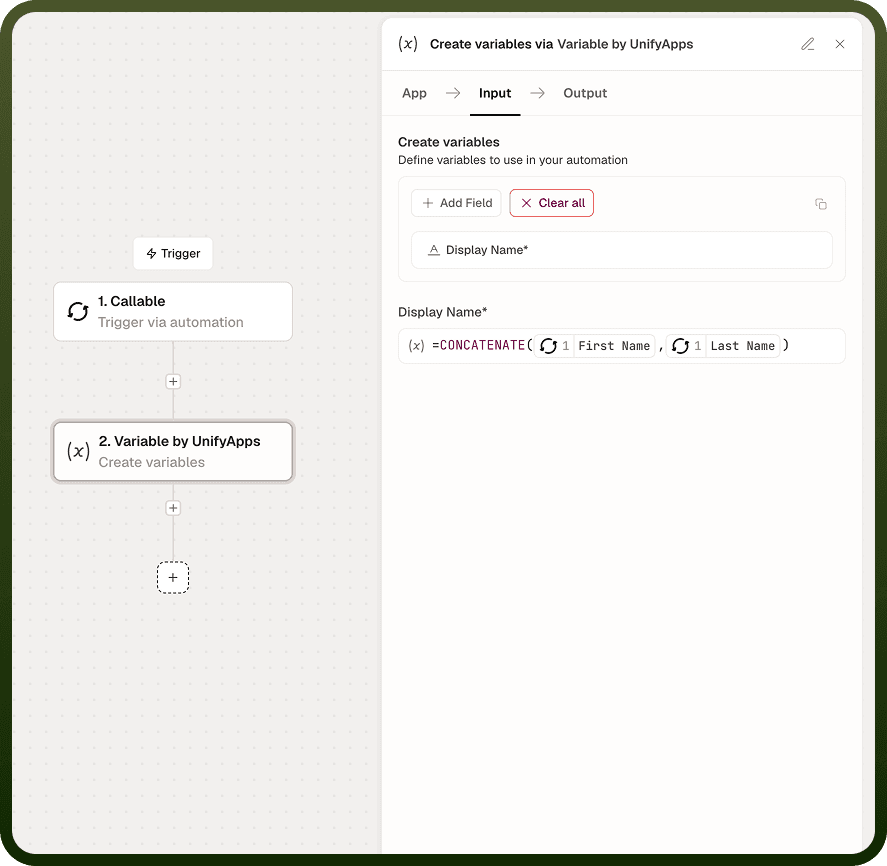
Accessing the Expression Editor
Every standard input field supports formula mode in addition to plain-value entry. To enter formula mode, type = at the very start of the field — without a leading space. A leading space is treated as literal text and does not activate the editor.
Once you type =:
An autocomplete panel appears, suggesting matching functions as you continue typing.
A live preview of the computed result is shown in the field, updating as you build the expression.
A red preview indicates the expression will produce an error at run time; a valid preview confirms the formula is well-formed.
Dedicated expression and code editor fields — used for writing JSON bodies, scripts, or multi-line expressions — open as a larger editing surface within the properties panel. These fields support the same data pill insertion and formula syntax, with additional room for longer content.
Expression Syntax
Calling Functions — Type a function name followed by parentheses. The autocomplete panel shows matching functions and their signatures as you type. Arguments are passed as a comma-separated list inside the parentheses.
Pattern | Example | Description |
|---|---|---|
Single function call | TRIM({{name}}) | Removes leading and trailing whitespace from the value of the name field. |
Nested / chained functions | TRIM(LOWER({{name}})) | Lowercases the value, then trims whitespace — both in a single expression. |
Multiple arguments | CONCAT({{first}}, " ", {{last}}) | Joins the first name, a space, and the last name into a single string. |
Arithmetic operators | {{price}} * {{quantity}} | Standard operators (+, -, *, /) work inside expressions. |
Comparison operators | {{score}} > 90 | Comparison operators (==, !=, >, <) evaluate to a boolean result. |
Common Formula Reference
Formula | Syntax | Description |
|---|---|---|
CONCAT | CONCAT(value1, value2, ...) | Joins two or more values into a single string. |
TRIM | TRIM(text) | Removes leading and trailing whitespace. |
UPPER / LOWER | UPPER(text) / LOWER(text) | Converts text to uppercase or lowercase. |
LEFT / RIGHT | LEFT(text, count) / RIGHT(text, count) | Returns the first or last N characters of a string. |
INT / FLOAT | INT(value) / FLOAT(value) | Converts a value to an integer or decimal number. |
ROUND | ROUND(number, decimals) | Rounds a number to the specified number of decimal places. |
NOW | NOW() | Returns the current date and time. |
IF | IF(condition, true_value, false_value) | Returns one of two values based on a condition. |
ISEMPTY | ISEMPTY(value) | Returns true if the value is null or an empty string. |
Note: The formulas listed above are a subset of the available functions. The full list is accessible inside the automation builder — open any input field, type =, and browse the autocomplete panel.
Using Data Pills in Expressions
A data pill is a reference to an output field from a prior node or the trigger. Inside an expression, data pills use the syntax {{node_id.field}}. You can type the syntax directly, or type {{ and select the node and field from the picker that appears.
Inserting a Data Pill
Place the cursor at the position in the expression where you want the value.
Type {{ to open the pill picker, then select the node and field — or type the node ID and field name directly.
The pill is inserted as {{node_id.field}} and resolves to the actual value at run time.
Example Expressions
The following examples show common patterns combining functions and data pills:
Expression | What it does |
|---|---|
CONCAT("Ticket #", INT({{trigger.id}}), ": ", {{trigger.subject}}) | Builds a formatted ticket label by combining a static prefix, the numeric ticket ID, and the ticket subject. |
LEFT({{trigger.description}}, 200) | Truncates a description to the first 200 characters before passing it to a downstream field. |
TRIM(LOWER({{trigger.email}})) | Normalises an email address by converting it to lowercase and stripping surrounding whitespace. |
IF(ISEMPTY({{trigger.assignee}}), "Unassigned", {{trigger.assignee}}) | Returns a default label when the assignee field is empty, and the actual assignee otherwise. |
Notes
To make the most of expression and code editor fields:
Type = immediately — without a leading space — to enter formula mode; a leading space causes the input to be treated as a literal string.
Use the live preview to validate the result before saving; a red preview means the formula will error at run time.
Nest functions within a single expression rather than adding separate transformation nodes — TRIM(LOWER({{name}})) is one field, not two nodes, keeping the canvas cleaner.
For complex multi-step transformations that would require many nested calls, prefer the Code by UnifyApps node — formulas are best suited to single-expression work.
Use {{ to open the pill picker rather than typing node IDs by hand, to avoid typos in references that will only fail at run time.