


The Bulkhead node caps the number of concurrent runs of an automation to protect shared resources from trigger bursts, with configurable behavior for excess runs — queue them, drop them, or fail them immediately.
Overview
The Bulkhead pattern limits the number of concurrent executions of an automation, preventing a sudden surge of incoming triggers from exhausting shared resources — memory, connection pools, downstream API capacity — and destabilizing other automations in the workspace.
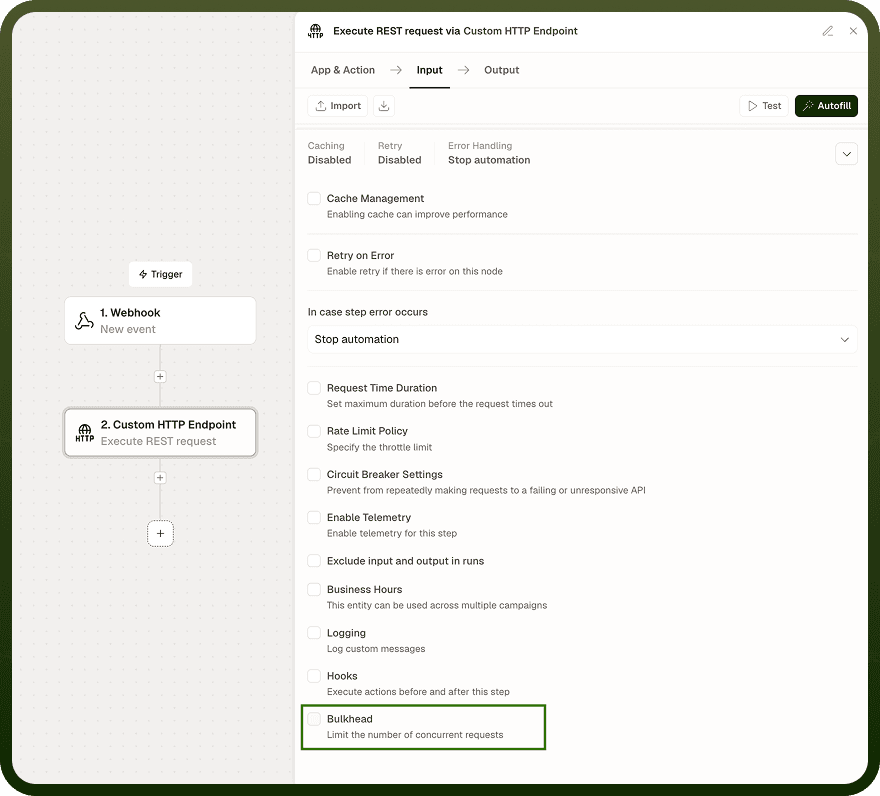
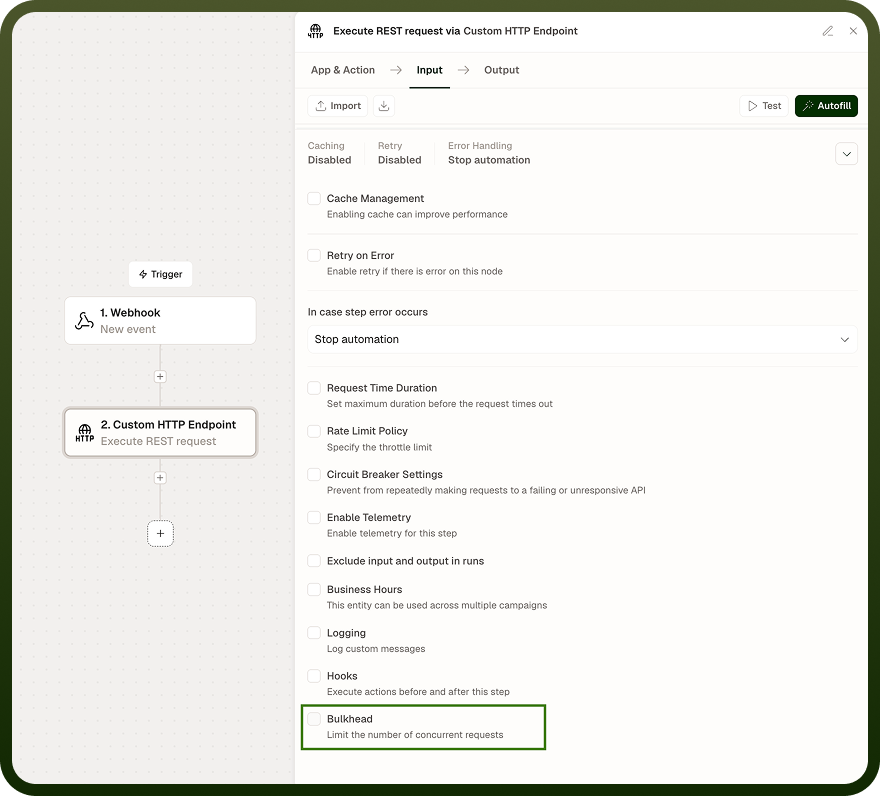
The name comes from ship design: bulkheads compartmentalize a hull so that flooding in one section cannot sink the whole vessel. In automation terms, a bulkhead contains the resource consumption of one automation so that a spike in that automation's load cannot crowd out everything else running in the same workspace.
When the concurrency limit is reached, additional trigger events are not dropped — they are queued. Queued runs execute as soon as a running instance completes and a slot opens up. This preserves every triggered event while still protecting shared resources.
Note: Additional configuration details are available in automation settings.
How Bulkhead Works
Every time an automation is triggered, it competes for an execution slot. Without a bulkhead, there is no cap on how many instances of the same automation can run simultaneously. A high-volume trigger source — a webhook receiving a burst of events, a schedule firing a batch loop — can spin up hundreds of concurrent runs, each consuming memory and holding open connections to external services.
With a bulkhead configured:
Each new trigger checks the current count of active runs for this automation.
If the count is below the configured limit, the run starts immediately.
If the limit is already reached, the incoming run is placed in a queue.
When a running instance finishes (successfully or with an error), one queued run is dequeued and starts.
The effect is a controlled, steady throughput rather than an unbounded burst. Downstream systems — databases, APIs, internal services — receive a predictable load that stays within their capacity.
Note: Queued runs execute in the order they were received. A run waiting in the queue counts against the automation's run history once it starts, not while it is queued.
Configuration
Bulkhead is configured in the automation's settings screen, which covers options that apply to the whole automation rather than a single step.
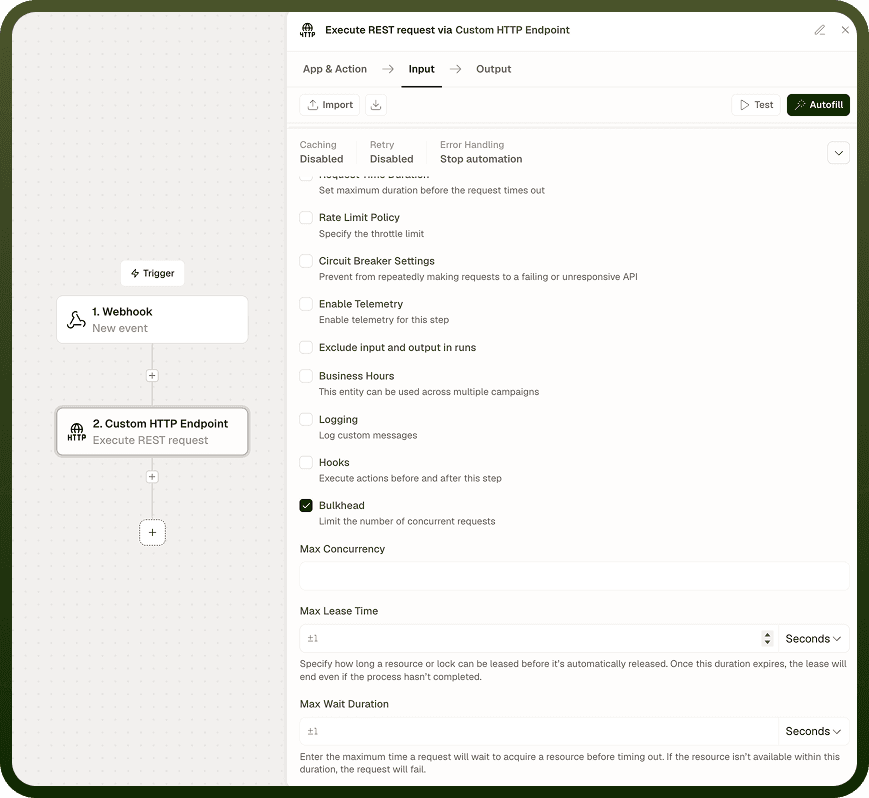
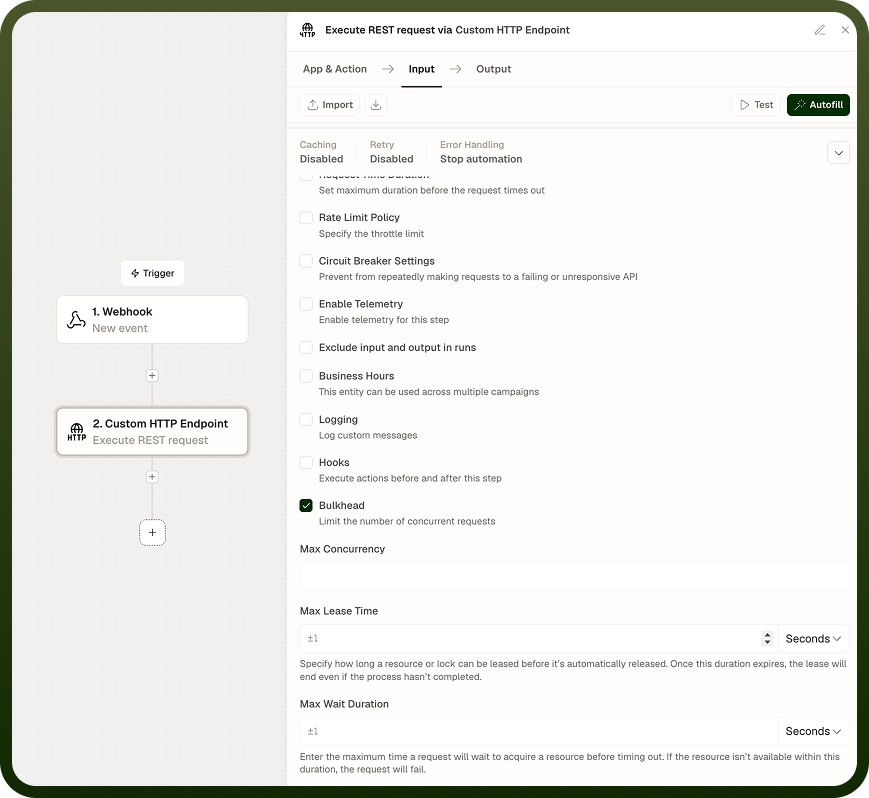
Input Fields | Description |
|---|---|
Concurrent Execution Limit | The maximum number of instances of this automation that may run at the same time. Trigger events that arrive when this limit is reached are queued until a slot becomes available. |
Automation Settings Overview
The automation settings screen includes several other settings alongside Bulkhead. These apply to the whole automation and control logging, timeouts, failure protection, and more:
Setting | Description |
|---|---|
Log Level | Controls how much detail the automation records when it runs. The levels, from least to most detail, are Error, Warn, Info, Debug, and Trace. Use a lower level (Error/Warn) for normal running and raise it to Debug or Trace when investigating a problem. |
Logging Detail | Decides what is stored for each run: Run summary keeps a high-level record, Step details also captures each step's inputs and outputs, and Full trace captures everything. More detail makes debugging easier but stores more data. |
Enable Logging | A master toggle for run logging, separate from the logging detail level. When enabled (the default), each run is recorded and appears in Run History and feeds the Insights dashboards and alerts. When disabled, future runs are not recorded. |
Telemetry | When enabled, collects run metrics — how many runs happen, how they end, and how long they take — and feeds them to the Insights dashboards. Telemetry is about aggregate measurement across many runs, not detailed per-run records. |
Run-level Timeout | Sets the maximum time a single run is allowed to take before it is stopped. Protects against runs that hang or run far longer than expected. |
Circuit Breaker | Automatically pauses the automation when it fails repeatedly. The threshold can be count based (trip after N failures) or time based (trip after failures within a time window). When it trips, the automation stops until you fix the cause and re-enable it. |
Tier | Controls the execution priority class for the automation. Higher-priority work can be placed on a higher tier so it is not held up behind lower-priority automations. |
Custom Header Mappings | Defines custom headers — a header key and its value — added to outbound requests the automation makes. Use this when a downstream system expects specific headers on the calls your automation sends. |
Relationship to Other Automation Settings
Bulkhead works alongside, not in place of, other run-protection settings in the automation settings screen:
Run-level timeout — caps how long a single run may take. Combined with Bulkhead, this prevents a stuck run from holding a concurrency slot indefinitely and blocking the queue.
Circuit breaker — automatically pauses the automation after repeated failures. Bulkhead controls how many runs start; the circuit breaker controls whether the automation starts new runs at all after sustained errors.
Tier — sets the execution priority class for the automation. Tier affects scheduling priority across automations; Bulkhead limits concurrency within a single automation.
Log level and logging detail — control how much information is recorded for each run. When debugging Bulkhead behavior — for example, confirming that runs are being queued as expected — raise the log level to Debug or Trace and set logging detail to Step details or Full trace.
Enable Logging — the master toggle for run recording. Keep logging enabled when using Bulkhead so that queued and completed runs appear in Run History for monitoring.
Telemetry — collects aggregate run metrics for the Insights dashboards. Enable telemetry alongside Bulkhead to monitor trends in queue depth, run duration, and throughput over time.
Custom header mappings — defines headers added to outbound requests. If the downstream system protected by Bulkhead requires specific headers, configure them here alongside the concurrency limit.
Notes
Bulkhead is a production-safety control for automations that are triggered at high volume or that call resource-constrained downstream systems. To make the most of it:
Set the concurrency limit based on the capacity of the most constrained resource the automation touches — for example, the connection pool size of a target database or the concurrent-request limit of an external API.
Pair Bulkhead with the Run-level timeout setting so that a hung run does not hold a slot open indefinitely and stall the queue behind it.
Monitor queue depth over time; a persistently long queue indicates that the concurrency limit is too low for the trigger volume, or that individual runs are taking longer than expected.
Use the Tier setting together with Bulkhead when multiple automations compete for the same downstream resources — assign higher-priority automations a higher tier so they are scheduled ahead of lower-priority ones once their slots are free.
Do not set the concurrency limit higher than the downstream system can reliably handle — the purpose of Bulkhead is to protect those systems, not simply to maximize throughput.