


The Code by UnifyApps node runs a script you write in Python, JavaScript, Java, Groovy, or C#, or invokes a method that already exists on the classpath. All six actions share the same data contract — you declare inputs, write the logic, and declare the shape of the result — but each language adds its own configuration: Python has environment and file handling, Java takes external JAR libraries, Groovy offers static compilation, and C# pulls packages from NuGet.
Overview
Language-specific execution lets you write in the language your team already knows, and reach for the Code node only where built-in nodes fall short. Inputs declared on the node become named variables inside the script; the script returns a result, and the output schema you declare on the node exposes each field as a data pill for downstream steps. Every script runs in an isolated sandbox with no implicit access to the host or to other scripts' state.
Pick the action that matches your language:
Python for data analysis, transformation, and anything that needs third-party packages or file handling.
JavaScript for JSON manipulation and lightweight, in-line logic.
Java and Groovy for JVM work, enterprise integrations, and reuse of existing JAR libraries.
C# for .NET logic and NuGet-backed libraries.
Execute method from classpath when the logic already exists as a class on the classpath and you only need to call it.
Playwright scripts are also run by this node, but browser automation is covered on the Browser Automation page. Snippet and sandbox actions are covered on the Sandboxed / Snippet Execution page.
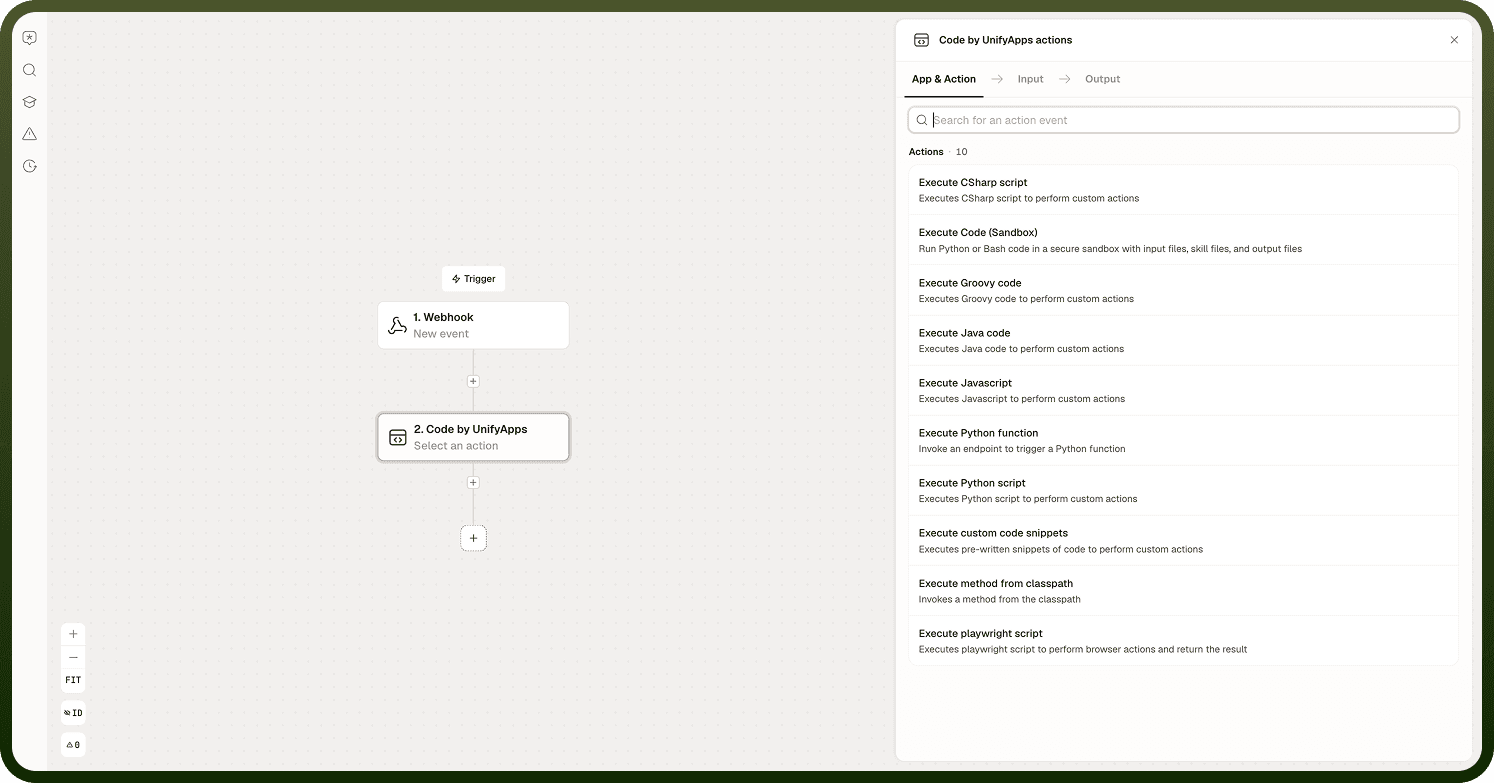
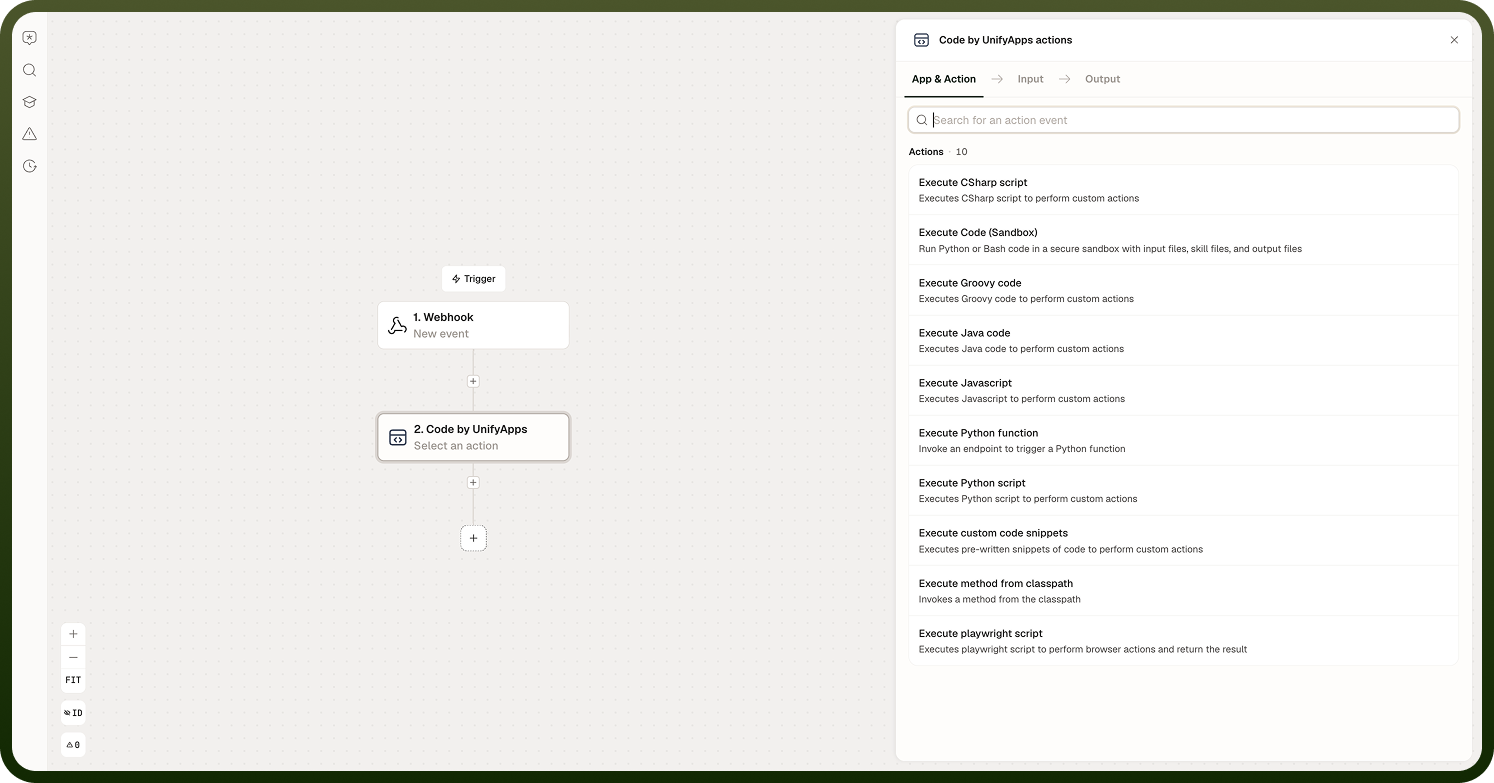
Actions
Action | Description | Configuration unique to this action |
|---|---|---|
Execute Python script | Executes a Python script to perform custom actions. | Python environment selection, Python version, packages to import, saved environment, Input Files, Output Files Pattern, async mode, capture standard output |
Execute Javascript | Executes JavaScript to perform custom actions. | Async mode |
Execute Java code | Executes Java code to perform custom actions. | External JAR Libraries, capture standard output |
Execute Groovy code | Executes Groovy code to perform custom actions. | Enable Static Compilation, capture standard output |
Execute CSharp script | Executes a C# script to perform custom actions. | NuGet package references declared in the script, async mode, capture standard output |
Execute method from classpath | Invokes a method from the classpath. No script is written — you name the class and method and supply arguments. | Class name, method name, Constructor Arguments, Method Arguments |
Common Configuration
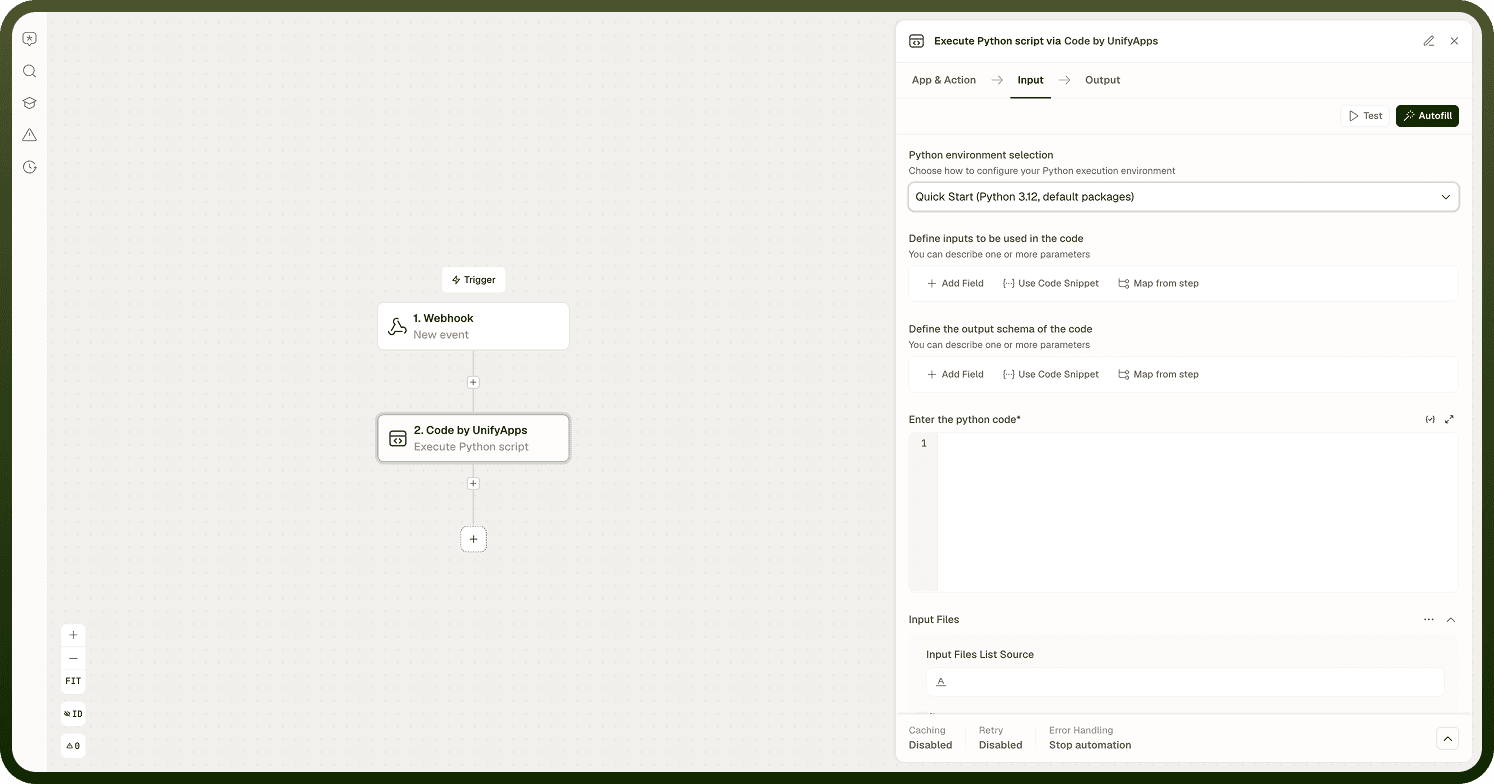
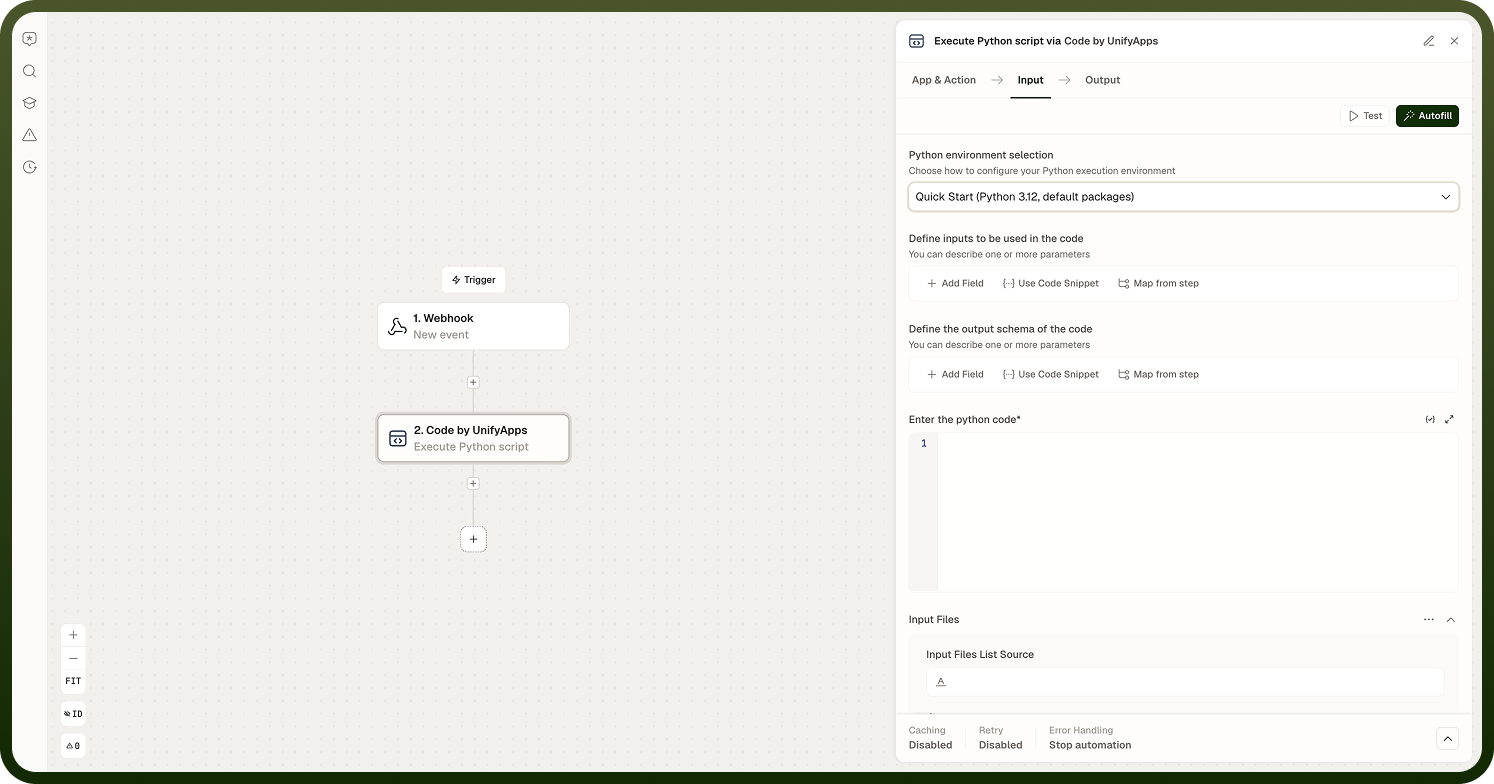
Five of the six actions (everything except Execute method from classpath) present the same three fields in the same order: an input schema, an output schema, and a code editor for the selected language. Configure the schemas first — the platform uses them to generate the parameter mapping fields you fill in below the code.
Defining inputs
Under Define inputs to be used in the code, describe one or more parameters. Each becomes a variable inside the script, named exactly as you keyed it. When the input list is empty, three shortcuts are offered:
Add Field — define one parameter at a time in the Add new input dialog.
Use Code Snippet — paste a JSON sample and let the platform derive the schema from it.
Map from step — reuse the schema produced by an earlier step in the automation.
The Add new input dialog takes the following:
Field | Type | Required | Description |
|---|---|---|---|
Key | String | Yes | The variable name used inside your code. Must start with a letter, contain no spaces, and use no special characters other than _. Casing is preserved and matters — emailSubject and email_subject are different variables. |
Display Label | String | No | Friendly name shown in the builder when mapping values into the node. Does not affect the variable name in code. |
Type | Enum | Yes | String, Number, Integer, Boolean, Object, or Array. Defaults to String. |
Array type | Enum | Yes, when Type is Array | Element type of the array: String, Number, Integer, Boolean, or Object. Defaults to Object. |
Is Optional | Boolean | No | Marks the parameter as optional so the node can run without a value mapped to it. Off by default. Handle the missing value in your script. |
Exclude field in runs | Boolean | No | Keeps the parameter defined but leaves it out of executions — useful for retiring an input without deleting it from the schema. |
Nest under | Selector | No | Places this parameter inside an existing Object parameter, producing nested input. The nested value is reached through its parent inside the script. |
Defining the output schema
Under Define the output schema of the code, describe the parameters your script returns. The Add new parameter dialog takes the same fields as the input dialog, and offers the same Add Field / Use Code Snippet / Map from step shortcuts.
The declared shape is what the builder uses to expose data pills to later steps — it is not strictly enforced at runtime. If your script omits a declared key, downstream steps referencing it receive an empty value rather than an error, so make sure the script actually returns everything it declares.
Execute Python script
The Python action has the widest configuration of the six. Beyond the shared schemas and code editor, it lets you pin an interpreter version, install packages, hand files to the script, and collect files the script writes.
Field | Type | Required | Description |
|---|---|---|---|
Python environment selection | Enum | Yes | How the execution environment is configured. Quick Start (Python 3.12, default packages) is the default and needs no setup. Custom Setup (choose Python version & packages) exposes the version and package fields. Pre-configured virtual environment uses a saved environment. |
Python version | Enum | Custom Setup only | Interpreter version: 3.8, 3.9, 3.10, 3.11, 3.12 (default), or 3.13. The script runs on the version selected — code using newer syntax will not run on an older interpreter. |
Add packages to import | List of strings | No (Custom Setup only) | Packages to install into the environment before the script runs. List the exact package names your script imports. |
Select environment to use | Lookup | Yes, for Pre-configured virtual environment | Picks a saved Python virtual environment, which carries its own name, Python version, and package list. Selecting the same environment across automations guarantees they all run on the same interpreter and package set. |
Enter the python code | Code | Yes | The script body, written in the code editor. Declared inputs are available as variables; return the keys declared in the output schema. |
Input Files | List of file entries | No | Files to make available to the script. Each entry pairs a file name with the file details (source path and cloud storage metadata). The script accesses each file through the name you assign — set the name to customer_data and use the customer_data variable in your code. |
Output Files Pattern | String (glob) | No | Glob pattern deciding which files written by the script are uploaded — for example *.csv, *.xlsx, or report_*. Leave it empty or use * (the default) to upload everything the script produces. |
Run in async mode | Boolean | No | Runs the script asynchronously; the automation waits in a paused state until execution completes. Off by default. Use it for long-running scripts. |
Capture standard output | Boolean | No | Captures all stdout and stderr produced by the script. Off by default. Useful for debugging print statements and tracebacks. |
Example. Inputs email_subject (String) and output parameters ticket_id and priority (String):
import re match = re.search(r"\[(\w+-\d+)\]", email_subject) ticket_id = match.group(1) if match else "" priority = "high" if "urgent" in email_subject.lower() else "normal" return { "ticket_id": ticket_id, "priority": priority }
Output. The Python action returns result — the object your script returned, mapped to the declared output schema — and outputFiles, the files matched by the Output Files Pattern.
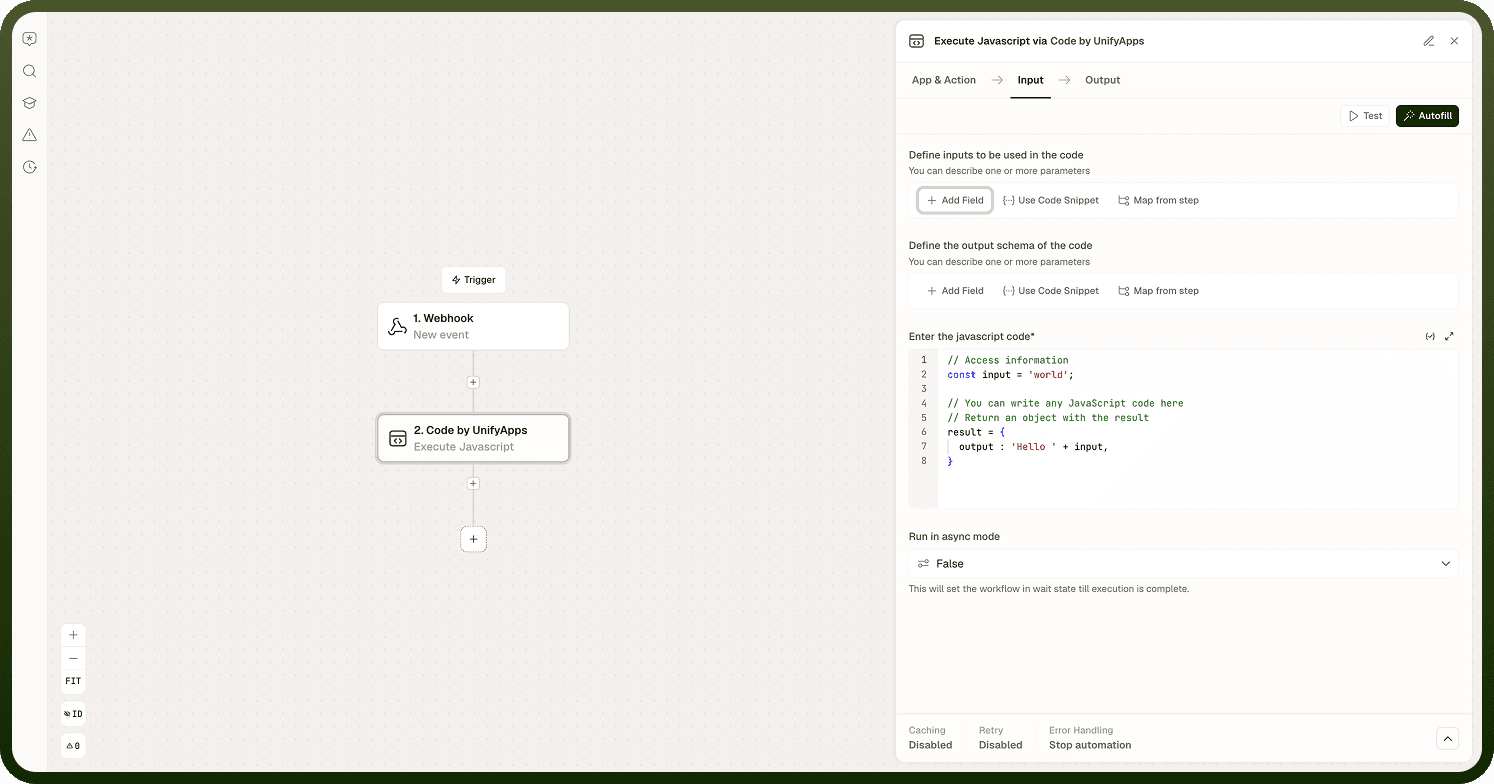
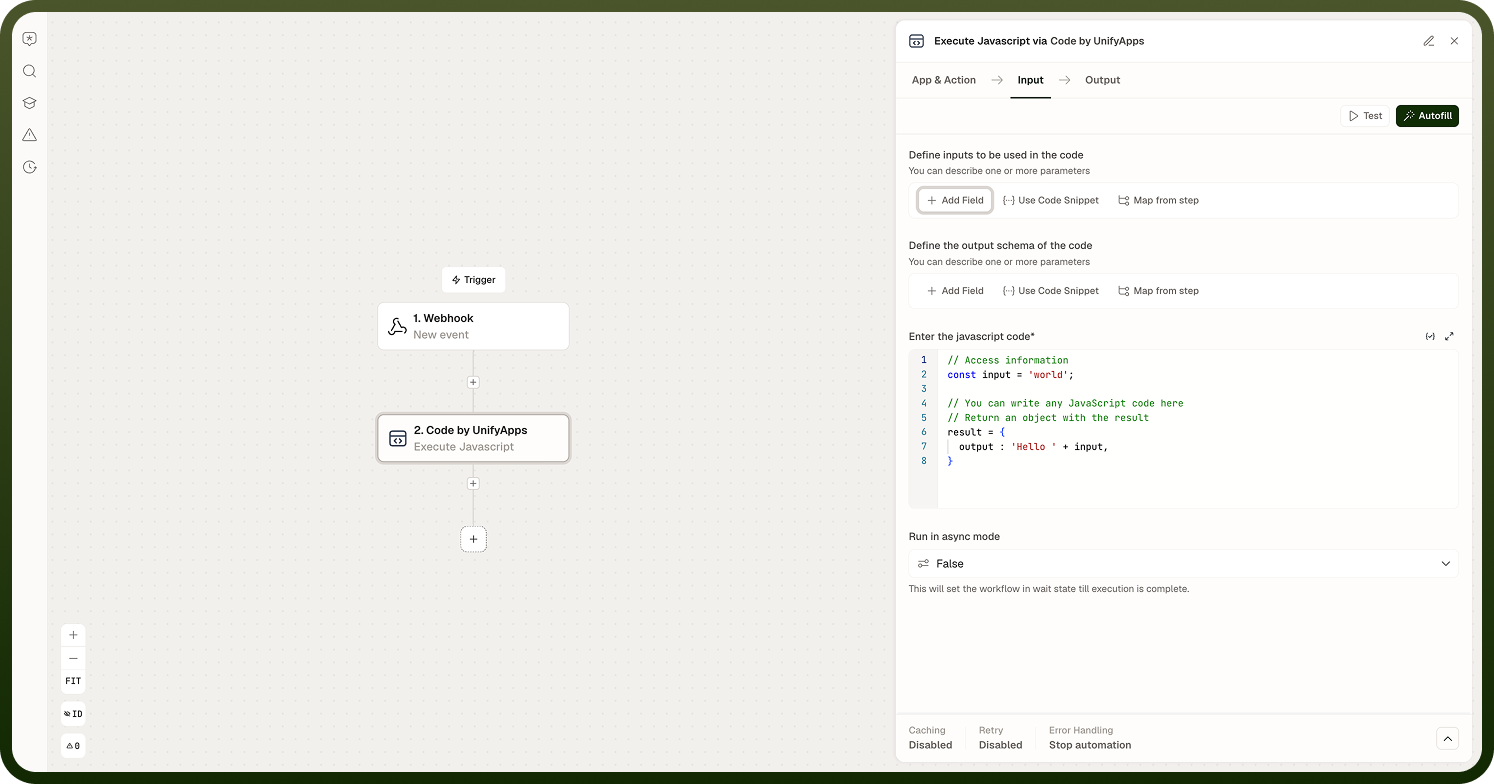
Execute Javascript
The leanest of the six actions: input schema, output schema, code editor, and async mode. There is no package configuration and no file handling — for work that needs libraries or files, use Python or one of the JVM actions.
Field | Type | Required | Description |
|---|---|---|---|
Enter the javascript code | Code | Yes | The script body. Declared inputs are available as variables; return an object holding the declared output keys. |
Run in async mode | Boolean | No | Runs the script asynchronously; the automation waits in a paused state until execution completes. Off by default. |
Example. Input orders (Array of Object), outputs total (Number) and count (Integer):
const total = orders.reduce((sum, o) => sum + o.amount, 0); return { total: total, count: orders.length };
Output. Returns result, mapped to the declared output schema. Standard output is not captured for this action — return any diagnostic values you need as part of the result.
Execute Java code
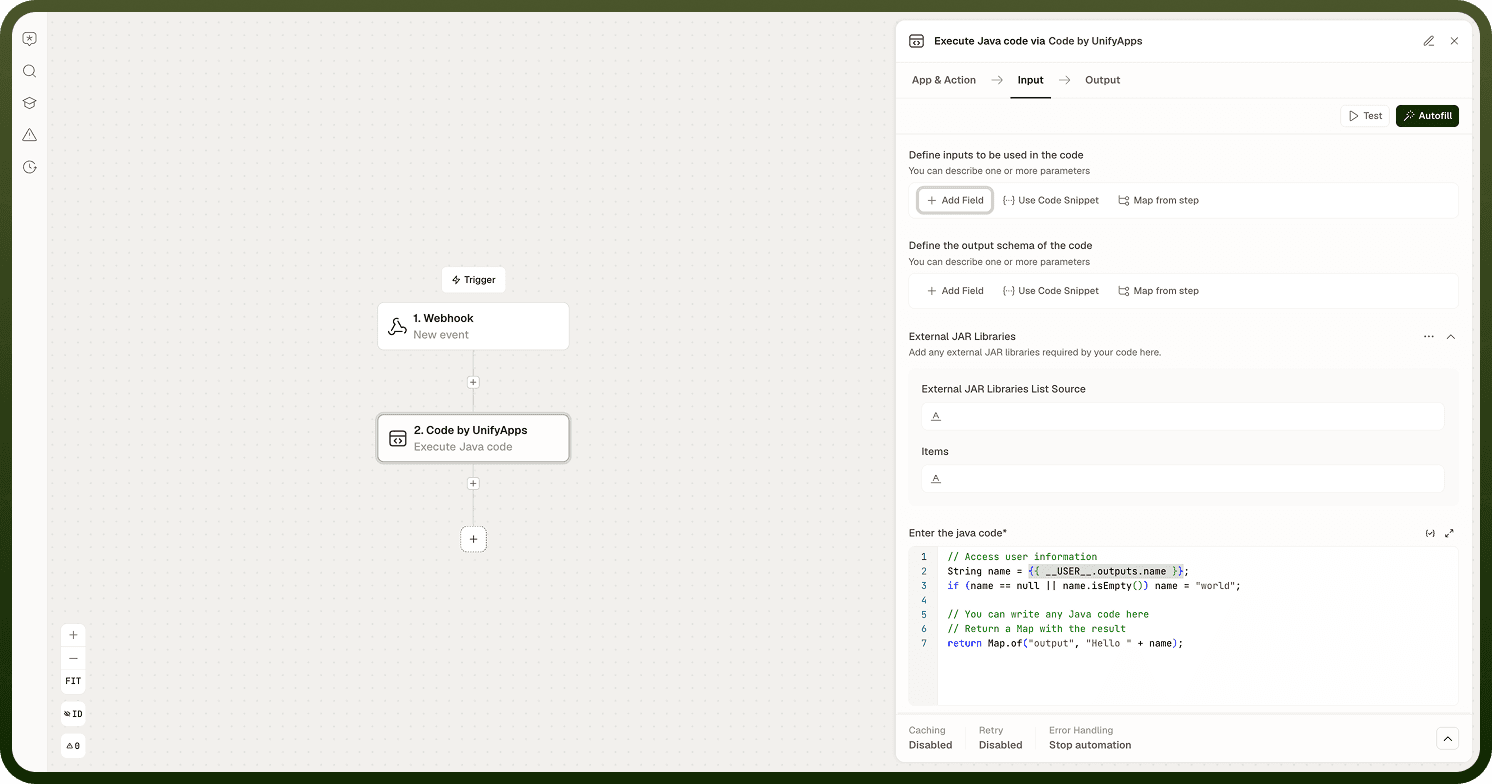
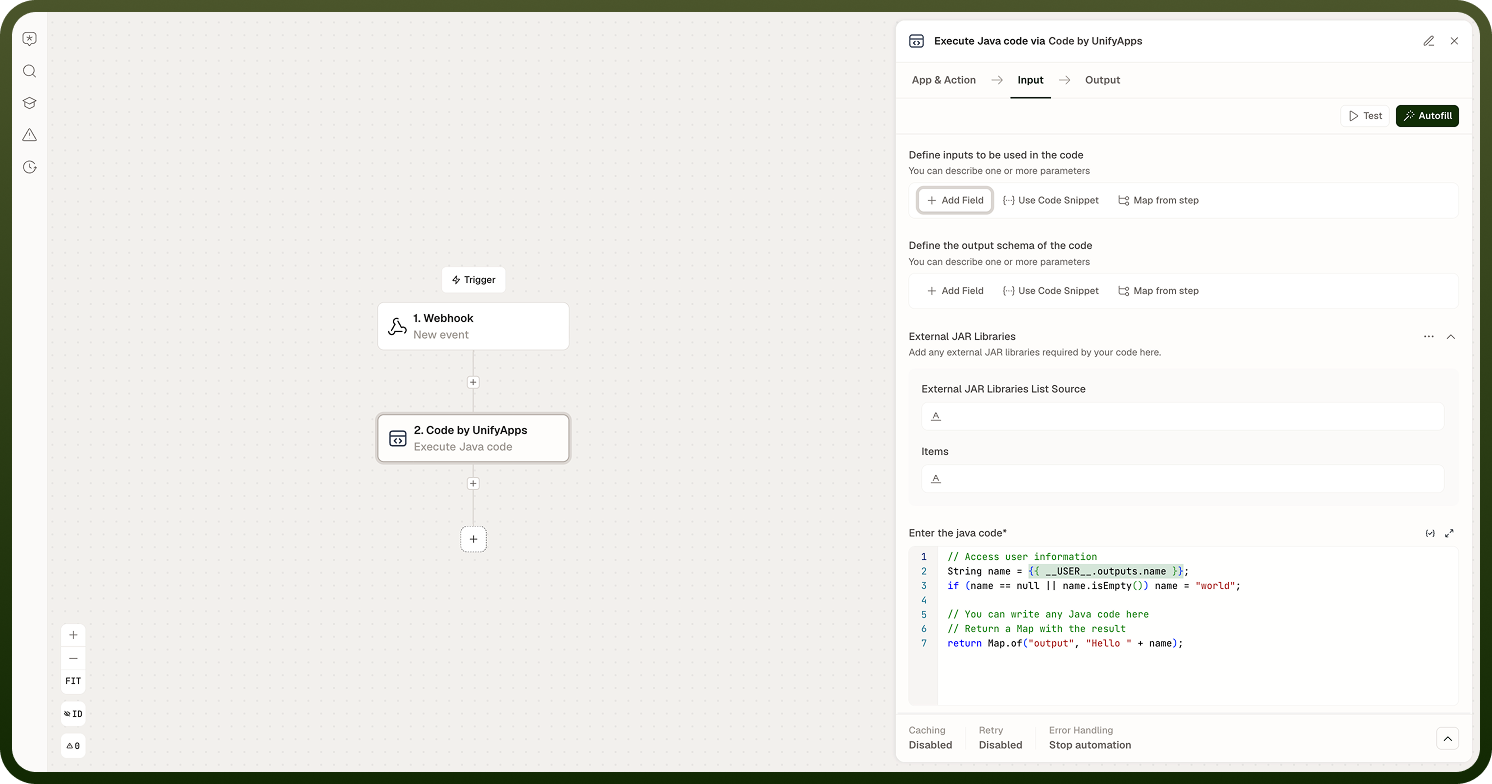
Runs Java on the JVM, with the option to bring in external JAR libraries. There is no async mode for this action — Java steps run synchronously, so keep the work bounded.
Field | Type | Required | Description |
|---|---|---|---|
External JAR Libraries | Lookup (multiple) | No | Any external JAR libraries your code requires. Select one or more uploaded JARs by file name; the classes they contain become available to the script. |
Enter the java code | Code | Yes | The code body. Declared inputs are available as variables; return the keys declared in the output schema. |
Capture standard output | Boolean | No | Captures all stdout and stderr produced by the code. Off by default. |
Example. Input customerName (String), outputs normalized (String) and length (Integer):
Map<String, Object> result = new HashMap<>(); String normalized = customerName.trim().toUpperCase(); result.put("normalized", normalized); result.put("length", normalized.length()); return result;
Output. Returns result, mapped to the declared output schema.
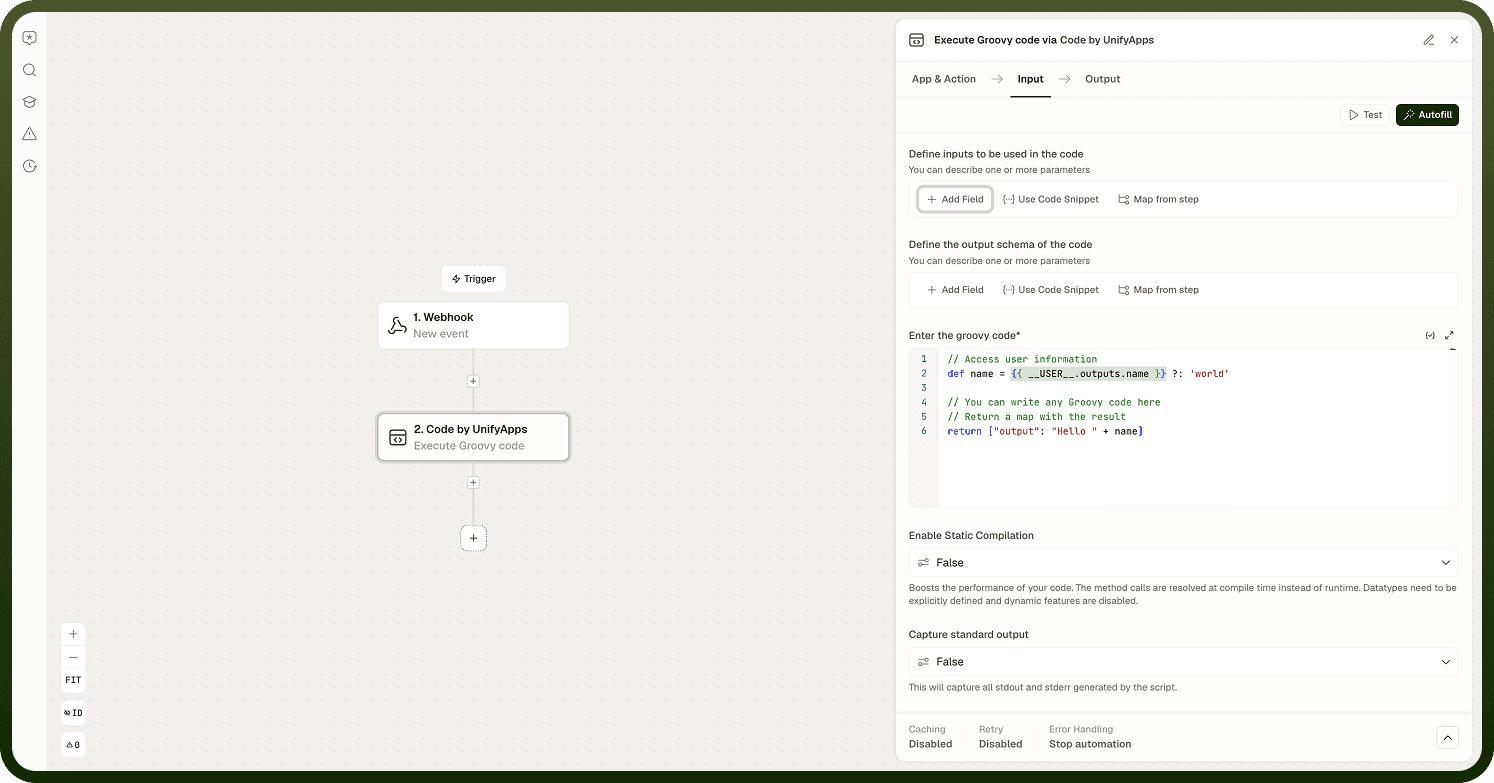
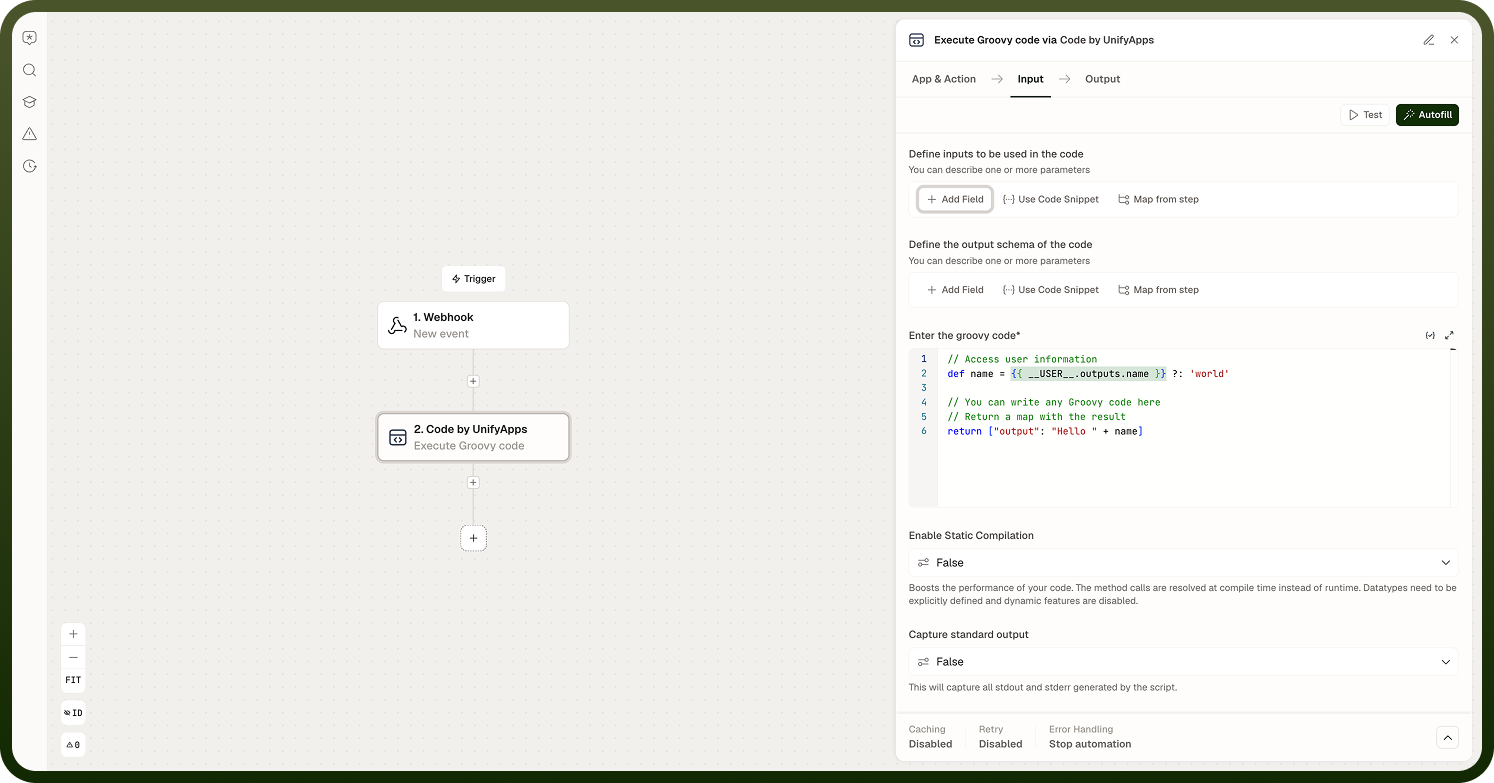
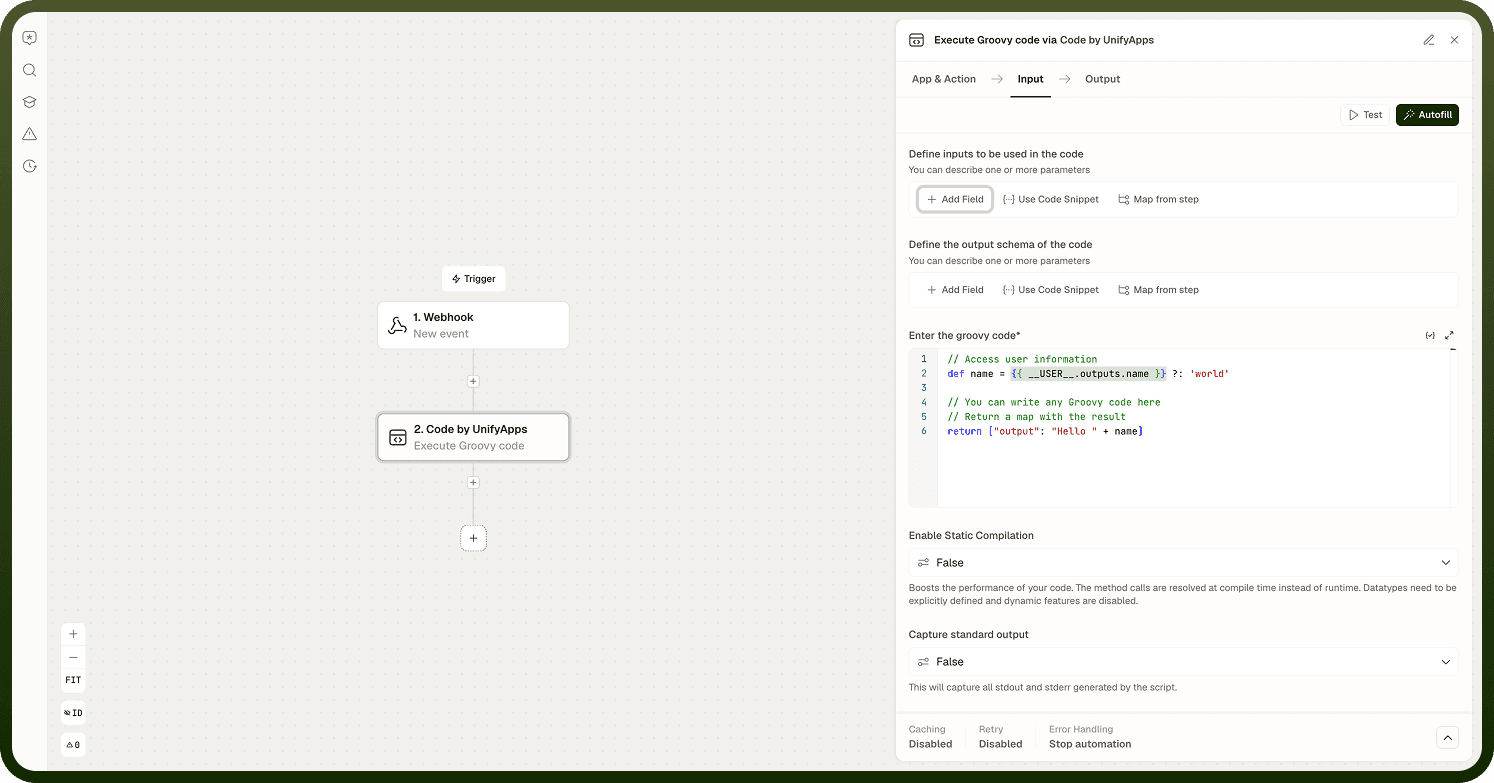
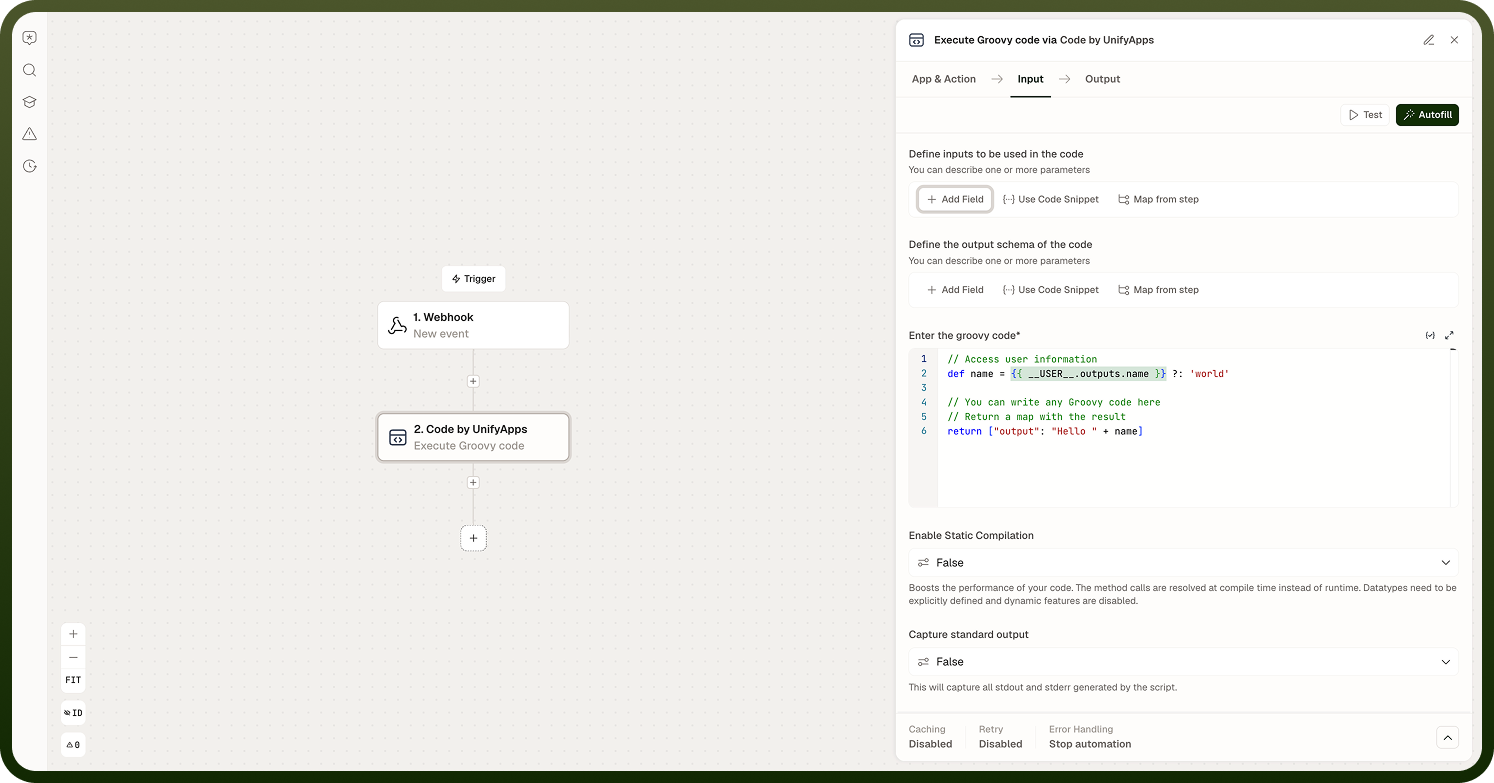
Execute Groovy code
Runs Groovy on the JVM. Groovy is a good fit when you want concise scripting with access to Java libraries. This action adds a static compilation switch and offers no async mode.
Field | Type | Required | Description |
|---|---|---|---|
Enter the groovy code | Code | Yes | The script body. Declared inputs are available as variables; return the keys declared in the output schema. |
Enable Static Compilation | Boolean | No | Boosts performance by resolving method calls at compile time instead of at runtime. Off by default. When enabled, data types must be explicitly declared and Groovy's dynamic features are disabled — enable it only for code written with explicit types. |
Capture standard output | Boolean | No | Captures all stdout and stderr produced by the script. Off by default. |
Example. Input amount (Number), output formatted (String):
String formatted = String.format("%.2f", amount) return [ formatted: formatted ]
Output. Returns result, mapped to the declared output schema.
Static compilation is a trade-off. It speeds execution but disables dynamic dispatch, so untyped variables and dynamic method calls that work with it off will fail to compile with it on. Turn it on when your script already declares types throughout.
Execute CSharp script
Runs a C# script. External libraries are not selected in the node — you declare NuGet package references at the top of the script itself.
Field | Type | Required | Description |
|---|---|---|---|
Enter the csharp code | Code | Yes | The script body. To use an external library, add a NuGet package reference at the top of the script in the form #r "nuget: PackageName". Declared inputs are passed in as arguments; return the object described by the output schema. |
Run in async mode | Boolean | No | Runs the script asynchronously; the automation waits in a paused state until execution completes. Off by default. |
Capture standard output | Boolean | No | Captures all stdout and stderr produced by the script. Off by default. |
Example. Input payload (String), output itemCount (Integer), using a NuGet reference:
#r "nuget: Newtonsoft.Json" using Newtonsoft.Json.Linq; var parsed = JArray.Parse(payload); return new { itemCount = parsed.Count };
Output. Returns result, mapped to the declared output schema.
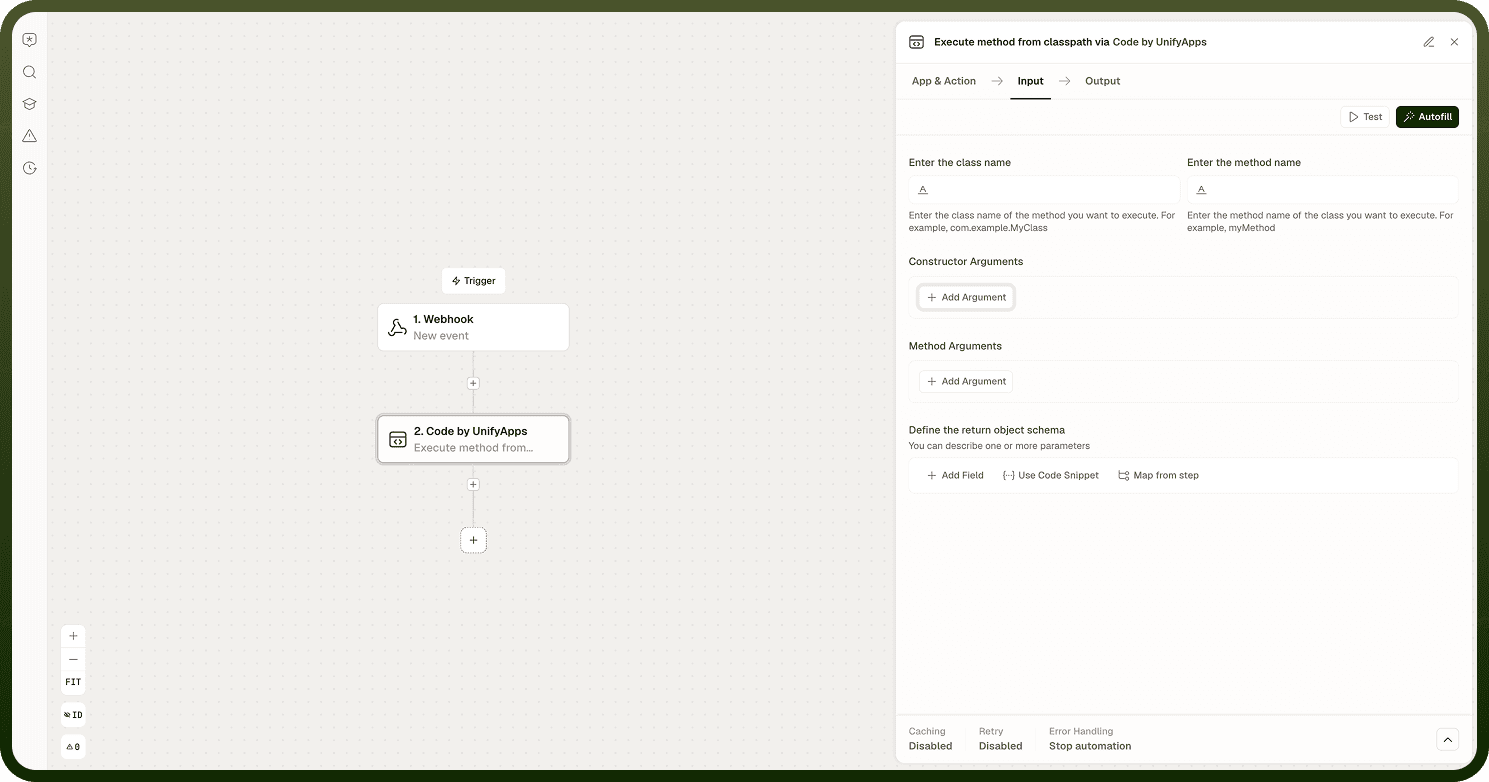
Execute method from classpath
Calls a method that already exists on the classpath instead of running a script you write. Use it to reuse enterprise business logic without re-implementing it in a Code node. There is no code editor for this action — you supply the class, the method, and the arguments, then describe what comes back.
Field | Type | Required | Description |
|---|---|---|---|
Enter the class name | String | Yes | Fully qualified name of the class holding the method — for example com.example.MyClass. |
Enter the method name | String | Yes | Name of the method to execute on that class — for example myMethod. |
Constructor Arguments | List of strings | No | Arguments passed to the class constructor when the instance is created. Add them in the order the constructor expects. Leave empty if the class needs no constructor arguments. |
Method Arguments | List of strings | No | Arguments passed to the method itself, in the order the method signature expects. |
Define the return object schema | Schema | No | Describes the object the method returns. Defining it lets later actions consume the returned values as data pills, in the same way as the output schema on the script actions. |
Output. Returns result, mapped to the return object schema you defined.
Capabilities by Action
Not every option is offered for every language. Use this table to pick the action before you start writing.
Capability | Python | JavaScript | Java | Groovy | C# | Classpath |
|---|---|---|---|---|---|---|
Code editor | Yes | Yes | Yes | Yes | Yes | No |
Input schema | Yes | Yes | Yes | Yes | Yes | Arguments instead |
Output schema | Yes | Yes | Yes | Yes | Yes | Yes |
Run in async mode | Yes | Yes | No | No | Yes | No |
Capture standard output | Yes | No | Yes | Yes | Yes | No |
External libraries | Packages installed into the environment | Not configurable | External JAR Libraries | Via JVM libraries | NuGet reference in the script | Classes already on the classpath |
Input / output files | Yes | No | No | No | No | No |
Version selection | 3.8–3.13 | No | No | No | No | No |
Returned object | result, outputFiles | result | result | result | result | result |
Notes
Input and output keys are used verbatim in your code. Match the casing exactly — a mismatch produces an undefined variable, not a mapping error.
The declared output shape is for builder convenience and is not strictly enforced at runtime. Return every key you declare, or downstream steps will read empty values.
Python defaults to version 3.12 under Quick Start. Choose Custom Setup to select any version from 3.8 to 3.13, and match it to the syntax your script uses.
Quick Start ships the default package set, so simple data-transformation scripts need no package configuration. Use Custom Setup for anything beyond that set, and a pre-configured virtual environment when several automations must run on identical versions and packages.
Python input files are addressed by the name you assign in Input Files, not by their original filename. Output files are collected only if they match the Output Files Pattern; the default * uploads everything.
Async mode exists only for Python, JavaScript, and C#. Java, Groovy, and classpath invocations run synchronously — split heavy work rather than letting a step run long.
Standard output capture exists for Python, Java, Groovy, and C#, but not for JavaScript. Return diagnostic values in the result if you need them from a JavaScript step.
Groovy's Enable Static Compilation requires explicitly declared data types and disables dynamic features. Leave it off unless the script is written for it.
All scripts run isolated in a sandbox — no implicit access to the host system or to other scripts' state. Pass everything the script needs in as a declared input.
Library availability differs by language. See the Code by UnifyApps introduction page for the supported Python library list; for Java, JavaScript, and Groovy libraries not already available, contact support@unifyapps.com.
Prefer the language your team maintains most comfortably. Use the Code node as an escape hatch for the parts of an automation that built-in nodes cannot cover, and keep the rest of the automation in standard nodes.