


The Standard Entities node lets automations manage other automations and pipelines programmatically — create, deploy, and clone automations, and cancel or inspect ongoing runs. Use these operations to build "platform that manages itself" flows, automated deployment pipelines, and operational automations that act on the platform's own execution layer.
Overview
Automation Management in the Standard Entities node gives an automation the ability to act on the automation layer of the platform — publishing versions, duplicating configurations, and monitoring or canceling active runs. Because these operations affect production behavior directly, understanding their versioning and approval behavior is essential before use. Two distinct deployment paths exist, and choosing the wrong one can bypass governance controls.
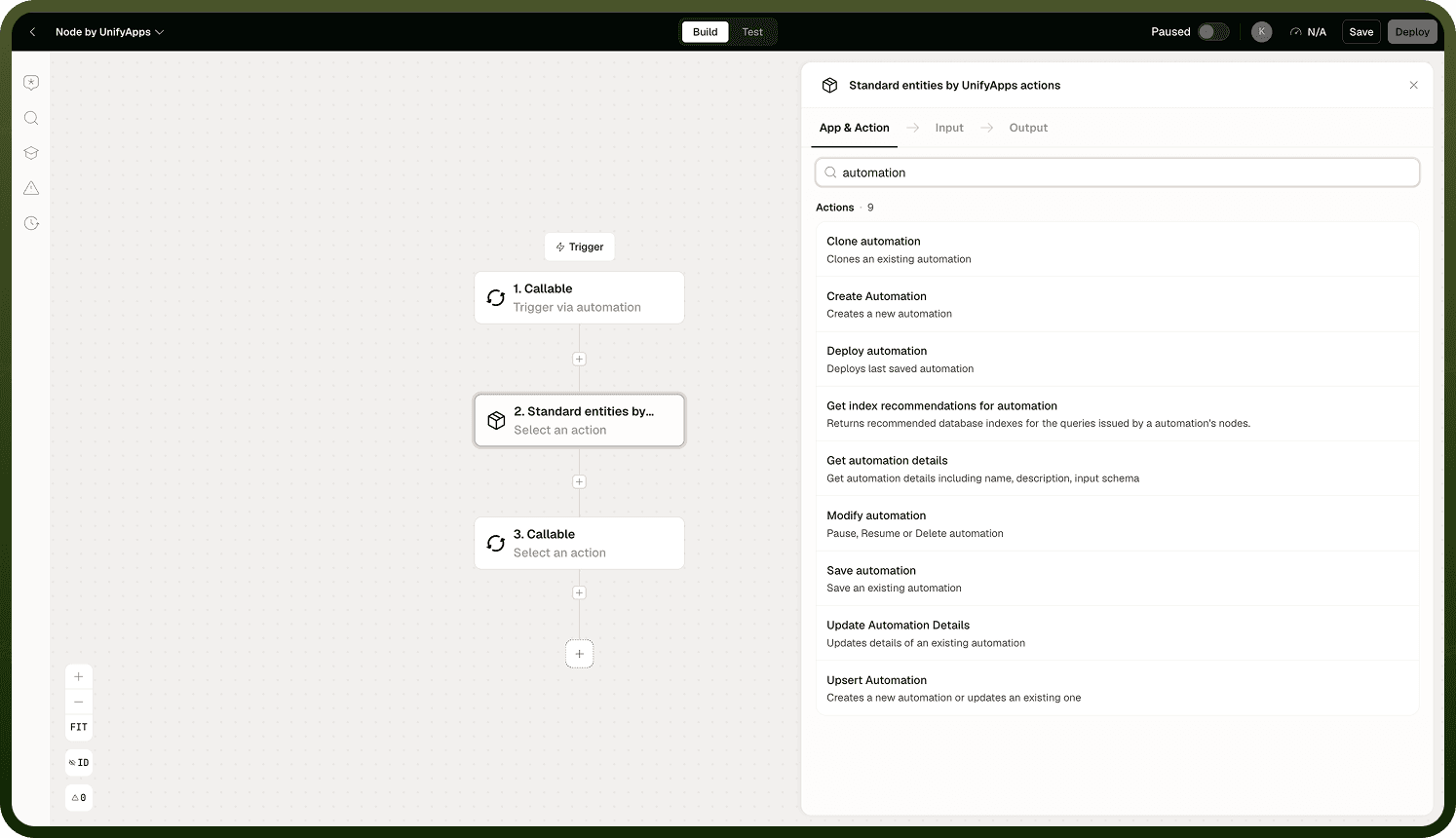
Creating, Saving, and Cloning Automations
The node supports several operations for establishing and maintaining automation configurations:
Create Automation — provisions a new automation, in either of two input modes: Static, where you supply just a name and description; or Dynamic, where you supply a full workflow definition object up front. Output: the new automation's ID, name, and description.
Save Automation — saves an updated workflow definition onto an existing automation. Input: the automation to update and its updated workflow definition. Output: Success (boolean).
Upsert Automation — creates a new automation or updates an existing one from a single workflow definition object, in one step. Output: the full saved automation object, including its ID, nodes, edges, settings, and version.
Update Automation Details — updates only the name, description, or tags of an automation, without touching its underlying workflow definition. Input: the automation, a Fields to Update selection (Name, Description, Tags), and the corresponding values. Output: Success (boolean).
Clone Automation — duplicates an existing automation, producing a new copy with its own independent identity. Input: the automation to clone, a name for the clone, and whether to share the clone with the same users as the original. Output: the cloned automation's ID and name. Use this to create variants, templates, or copies across environments.
Create Automation, Save Automation, and Upsert Automation all end up producing or modifying a saved (undeployed) workflow definition — Create Automation is for provisioning a brand-new automation, Save Automation and Upsert Automation are for updating one that already exists.
Pausing, Unpausing, and Deleting Automations
Modify Automation performs a lifecycle operation on an existing automation, without touching its saved definition. Input: Select Workflow, and an Operation Type of Pause, Unpause, or Delete. Output: Success (boolean).
Pause stops the automation from processing new triggers while keeping its definition and deployment intact.
Unpause resumes a paused automation.
Delete removes the automation from the platform.
Deploying Automations
The Standard Entities node offers two ways to publish an automation, with different scopes:
Deploy Automation publishes the last saved version of a single automation. Input: Select Workflow. Output: the Workflow Definition ID and the new, auto-incremented Deployed Workflow Version.
Deploy Entity is the more general deploy action — it can deploy any entity, including an automation, and adds options that Deploy Automation does not have: Deploy Child Entities (a boolean that also deploys entities the target depends on), a Deployment Tag, and free-text Deployment Notes to document why the deployment happened. Output: the deployed entity, including its version and deployment state (who deployed it and when).
Both deploy paths share the same governance behavior:
Deploying returns a new auto-incremented version number — each deploy bumps the version.
There is no approval gate on either operation. The new version goes live immediately.
If your deployment process requires an approval gate before a version is published, use a change set instead — the change-set flow carries an approval workflow before deployment.
Two distinct paths: Deploying an automation via Standard Entities (whether through Deploy Automation or Deploy Entity) is immediate and ungated. Change sets carry an approval workflow. If you need an approval gate, route changes through the change-set flow and don't use the direct deploy actions.
Restoring a Deployed Entity
Restore Deployed Entity rolls a previously deployed entity — including an automation — back to a specific earlier version. Input: Object (entity type), Entity ID, and Version. Output: the restored entity, including its deployment state and version. Use this to undo a bad deployment without needing a change-set rollback.
Run Management
The node also provides operations for inspecting and controlling active runs:
Cancel run — stops an automation run that is currently executing. Use this to halt a run that has entered an unintended state or is taking too long.
Fetch Ongoing Workflow Runs — a loop action that fetches runs currently in an active or running state for the current customer, and processes them in batches. Input: Batch Size (an integer between 1 and 1000, default 10 — the number of execution instances fetched per iteration); Capture Iterations (boolean, captures node input/output for each iteration); Customer ID (defaults to the current customer). Output, per iteration: the batch of runs (each with execution ID, workflow ID, deployed workflow ID and version, execution status, current node ID, and start time), plus loop bookkeeping fields (Index, Is First, Is Last). This action only fetches runs with the DEFAULT runtime type — runs on other runtime types are not returned.
Loop action, not a single fetch: Because Fetch Ongoing Workflow Runs is a loop action, it iterates over the matching runs in batches rather than returning them all in one output. Place the actions you want to run per active run inside the loop body.
Notes
Automation Management operations touch live platform behavior — take care with deploy and run-cancel operations in particular.
Deploying via Standard Entities is immediate and has no approval gate; use it only when the deployment decision has already been made by other means.
For environments where deployment must be controlled, build automation-management flows around the change-set path rather than the direct deploy operation.
Each deploy increments the automation's version number automatically; this increment is not reversible within the deploy operation itself.
Fetching ongoing runs returns live state — use it sparingly in tight loops to avoid excessive platform queries.
Permission checks on automation management operations are pre-flight and strict; a missing permission stops the automation with an error.
When using cloning as part of a deployment pipeline, always verify the cloned automation's configuration before deploying it to production.