


The Excel node's read and extract operations pull data out of spreadsheet files — retrieving full datasets, inspecting column structure, or walking through rows one at a time inside a loop. All three operations support XLSX, XLS, and XLSB formats and give you control over whether cell formulas are returned as formula text or as their computed values.
Overview
Extract Excel Data reads an entire sheet and returns its contents as a structured array. Extract headers from Excel file returns only the column header row — useful when you need to inspect or map a file's schema without loading all its rows. Iterate over rows in Excel file streams rows one at a time; pair it with a Loop node to process large workbooks without loading everything into memory at once. For large files, the node defaults to streaming behavior to avoid memory exhaustion.
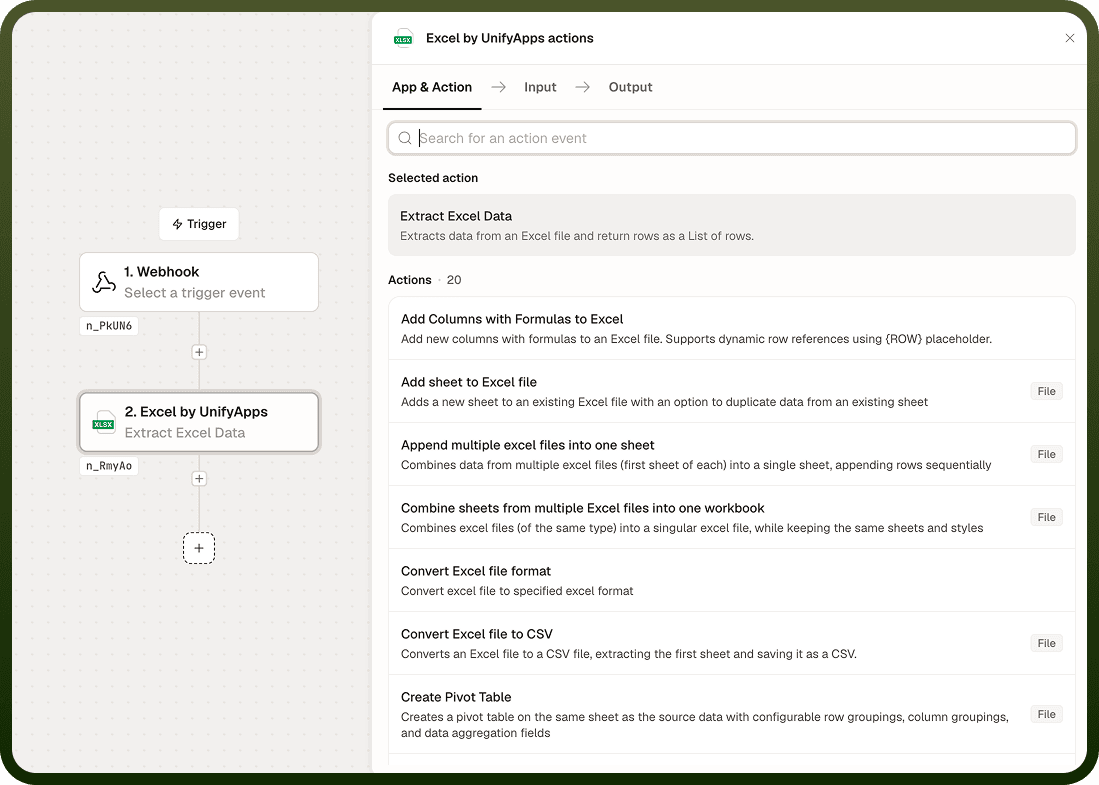
Operations
Operation | Description | Key inputs |
|---|---|---|
Extract Excel Data | Reads all rows from a specified sheet and returns them as an array. Formula cells can be evaluated so you receive computed values rather than formula text. | File, Sheet name, Evaluate formulas, Value type, Start row, End row |
Extract headers from Excel file | Returns only the column headers from a specified row — by default the first row. Use this to inspect a file's column schema before processing its data rows. | File, Sheet name, Header row index |
Iterate over rows in Excel file | Streams rows from the sheet one at a time. Designed to be paired with a Loop node so large files can be processed row-by-row without loading the full workbook into memory. | File, Sheet name, Start row, Evaluate formulas |
Input
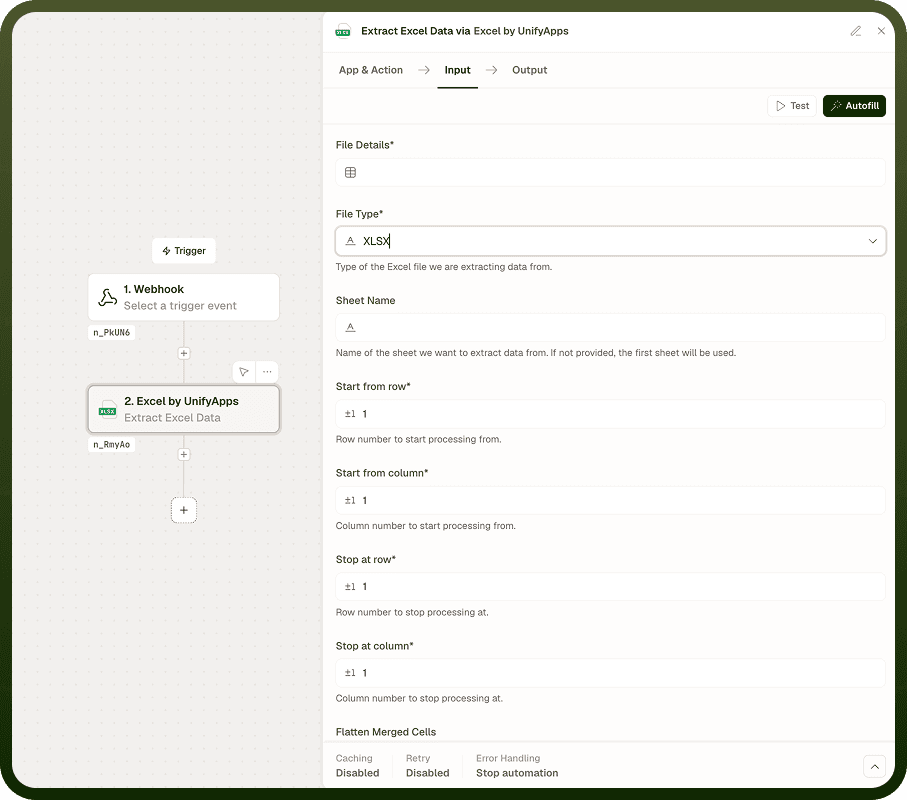
Field | Type | Required | Description |
|---|---|---|---|
File | File reference | Yes | The Excel workbook to read. Supports XLSX, XLS, and XLSB formats. |
Sheet name | String | Yes | Name of the sheet to read from. Sheet names are case-sensitive. |
Evaluate formulas | Boolean | No | When true, formula cells are evaluated and their computed results are returned. When false, the formula text itself (e.g. =SUM(A1:A5)) is returned. Defaults to false. |
Value type | Enum | No | Controls how cell values are interpreted: Typed returns values in their native type (number, date, boolean, string); Raw returns the underlying cell content as stored. |
Start row | Integer | No | 1-based row index at which reading begins. Defaults to 1. Use to skip a header row or start mid-sheet. |
End row | Integer | No | 1-based row index at which reading stops (inclusive). Omit to read to the last populated row. |
Header row index | Integer | No — Extract headers | The row to treat as the header row when extracting headers. Defaults to 1. |
Output
Each operation returns a different shape of output:
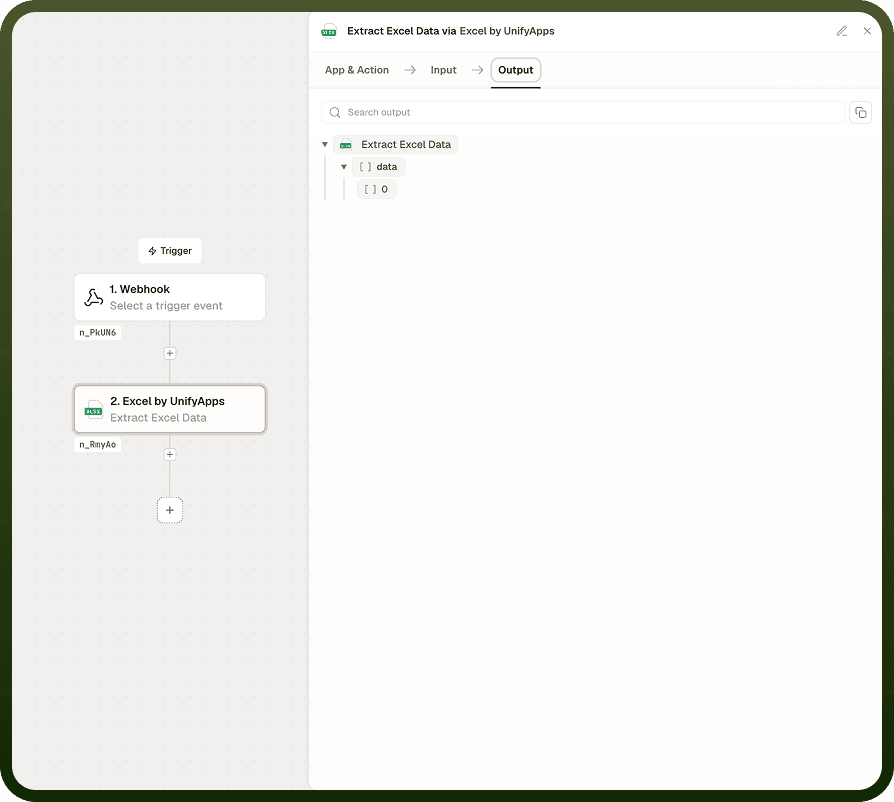
Extract Excel Data — an array of row objects, where each object maps column headers to cell values. If no header row is specified, columns are indexed numerically.
Extract headers from Excel file — an ordered array of column header strings taken from the specified header row.
Iterate over rows in Excel file — emits one row object per loop iteration. Each object maps column headers to the corresponding cell values for that row.
Notes
The Excel node reads XLSX, XLS, and XLSB files. Ensure the file format matches one of these before connecting it as input.
Formula evaluation returns computed values — useful when downstream nodes need the result of a calculation rather than the formula string. When evaluation is off, formula text is returned verbatim.
For large workbooks, use Iterate over rows with a Loop node. The node streams the file incrementally, so the full workbook does not need to be held in memory at once. Non-streaming (in-memory) extraction is capped at approximately 700 MB of allocation; files beyond that limit should use the streaming approach.
The Value type setting affects how numbers, dates, and booleans are presented in output. Use Typed when downstream nodes need native types (e.g. date arithmetic); use Raw when you need to preserve the exact stored representation.
Sheet names are case-sensitive. Use List sheet names (in the Sheet Management group) to discover exact names before reading.
Large files: If a workbook fails to load during an Extract operation, switch to Iterate over rows paired with a Loop node. This uses streaming and avoids the in-memory size ceiling.