


The Standard Entities node lets automations manage platform users programmatically — create, update, and delete user accounts, assign roles, teams, and user groups, and configure passwords, MPINs, and biometrics. Use these operations to build self-service onboarding, automated provisioning, and governance flows without manual admin UI work.
Overview
User Management in the Standard Entities node covers the full lifecycle of platform user accounts. The operations apply the same access controls as the admin UI — the automation's running identity must hold the correct permissions before an operation is attempted. If it does not, the operation throws an error that stops the automation.
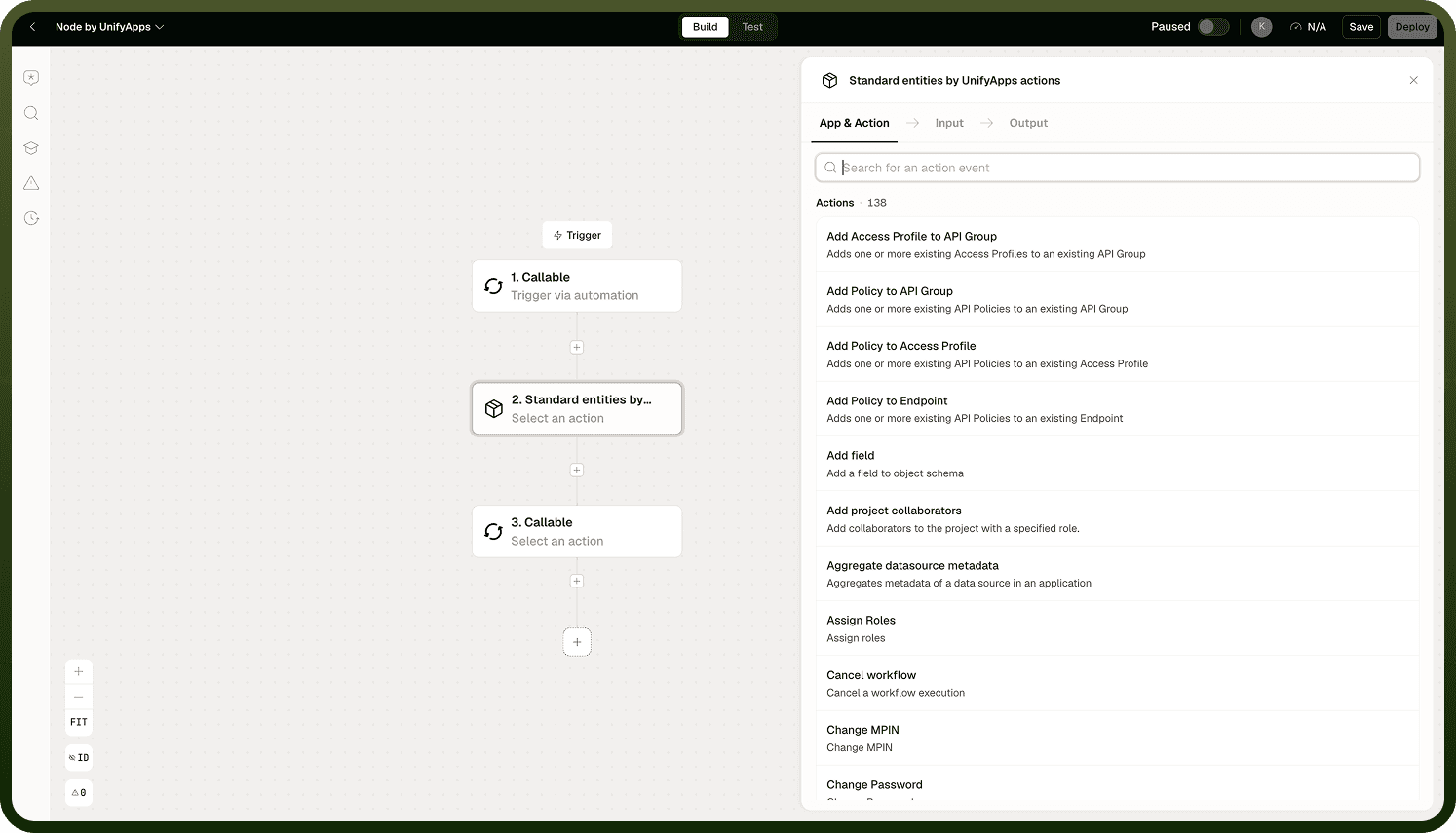
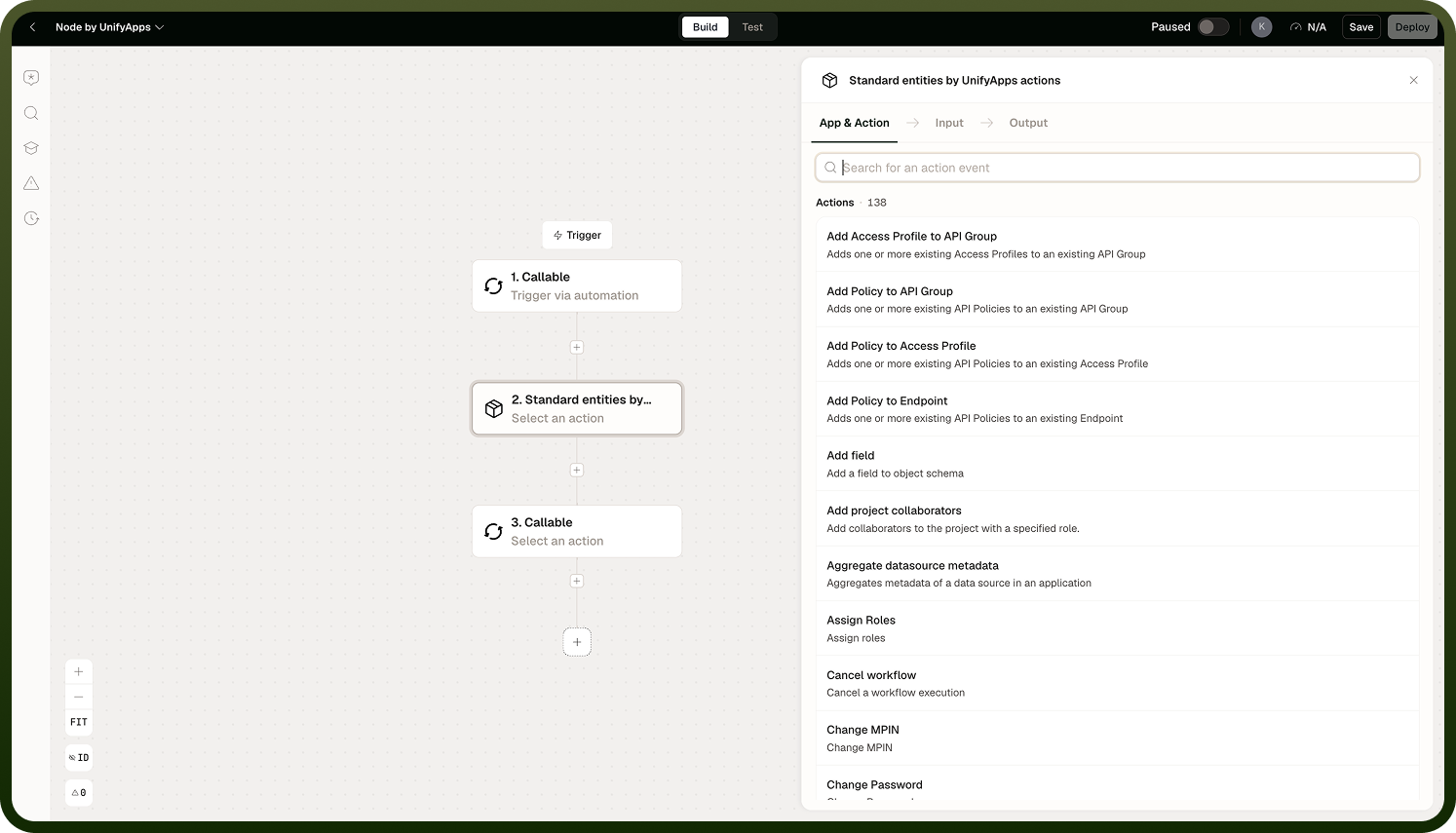
User Operations
The node supports the full set of user actions, covering account existence, credentials, state, and lookup:
Create user — provisions a new platform user account with the specified attributes.
Update user — modifies attributes of an existing user account.
Delete user — removes a user account from the platform.
Change password — changes the password on the running user's own account.
Reset password — resets a password for the running user or, with the appropriate permission, for another user, without requiring the current password.
Update user state — moves a user account between Active, Disabled, Locked, Deleted, and Dormant.
Fetch user — retrieves a single user's details by user ID or username.
Fetch users by criteria — retrieves multiple users matching filter criteria, with selectable output fields.
Each operation is subject to permission checks before execution. The running identity must be authorized to perform the operation or the automation stops with an error — except Delete User, which handles a failed permission check differently.
Update User State
Update User State moves a user between five supported states: Active, Disabled, Locked, Deleted, and Dormant. It requires the user and the target state as input, and returns a Success flag.
Two of these states are easy to confuse with the Delete User action:
Disabled is for offboarding — it deactivates the account while keeping the user record intact, so it can be re-enabled later if needed.
Delete user (the separate action, not a state transition) is for permanent removal — the account is removed from the platform rather than deactivated.
Offboarding vs. removal: Use Update User State with Disabled when a user should temporarily lose access but the account may be needed again. Use Delete User only when the account should be permanently gone.
Role and Team Assignment
Once a user account exists, you can assign access structures to it using separate operations:
Assign or remove roles to grant or revoke sets of permissions.
Add or remove users from teams to control resource access.
Manage user group membership to apply group-level policies.
Grant or revoke individual permissions on specific assets.
Role assignment, team membership, and user group membership are each separate operations — creating a user does not automatically apply any of them. Sequence them explicitly in the automation after the create step.
Credential and Biometric Management
The node also manages authentication credentials for platform users:
Change Password — changes the password on the account associated with the current login. It only works for the running user's own account and requires both the old and new password.
Reset Password — resets a password for the running user or, with the appropriate permission, for another user. Unlike Change Password, it does not require the current password, and it can optionally sign the user out of all active sessions.
Configure or clear MPINs (mobile PINs) used for app authentication.
Register or remove biometric credentials.
These operations are useful in provisioning flows where a new user account must be ready to authenticate immediately after creation.
Change Password vs. Reset Password: Change Password is the self-service action — it only ever operates on the running user's own account and needs the old password to authorize the change. Reset Password can target another user's account (with the right permission) and skips the old-password check, which is why it can also be configured to delete the target user's active sessions.
Checking Permissions Before Acting
Permission checks in Standard Entities are pre-flight and strict: the node checks whether the running user holds the required permission before the operation executes. If the check fails, the automation throws an error and stops — there is no way to catch a permission failure and branch on it gracefully.
To avoid hard stops, use the check permissions operation before any operation that may fail due to access rights. It returns whether the running identity holds a specified permission — view, edit, delete, or share — on a target asset. Branch on that result before proceeding with the operation that requires it.
Design for the running identity: Build user-management flows so the automation's running identity holds exactly the permissions the operations require. A missing permission stops the automation, not just the failing step.
Delete User is an exception to this pattern. Instead of throwing an error when the running identity lacks permission (or the deletion otherwise fails), Delete User returns its result as data: a Success boolean and an Error Message field. This means you can branch on the outcome of a Delete User step directly, without needing a separate check-permissions call first.
Triggers
Standard Entities exposes four user triggers that start an automation in response to a user lifecycle or credential event:
On User Create — fires when a user account is created.
On User Update — fires when a user account is updated.
On User Delete — fires when a user account is deleted.
On User Password Reset — fires when a user's password is reset.
Each trigger runs in real time and accepts optional trigger conditions so the automation only starts for events matching a specified filter.
Not part of this set: On User Login, On User Failed Login Attempt, and On User Logout are separate, session-related triggers on this node. They are not among the four user lifecycle/credential triggers above.
Action Details
Inputs and outputs for the core user actions:
Create User — Input: the user object (name, username, password, contact, email, phone number, application ID, state, language, custom attributes), Login Type (Password or SSO), and a Reset Password flag. Output: the created user record, shaped dynamically by the platform's user entity schema.
Update User — Input: the user to update and a list of fields to change (field name and value pairs). Output: Success (boolean).
Delete User — Input: Delete By (User ID or Username), Application ID, and the user to delete. Output: Success (boolean) and Error Message — see the permission-failure behavior above.
Change Password — Input: Old Password, New Password. Output: Success (boolean).
Reset Password — Input: Reset Password For (Myself or Another User), Application ID and User (when resetting for another user), New Password, and Delete Active Sessions (boolean, defaults to true). Output: Success (boolean).
Update User State — Input: Application ID, User, and target State (Active, Disabled, Locked, Deleted, or Dormant). Output: Success (boolean).
Fetch User — Input: Fetch By (User ID or Username), Application ID, and the user to fetch. Output: the user record, shaped dynamically by the platform's user entity schema.
Fetch Users By Criteria — Input: Filter criteria and, optionally, the fields to project in the response. Output: a list of matching users, each with fields such as ID, username, name, state, locale, identity provider, contact details, team memberships, role IDs, and created/modified timestamps.
Notes
User Management operations are powerful and some are irreversible. Keep the following in mind when building user-management automations.
Permission checks are pre-flight and strict — a missing permission throws an error and stops the automation, not a soft failure you can catch. Delete User is the exception: it returns Success and Error Message instead of throwing.
Use the check permissions operation before any operation that may require elevated access, and branch on the result.
The create user operation does not automatically assign roles, teams, or groups — run assignment operations as explicit follow-up steps.
Sharing an asset requires the Share permission on that asset; an automation run by someone without it will fail the share operation.
MPINs and biometrics are mobile authentication credentials — configure them only for users who will authenticate with those methods.
Test user-management automations with a non-admin running identity before deploying to production to confirm the permission model behaves as expected.