


The Data Catalog node feeds the platform's data catalog — the inventory of your data assets and the lineage that shows how data flows between them. It has two operations: Add Source to register a data source so the catalog discovers and indexes its datasets, and Create Pipeline Lineage to record how data moves from source through transforms to destination.
Use it to automate cataloging as part of onboarding a new system or capturing the lineage of a pipeline, so the catalog stays current for search, governance, and impact analysis — knowing which downstream assets are affected when an upstream source changes.
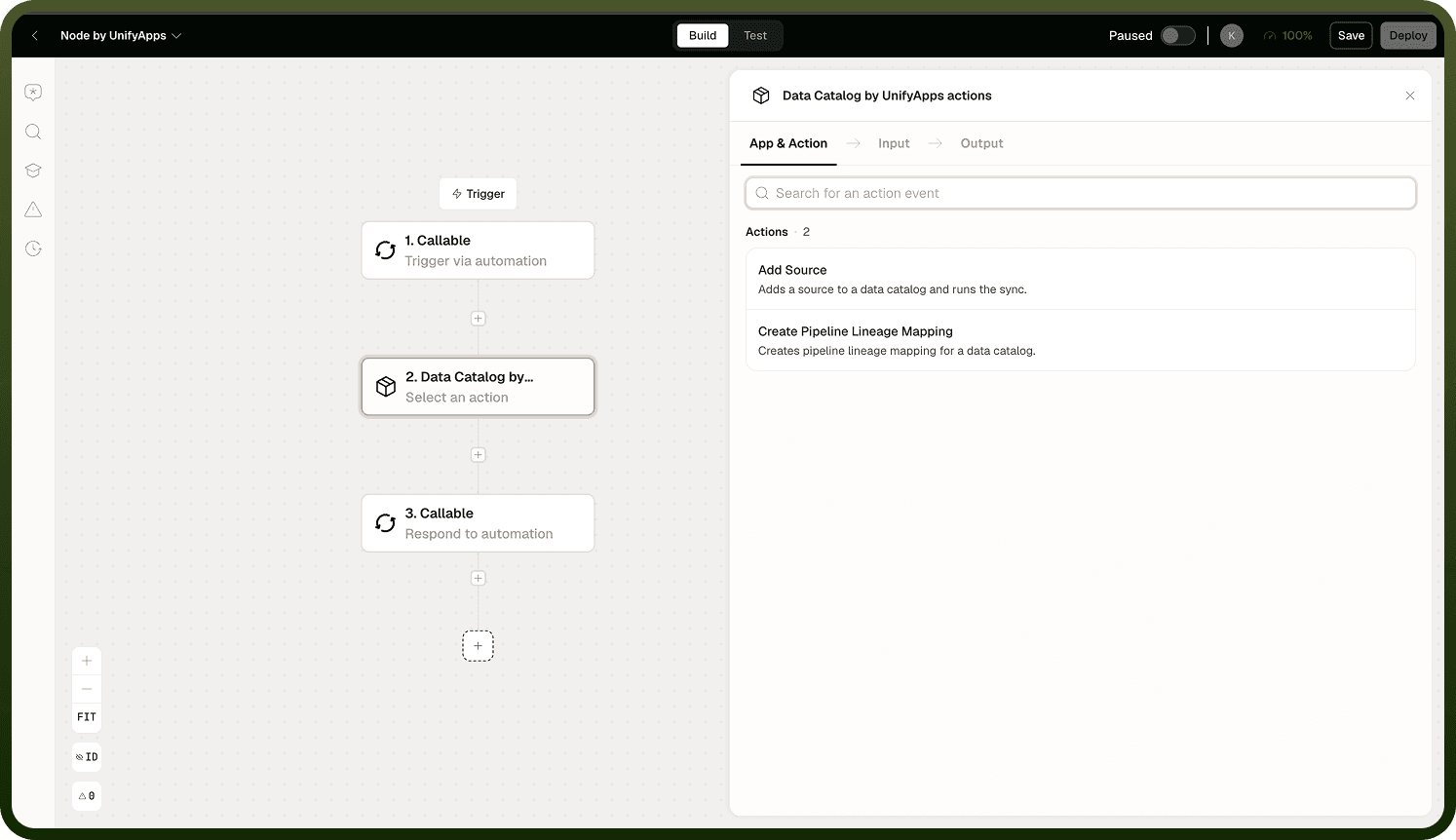
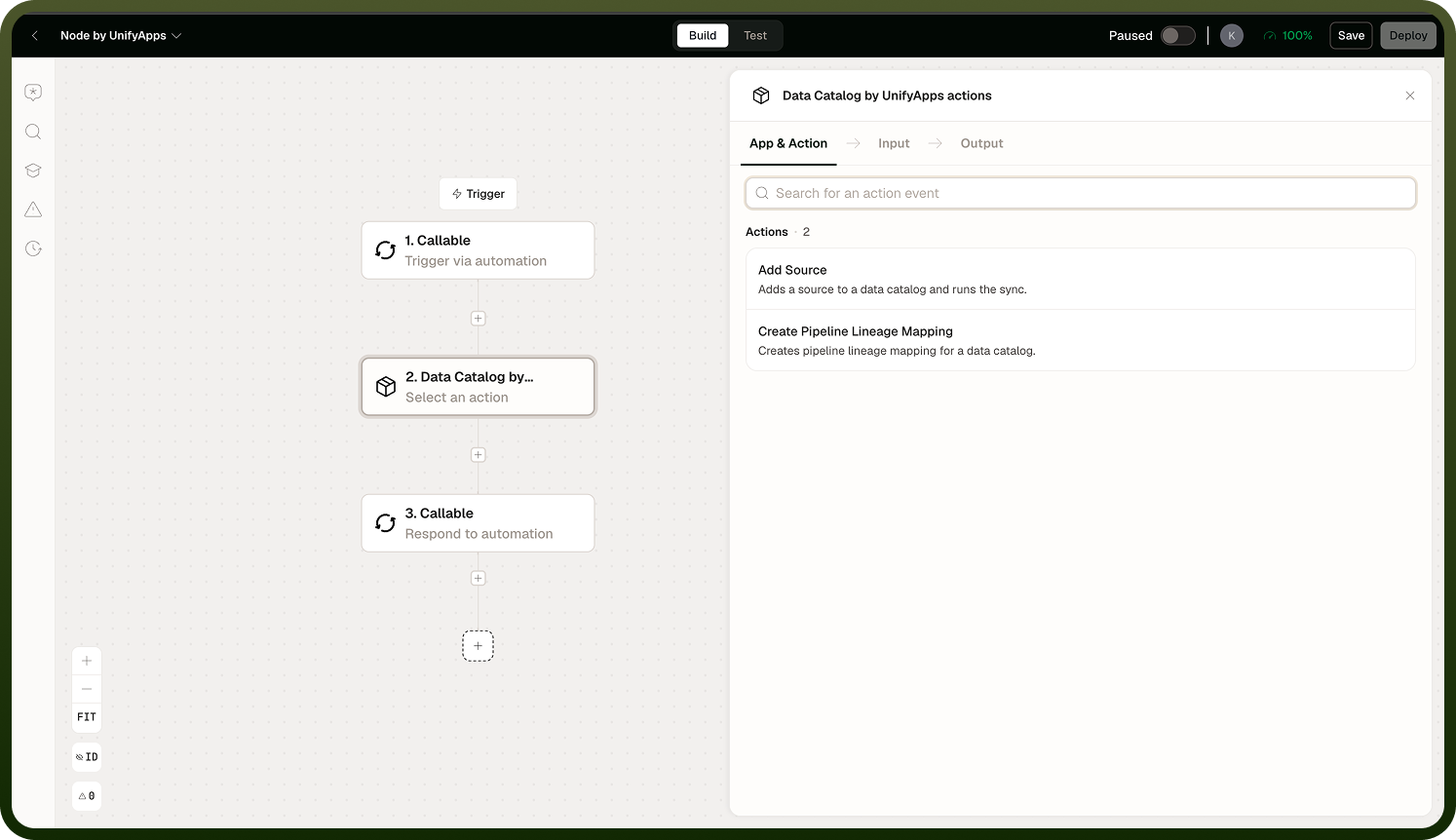
Operations
Add Source — Registers a data source with the catalog and triggers a background metadata sync to discover its tables, columns, and types. Use this when connecting a new system so its datasets become searchable and governed immediately.
Input
Input Field | Description |
|---|---|
Source ID / Reference | The identifier of the data source to register with the catalog. |
Output
Returns a confirmation that the source has been registered. The node returns once registration is complete; it does not report whether the background metadata sync finished or succeeded.
Note: Add Source kicks off a background metadata sync — it does not wait for that sync to complete before returning. If downstream steps depend on the catalog being populated with the source's tables and columns, check back and verify the catalog is ready rather than assuming it is available the moment the node returns.
Create Pipeline Lineage — Records how data moves through a pipeline — from source datasets through any transforms to destination datasets — so the catalog can map dependencies and support impact analysis. Use this after building or updating a pipeline to keep lineage current.
Input
Input Field | Description |
|---|---|
Pipeline ID | The identifier of the pipeline whose lineage should be recorded. |
Catalog IDs | The source and destination catalog asset IDs involved in the pipeline's lineage. |
Output
Returns the ID of the background lineage-building run that was launched. The actual lineage edges are produced by that run, not immediately by the node itself.
Note: Create Pipeline Lineage launches a separate background run and returns that run's ID. Monitor the run to know when the lineage mapping is complete. The node does not validate the pipeline or catalog IDs it receives — supplying an invalid ID will cause the background run to fail rather than producing an error at the node level.
Async Behavior
Both operations initiate background work and return before that work is done. Plan your automations accordingly:
For Add Source: the source is registered synchronously, but the metadata sync (which populates its tables, columns, and types) runs in the background. Wait or poll before depending on the catalog being fully populated.
For Create Pipeline Lineage: store the returned run ID if you need to check on its progress. The lineage edges appear in the catalog only after the background run completes successfully.
Notes
To make the most of it:
Validate pipeline and catalog IDs before passing them to Create Pipeline Lineage — invalid IDs fail inside the background run where they are harder to diagnose.
When downstream steps depend on catalog metadata being available, add a wait or a polling step after Add Source rather than assuming the sync is instant.
Store the lineage run ID returned by Create Pipeline Lineage so you can check its status and confirm the mapping completed before treating the lineage as authoritative.
Automate Add Source as part of your connector onboarding workflow so new data sources are cataloged consistently without manual steps.
Automate Create Pipeline Lineage whenever a pipeline is built or updated to keep impact-analysis data current in the catalog.