


Repeat Run lets you re-execute an automation run using its original trigger data — either from the very beginning (Run Complete Workflow) or resuming from the step that failed (Repeat from the Error) without returning to the trigger source.
Overview
After inspecting a run, you can re-execute it without returning to the trigger source. UnifyApps gives you two re-run options: Run Complete Workflow re-runs the entire automation from the trigger using the original trigger data, and Repeat from the Error resumes execution from the step that failed — skipping all steps that already completed successfully. The second option is particularly useful after applying a fix, because it avoids reprocessing data that already succeeded.
You can also repeat any run directly from the Run History list using the per-row Re-run action.
Repeat Run isn't available for standard automations. The Re-run row action in Run History is available only while the automation is deployed.
Repeat a Run
Use this option to re-execute an entire run from scratch using the same trigger data it originally received.
Open the run you want to repeat from the Run History list.
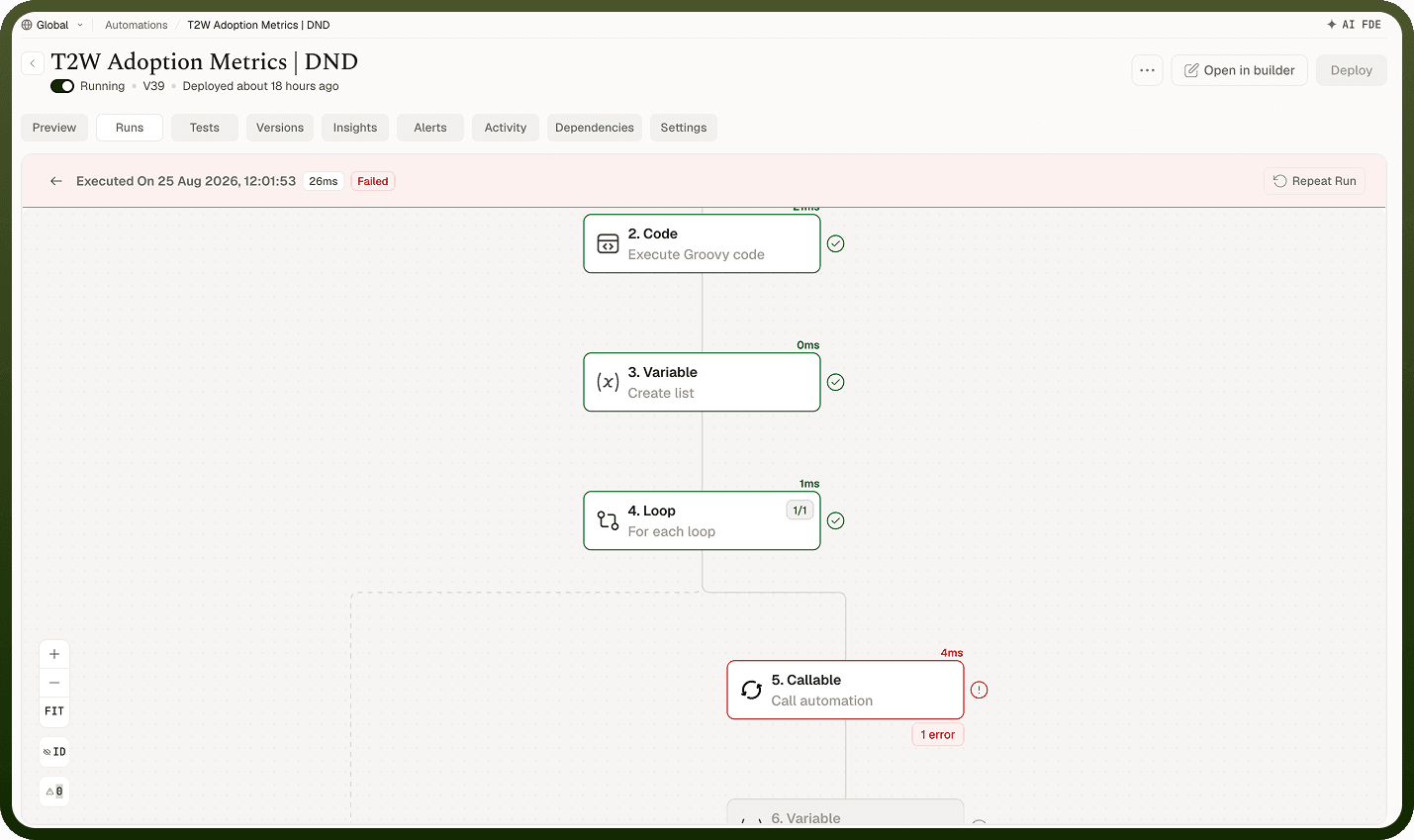
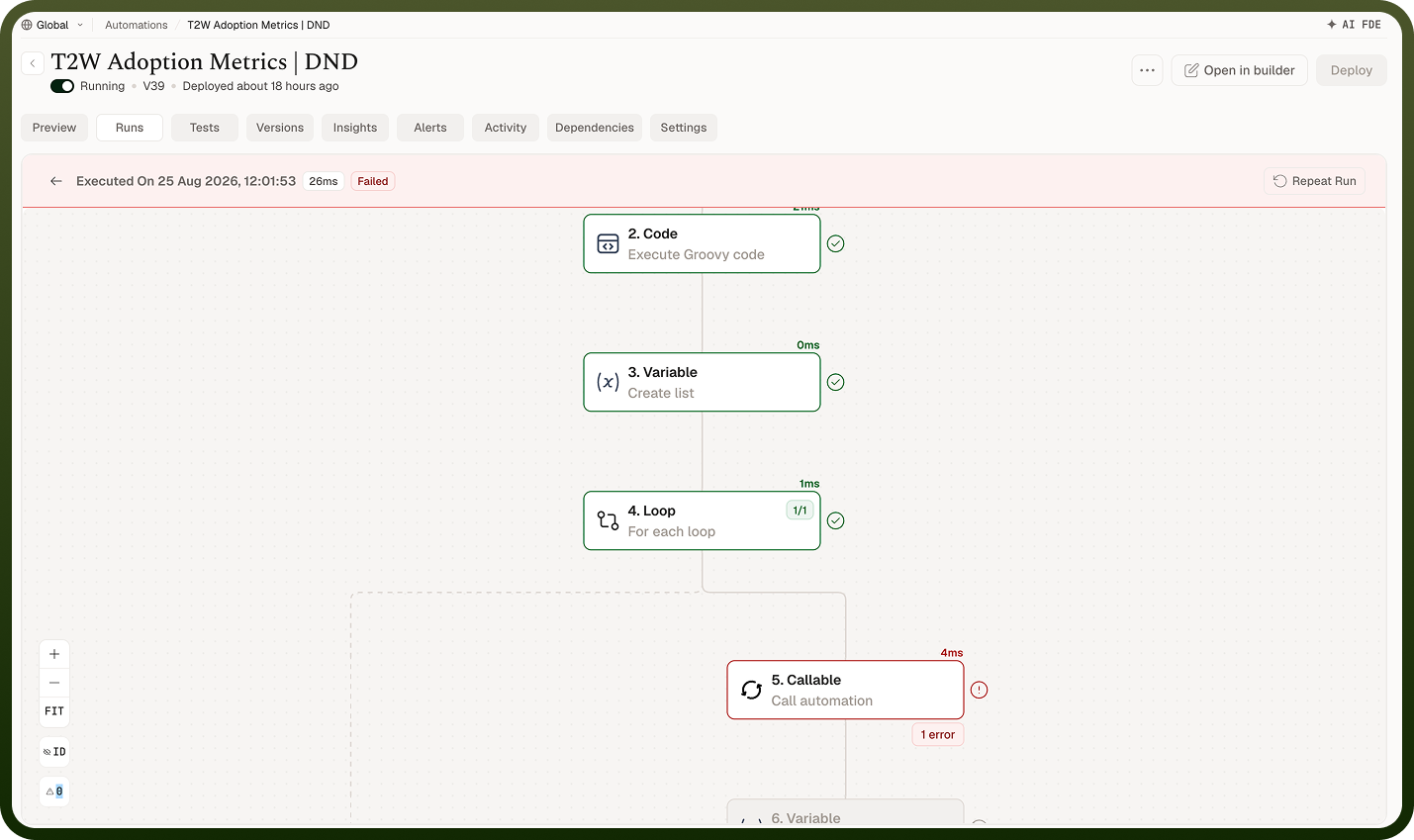
In the run detail view, click Repeat Run.
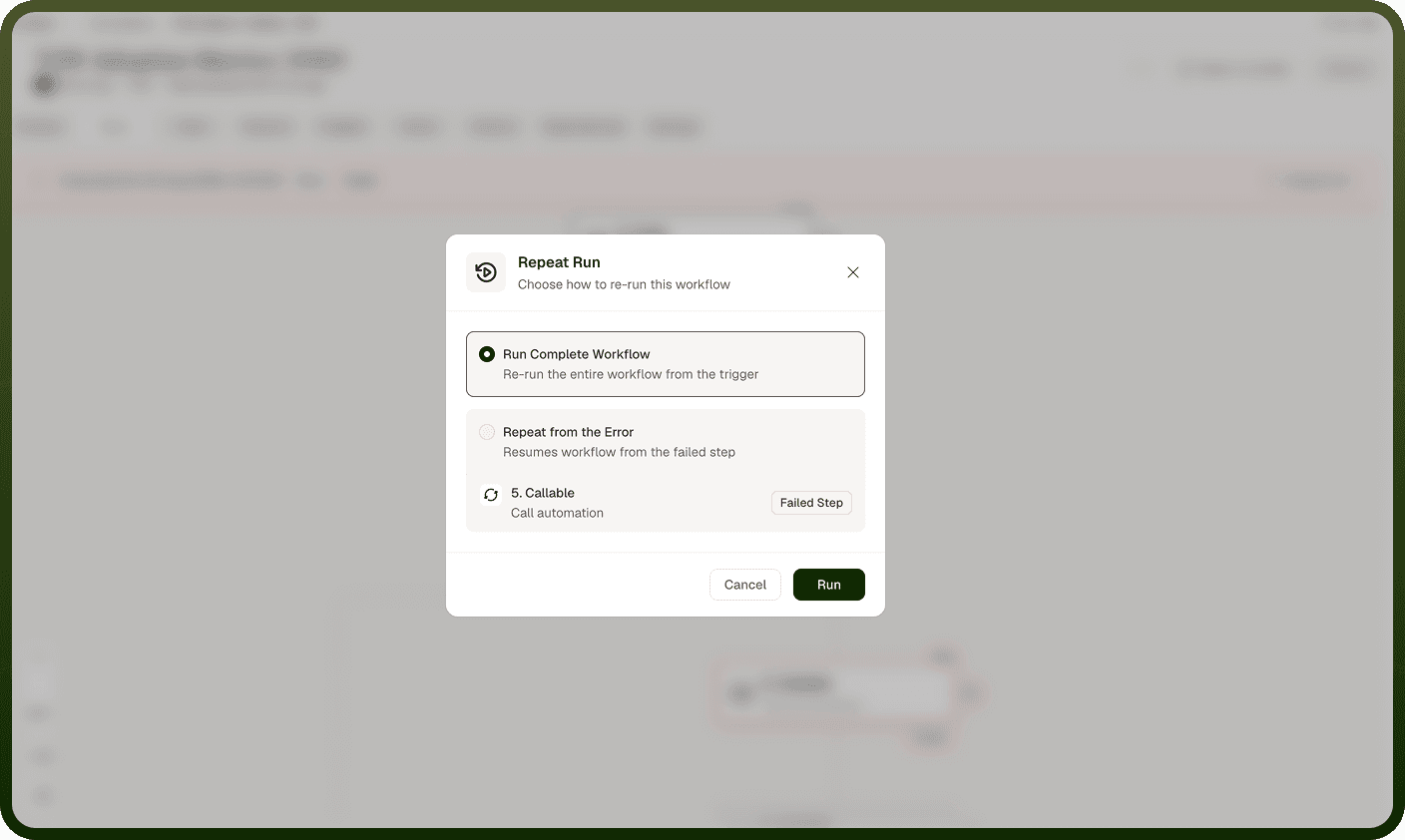
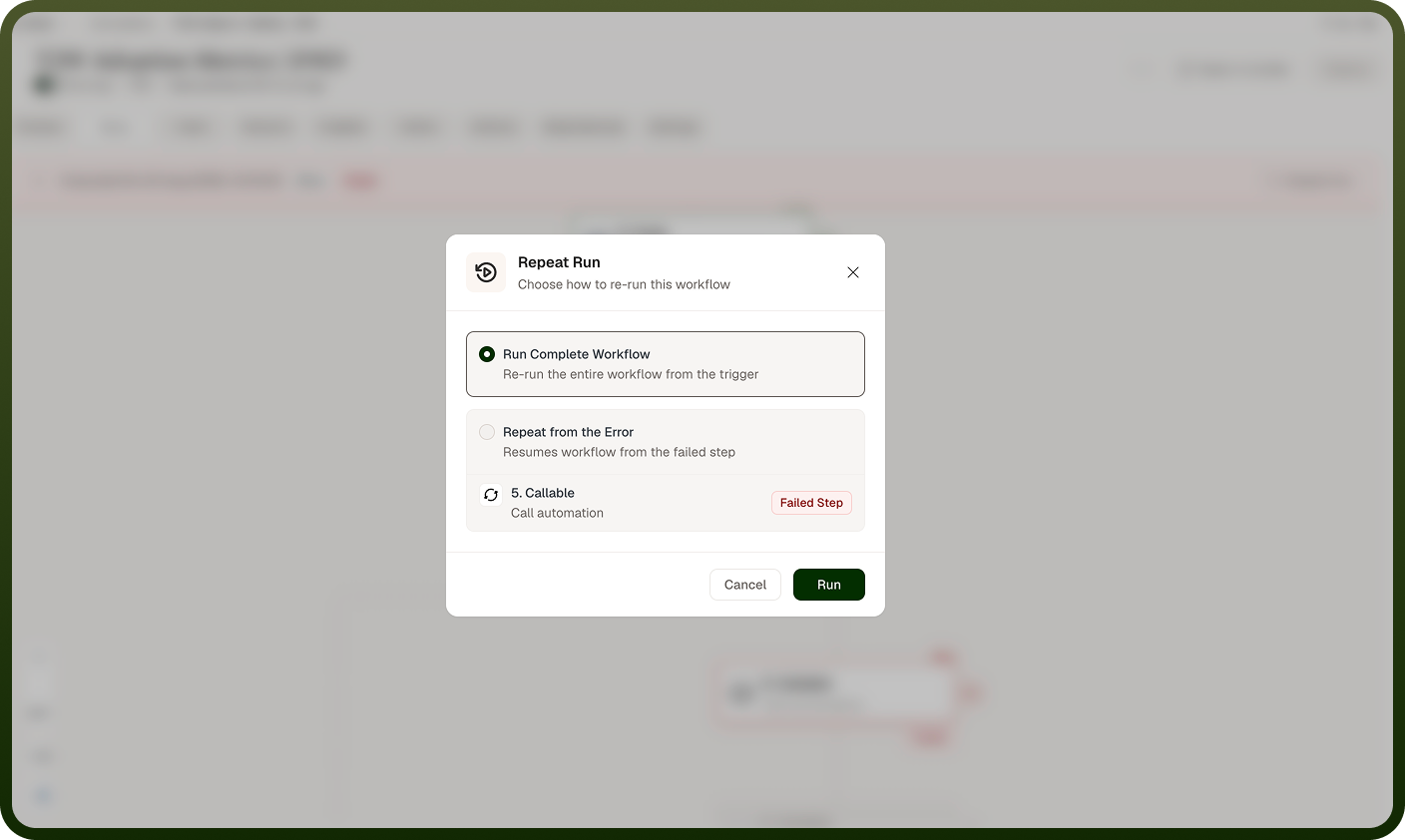
In the dialog that opens, select Run Complete Workflow — described as "Re-run the entire workflow from the trigger" — and click Run. If the run has no failed step, the dialog skips this choice and opens directly on Review Trigger Data.
Review the trigger data in the Review Trigger Data step. The form pre-fills with the original run's trigger data. Edit any values if needed.
Click Trigger Run to confirm.
A confirmation message — Automation triggered successfully — appears when the new run is queued.
Note: You can also repeat a run directly from Run History without opening the run detail. Hover any row to reveal the row actions, then select Re-run. The Review Trigger Data dialog opens with the original payload, which you can edit before clicking Execute Run. Re-run always runs the complete workflow.
Repeat from the Error
Use this option after fixing the underlying cause of a failure. Rather than re-running the entire automation from the trigger, execution resumes from the step that previously failed, preserving all outputs that steps before it already produced.
Open the failed run from the Run History list.
In the run detail view, click Repeat Run.
In the dialog that opens, select Repeat from the Error — described as "Resumes workflow from the failed step".
Click Run. The run restarts from the failed step with the original trigger data; you can't edit the payload on this path.
Note: Repeat from the Error is disabled when the failed step is inside a Loop or Branch. Hovering the option shows the tooltip This error cannot be retried. In this case, use Run Complete Workflow instead to re-run from the beginning.
Notes
Re-running an automation replays real actions against connected systems. To make the most of it:
Use Repeat from the Error after applying a fix to avoid re-triggering steps that already wrote data to an external system — for example, steps that created records or sent notifications.
If the original payload contained a value that caused the failure, use Run Complete Workflow and correct the value in the Review Trigger Data step. Repeat from the Error always reuses the original trigger data.
If Repeat from the Error is disabled, the failed step is inside a Loop or Branch — run the complete workflow from the trigger instead.
The Re-run row action in Run History always runs the complete workflow, and lets you review and edit the payload in the Review Trigger Data dialog before clicking Execute Run.
Using the right re-run option avoids re-triggering steps that already wrote data or sent notifications successfully on the first attempt.