


Copilot is the AI assistant built into the flow builder. You describe what you want — in plain language — and Copilot builds or modifies parts of the flow for you. It's an alternative to wiring every step by hand, particularly useful for getting a draft flow started quickly or for making structural changes across multiple steps.
Overview
Opening Copilot — Click the Copilot icon in the left icon rail of the flow builder. The Copilot panel opens alongside the canvas, which shifts to make room so the assistant doesn't cover your steps. You can keep it open while you work.
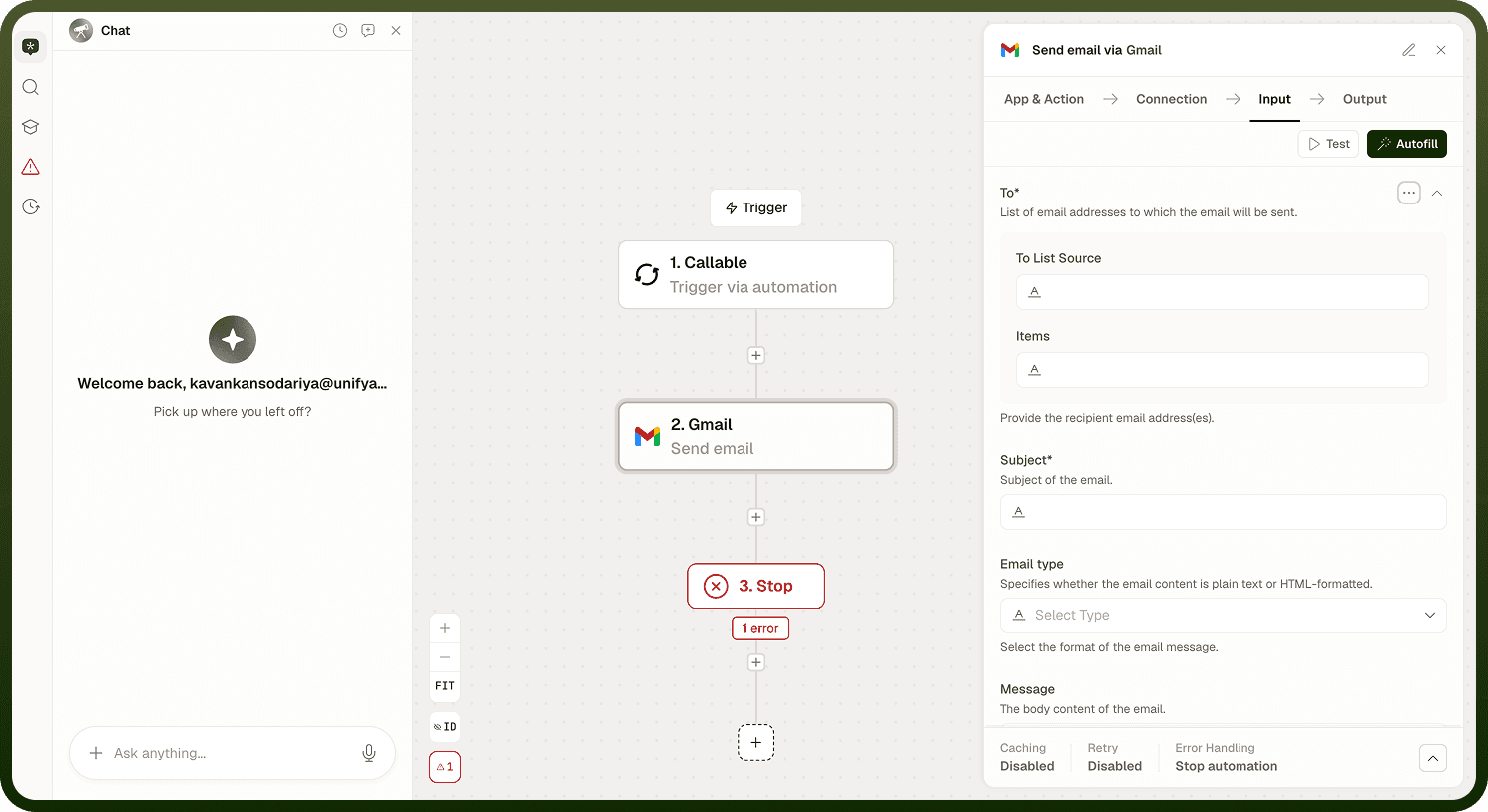
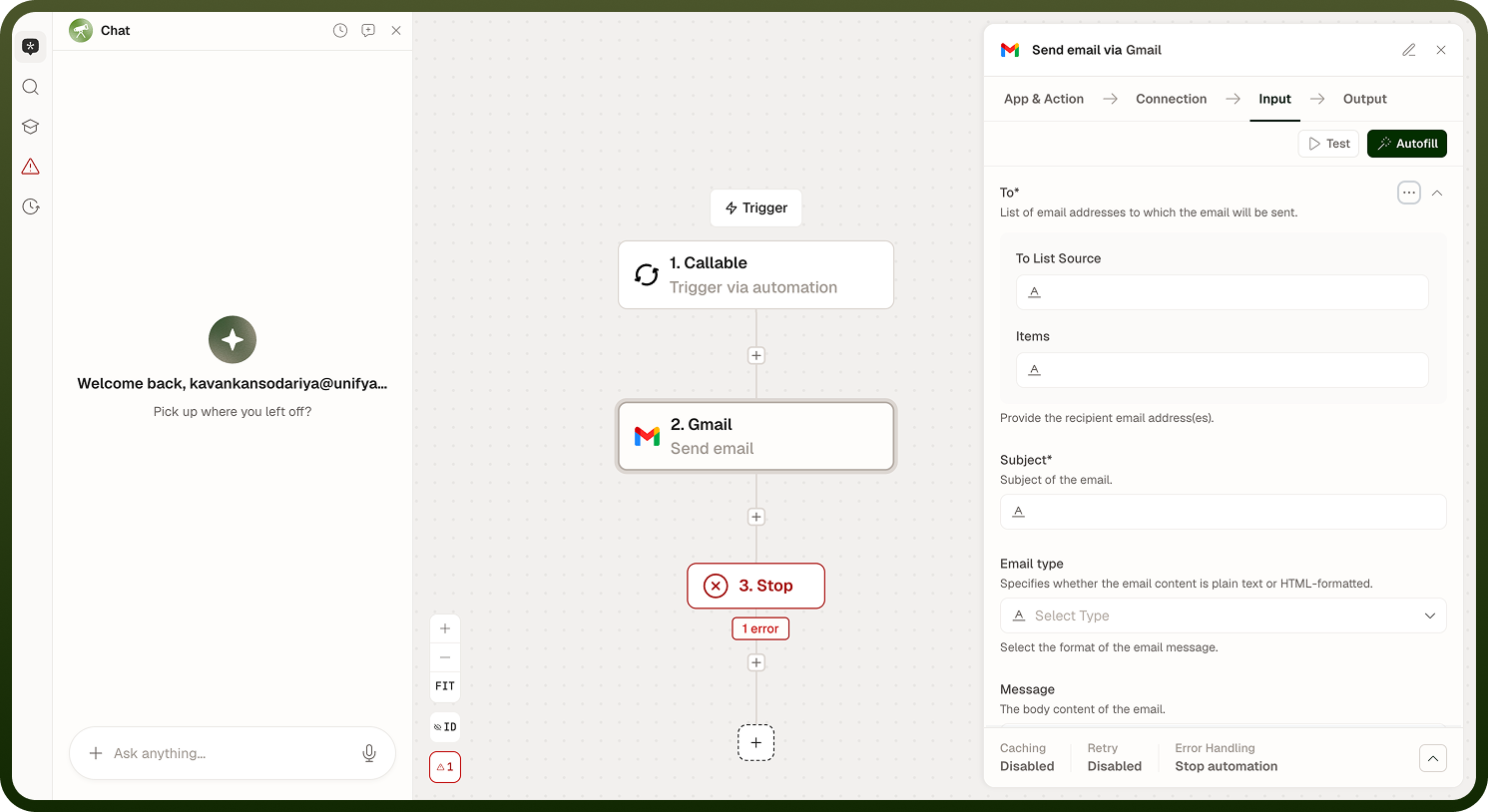
What Copilot Can Do?
Describe what you want in natural language. Copilot can:
Generate a draft flow from a description ("create an automation that reads a CSV and sends a Slack message for each row")
Add steps to an existing flow ("add an error-handling branch after step 3")
Modify an existing step's configuration based on your description
Explain what a step or a section of the flow does
Copilot makes changes as suggestions you can review on the canvas before saving. Always inspect the proposed changes — especially connections, field mappings, and data pills — before saving the automation.
Notes
The Copilot Panel works best as a starting point — treat its output as a draft that you refine rather than a finished configuration:
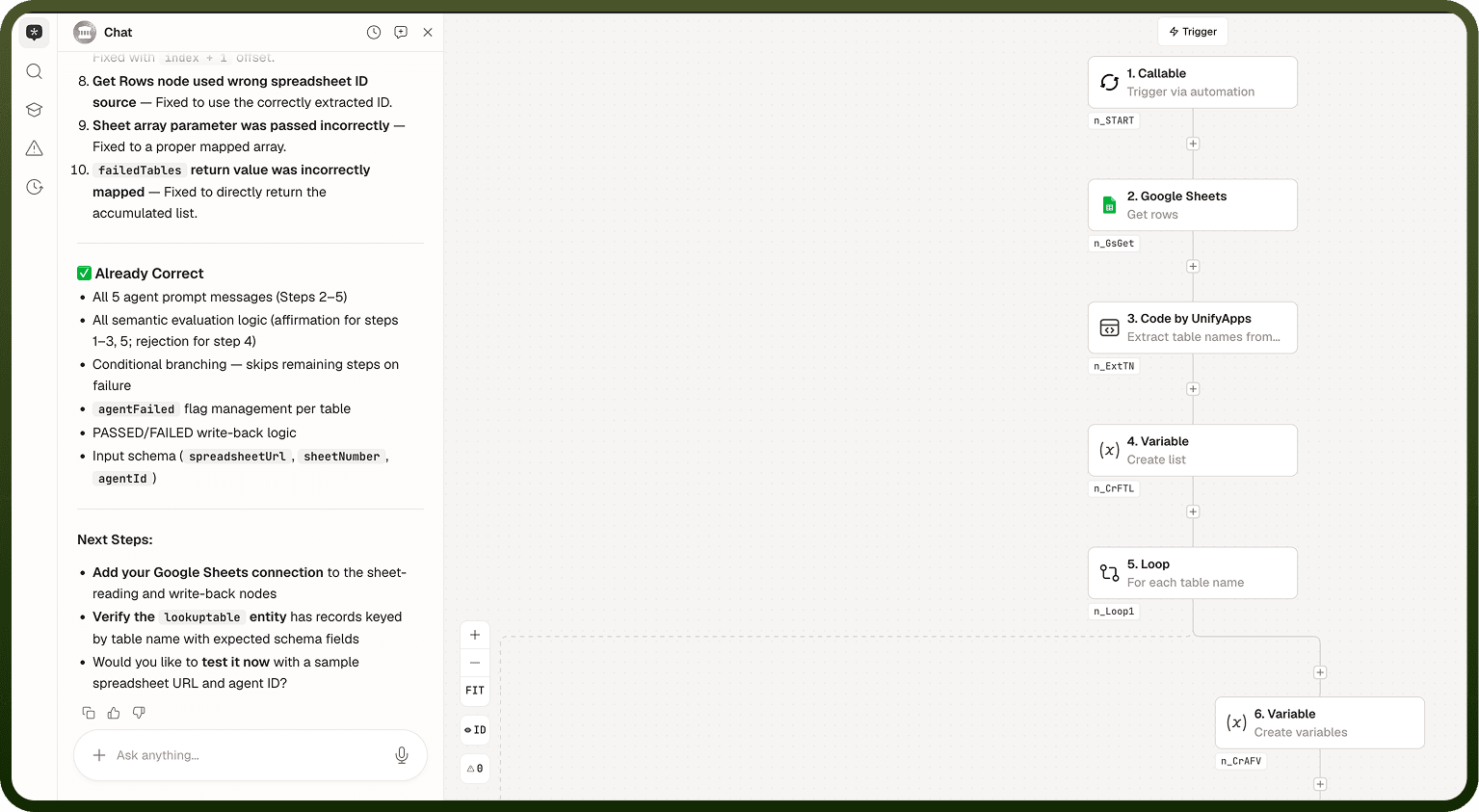
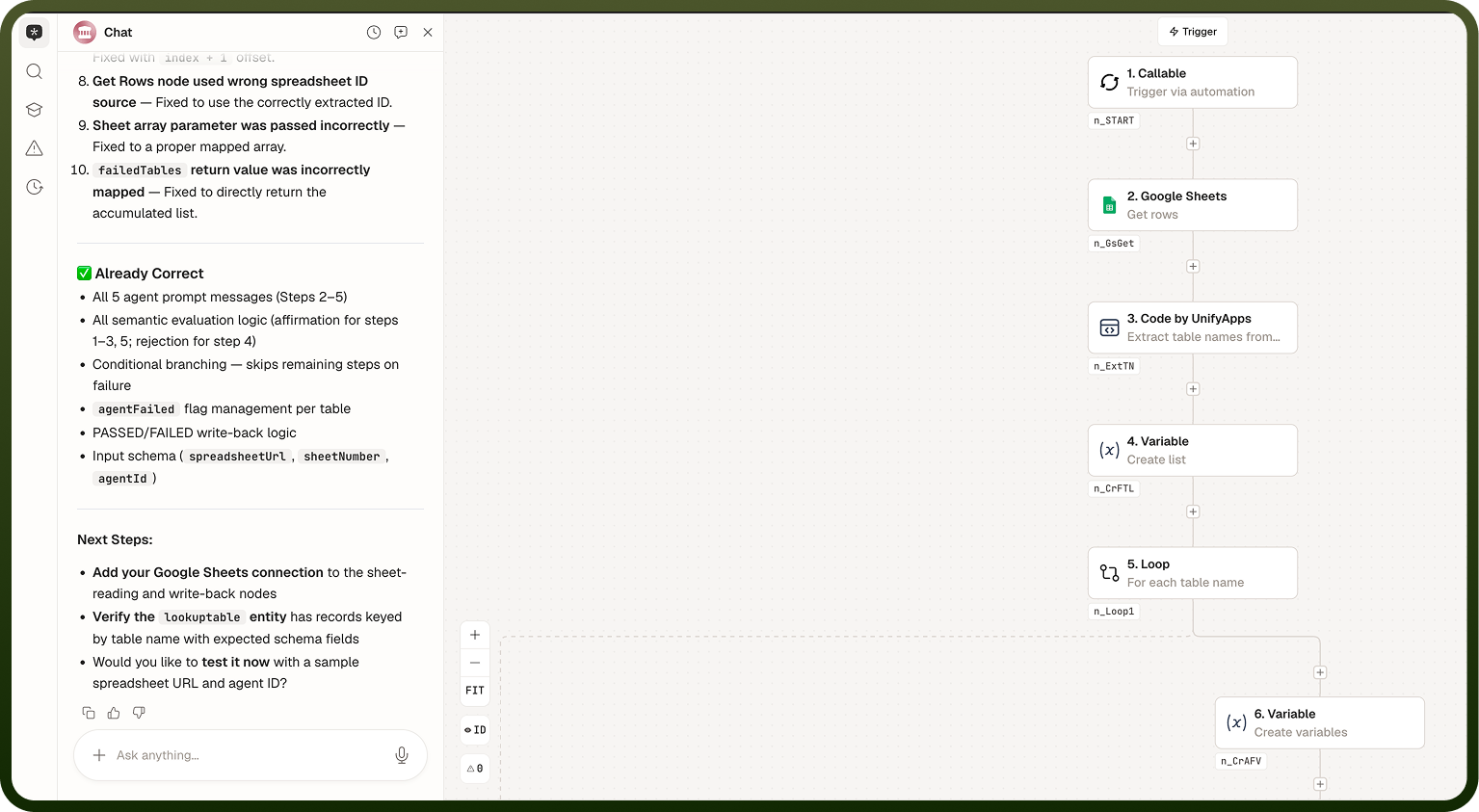
Copilot is an AI assistant; its suggestions may need manual adjustment for your specific data shapes and connection settings.
Review generated steps in the properties panel before running — Copilot may leave placeholder values or pick a connection that doesn't match your environment.
Closing the Copilot panel does not undo any changes already applied to the canvas.
A well-used Copilot Panel speeds up initial wiring, but every generated step should be reviewed against your actual data shapes and connection settings before running in production.