


As an automation grows, finding a specific step by scrolling the canvas becomes slow. The Search panel in the flow builder's left rail lets you search across all steps — by name, app, action, or content — and jump directly to the result.
Opening Search
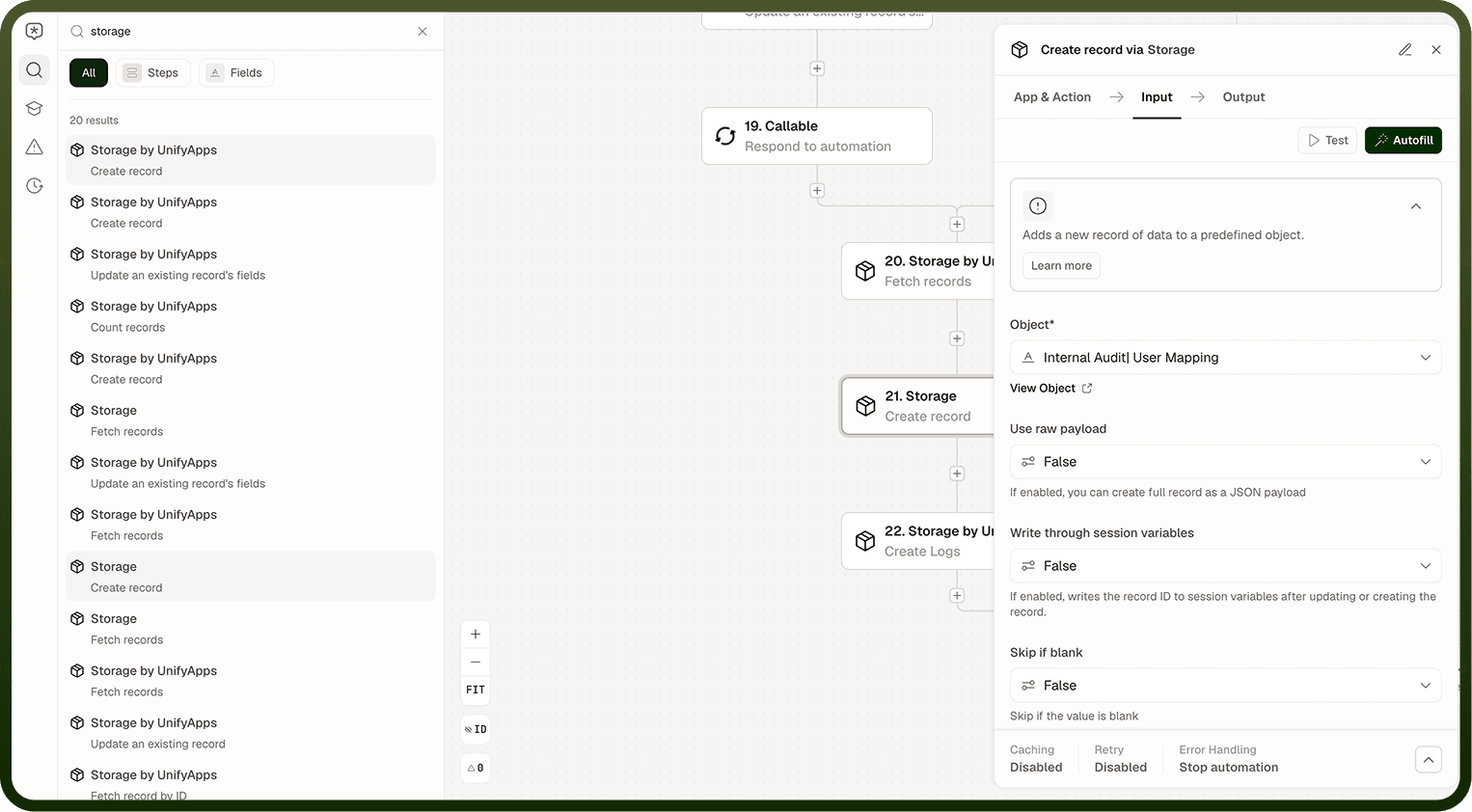
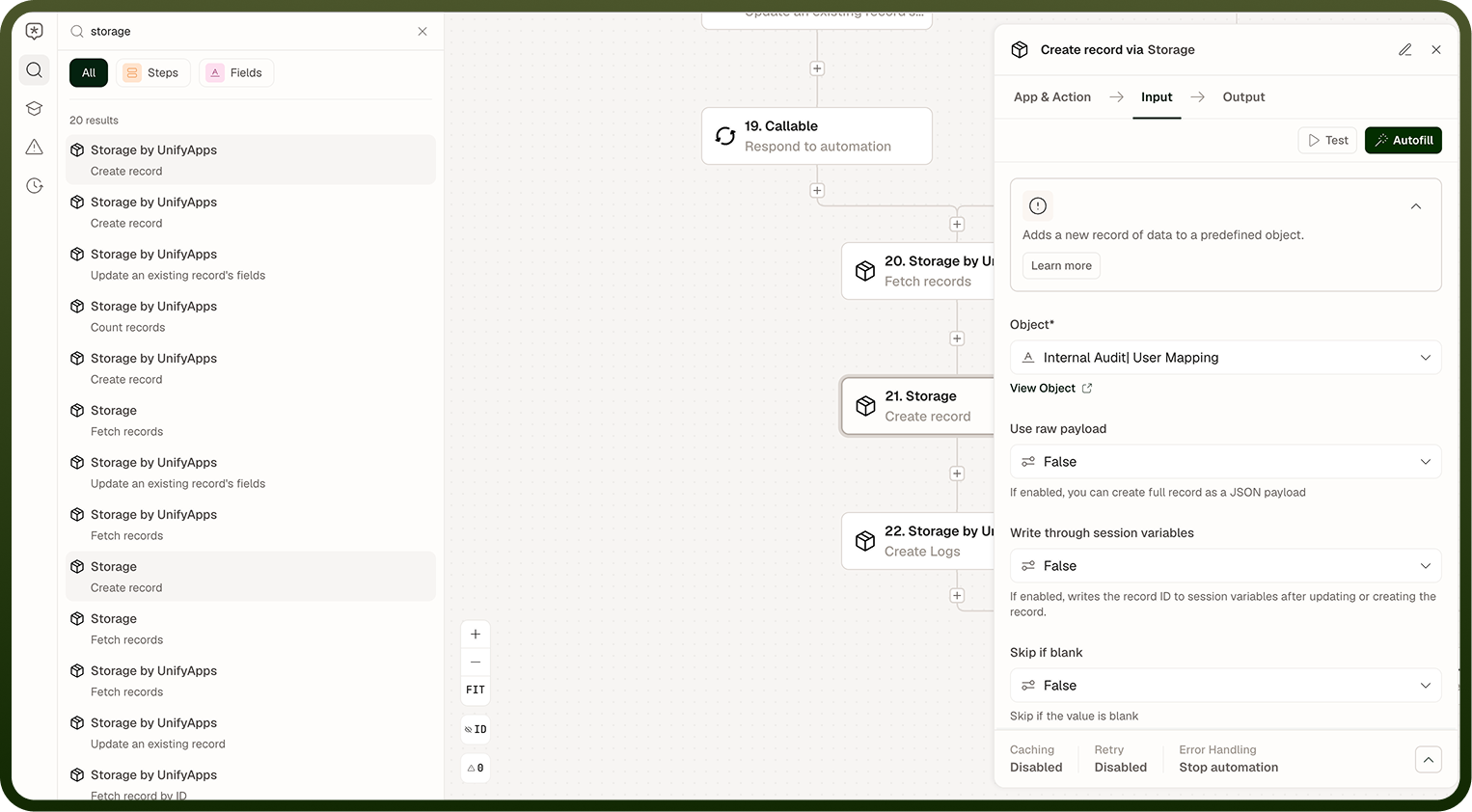
Click the Search icon in the left icon rail of the flow builder. The search panel slides in alongside the canvas without covering your flow. Type to filter — results appear as you type and include the step name, app, and action.
Using Search Results
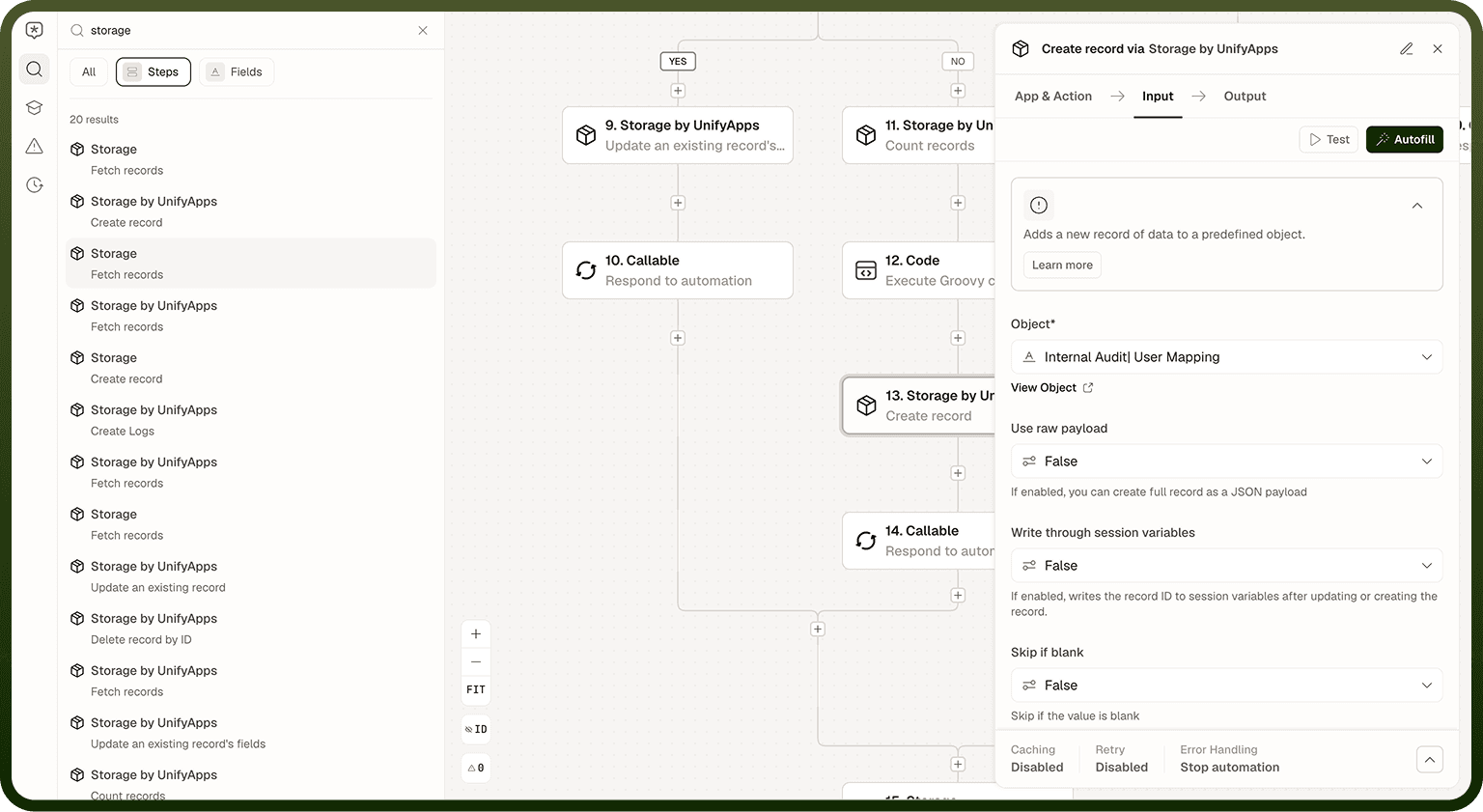
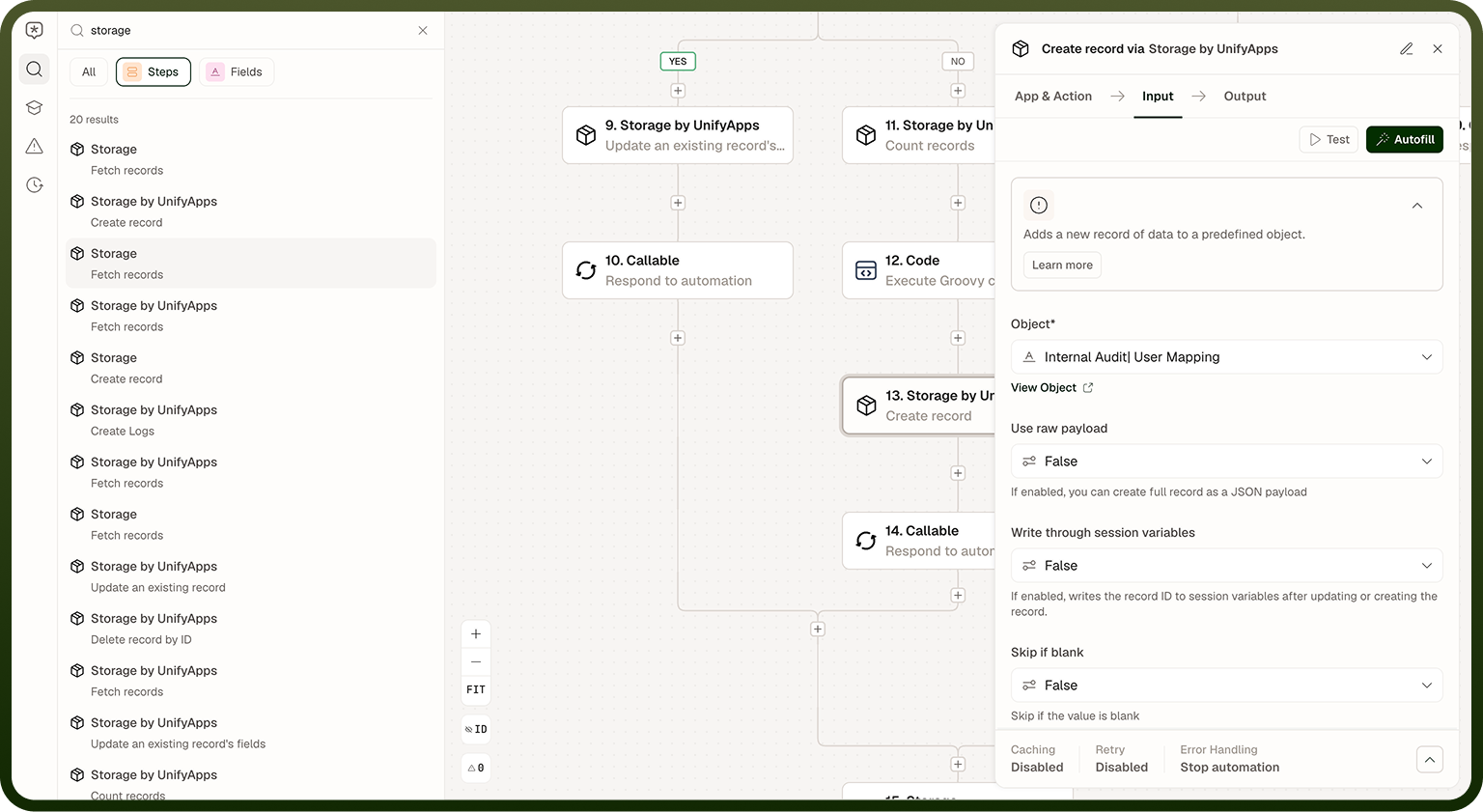
Each result shows the step name, its app and action, and its position in the flow. Clicking a result jumps the canvas view to that step and selects it, opening its properties panel automatically. This is faster than scrolling a large flow looking for one step, especially in automations with loops, branches, or many nested containers.
Quick filters let you narrow results by type — for example, showing only condition steps or only steps from a specific app.
Notes
Keep the following in mind when searching across a large automation:
Search is read-only — you can navigate to any step from search results, but all editing happens in the properties panel after selecting the step.
Steps inside loop and scope containers are included in search results; selecting them scrolls the canvas into the container and selects the step.
Step IDs are not searchable from the Search panel — use the "View step IDs" toggle on the canvas toolbar to see IDs directly on each step.
The Search panel is a navigation aid — use it to jump directly to a step, then edit it in the properties panel as usual.