


Lookup fields are live-fetched, searchable dropdowns that retrieve available options — bases, tables, channels, records — directly from your connected app. Instead of typing a resource ID you may not know, you search and select from the list the field populates for you.
Overview
A lookup field is a searchable dropdown whose options are fetched live from the connected app or platform. Instead of asking you to type an ID or a name you may not know, a lookup field retrieves the available options — bases, tables, channels, folders, records, and similar resources — directly from the connection and presents them as a list you can search and select from.
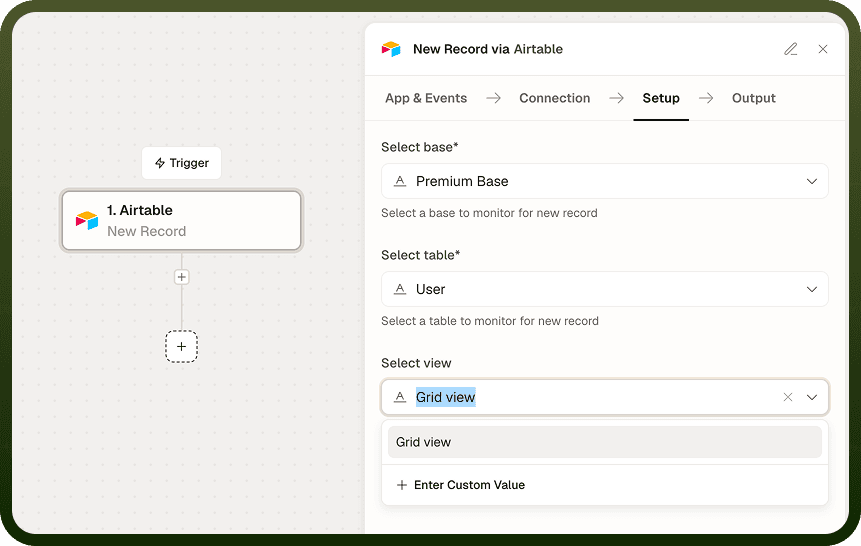
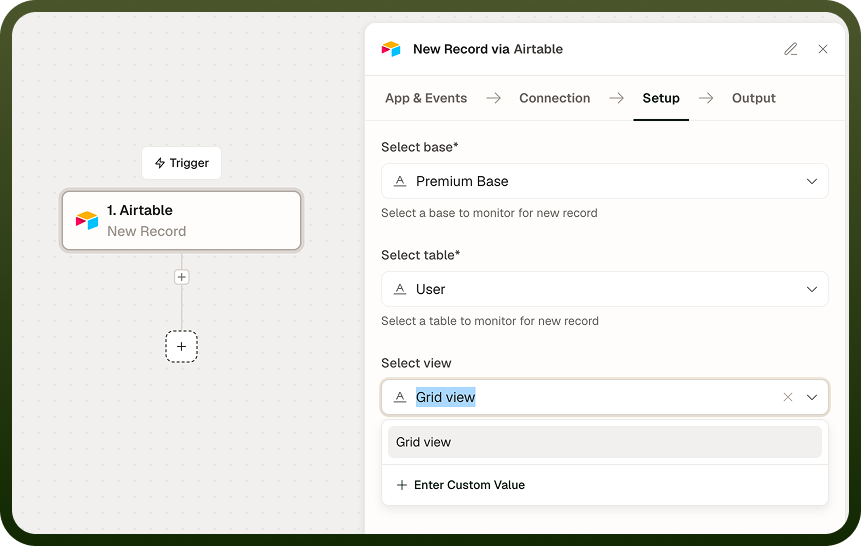
Lookup fields appear throughout node configuration wherever a step needs you to identify a specific resource in a connected app.
How Lookup Fields Work
When you open a node that contains a lookup field, the field issues a request to the connected app to retrieve its list of options. The results populate the dropdown, which you can then type into to filter and search. The field requires an active connection to load its list — if no connection is set, the dropdown remains empty.
Dependency Chaining
Some lookup fields depend on an earlier lookup selection before they can load their own options. A common pattern is:
Select a connection — the node knows which app to talk to.
Select a base or workspace — the node can now fetch the tables or channels within it.
Select a table or channel — the node can now fetch the records or fields within that table.
Each selection in the chain loads the options for the next field. If a downstream lookup appears empty, confirm that all upstream lookup fields in the chain are set.
Refreshing the List
Lookup options are fetched when you open or interact with the field. If the list appears stale — for example, you added a new table in the connected app after opening the node — use the field's refresh control to re-fetch the options. This is especially useful after changing a dependency such as the connection or a parent resource.
Note: If a lookup dropdown is empty or does not load, check that the upstream dependency (such as the connection or a parent resource) is set correctly and the connection is still active.
Using Custom Values
If the resource you need is not listed in the dropdown — for example, the item was created after the list was cached, or it is not returned by the connected app's list endpoint — most lookup fields let you enter a custom value directly. Type the value (such as a record ID or a channel ID) into the field instead of selecting from the list.
Input Fields | Description |
|---|---|
Lookup selection | Choose an option from the fetched list. Type to search and filter available options. |
Custom value | Enter a value directly — such as a resource ID — when the item you need is not present in the fetched list. Available on most lookup fields. |
Note: When you enter a custom value, the platform uses it as-is at run time. Verify that the value matches the format the connected app expects (for example, a numeric ID vs. a string identifier).
Lookup Fields vs. Static Dropdowns
Not every dropdown in a node is a lookup field. Static dropdowns contain a fixed list of options defined by the connector (for example, a list of HTTP methods or sort directions) and do not make a live request to the connected app. Lookup fields are distinguished by the fact that their options vary based on the content of your connected account and require a live fetch to populate.
Notes
To make the most of lookup fields:
Set the connection field first — lookup fields further down the form cannot load their options until the connection is established.
Fill dependent lookups in order (connection, then parent resource, then child resource) to ensure each field's list loads correctly.
Use the refresh control when a list appears empty or stale after a change — this re-fetches the current options from the connected app without requiring you to reopen the node.
Use the custom value option when a resource was recently created and does not yet appear in the list, rather than waiting for the list to update.
Prefer selecting from the list over typing a custom value when both are possible — selecting ensures the ID or name is formatted exactly as the connected app expects.