


The Decision Table node encodes business rules as a grid and evaluates them at runtime. Each row in the table is a rule: condition columns on the left ("if") and result columns on the right ("then"). When you execute the table against inputs, it checks those inputs against every row and returns the results from the rows that match.
Use it to externalize logic that would otherwise be a tangle of nested conditions — pricing tiers, eligibility rules, routing, approval thresholds — so that you can read and maintain the rules in a table instead of editing the automation itself.
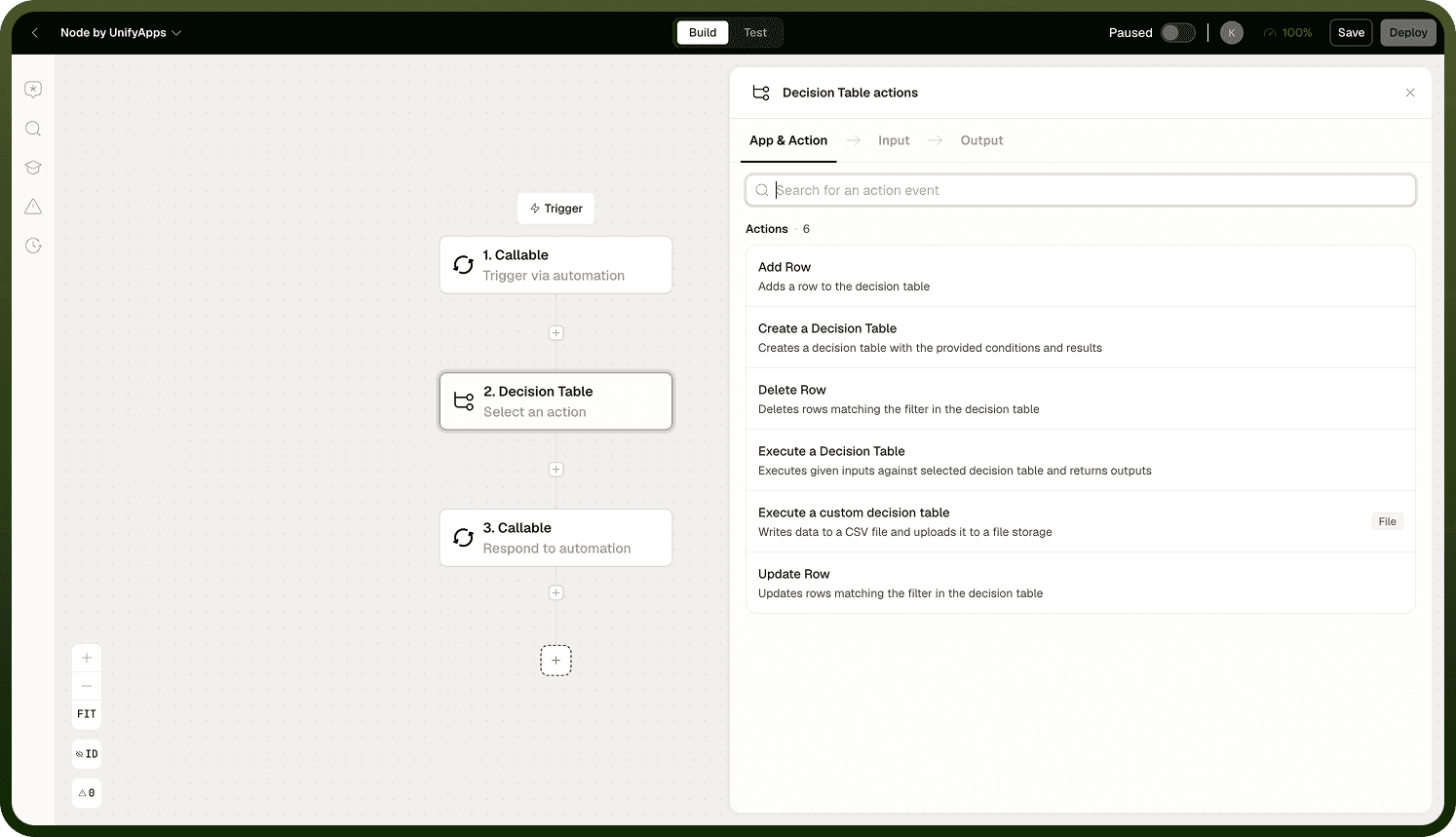
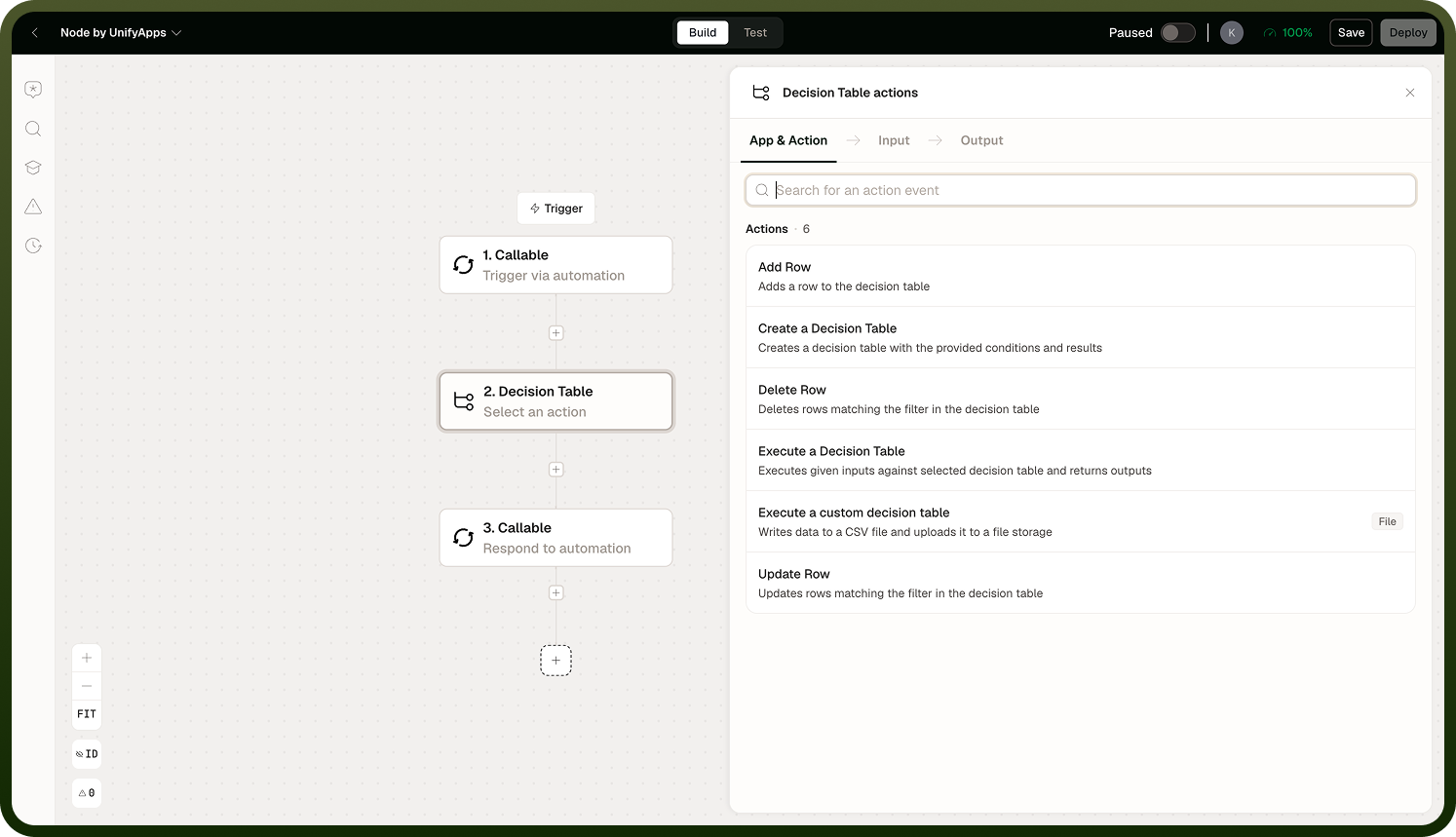
Operations
Create Table — Creates a new decision table with a defined set of condition and result columns.
Input
Input Field | Description |
|---|---|
Table Name | A name to identify this decision table. |
Condition Columns | The input columns whose values are matched against each row's conditions. |
Result Columns | The output columns whose values are returned when a row matches. |
Add / Update / Delete Row — Modifies the rules in an existing table. Each row specifies condition values (the criteria to match) and result values (what to return when the conditions are met).
Input
Input Field | Description |
|---|---|
Table ID | The ID of the decision table to modify. |
Row ID | For update and delete: the ID of the row to change or remove. |
Conditions | For add and update: the condition values for this rule row. |
Results | For add and update: the result values to return when this row matches. |
Execute Table — Evaluates the table against a set of inputs and returns the matched results. This is the primary runtime operation — call it inside your automation to apply the rules.
Input
Input Field | Description |
|---|---|
Table ID | The ID of the decision table to execute. |
Inputs | The values to test against the condition columns, keyed by column name. |
Match Mode | Controls which matching rows are returned. See Match Mode below. |
Output
Returns the result values from the matching row(s). The shape of the output depends on the match mode selected.
Match Mode — Match mode determines what happens when more than one row's conditions match the inputs:
Mode | Behavior | Output Shape |
|---|---|---|
First Match | Returns the result from the topmost matching row. | Single result object. |
Final Match | Returns the result from the bottommost matching row. | Single result object. |
All Matches | Returns results from every row that matches. | List of result objects. |
Note: Row order matters for First Match and Final Match — arrange rows so the rule you want to win sits at the top or bottom accordingly. When using All Matches, design downstream steps to handle a list rather than a single object.
Default Values and No-Match Behavior
If no row matches the inputs, the table returns the default values you have configured for the result columns. It does not error or return null. This means:
Always define sensible defaults for the "nothing matched" case on each result column.
Check for default values downstream rather than assuming a match always occurred — a result that looks valid may be the default, not a matched rule.
You can also apply formulas to transform the matched result before it is returned, for cases where the raw row value needs a final computation before use.
Notes
To make the most of it:
Use decision tables to externalize any logic that changes frequently or needs non-technical review — pricing rules, eligibility criteria, routing logic — so updates happen in the table, not the automation.
Set explicit default values on every result column so the no-match case is deliberate and predictable rather than silently empty.
For First Match and Final Match, review row order carefully; the topmost (or bottommost) matching row wins, so ordering is part of the rule logic.
Switch to All Matches only when every matching rule's result is meaningful; otherwise First or Final Match is cleaner and produces a simpler downstream contract.
Test the table with edge-case inputs before deploying — verify both the matching behavior and what comes back when nothing matches.