


A test suite is a collection of test cases that are executed together as a group. Grouping related test cases into a suite lets you validate a full set of scenarios — or a targeted subset — in a single operation, making it practical to confirm an automation's behavior before deploying any change.
Overview
Test cases become most powerful when organized into suites. Running individual test cases one at a time is useful during authoring, but before a deploy you want to know — in a single pass — whether every scenario still passes. A test suite provides that: one run, one result set, covering all the cases you chose to include. The outcomes of each suite run are recorded under the Runs tab, giving you a persistent history of which cases passed and which did not.
Test Suites screen showing a list of suites with case counts and last-run status
Test Suites
A test suite holds a named set of test cases drawn from the same automation. The cases in a suite share a common purpose — for example, all cases that test the happy path, or all cases that exercise the error-handling branches. There is no limit on the number of cases a suite can contain, and a single test case can belong to more than one suite.
When a suite runs, every test case in it executes in sequence. The suite reports an aggregate status — passed only if every case passed, failed if any case did not. Individual case results are available under the Runs tab. If no suite has been run yet, the Runs tab displays: "No Test suite has been executed. Once you execute your test suite, we'll show the results here."
Note: The Runs tab is scoped to the current automation. Results from suites belonging to other automations do not appear here.
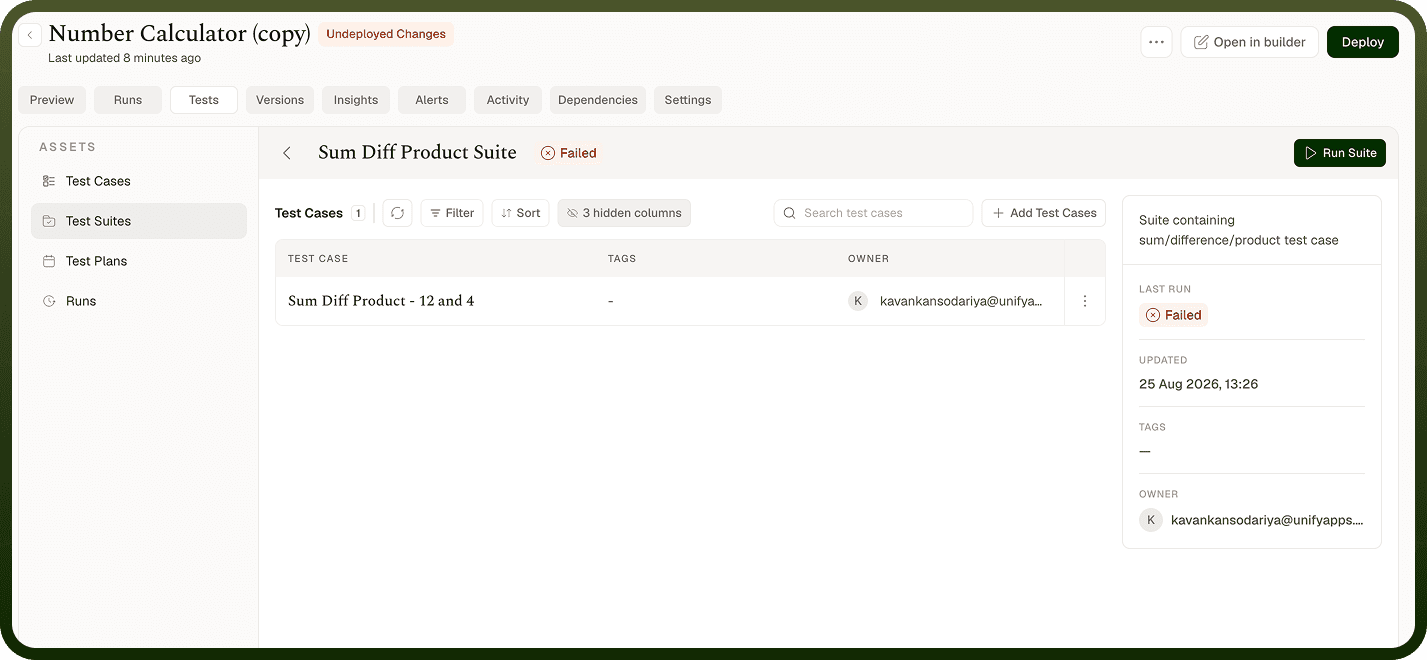
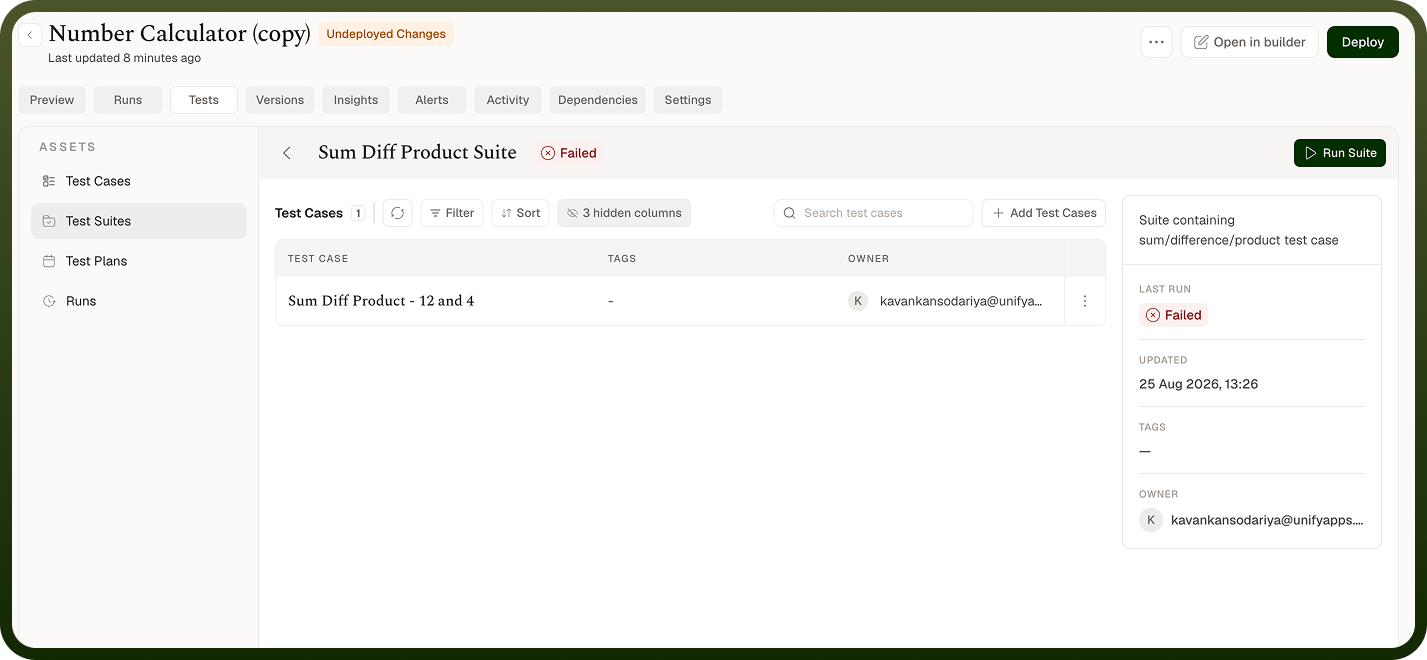
How to Run a Test Suite
Before running a suite, ensure all test cases it contains have been saved with their mock configurations and assertions in place.
Navigate to the Test Cases screen for your automation.
Open the Test Suites tab or panel.
Locate the suite you want to run.
Click Run on the suite.
Wait for execution to complete — the suite runs each included test case in sequence.
When the run finishes, open the Runs tab to review results.
Runs tab showing test suite run results with per-case pass/fail status
Note: The exact controls for creating a suite and adding test cases to it depend on the Test Studio interface in your account. The steps above describe running an existing suite. Refer to your Test Studio screen for the suite creation flow specific to your version.
Runs
The Runs tab on the Test Cases screen is where you review the outcomes of test suite runs. After a suite executes, its results are listed here showing which test cases passed and which did not. Each entry in the report corresponds to one suite run and shows the overall outcome alongside individual case results.
Use the Runs tab to:
Confirm that all test cases in a suite passed before deploying a change to your automation.
Identify which specific case or cases failed after a change, without re-running the full suite manually.
Track whether a previously failing case now passes after a fix.
Share a summary of test outcomes with collaborators reviewing an automation change.
Notes
Test suites work best when they reflect the distinct concerns of an automation — group cases by branch, by integration, or by data condition, rather than putting everything in one undifferentiated suite.
Run the full suite before every deploy — catching regressions at this stage prevents issues from reaching live data.
Keep suite names descriptive enough that the Runs tab is readable at a glance: a suite named Happy path — lead routing communicates more than Suite 1.
Review individual case results in the Runs tab rather than stopping at the suite-level pass/fail; a suite may fail on one case while nine others pass, and the failing case is where the investigation should focus.
After fixing a failed case, re-run the suite rather than the individual case — the fix might introduce a regression elsewhere.
Use multiple suites when an automation has clearly distinct areas of logic: one suite for the success path, one for error paths, one for edge-case data. This scopes failures to a specific concern and speeds up diagnosis.
A suite that consistently passes every case is only as good as the assertions inside its test cases. Invest in precise assertions on the steps that matter most — conditional outputs, values that feed other steps, and any field written to an external system.