


Query Reports retrieves data from a saved report in the platform's reporting store. Rather than writing raw SQL, you reference a report that has already been defined and apply optional filters at runtime — making it the fastest path to standardized report data inside an automation.
Overview
Query Reports lets you consume saved platform reports from within a workflow without repeating their underlying SQL logic. Identify the report you want, supply any runtime filter values, and the action returns the report's data rows ready for downstream processing. Results are paginated so large reports do not overwhelm your workflow.
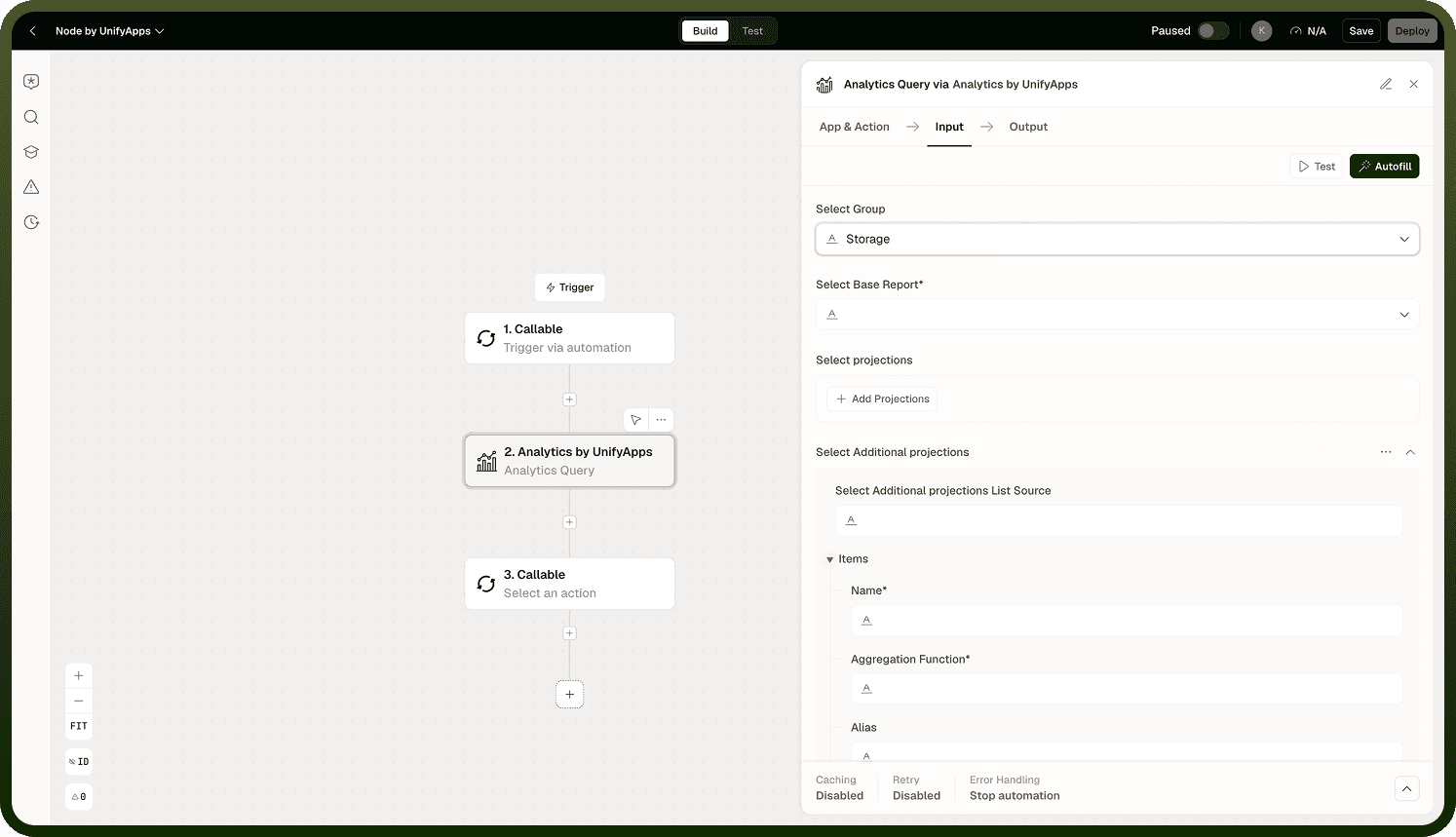
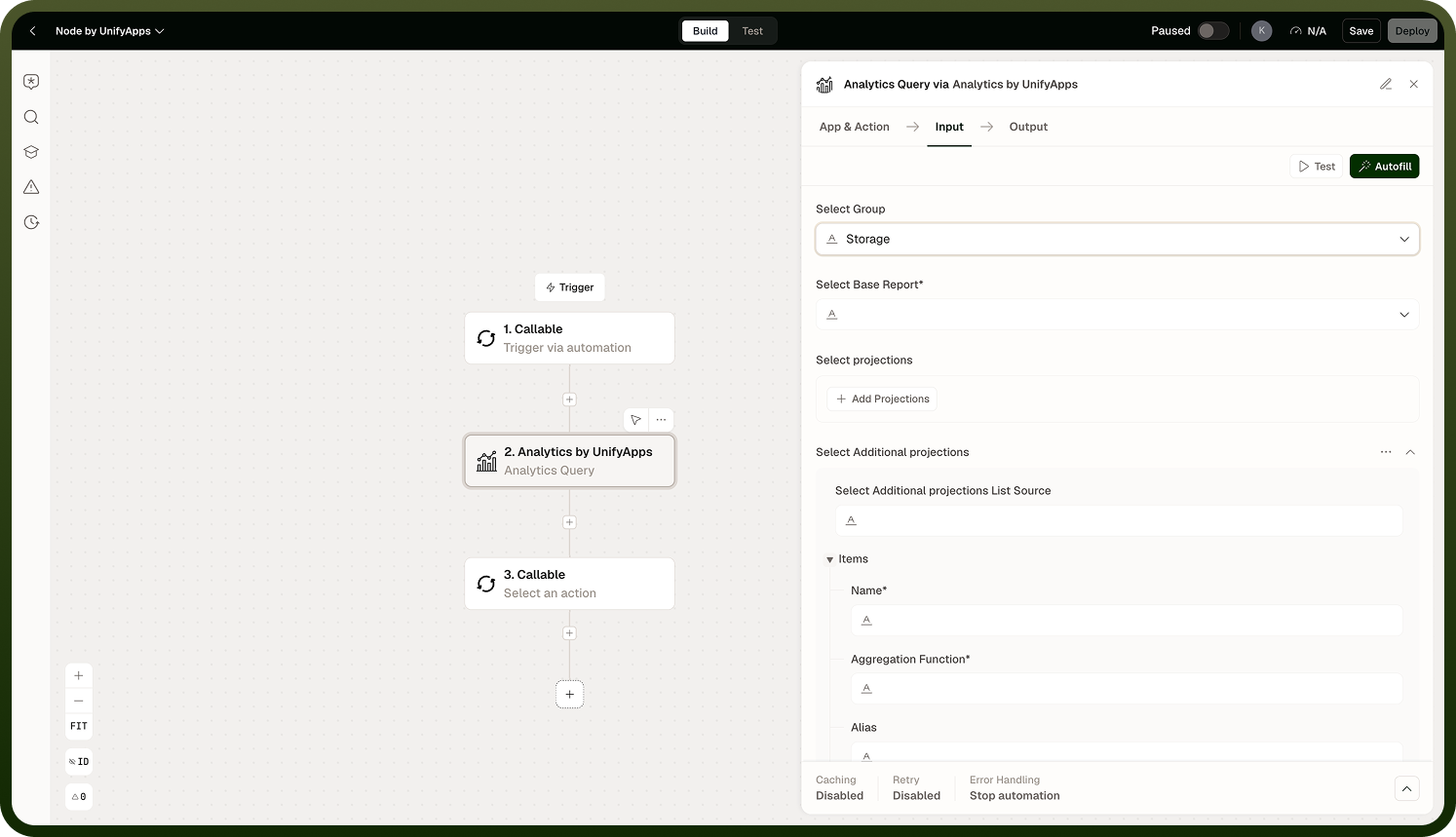
This action is the right choice when a report is already configured in the platform and you want consistent, governed output — the same report definition used by your dashboards, now accessible from an automation for scheduling, routing, or export purposes.
Input
Field | Description | Required |
|---|---|---|
Report ID | The unique identifier of the saved report to query. Find this on the report's settings page within the platform. | * |
Filters | Optional runtime filter conditions to narrow the report's result set. Supplied as key-value pairs that map to the report's defined filter fields. | |
Page | The page number to retrieve from a paginated result set. Defaults to the first page when omitted. | |
Page Size | Maximum number of rows to return per page. Reduce this for reports with large row counts to keep downstream nodes manageable. |
Output
The action returns a paginated result object containing:
An array of row objects representing the report's data, where each object's keys match the report's column definitions.
A has more boolean flag indicating whether additional pages of results exist beyond the current page.
The current page index, which downstream nodes can use to request subsequent pages.
Notes
Keep the following in mind when using Query Reports.
Query Reports runs against the analytics and reporting store — the same data layer as Execute SQL Query, but accessed through a pre-defined report rather than ad hoc SQL.
Results are paginated. For reports with many rows, loop using the has more flag rather than expecting all data in a single call.
Runtime filters narrow the report's rows but do not change the report's column structure — the output schema always matches the saved report's definition.
If the report definition changes in the platform (columns added, filters modified), the output of this action will change accordingly on the next run — keep downstream nodes aligned with the current report schema.
To run entirely custom SQL rather than a saved report, use Execute SQL Query instead.
If the report returns no rows for the given filters, the output array is empty and has more is false. This is not an error — handle the empty case explicitly when your automation depends on data being present.