


The Excel node's pivot table operations let you create structured summary tables from raw spreadsheet data and refresh existing pivot definitions when the underlying data changes — enabling automated data aggregation directly within your workflow, without opening the file manually.
Overview
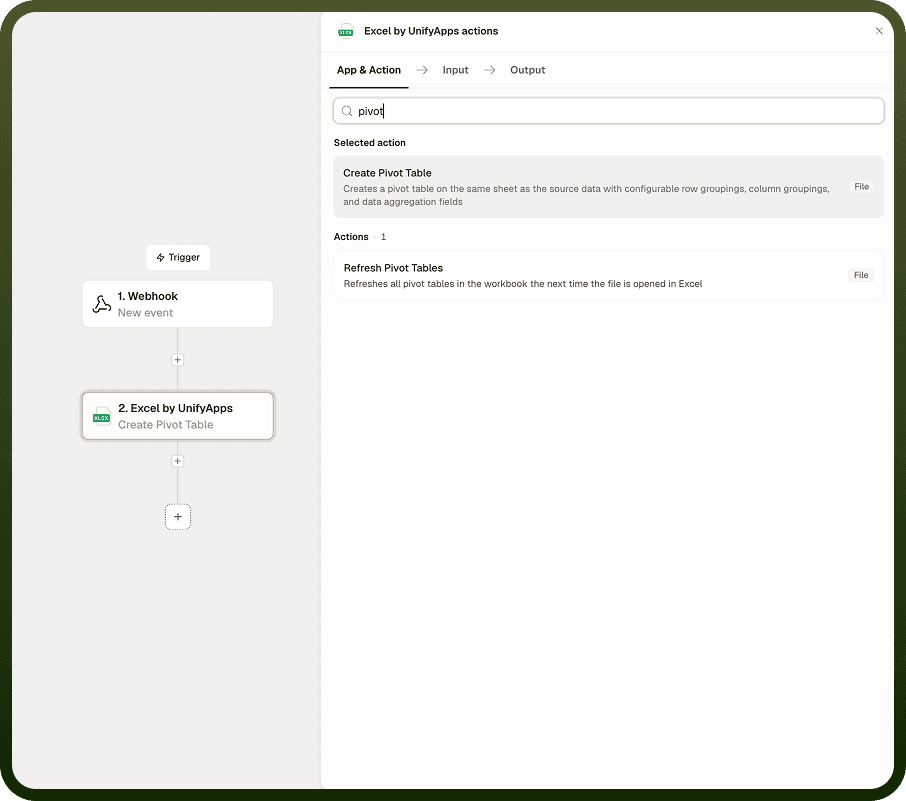
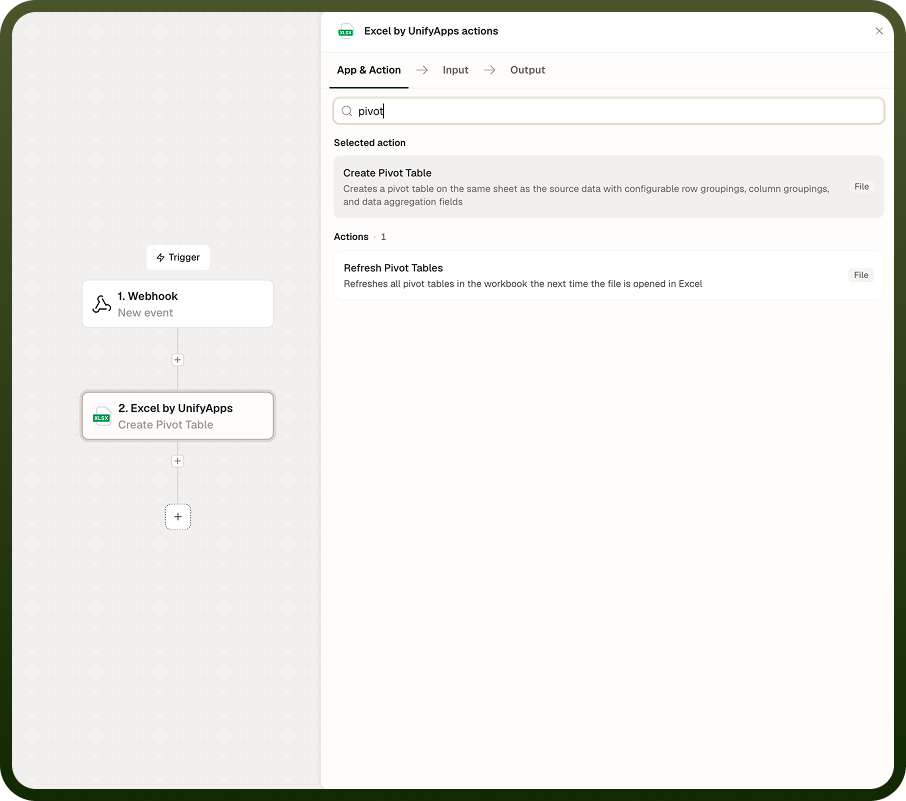
Create Pivot Table generates a new pivot table on a target sheet, drawing from a defined data range on a source sheet. You specify which fields appear as row labels, which as column labels, and which values are aggregated — using functions such as sum, count, or average. Refresh Pivot Tables updates all existing pivot tables in the workbook to reflect the latest data in their source ranges. Use Refresh after your automation has written new rows to a sheet that feeds a pivot table already present in the file.
Operations
Operation | Description | Key inputs |
|---|---|---|
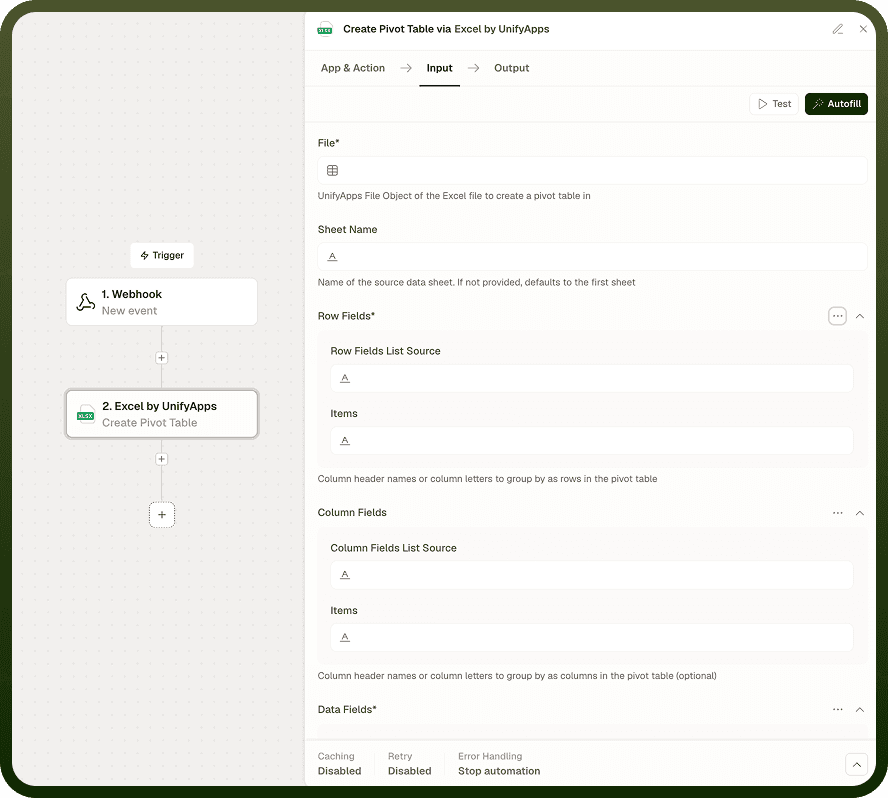
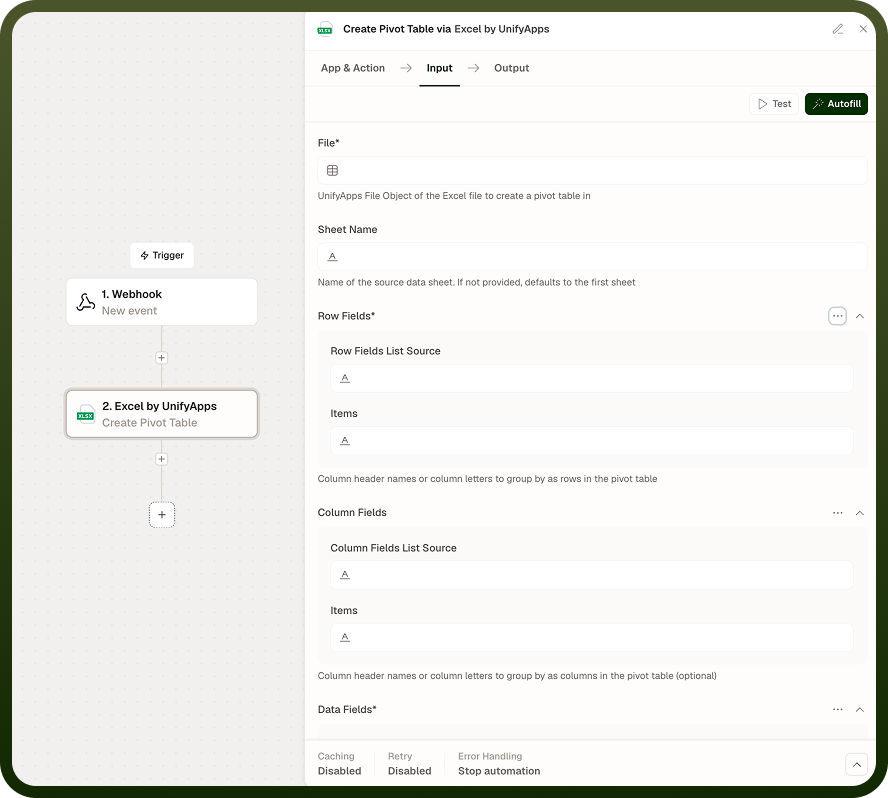
Create Pivot Table | Generates a pivot table from a specified data range on a source sheet and places it on a target sheet. Row fields, column fields, value fields, and aggregation functions are all configurable. | File, Source sheet, Data range, Target sheet name, Row fields, Column fields, Value fields, Aggregation function |
Refresh Pivot Tables | Re-evaluates all pivot tables in the workbook against their current source data ranges. Updates all pivot table outputs to reflect any rows added, changed, or removed since the pivot was last built. | File |
Input
Field | Type | Required | Description |
|---|---|---|---|
File | File reference | Yes | The Excel workbook to operate on. Pivot table support requires XLSX format. |
Source sheet | String | Yes — Create | Name of the sheet containing the raw data. Sheet names are case-sensitive. |
Data range | String | Yes — Create | Cell range of the source data including its header row, in standard Excel notation (e.g. A1:F200). The first row of the range is treated as column headers. |
Target sheet name | String | Yes — Create | Name of the sheet where the pivot table will be placed. If the sheet does not exist, it is created. |
Row fields | Array of strings | Yes — Create | Column header names from the source data to use as pivot row labels. Values must match the header row exactly (case-sensitive). |
Column fields | Array of strings | No — Create | Column header names from the source data to use as pivot column labels. Omit for a single-axis (row-only) pivot. |
Value fields | Array of objects | Yes — Create | Each object specifies a field (column header name) and an aggregation function (SUM, COUNT, AVERAGE, MIN, MAX). |
Output
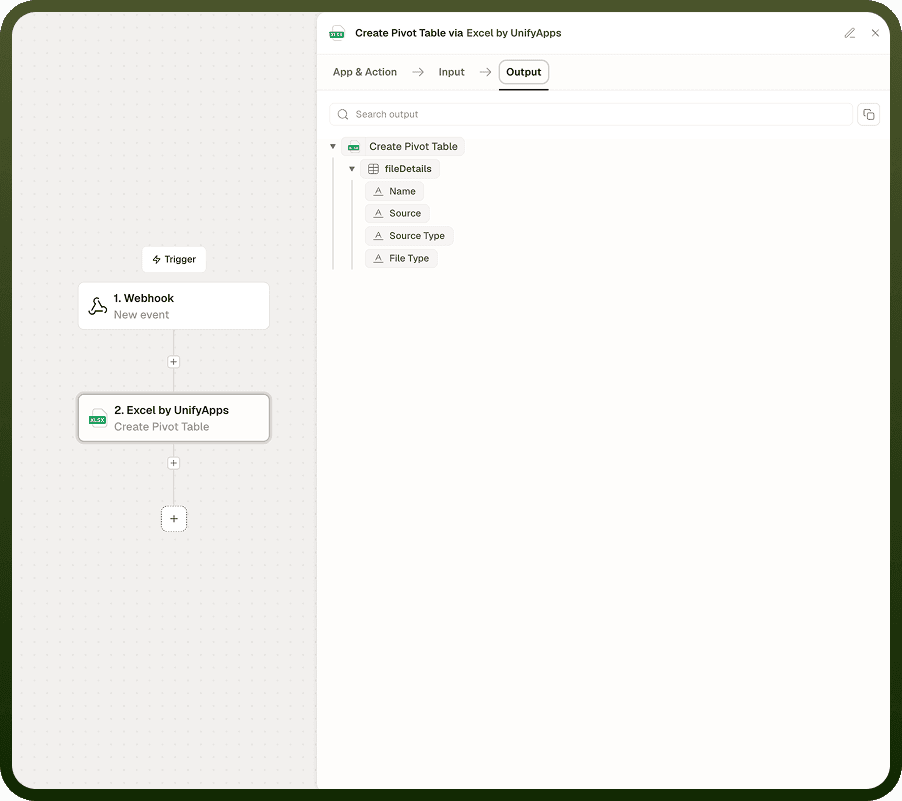
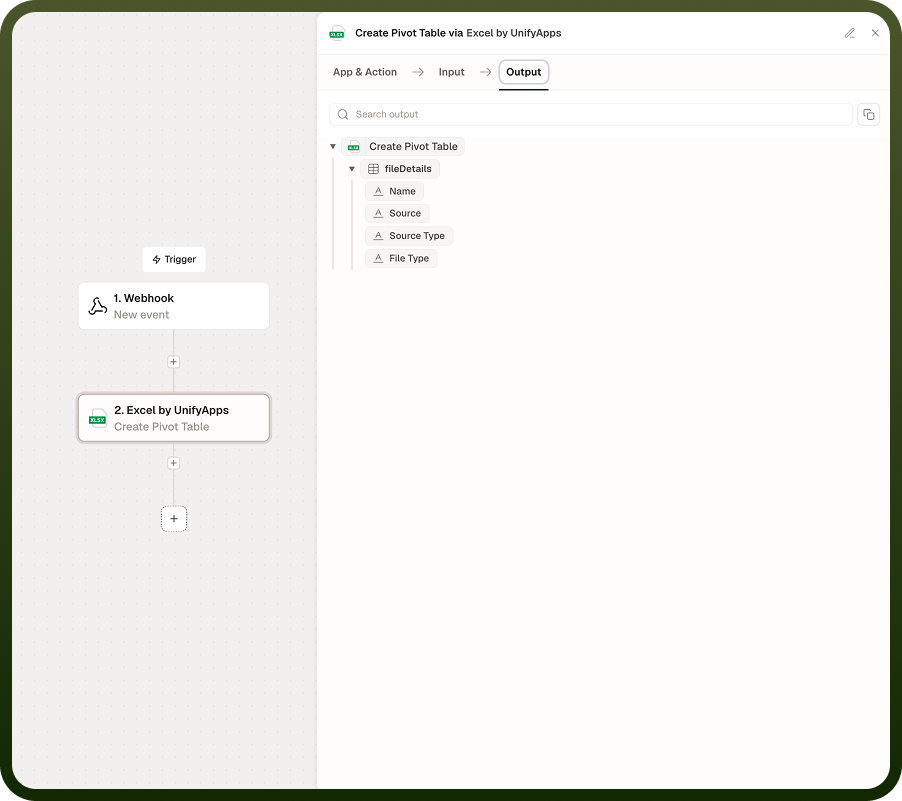
Create Pivot Table — returns the updated workbook as a file object, with the new pivot table placed on the target sheet. The source data sheet is unchanged.
Refresh Pivot Tables — returns the updated workbook as a file object, with all pivot tables recalculated against their current source data.
Notes
Pivot table operations require the workbook to be in XLSX format. Ensure any upstream conversion or creation step uses XLSX before passing the file to these operations.
Row field and column field names must match the header row of the source data exactly, including capitalisation and spacing. A mismatch causes the pivot definition to fail.
Refresh Pivot Tables refreshes all pivot tables in the workbook at once. There is no option to target a single pivot table by name.
When writing new rows to a source sheet with an existing pivot (for example using a Write operation earlier in the automation), chain a Refresh Pivot Tables operation afterward to keep the pivot in sync.
The Create Pivot Table operation places its output on a dedicated target sheet. If a sheet with that name already exists, its content is overwritten with the new pivot table.
Format requirement: Pivot table operations require XLSX format. If your workbook was created or converted in XLS or XLSB, use Convert Excel file format to upgrade it to XLSX before creating or refreshing pivot tables.