


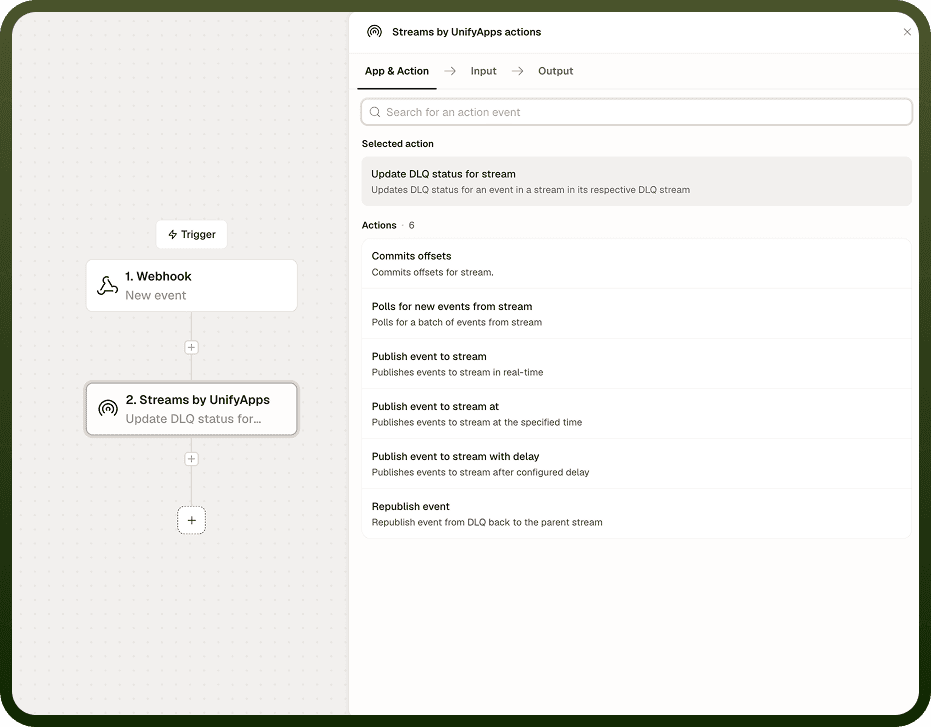
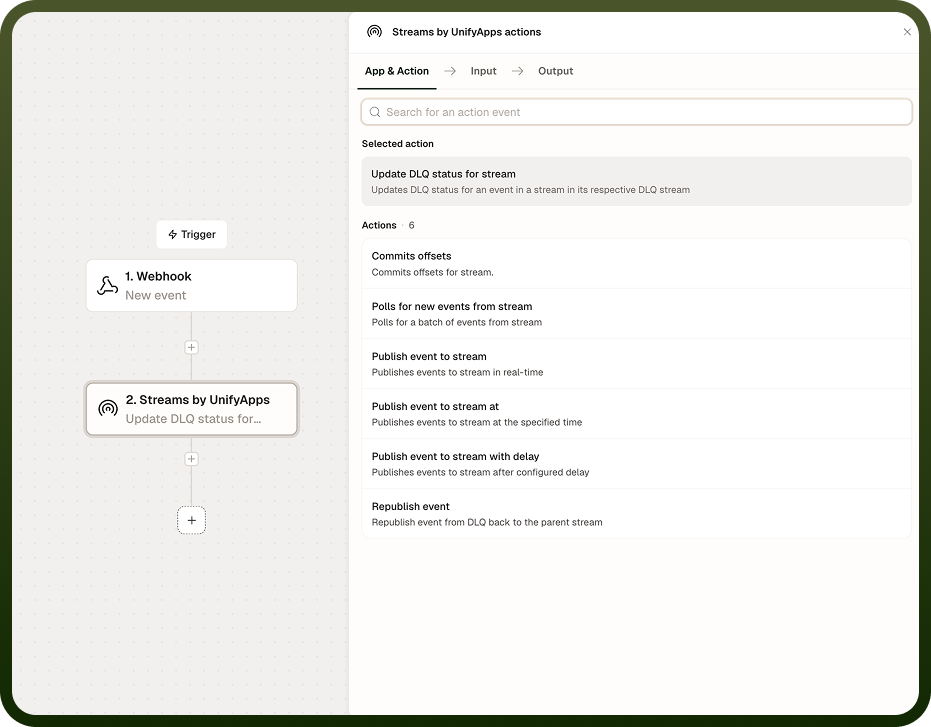
Update DLQ marks a consumed event as failed and routes it to the stream's dead-letter queue (DLQ). Supply the event ID and a reason — timeout, validation failed, processing error, or any descriptive string — to move the event aside without blocking the rest of the stream. DLQ tracking must be enabled on the consuming step before Update DLQ can hold events for it.
Overview
The dead-letter queue is a companion to each stream that captures events which could not be processed successfully. Update DLQ isolates a bad event so the stream continues and the failed event can be inspected or retried later using the Republish DLQ Event action. Without DLQ tracking enabled on the consumer, the event is not held in a state that allows it to be moved to the DLQ — the connection between the consuming step and this action depends on that setting being on.
Input
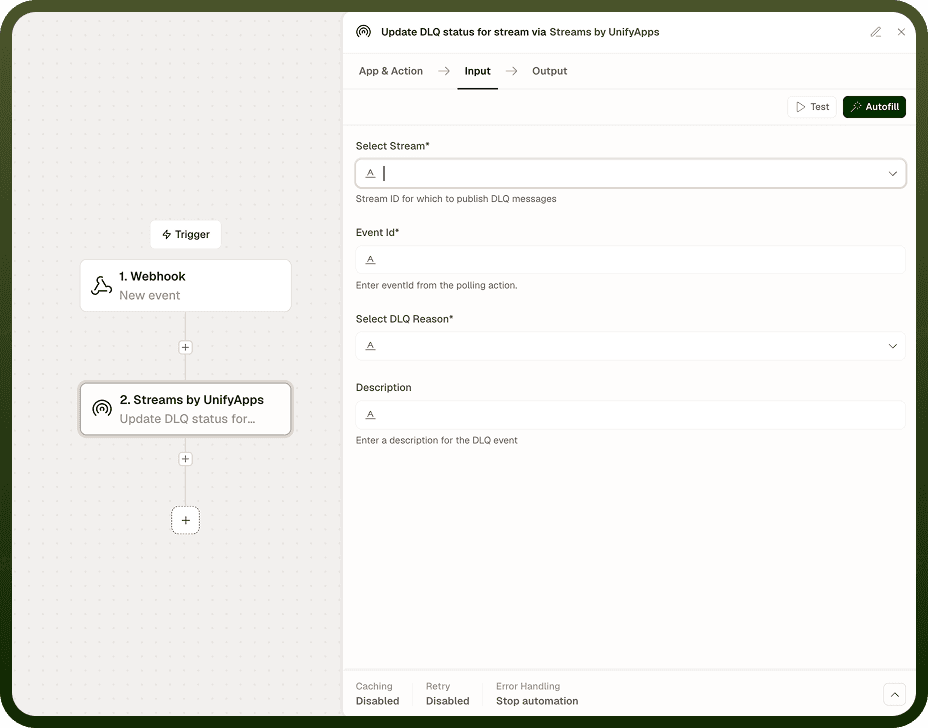
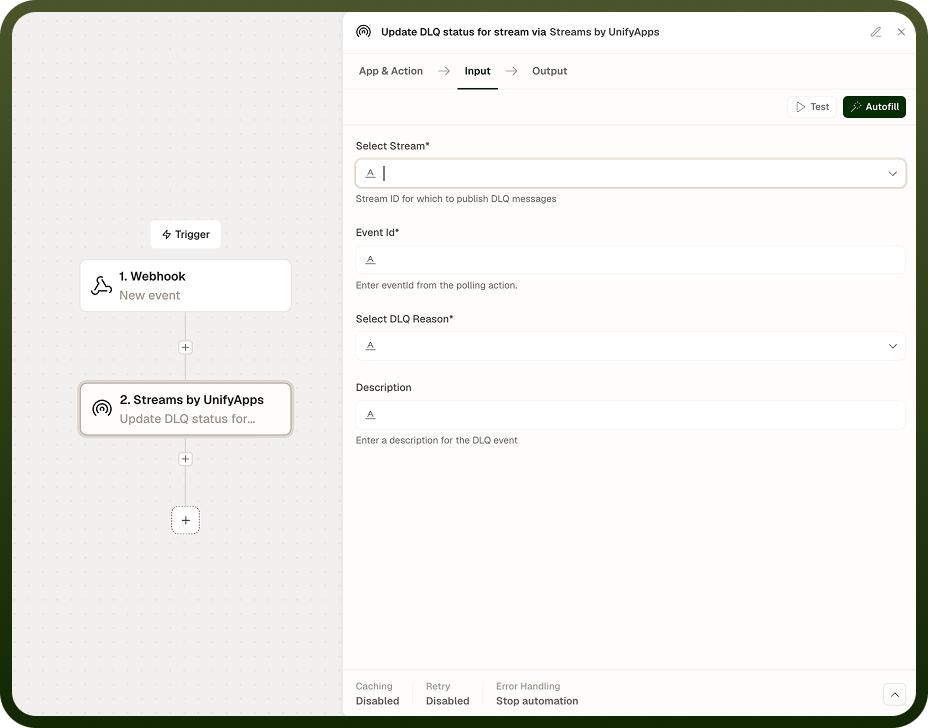
Field | Type | Required | Description |
|---|---|---|---|
Stream | String | Yes | The stream the event was consumed from. |
Event ID | String | Yes | The identifier of the event to move to the DLQ. Available from the output of the Consume Events or On Event Trigger step. |
Reason | String | Yes | Description of why the event failed. Common values: timeout, validation failed, processing error, schema mismatch. Free-form — any descriptive string is accepted. |
Output
The action returns a confirmation once the event is moved to the dead-letter queue.
Field | Type | Description |
|---|---|---|
status | String | Confirmation that the event was moved to the DLQ. |
dlqEventId | String | Identifier of the event in the dead-letter queue. Pass this to Republish DLQ Event when you are ready to retry the event. |
Notes
DLQ tracking must be enabled on the consuming step (Consume Events or On Event Trigger). Without it, the event is not held and Update DLQ has nothing to act on.
Routing a bad event to the DLQ prevents it from blocking processing of subsequent events in the stream.
Events remain in the DLQ until you inspect or replay them using the Republish DLQ Event action.
The Reason field is free-form. Using a consistent vocabulary across automations — for example, always writing timeout rather than timed out or request timeout — makes DLQ inspection and filtering easier.
Calling Update DLQ on the same event ID more than once has no effect after the first call; the event is already in the DLQ.
DLQ tracking is a prerequisite: Update DLQ depends on DLQ tracking being enabled on the consuming step that read the event. If you add Update DLQ to an automation but DLQ tracking is off, the action will not be able to capture the event — enable tracking on the consumer first.