


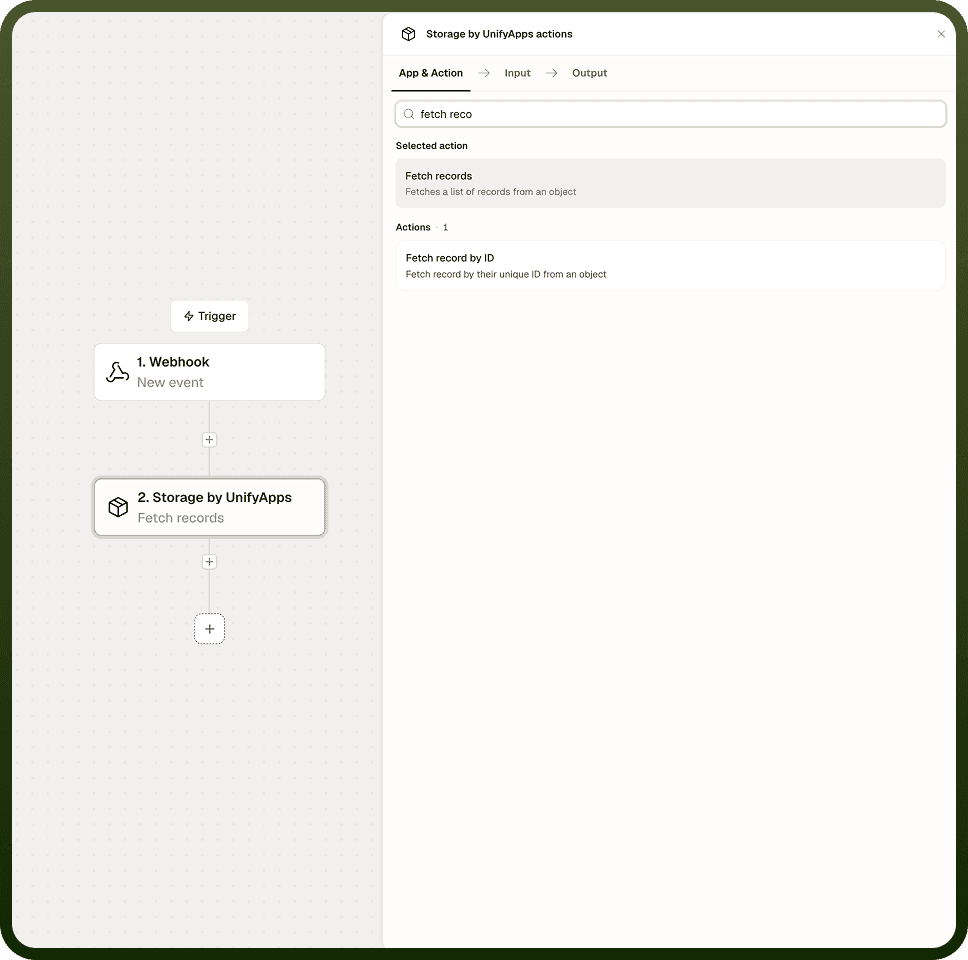
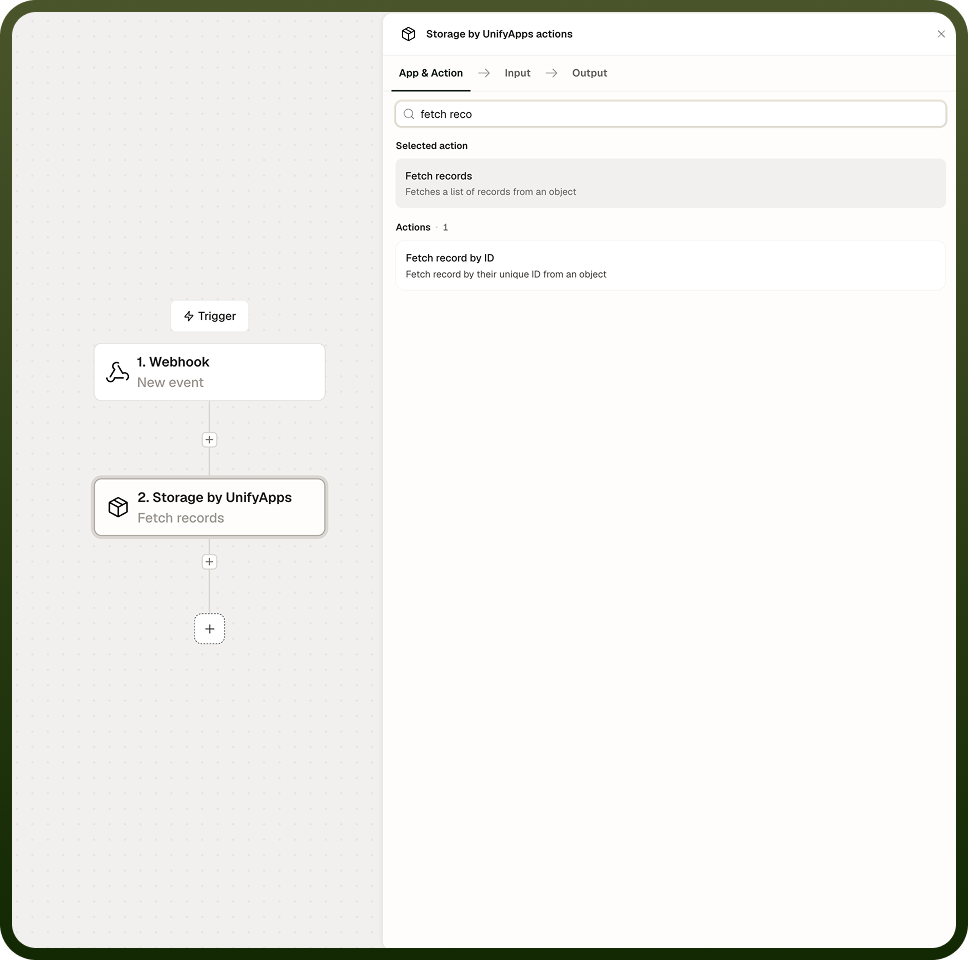
Fetch Records retrieves one or more records from a UnifyApps Storage object, with support for filters, sorting, field selection, and pagination.
Overview
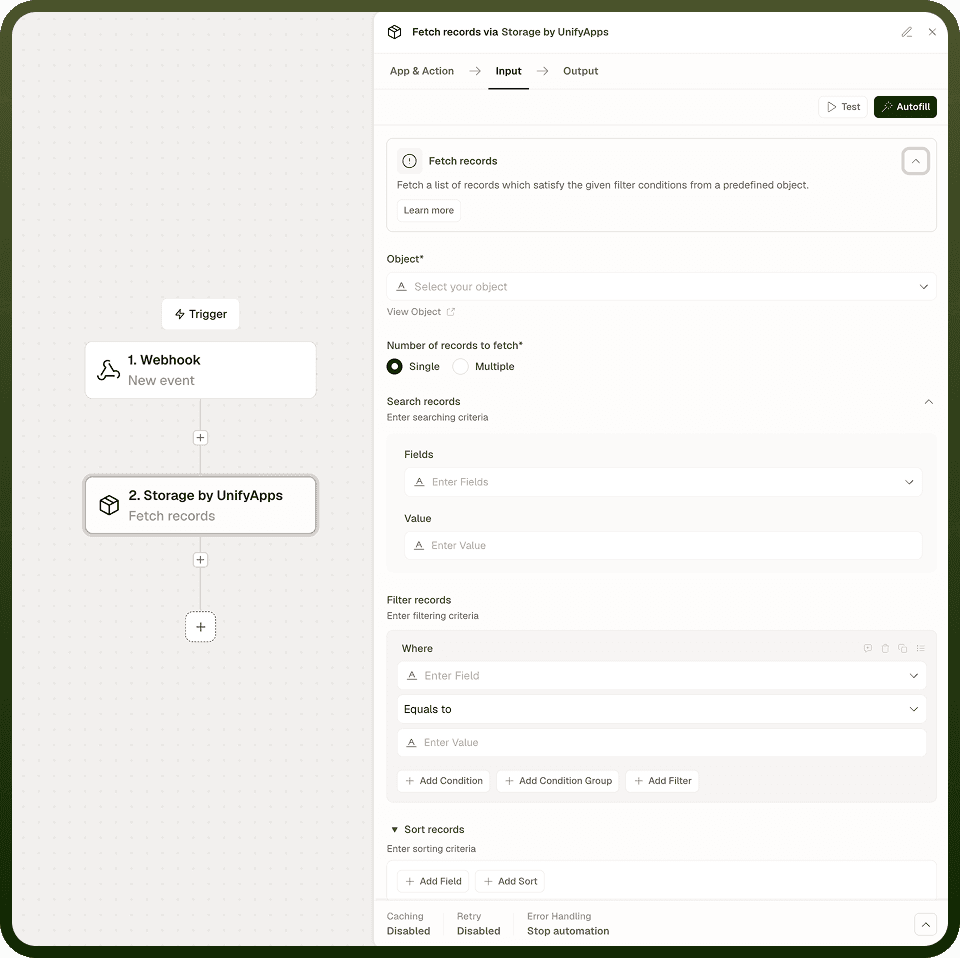
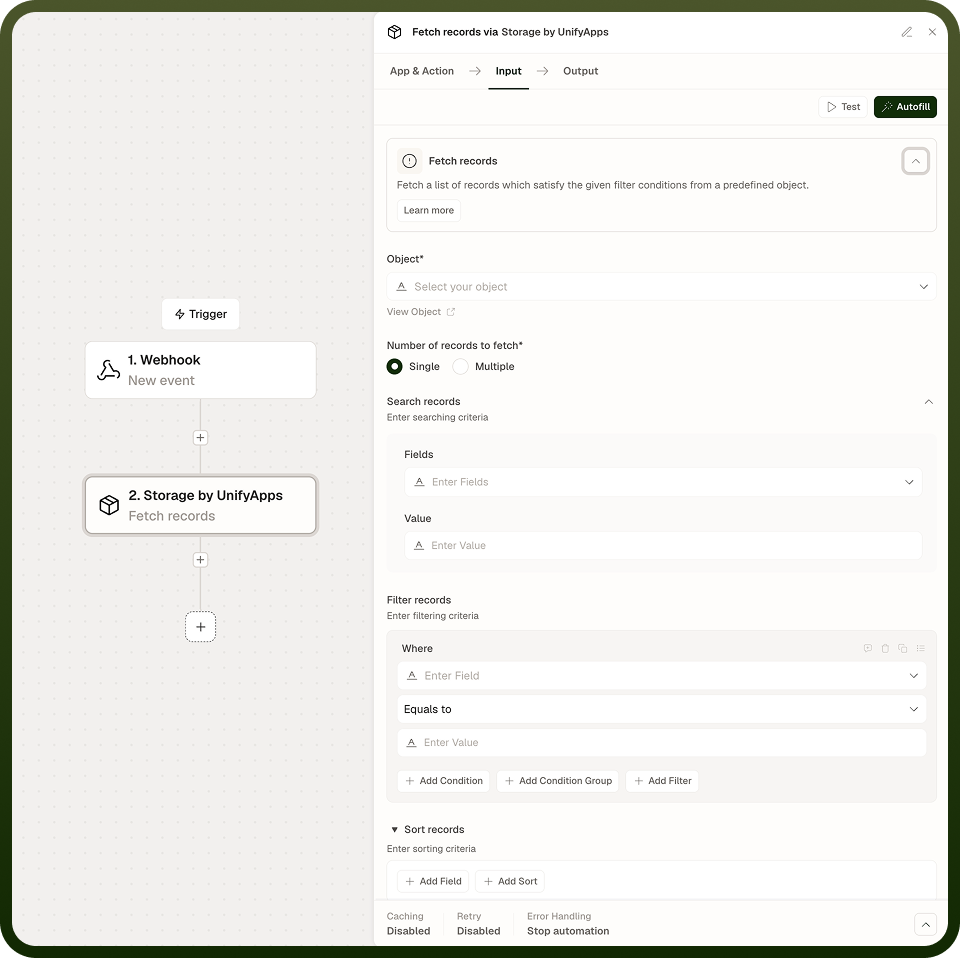
The Fetch Records action queries a Storage object and returns matching records. You choose whether to fetch a single record — returned as an object directly — or multiple records, returned as a list. Narrow results with structured filter conditions or text search, sort by any field, and page through large result sets with a configurable limit (default around 20), an offset or cursor, and an optional total count. Selecting only the fields you need keeps responses small and automations fast on large objects; fetch all columns only when you genuinely require every field.
Input
Field | Description | Required |
|---|---|---|
Object | The Storage object (table) to query. | * |
Mode | Whether to return a single record (returns the object directly) or multiple records (returns a list). | * |
Filters | Structured filter conditions and text search to narrow which records are returned. Leave empty to return all records up to the page limit. | |
Sorting | Sort order applied to matching records before paging. | |
Limit | Maximum number of records to return per page. Defaults to approximately 20. | |
Offset / Cursor | Starting position for pagination — use offset for numbered paging or cursor for keyset paging. | |
Include total count | When enabled, the response includes the total number of records matching the filters, not just the current page. | |
Fields | Specific column names to include in each returned record. Leave empty to return all fields. |
Output
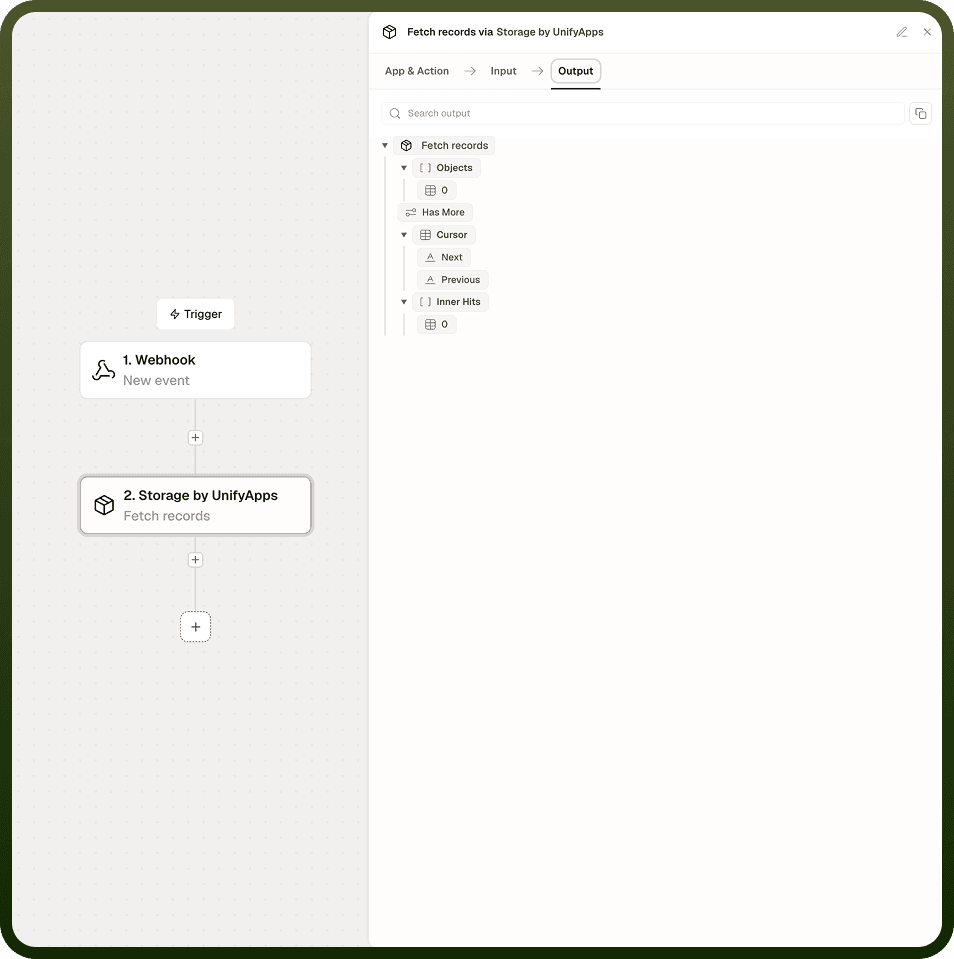
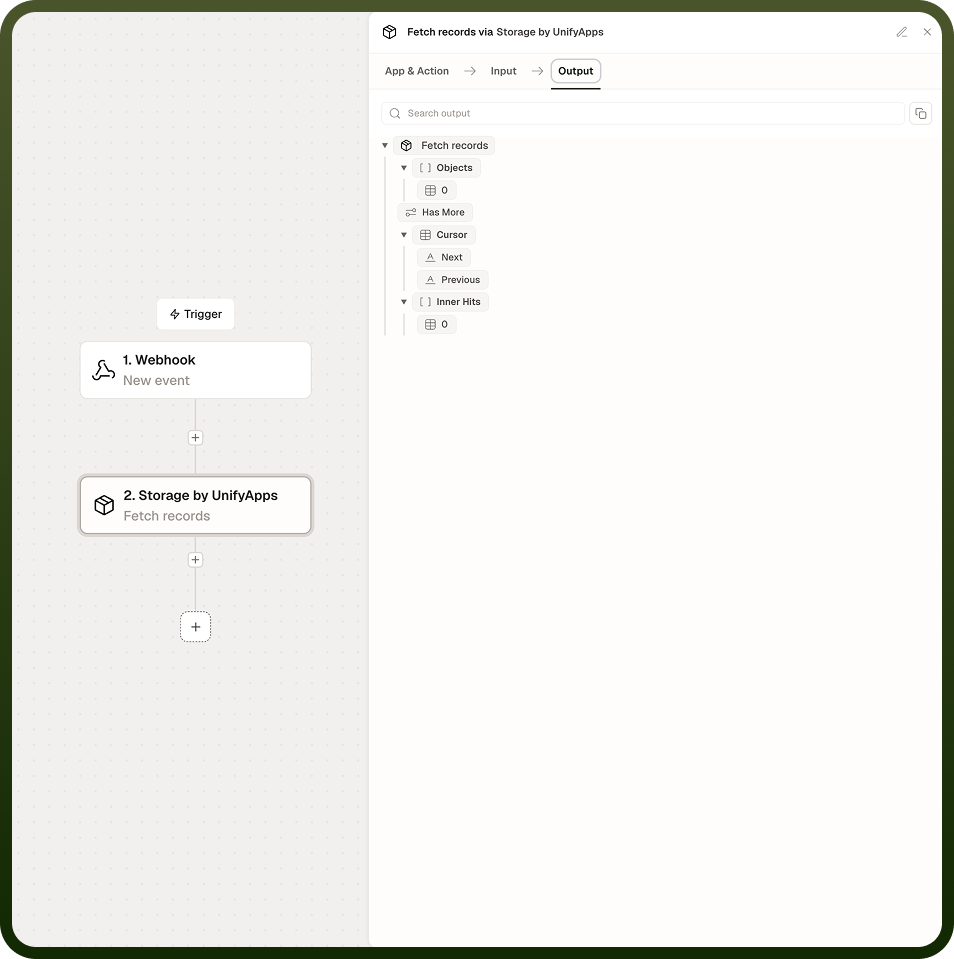
In single mode, the action returns the matching record as an object containing the selected fields. In multiple mode, it returns a list of matching records. When Include total count is enabled, the response also carries the total number of records that match the filters across all pages — not just the current page.
Notes
Keep the following in mind when configuring Fetch Records.
Single mode returns the record directly as an object; multiple mode returns a list — choose based on how many results you expect and how downstream steps consume them.
Filters support both structured conditions and text search, which can be combined in a single query.
The default page limit is around 20; raise it when you need more rows per call.
Use offset or cursor pagination when iterating through large result sets across multiple steps or loop iterations.
Selecting specific fields instead of returning all columns keeps responses small and automations faster on large objects — fetch everything only when you really need every column.
When using Include total count, note that the count reflects all records matching your filters, not the size of the current page. Use it for pagination UI logic or threshold checks rather than assuming it equals the list length.