


A test plan is a higher-level container that organizes one or more test suites into a structured, repeatable execution sequence. Where a test suite groups test cases for a single validation pass, a test plan coordinates which suites run, in what order, and — when scheduled — when they run automatically.
Note: The source documentation for Test Studio does not describe Test Plans at this level of detail. The content on this page is inferred from the broader Test Studio architecture (test cases → test suites → test plans) and common test management patterns. Specific UI labels, field names, and scheduling configuration steps should be verified against the live product before publishing.
Overview
Test plans sit below test suites in the Test Studio hierarchy. A test suite answers the question "do these scenarios pass right now?" A test plan answers a broader question: "across all the suites that cover this automation, is everything still correct — and can I schedule that check to run automatically?" Plans are the right tool when you need to validate multiple suites together before a release, or when you want automated regression coverage to run on a recurring basis without manual intervention.
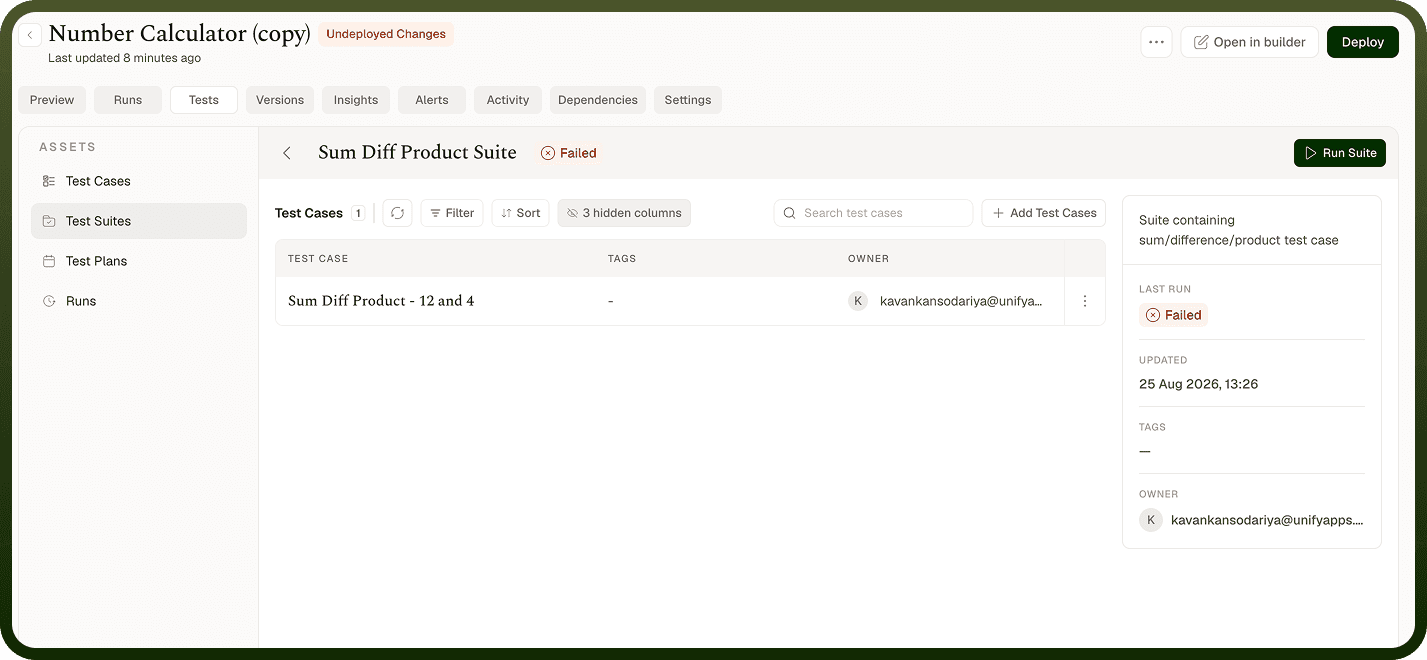
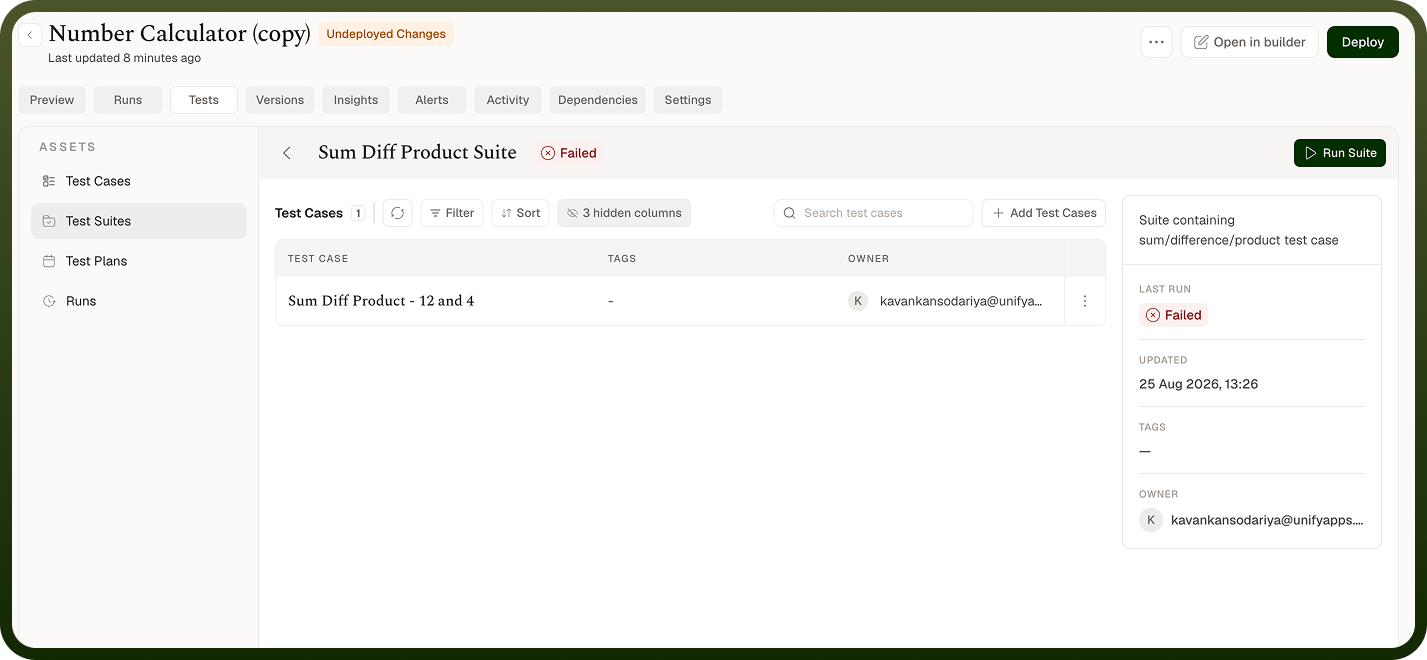
Test Plans
A test plan holds a named, ordered list of test suites. When the plan executes, each suite runs in sequence. The plan records an aggregate result — passed only if every suite in the plan passed — alongside the individual suite results. This gives you a single point of truth for whether an automation is ready to deploy or release.
Test plans are especially useful for:
Pre-release validation — Run all suites for an automation in one operation before publishing a change, without manually triggering each suite individually.
Scheduled regression testing — Configure a plan to run on a schedule (daily, weekly, or after each deploy) so regressions are caught automatically rather than discovered in production.
Coordinating multiple suites — When different suites cover different parts of an automation (success paths, error handling, edge cases), a plan runs them in a defined order and reports a unified outcome.
How to Create and Schedule a Test Plan
Creating a test plan requires at least one test suite to already exist for the automation. Scheduling is optional and can be configured at creation time or added later.
Navigate to the Test Plans section within Test Studio for your automation.
Click the control to create a new plan and give it a descriptive name.
Add the test suites you want the plan to include, and arrange them in the order they should execute.
Save the plan. At this point the plan can be run manually on demand.
To schedule the plan, open its settings and configure a schedule — specifying the frequency and time at which the plan should run automatically.
Save the schedule. The plan will execute automatically at each scheduled interval and record results in the plan's run history.
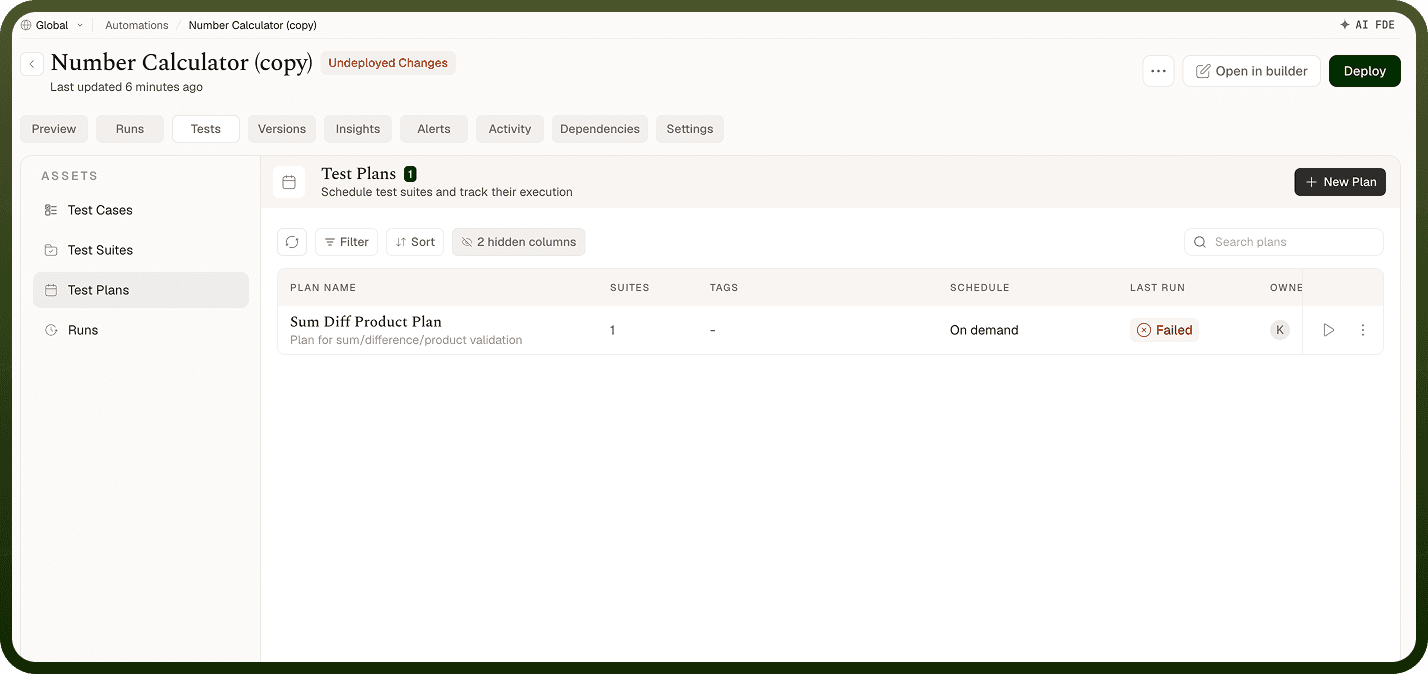
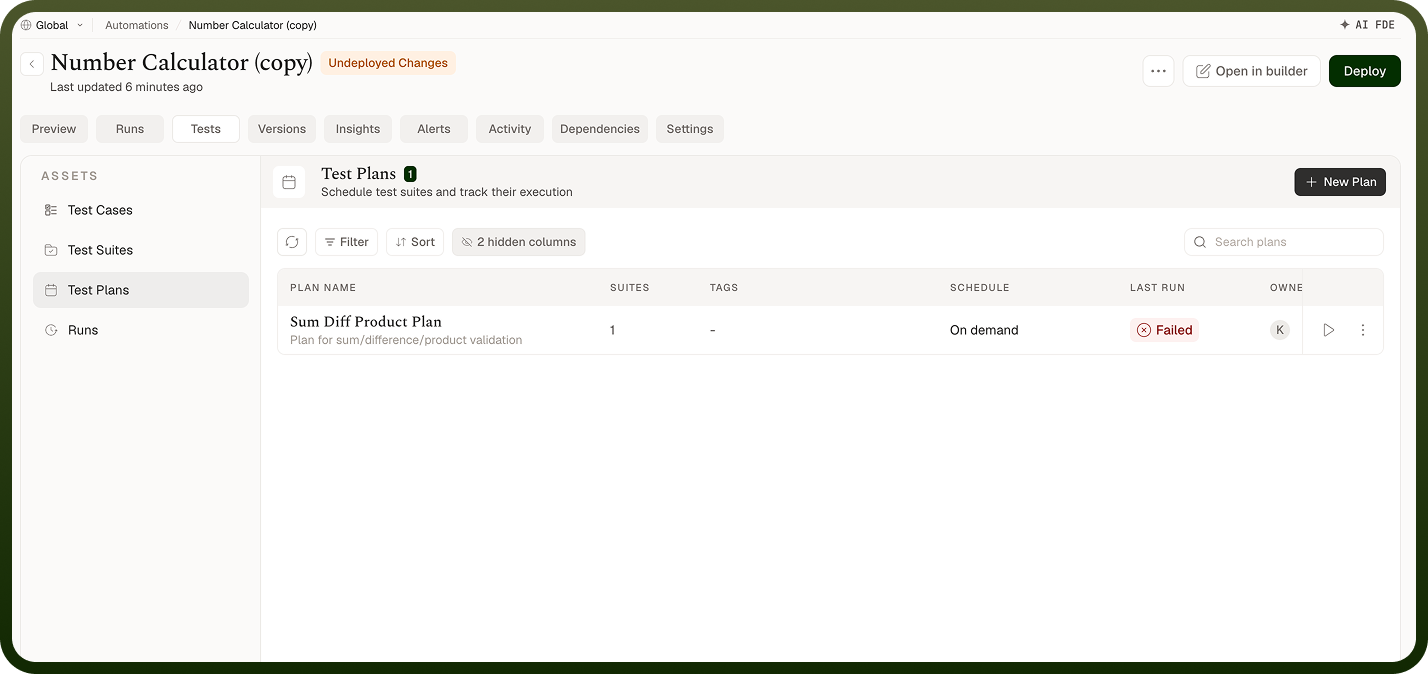
Note: The specific controls for adding suites to a plan, setting execution order, and configuring a schedule depend on the Test Studio interface in your account. The steps above describe the general flow; refer to the Test Plans screen for exact UI labels and options available in your version.
Plan Execution
When a test plan runs — whether triggered manually or by a schedule — it executes each included suite in the configured order. The plan waits for each suite to complete before starting the next. After all suites have run, the plan records its overall outcome alongside the individual suite outcomes and their test case results.
You can inspect the results of each plan run from the plan's execution history. Each run entry shows the overall pass/fail status, which suites ran, and which (if any) failed. From there you can drill into suite results and individual test case details in the Execution Report.
Notes
Test plans extend the value of your test suites by adding coordination and scheduling — the investment in well-structured suites pays off most when plans run them automatically and consistently.
Name test plans after the validation milestone they represent — for example, Pre-deploy regression or Weekly smoke test — so run history is self-explanatory.
Order suites within a plan from broadest to most specific: run the happy-path suite first, then error-handling suites, so a fundamental failure is visible at the top of results rather than buried.
Schedule plans to run after each deploy to catch regressions before they linger undetected in a live automation.
Keep plans scoped to a single automation; cross-automation testing concerns are better addressed at the workflow or platform level rather than within a single plan.
Review plan run history periodically — a plan that has been consistently green may have assertions that are too permissive, or test cases that no longer cover the current automation logic after edits.
A scheduled test plan is only as reliable as the test cases within its suites. Revisit assertions and mock data whenever you make a significant change to the automation, and update the plan's suite list if you add new suites to cover new behavior.