


The PDF node can merge several PDF files into one, or extract/remove specific pages or a page range from a PDF in a single action. Both operations produce a new file without modifying the source. Page references for Extract / Remove Pages count from 1.
Overview
These operations restructure PDF documents without touching their text or image content. Merge PDF Files combines multiple PDFs in the order you supply them. Extract / Remove Pages is a single action that creates a new PDF that either keeps only the pages you specify or removes them, depending on its operation field. Pages can be specified as a range or as individual page numbers in both cases. Each operation returns a PDF file that downstream steps can save, send, or pass to further PDF operations.
Operations
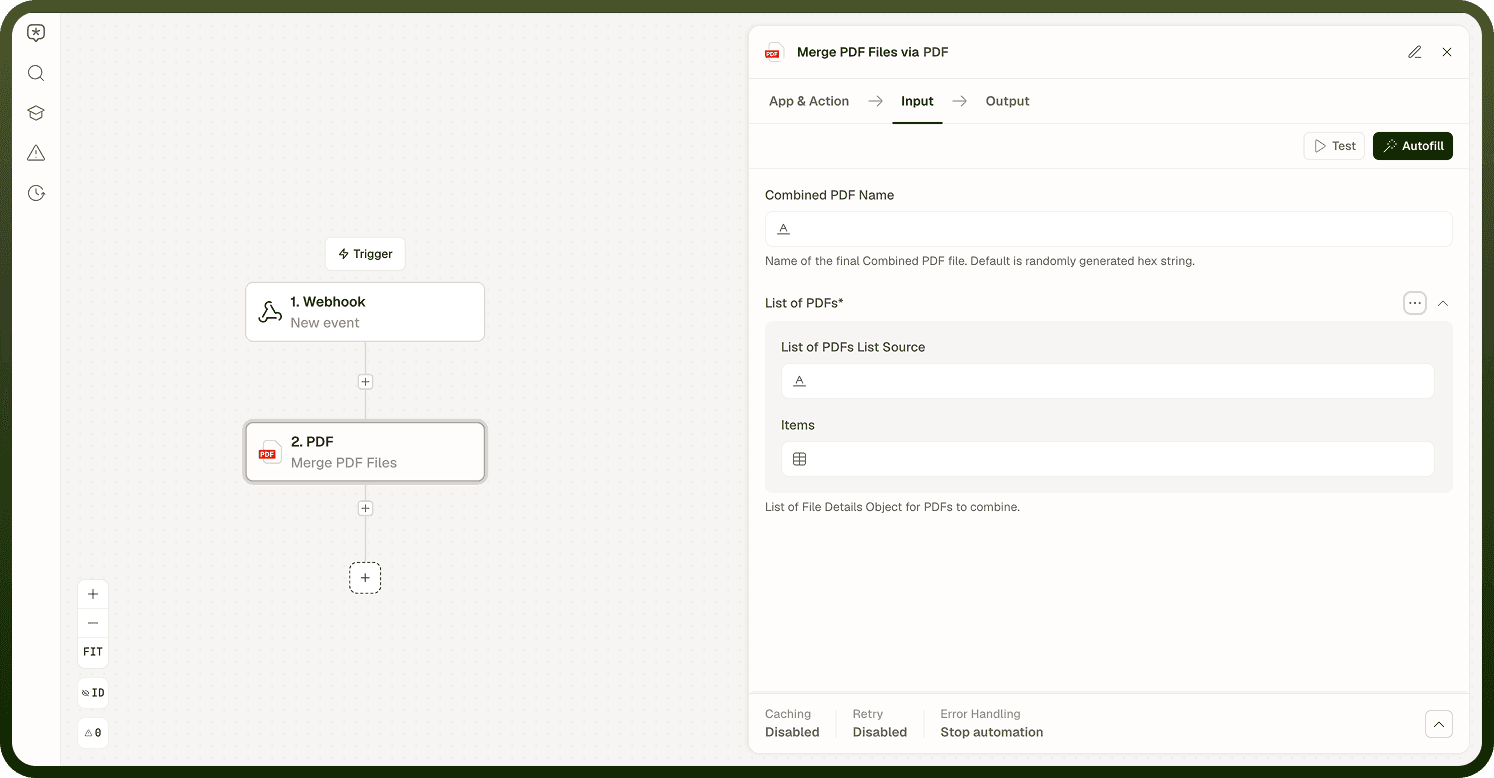
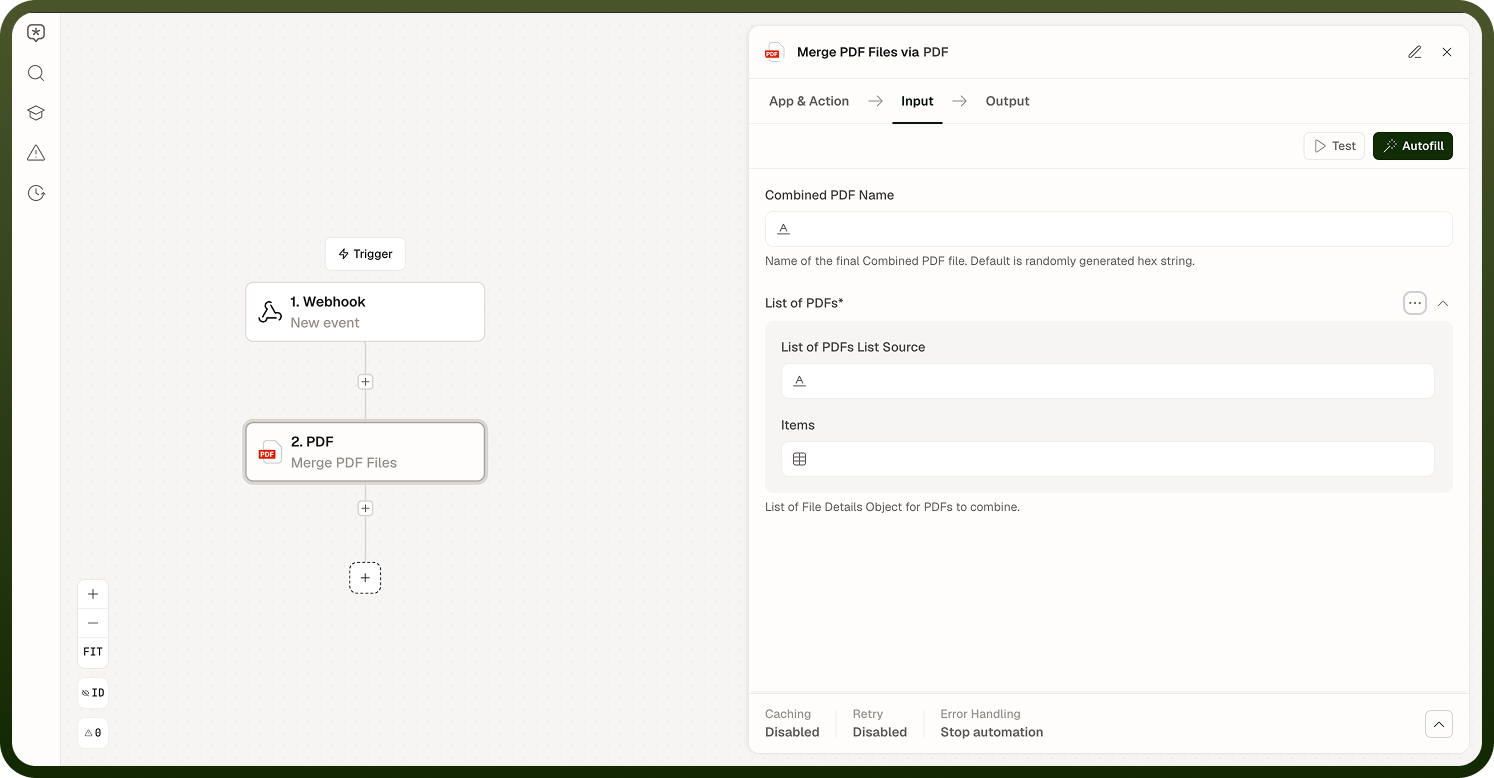
Merge PDF Files — Combines two or more PDF files into a single PDF. The files are joined in the order you supply them — each file's pages appear immediately after the previous file's last page. The source files are not modified; the result is a new combined PDF.
Parameter | Required | Description |
|---|---|---|
fileList | Yes | List of file details objects for the PDFs to combine, in the desired output order. |
combinedFileName | No | Name of the resulting combined PDF file. If left blank, a randomly generated hex string is used. |
Output
Field | Description |
|---|---|
mergedFile | File details object for the combined PDF: name, source, sourceType, fileType, and size. |
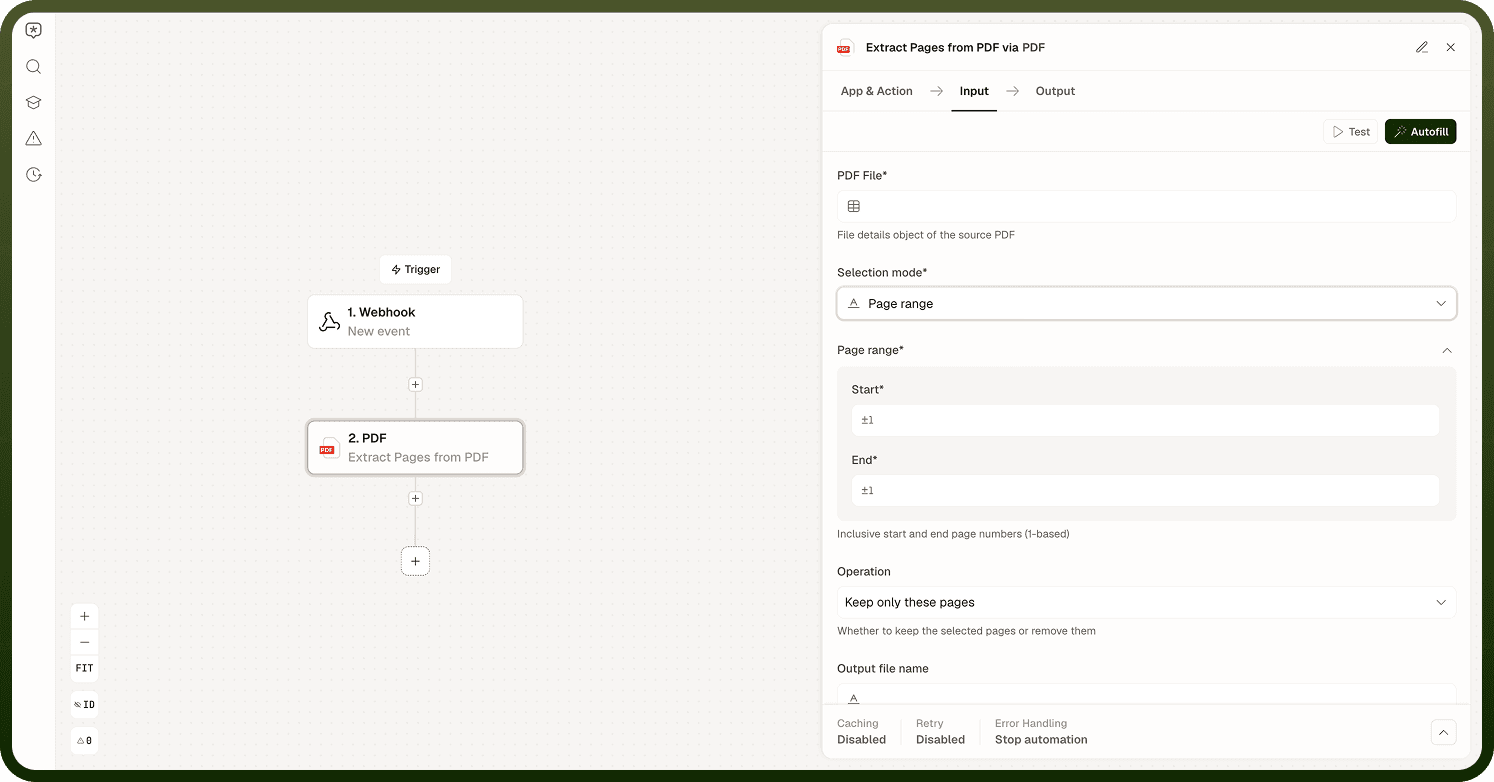
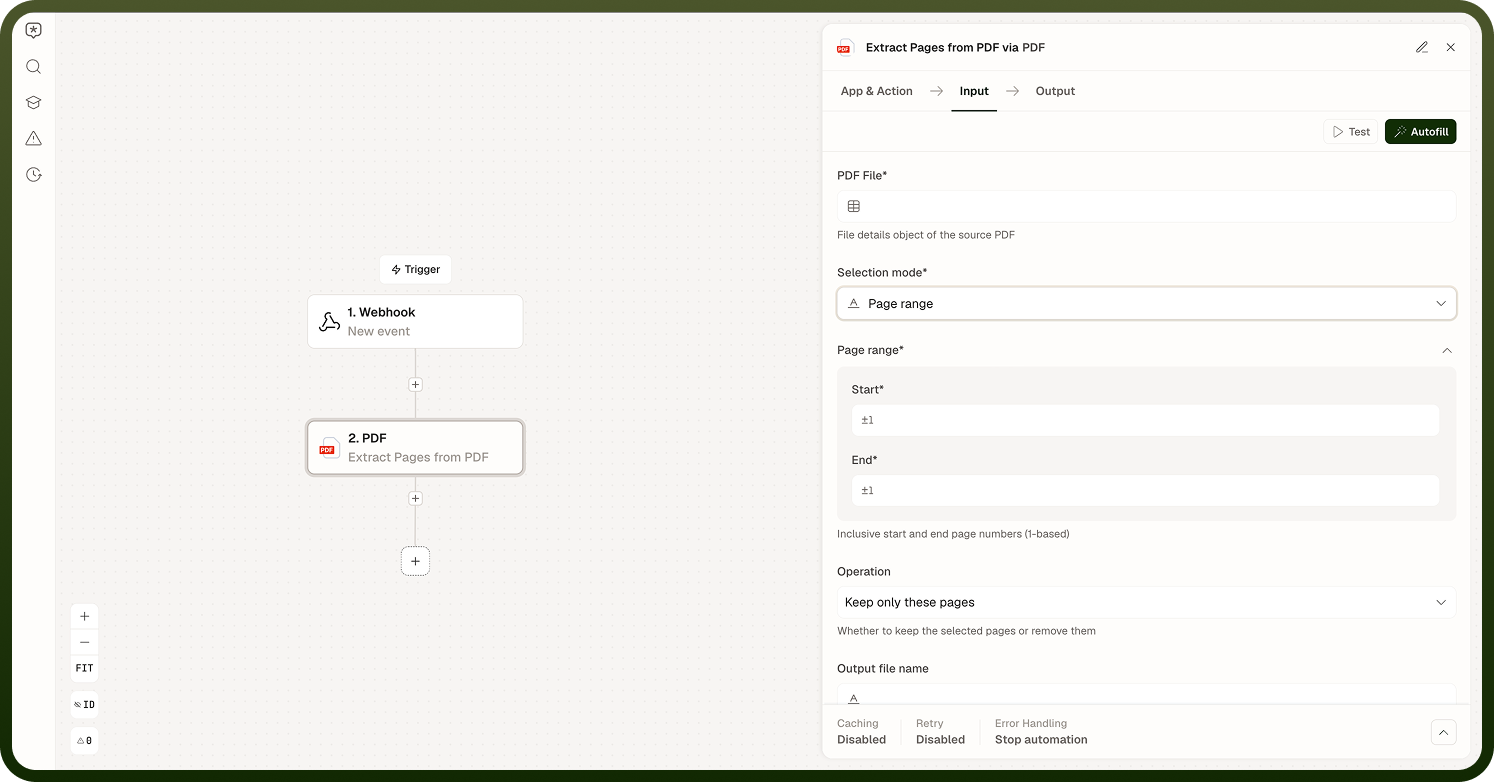
Extract / Remove Pages — A single action that either keeps only the pages you specify or removes them, based on the operation field. The source PDF is not modified — the result is always a new PDF file. Choose how pages are selected with selectionMode: either a page range (for example, pages 3 to 7) or a list of specific page numbers. Page numbering starts at 1.
Parameter | Required | Description |
|---|---|---|
file | Yes | The source PDF to extract pages from or remove pages from. |
selectionMode | Yes | How pages are selected: Page range or Specific pages. Defaults to Page range. |
range | Conditional | Inclusive start and end page numbers (1-based). Required when selectionMode is Page range. |
pages | Conditional | List of individual page numbers (1-based), for example [2, 4, 9]. Required when selectionMode is Specific pages. |
operation | No | Whether to keep only the selected pages (Keep only these pages) or remove them (Remove these pages). Defaults to keeping the selected pages. |
outputFileName | No | Name for the resulting PDF file. If left blank, defaults to <source>_extracted_<timestamp>.pdf. |
Output
Field | Description |
|---|---|
extractedFile | File details object for the resulting PDF: name, source, sourceType, fileType, and size. |
Notes
Keep the following in mind when using PDF page operations.
Page numbers for Extract / Remove Pages count from 1, not 0.
Use selectionMode to choose between a page range and a list of specific page numbers; non-contiguous selections are supported via specific pages.
Merge PDF Files and Extract / Remove Pages each produce a new PDF file — source files are not modified.
For Merge PDF Files, the order of files in fileList determines the page order in the output.
If left blank, outputFileName defaults to <source>_extracted_<timestamp>.pdf for Extract / Remove Pages, and combinedFileName defaults to a randomly generated hex string for Merge PDF Files.
Verify page numbers against the source document's actual page count before running in production to avoid out-of-range references.
Chain operations to build multi-step PDF pipelines — for example, merge two PDFs and then remove a cover page — by passing the mergedFile or extractedFile output of one step as the input file of the next.