


The Schema Builder is a visual interface for declaring the structure of data within a node's configuration, and the Schema Generator can detect that structure automatically from a sample payload — eliminating the need to define every field by hand.
Overview
The schema builder is a UI for declaring the structure of data — a list of named fields, each with a type — within a node's configuration. It appears wherever a step needs you to define the shape of data it will accept or produce: for example, a callable's input and output definitions, or a signal's payload structure. Once you define a schema, the platform uses it to make the declared fields available as data pills to downstream nodes.
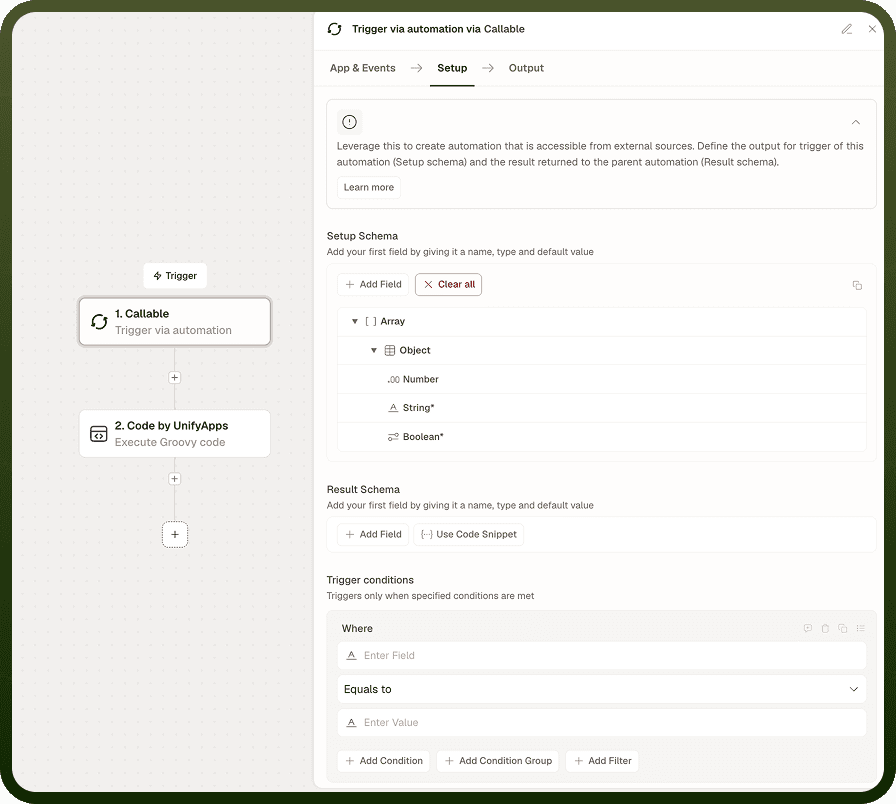
For cases where the structure is already known from an existing payload, the schema generator can auto-detect and populate the field list from a sample you provide, saving you from defining each field manually.
Using the Schema Builder
The schema builder presents a list of field rows. Each row defines one field in the schema. You add rows one at a time and configure each field's name and type.
Adding a Field
Click the button to add a new field row.
Enter the field name — this becomes the key in the data structure and the label on the data pill.
Select the field type from the type picker (see Field Types below).
Repeat for each field in the schema.
Defining Nested Fields
When you add a field of type object or array, you can expand it to define its inner fields. This lets you represent nested data structures:
An object field contains named properties — add inner field rows beneath it, each with its own name and type.
An array field contains items — define the type (or inner schema) of each item in the array.
Nesting can continue as deeply as the data structure requires — an object field can itself contain object or array fields.
Note: Field names in the schema become the keys used to reference that field as a data pill downstream. Use clear, consistent names that match the data your automation will actually handle.
Generating a Schema from Sample Data
When a sample payload is available — for example, a JSON response from a prior test run or a known API response — you can use the schema generator to detect the structure automatically rather than building it field by field.
How to Generate a Schema
Open the schema field in the node's configuration panel.
Select the option to generate from a sample.
Paste the sample payload (JSON or object) into the input area.
The generator inspects the sample, infers a field name and type for each key it finds, and populates the schema builder with the result.
Review the generated fields and types — adjust any that were inferred incorrectly before saving.
Note: The generator infers types from the values present in the sample. If a field can hold multiple types at runtime, or if a field is absent in the sample but present in real payloads, you will need to add or adjust those fields manually after generation.
Field Types
Each field in a schema is assigned one of the following types. The type determines what kind of values the field holds and how downstream nodes can use it.
Type | Description |
|---|---|
Text | A string value — names, labels, messages, and any other freeform text. |
Number | A numeric value, including integers and decimals. |
Boolean | A true/false value. |
Date | A date or date-time value. |
Object | A structured value with named inner properties. Expand to define the inner fields. |
Array | A list of items. Define the type or schema of the items within the array. |
Notes
To make the most of the schema builder and generator:
Use the schema generator with a real sample payload whenever one is available — it is faster and less error-prone than defining every field manually.
Review generated schemas before saving; the type inference is based on the sample values and may not reflect the full range of values the field can carry at run time.
Add any fields that are absent from the sample but present in real payloads manually after generation, so they are available as data pills downstream.
Use clear, consistent field names in manually built schemas — these names become the pill labels that you and your teammates reference when configuring downstream nodes.
For nested data, prefer defining the inner structure in the schema builder over leaving a field as a generic object type — inner fields are individually accessible as data pills only when they are declared.
A carefully defined schema pays off downstream — every declared field becomes an individually accessible data pill in the nodes that follow.