


This page sums up how a published app is served, who can open its pages, and what you need to embed it in another site. For the full guide, with step-by-step troubleshooting and embedding pitfalls, see Runtime & Access.
How a Published App Is Served
Once published, an app is served at its Application URL. Each page renders the version you last published, and the runtime decides what a visitor sees based on whether they're signed in and whether the page is public or private. Users navigate between pages through the navigation you set up in the builder.
If a visitor lands on an address that has no page, the runtime shows a not-found page — unless you've set a redirect on that path. You add a redirect in the folder's settings under Redirection: pick the page that visitors on the old address should be sent to.
Public vs. Private Pages
Each page has a Privacy setting configured in the page's settings:
| Privacy setting | Who can view the page | When to use |
| Private | Only signed-in users. Anonymous visitors are redirected to sign in. | All internal app screens. The default for most pages. |
| Public | Anyone with the link — no authentication required. | Public forms, landing pages, marketing pages, or any content that should be open to the internet. |
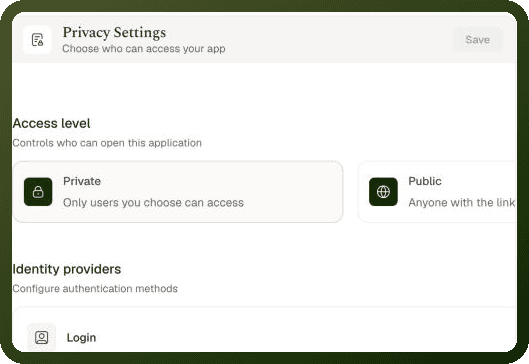
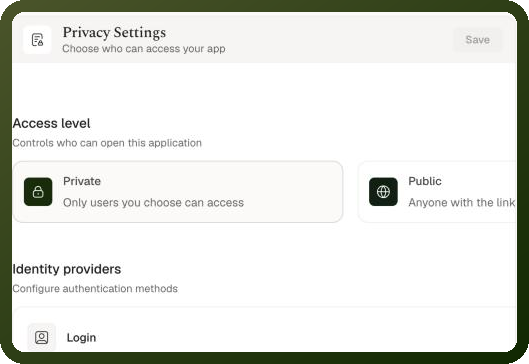
Warning: Page Privacy only takes effect in a Private app. If the app's access level (set in Privacy Settings) is Public, every page is open to anyone with the link, whatever its page setting. To keep most of the app behind sign-in while exposing a few pages, set the app to Private and mark only those pages Public.
Role-Based Page Access
Beyond public/private, pages can carry permissions tied to roles. Even if a user is signed in, they can only access pages their role grants access to. Page-level permissions work in addition to the app-level access control:
Is the user signed in? — If the page is Private and they're not, they're redirected to sign in.
Does the user have the required permission? — If the page has a permission rule and the user's role doesn't satisfy it, they see an Access denied screen in place of the page's content. The address doesn't change.
Role and permission management lives in the app's Settings → Governance section (Users, Teams, Roles, Permissions). Page-level permissions are set in the individual page's settings.
Troubleshooting: User Can't Open a Page
If a user reaches a page and is sent to sign in, gets a not-found, or can't see it:
Check the page's Privacy setting: Is the page set to Private? Is the user signed in? Only make a page Public if it truly should be open to anonymous visitors.
Check the page's permissions: Does the page have a permission rule? Does the user's role satisfy that rule? Verify in App Settings → Governance → Permissions and the user's assigned role.
Confirm the page's URL/slug: If a page was renamed or its slug changed, old links no longer resolve. Update any stale links or redirects.
Verify the app is published: Changes only take effect in the published app. Confirm the latest version has been published and the user has cleared any browser cache.
Embedding the App in Another Site
Embedding a published app in another website (inside an <iframe>) involves two independent gates, both of which must pass:
Gate 1 — Can That Site Frame Your App?
Controlled by your app's Content Security Policy (app Settings tab → Security → Content Security Policy). Add the parent site to the Frame-ancestors list so it's allowed to display your app in a frame. In the builder's Settings panel, the same list is labelled Who can embed this app. If you haven't done this, the browser blocks the frame outright.
Gate 2 — Can That Site's Page Reach Your App's APIs?
Even when the frame is allowed, the app's data and sign-in requests go through a cross-origin (CORS) check. CORS only accepts requests from origins on the environment's allowed-origins list. A page served from an origin that isn't allowed will load the frame visually but fail all data and authentication calls — the app appears embedded but stays blank or can't log in.
Warning: The common symptom of a gate mismatch is an app that appears to embed (the frame loads) but remains empty or can't sign in. This usually means the frame-ancestors rule passed, but the origin isn't on the CORS allowed list. Check both gates separately.
Gate | What controls it | Where to configure |
|---|---|---|
Frame-ancestors (CSP) | Which sites may display your app in an | App Settings → Security → Content Security Policy → Frame-ancestors list. |
CORS allowed origins | Which origins may make cross-origin requests to your app's APIs. | Environment-level setting (managed by an admin, not per-app). |
HTTPS Requirement for Embedding
Some environments require embedding origins to be served over HTTPS. An app embedded from an http:// origin may fail even when both CORS and CSP are correctly configured. Ensure the parent site is served over HTTPS before troubleshooting further.
Local Development Embedding
Embedding from http://localhost against a production environment is a common pitfall: the frame-ancestors CSP may be satisfied if localhost is listed, but the CORS allowed-origins list typically does not include localhost for production environments. Test embedding in an environment where localhost is on the allowed-origins list (e.g. a development or staging environment).
Example — Embedding a dashboard in an internal portal
You want to embed your UnifyApps dashboard in your internal portal at https://intranet.example.com.
CSP: In App Settings → Security → Content Security Policy, turn on CSP, add
https://intranet.example.comto the Frame-ancestors list, click Save, and publish the app.CORS: Ask your platform admin to add
https://intranet.example.comto the environment's CORS allowed-origins list.Test: Open the intranet portal and verify the embedded app loads and can make data requests. If it loads but is blank, the CORS gate is failing — check with the admin.
Related Pages
Runtime & Access — the full guide to how apps are served, page privacy, roles, troubleshooting and embedding.
App Settings & Privacy — the Privacy Settings access level and Content Security Policy configuration.
Permissions — page-level and block-level access control within the app.
User Management — managing users, roles, and authentication integrations.