


Overview
Think of AI agent knowledge as the central repository of your intelligent assistant that powers every interaction and decision. While Large Language Models (LLMs) offer impressive general capabilities, they often lack the specific, accurate, and up-to-date knowledge needed for specialized business contexts. Adding knowledge sources to your AI agent is equivalent to providing it with specialized training and expertise, ensuring it can deliver accurate, contextual, and valuable responses beyond the limitations of generic LLM training data.
Types of Knowledge Sources
You can add four types of knowledge sources: Upload Documents, Import a Website, Application, and Data Catalog.
Upload Documents: Upload Documents supports PDF, Word, PowerPoint, Excel, CSV, EPUB, text, Markdown, JSON, code files, images, audio, and video.For Example, Let's say you are building a HR Support agent then you could upload Employee handbook (PDF) and Training presentations (PowerPoint)
Import a Website: Enables your AI Agent to automatically crawl and index specified website content. Creates a dynamic knowledge base that stays current with your website updates, ensuring the agent always has the latest information.For Example, an e-commerce sales agent synchronizes weekly blog posts about new arrivals, keeps track of monthly promotional offers, and updates yearly policy changes.
Application: Connects your AI agent directly to business applications and tools for real-time data access. Allows seamless integration with your existing software ecosystem like Slack, Teams etc. for up-to-the-minute information retrieval.For Example, Building a Project manager which has access to Slack/Teams thread for tracking all the delivery updates.
Data Catalog: Connect data catalogs with your agent to provide comprehensive knowledge of your data sources and their relationships. This enables your AI agent to understand the structure, lineage, and metadata of your enterprise data ecosystem.For Example, A financial advisory agent accessing a banking data catalog can navigate through account, customer, and transaction relationships to provide holistic financial insights while understanding the connections between different data entities.
Role Based Access Control
For Application sources, UnifyApps supports Role-Based Access Control (RBAC) filters within its knowledge structure, providing a robust system for managing information access. This ensures that different users or roles within an organization can access only the knowledge or data that they are authorized to see.
For permission-aware application sources, retrieval respects each user's permissions in the source application. Where supported, Skip User-Level Source Permission Checks can allow users to access all application knowledge regardless of their source-app permissions.
For example, imagine a large company where:
HR staff can access all employee records
Department managers only see their team's information
Regular employees can only view general company policies
When someone asks the AI agent about salary information:
HR gets complete salary band information
Managers see only their department's ranges
Employees receive general policy information
Step-by-Step Guide to Add Knowledge
In the AI Agents dashboard, select the "
Knowledge" option from the left-hand sidebar..png&w=1080&q=75)
.png)
On the Knowledge page, click the “
+ Add Knowledge” button. This action will prompt you to begin adding a new Knowledge base.We provide four options to upload the Knowledge base for your agent:
.png&w=1080&q=75)
.png)
Upload Documents:Upload Documents supports PDF, Word, PowerPoint, Excel, CSV, EPUB, text, Markdown, JSON, code files, images, audio, and video..png&w=1080&q=75)
.png)
Import a WebsiteSync content from a website at regular intervals, which allows the AI agent to access the latest data for more accurate and up-to-date responses. There are multiple options for refreshing frequency: Daily, Weekly, Monthly, or Yearly..png&w=1080&q=75)
.png)
You can either import all the pages from the provided URL or select specific web pages to import.
.png&w=1080&q=75)
.png)
Application:.png&w=1080&q=75)
.png)
.png&w=1080&q=75)
.png)

Note
If your use case involves performing analysis on an entire document (e.g., summarization, extraction, or deep insight generation), using Knowledge is not ideal. Instead, directly attach the document in the Copilot chat while interacting with the agent. This ensures the full content is available for context-aware, accurate analysis.
Managing Knowledge Sources
Use the On toggle to exclude a directly added source from retrieval without deleting it. Deleting a directly added source permanently removes it. Removing an attached knowledge set only unlinks it from the agent; the set remains available to other agents.
.png&w=1080&q=75)
.png)
Knowledge Set
A knowledge set is reusable across agents. On the Knowledge list, select New Knowledge Set.
.png&w=1080&q=75)
.png)
Enter a required Name, and optionally add a Description, Tags, and Workspace.
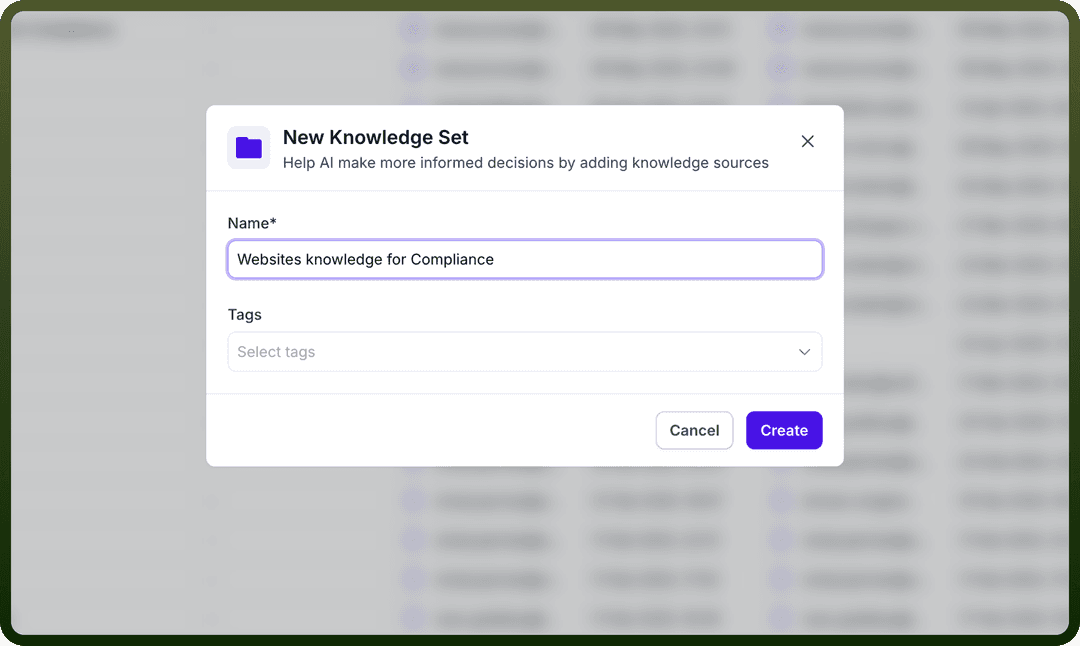
After you create the set, you land on its Configuration tab, where you can add sources.
.png&w=1080&q=75)
.png)
You can now use this knowledge set as knowledge for any agent.