


Microsoft Dynamics 365 is a cloud-based suite of business applications that integrates sales, customer service, and field service management.
Integrating your application with Microsoft Dynamics 365 streamlines business processes and customer engagement, offering a comprehensive suite of tools for sales, customer service, field service, and more.
Authentication
Before you begin, make sure you have the following information:
Connection Name: Choose a meaningful name for your connection. This name helps you identify the connection within your application or integration settings. It could be something descriptive like "MyAppdynamics365Integration".Authentication Type: Microsoft Dynamics 365 supports the following types of authentication.OAuth
OAuth 2.0
Basic Auth
Dynamics domain: Enter your dynamics 365 domain. For example, if your domain is https://example.crm8.dynamics.com, enter example.crm8.dynamics.com
OAuth (One step) Based Authentication
Login into the Microsoft Azure Portal by clicking here.
In the search Bar, search for
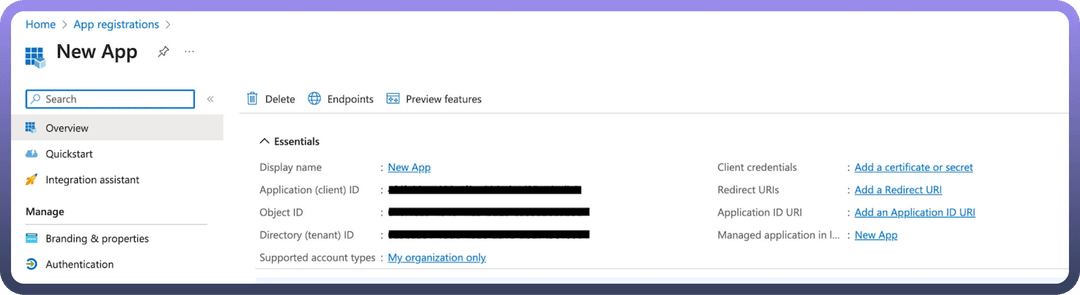
App Registrationand then Click onnew Registration.Provide the Name and supported account types and register your app.
The Client ID refers to the
Application(client) ID.Click on “
Add a credential or scope” to generate the client secret.Copy and store these securely to prevent unauthorised access.
Enter your Tenant ID (Directory tenant ID).
OAuth 2.0-based Authentication
Use the above mentioned steps to generate Client ID and Secret
Enter your Client ID (Application(client) ID)
Enter your Client Secret
Resource owner password credentials (Basic Auth)-based Authentication
Enter your Client ID (
Application(client) ID)Click “
Add a credential or scope” to generate the client secret.Enter your username of Microsoft Dynamics 365 account.
Enter your password for the Microsoft Dynamics 365 account.
Enter your Tenant ID; the Tenant ID refers to the Directory(tenant) ID..
Granular Permissions
| Scope Key | Description |
User_impersonation | Access Common Data Service as organization users |
READ | Read Forecast data |
Actions
| Action Name | Description |
Create object | Creates a standard or custom object in Microsoft Dynamics 365 |
Create object in batch | Creates a standard or custom object in Microsoft Dynamics 365 (batch) |
Update object | Update a standard or custom object in Dynamics 365 |
Update object in batch | Update a standard or custom object in Dynamics 365 (batch) |
Get object by ID | Gets object by ID from Microsoft Dynamics 365 |
Get object schema | Gets object schema from Microsoft Dynamics 365 |
Create Account | Creates a new account in Microsoft Dynamics 365 |
Close Case | Closes a case in Microsoft Dynamics 365 |
Search object in batch | Search object in batch from Microsoft Dynamics 365 |
List objects | Lists objects from Microsoft Dynamics 365 |
Triggers
| Trigger Name | Description |
Delete object | Triggers when an object is deleted in Microsoft Dynamics 365 |
Export New objects | Periodically exports new objects created since the last trigger |
Export New or updated objects | Periodically exports new or updated objects created since the last trigger |
Monitor changes in entities | Monitors changes in entities (one per run) |
Monitor changes in entities (Batch) | Monitors changes in entities in batch |
New / updated object | Triggers immediately when an object is created or updated |
New object | Triggers when an object is created (appears twice in list) |
New object (Immediate) | Triggers immediately when an object is created |
New/updated object | Triggers when an object is created or updated |
Scheduled object search | Searches objects on a specified schedule |