


Overview
Roles & Permissions is a fundamental module within UnifyApps that empowers users to manage and control access to various functionalities, data, and assets within the platform.
By defining specific roles and assigning granular permissions, organizations can ensure robust security, maintain data integrity, and streamline operational workflows. Implementing a well-structured roles and permissions framework is crucial for secure and efficient platform usage, ensuring that users only have access to the resources necessary for their responsibilities.
Configure roles and permissions
Step 1: Access Roles & Permissions Settings
Navigate to Settings in the main navigation.
Under the Governance section, select
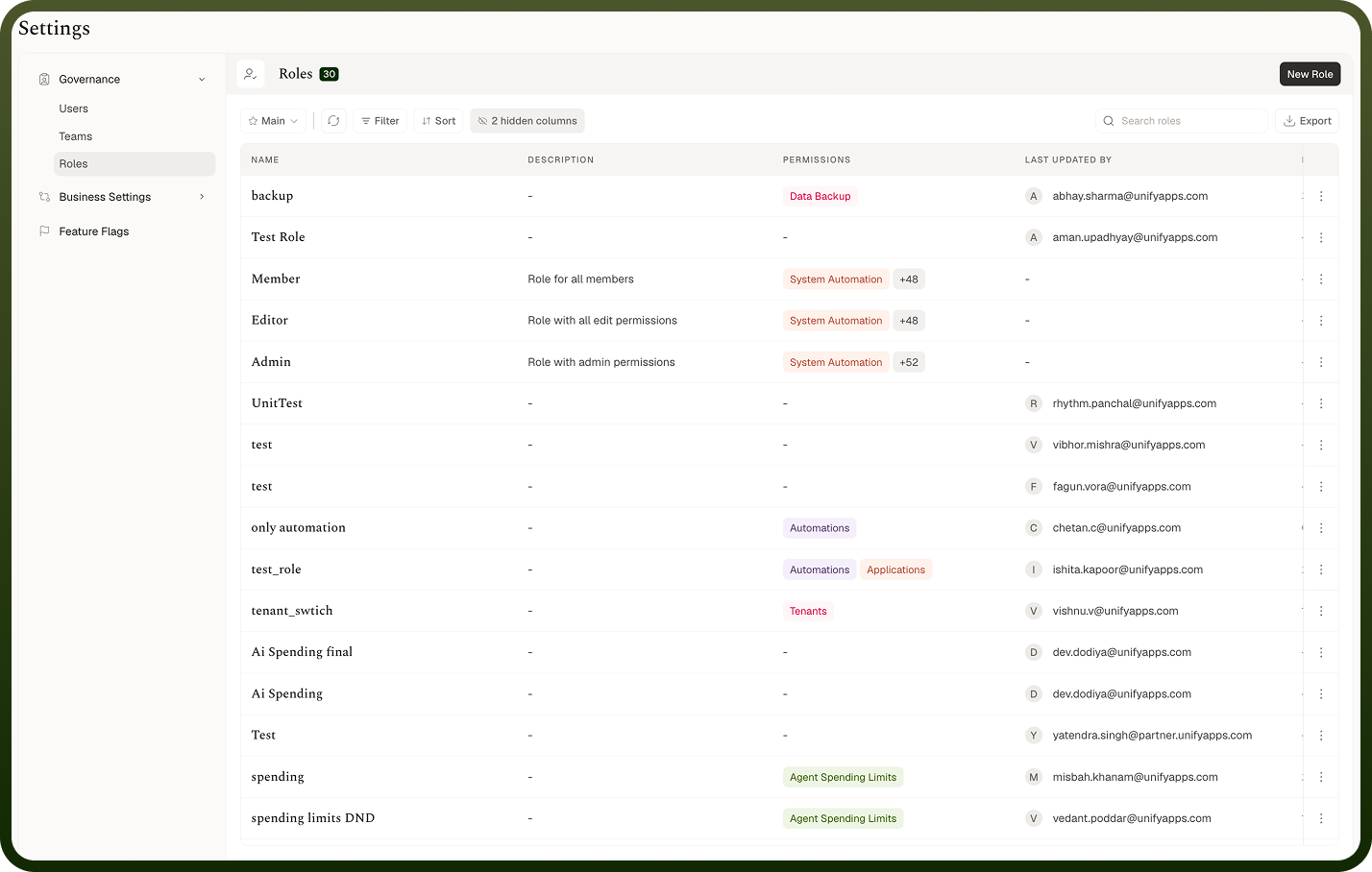
Roles.You will now see a list of all Roles created in your environment
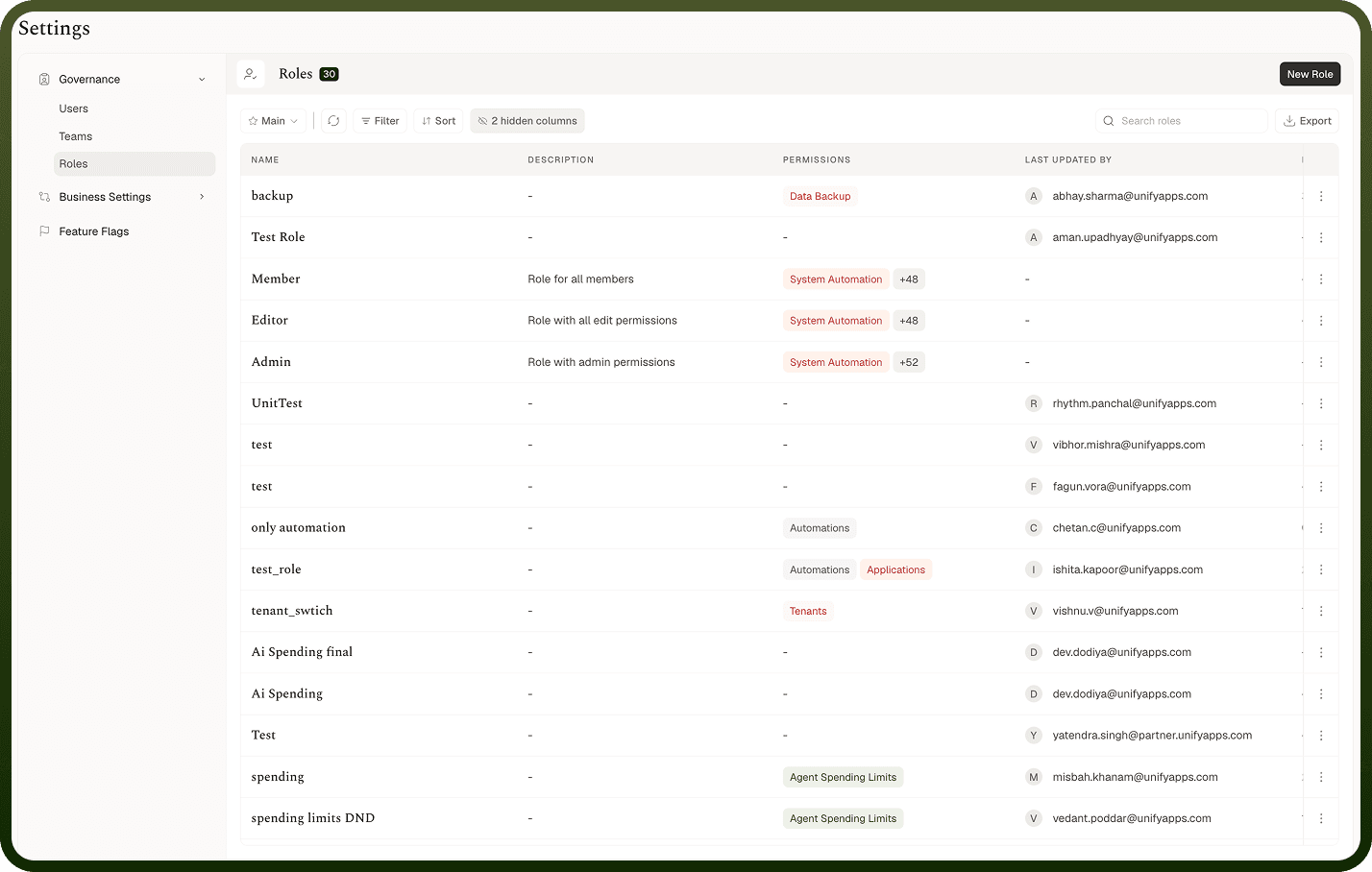
Step 2: Create a New Role
Click on
New RoleProvide the following details:
Role Name(required): Add a unique name for the role.About this Role: A brief description of this role.
Step 3: Define Permissions for the Role
Once a new role is created (or an existing one is selected for editing), you can manage, view, set, or update its permissions. Permissions are categorized into three main sections:
Category 1: Platform
Category 2: Connectors
Category 3: Objects
Explanation of each type of permissions:
The table below lists the common permission types. Many features add their own, such as Export, Import, Clone, Approve, Decrypt, View PII, View Runs, Deploy & Pause and Rollback. When a permission is ticked automatically, its checkbox shows an "Auto-enabled with … Permission" tooltip.
Permission Type | Description | Special condition |
|---|---|---|
| Allows to only view the entity with no permissions to make any edits | |
| Allows to edit any already created entity | When selected, it auto enables : View |
| Allows to delete already created entities | When selected, it auto enables : View |
| Allows to create new entities | Create automatically enables View. |
| Allows to use already created entities | When selected, it auto enables : View |
| Allows to share already created entities | When selected, it auto enables : View |
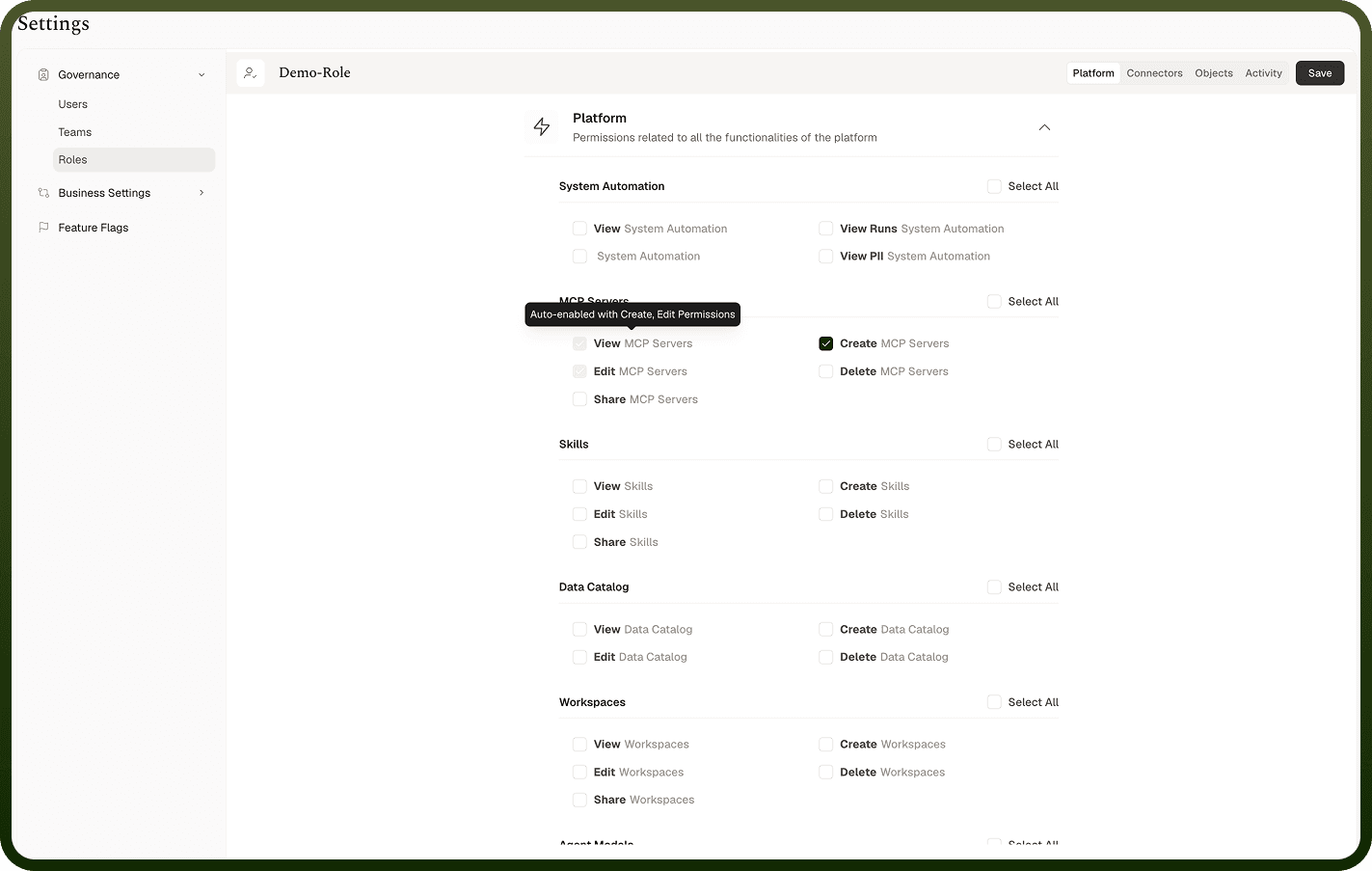
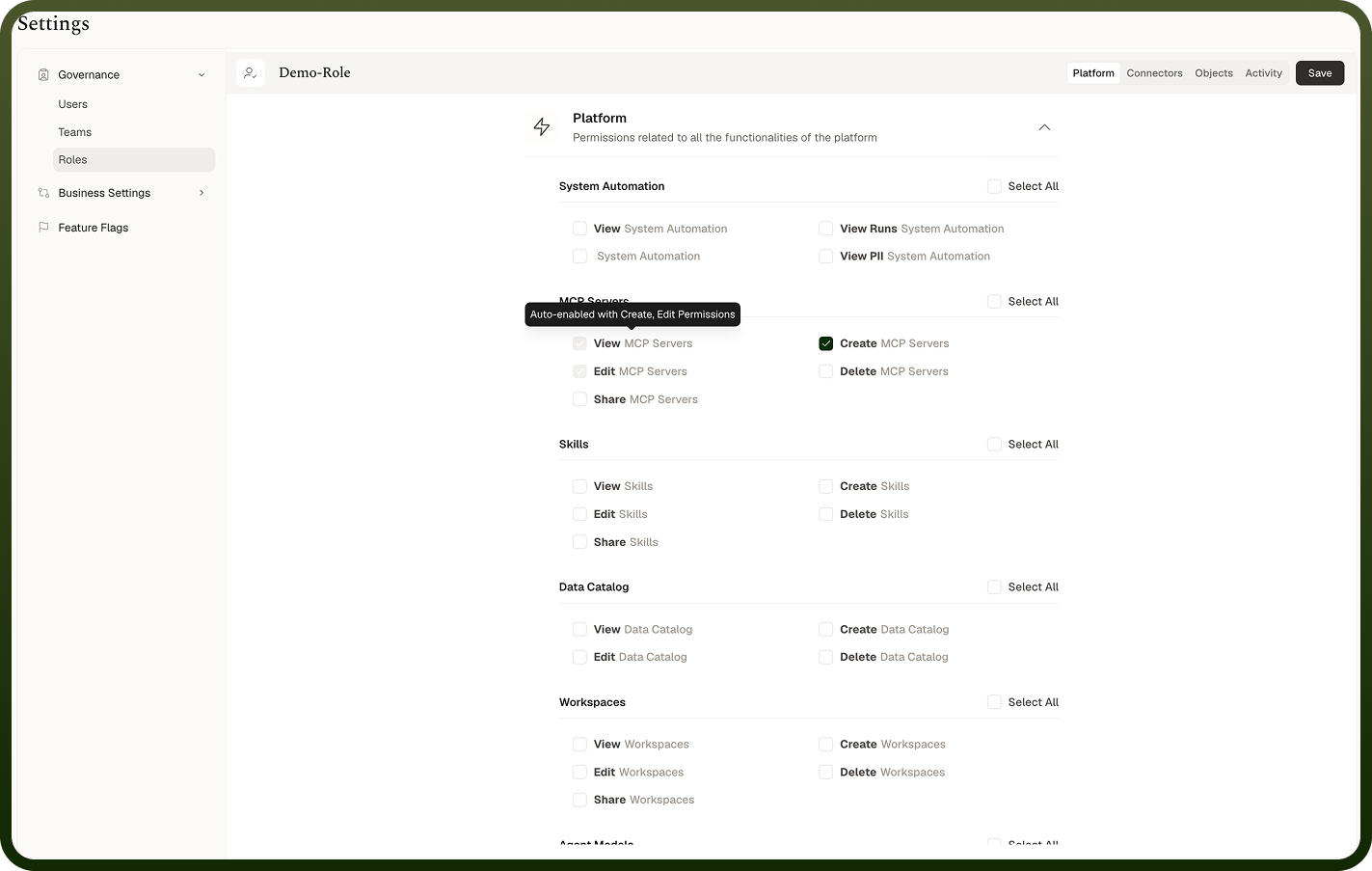
Category 1: Platform Permissions
Platform permissions are related to all functionalities available within the UnifyApps platform. These are further subdivided into:
Platform: permissions related to all the functionalities of the platform, such as Agents, Workspaces, Automations and Object Manager.
API Manager: permissions for the API Platform.
Platform Tools: administration features such as User, Teams, Roles and Identity Providers.
For each feature, tick the permissions to grant, or use Select All. The features listed depend on what's enabled in your environment, so the list changes as features ship.
Category 2: Connectors
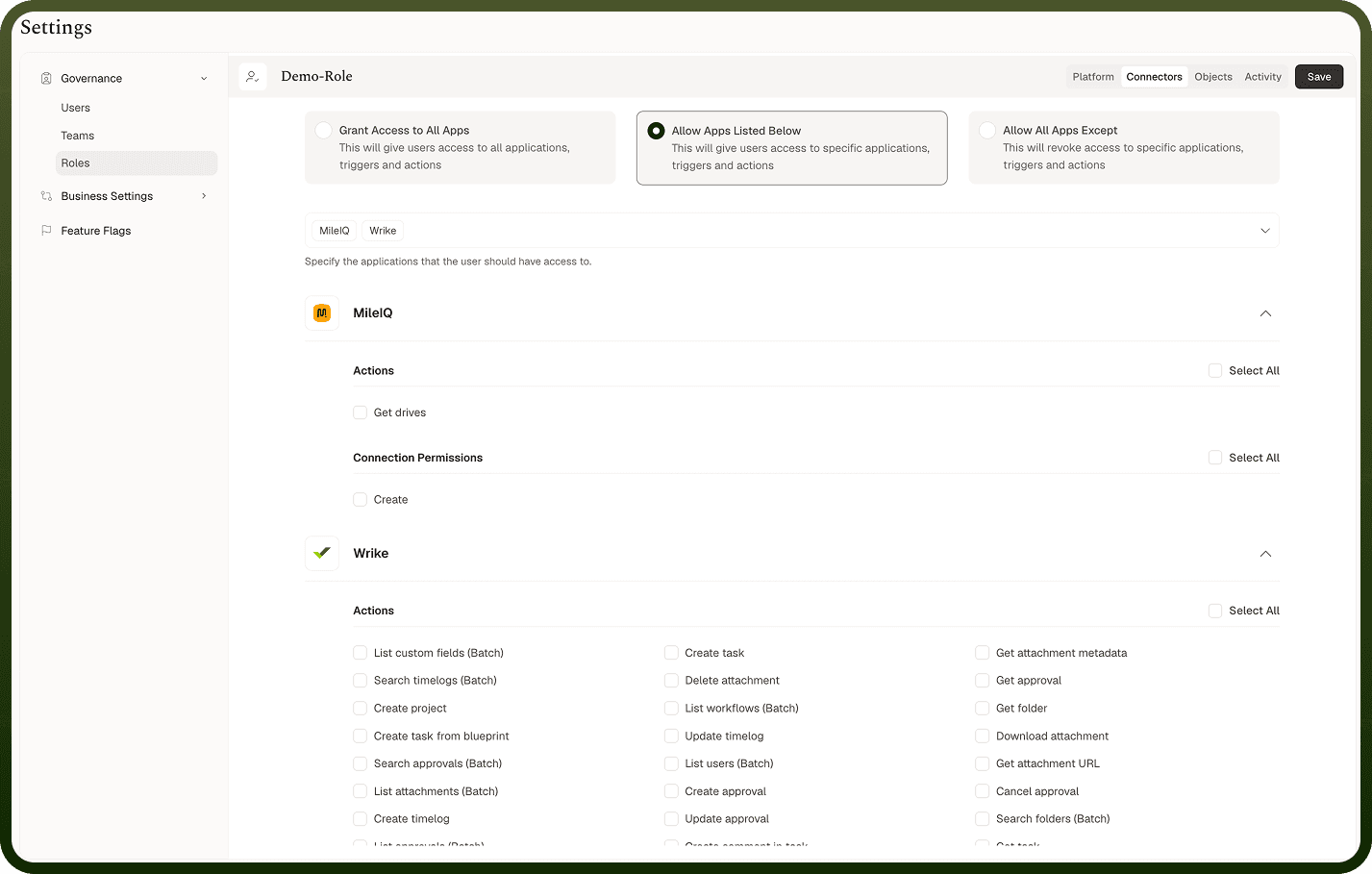
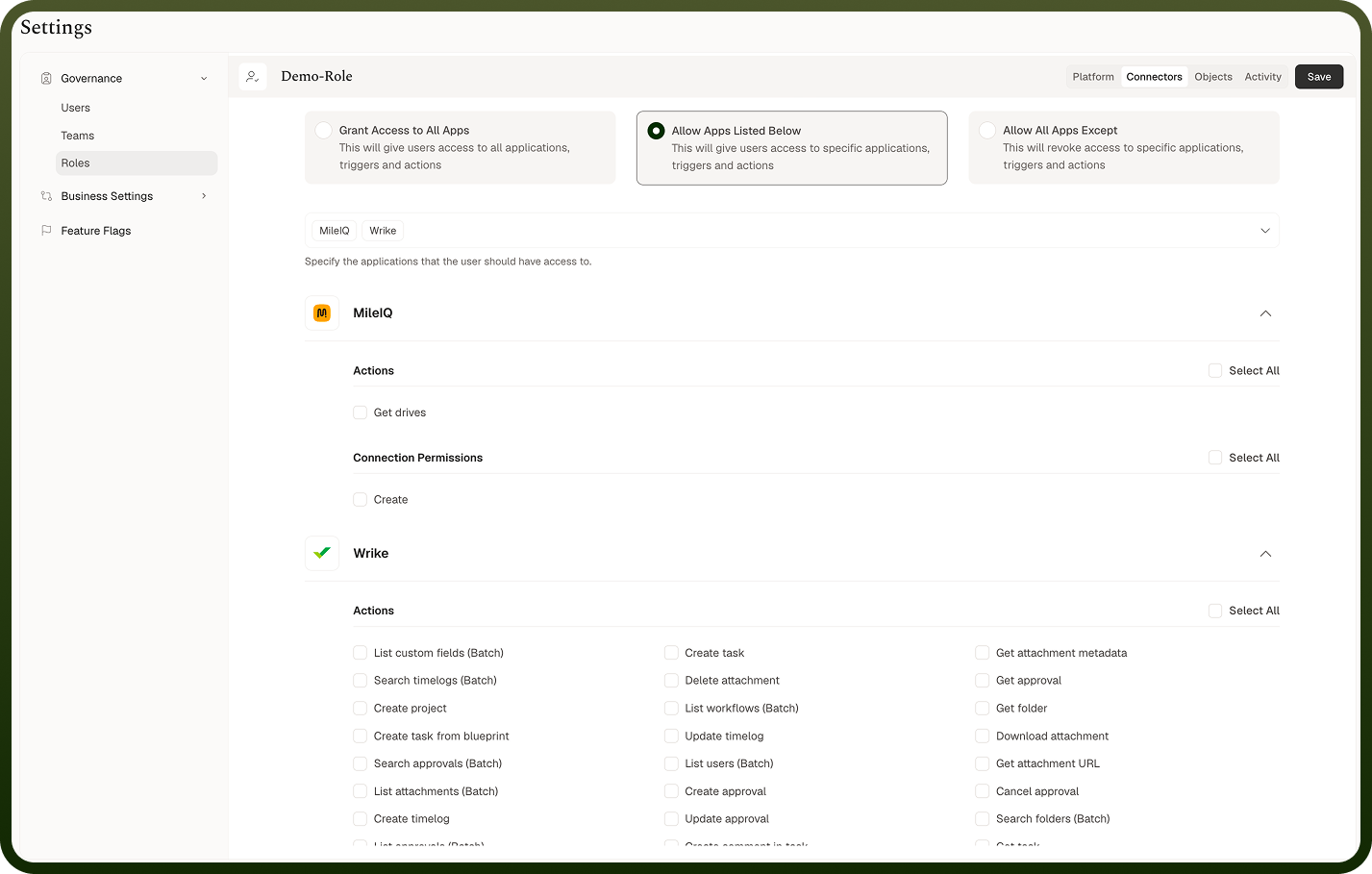
This section allows you to specify the connectors that the user should have access to. You have three options for defining connector access:
Grant Access to All Apps: This option gives users access to all applications, triggers, and actions.
Allow Apps Listed Below: This option provides users access to specific applications, triggers, and actions that you select from a list.
Allow All Apps Except: This option revokes access to specific applications, triggers, and actions that you select, while granting access to all others.
Category 3: Objects
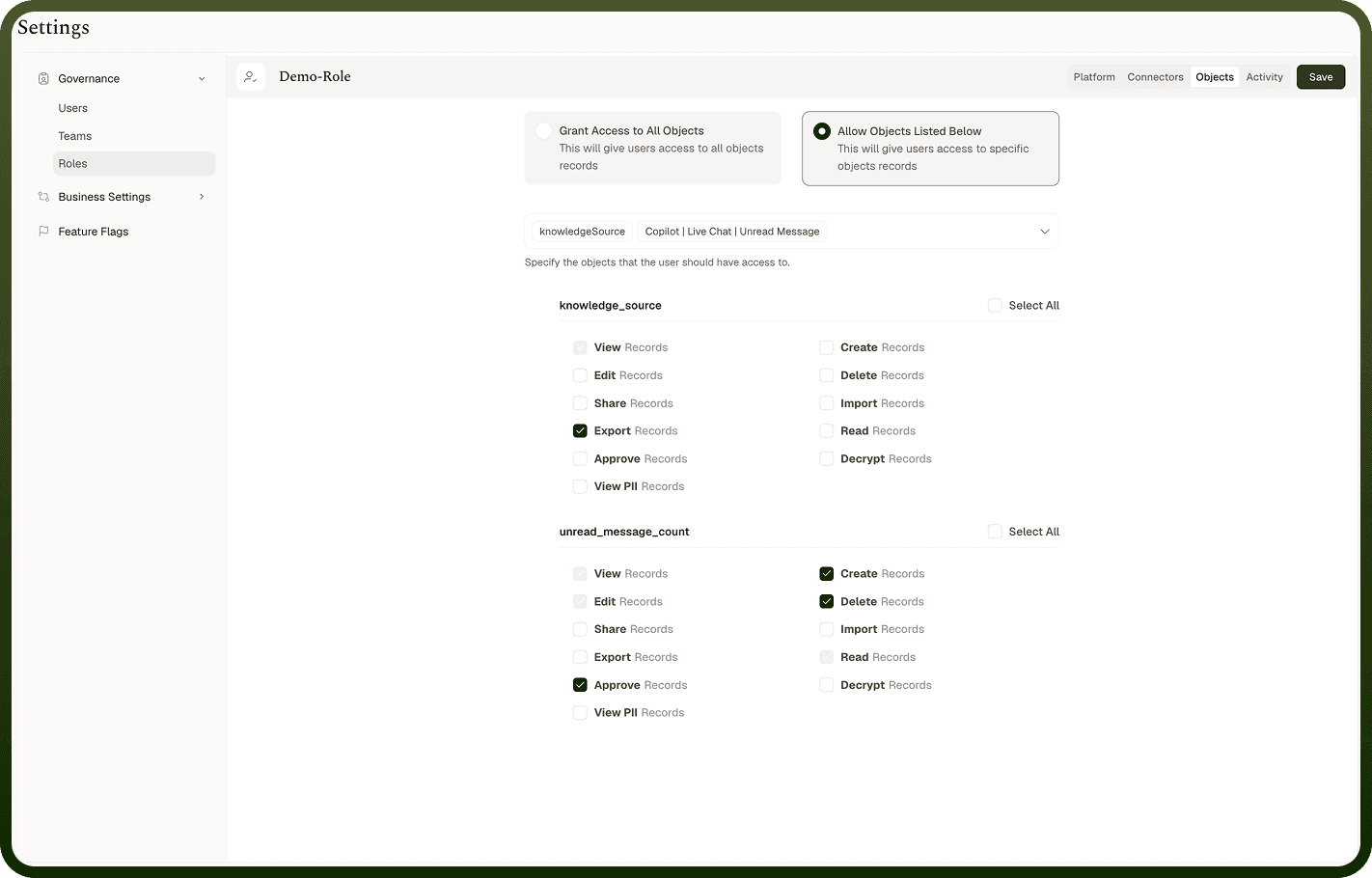
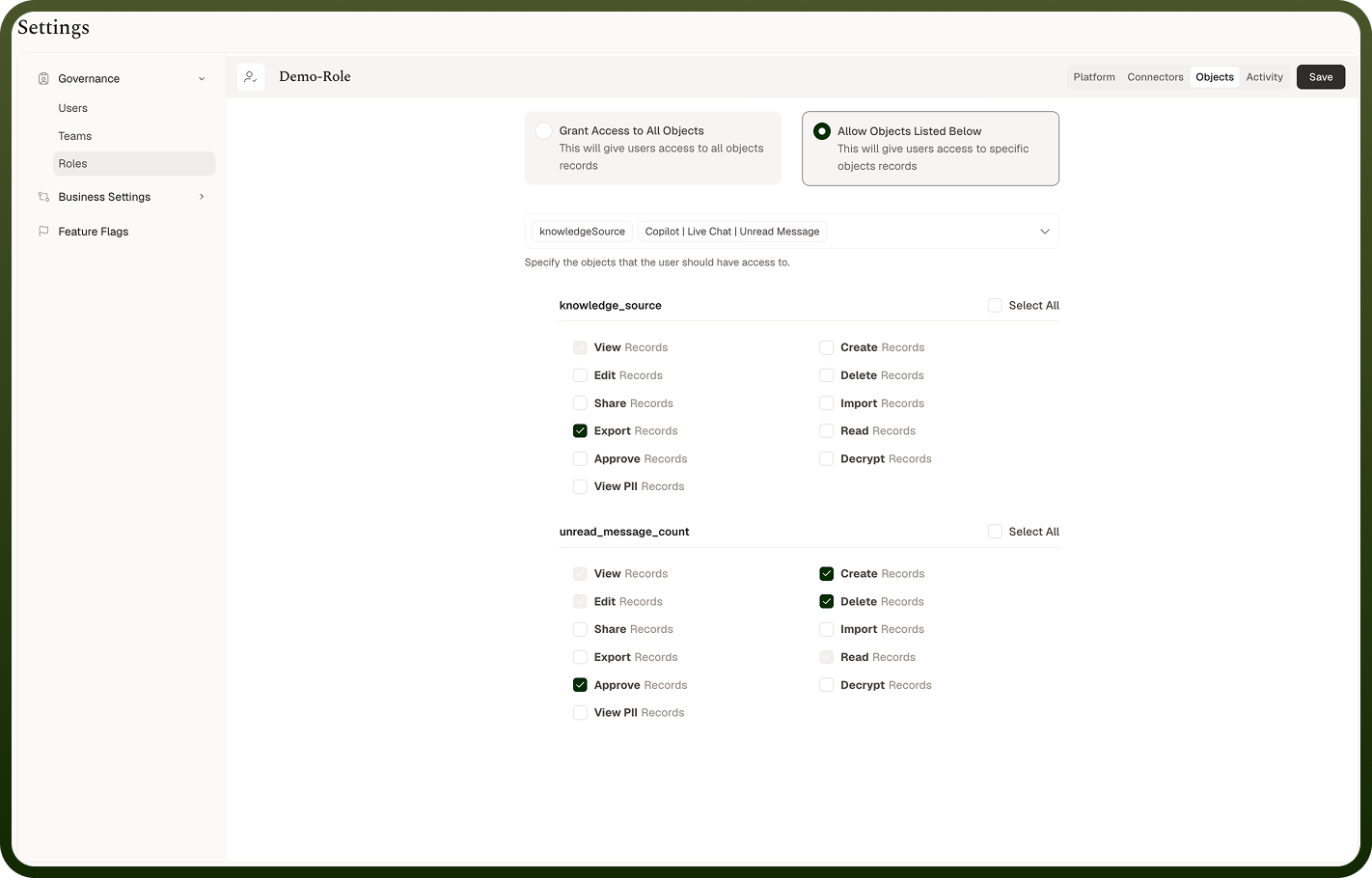
This section allows you to specify the objects that the user should have access to. You have two options for defining object access:
Grant Access to All Objects: This option gives users access to all object records.
Allow Objects Listed Below: This option gives users access to specific object records that you select from a list.
Once you have configured the permissions, click Save to apply the changes to the role.
The role page also has an Activity tab that shows a timeline of changes to the role.
Standard roles
Four roles ship with the platform: Owner and Admin (full permissions), Editor (view and edit across features) and Member (view only). Standard roles can be renamed but can't be deleted. Custom roles can be deleted.
Assigning roles
A role takes effect once it's assigned. You can assign roles in three ways:
Choose roles in the User Roles field when you create or edit a user. See User.
Use Roles from a user's row menu.
Add the role on a team's Roles tab, so every member of the team gets it. See Teams.
Best Practices for Roles & Permissions
Use Descriptive Names: Give your roles clear, descriptive names that indicate their purpose and the level of access they grant (e.g., "Marketing Content Editor," "Finance Data Viewer").
Principle of Least Privilege: Always grant users only the minimum permissions necessary to perform their assigned tasks. This reduces the risk of unauthorized access or accidental data modification.
Regular Review: Periodically review and update roles and permissions to ensure they align with current organizational needs, changes in job responsibilities, and evolving security policies.
Audit Trails: Leverage audit trails and logs (if available in UnifyApps) to monitor user activities and identify any unauthorized actions or suspicious behavior.
Test Role Assignments: After configuring new roles or modifying existing ones, thoroughly test them with sample users to ensure they function as intended and prevent unintended access issues.