


Theme Builder restyles the UnifyApps platform UI itself — the builder workspace everyone in your organization uses — not the applications you build on it.
Overview
Settings › Theme Builder themes the platform UI itself, so you can brand the UnifyApps environment with your colors and fonts. This is different from the Design System area, which manages the themes your applications use. Changes here don't touch any app's look; they change how the platform looks to your team.
Use Cases
Apply your company's brand colors to the shared builder workspace.
Standardize typography and the type scale for everyone using the platform.
Adjust the platform's corner-radius style to match your brand guidelines.
Preview changes live before publishing them to the whole organization.
Revert to the stock UnifyApps look if a custom theme no longer fits.
What You Can Customize
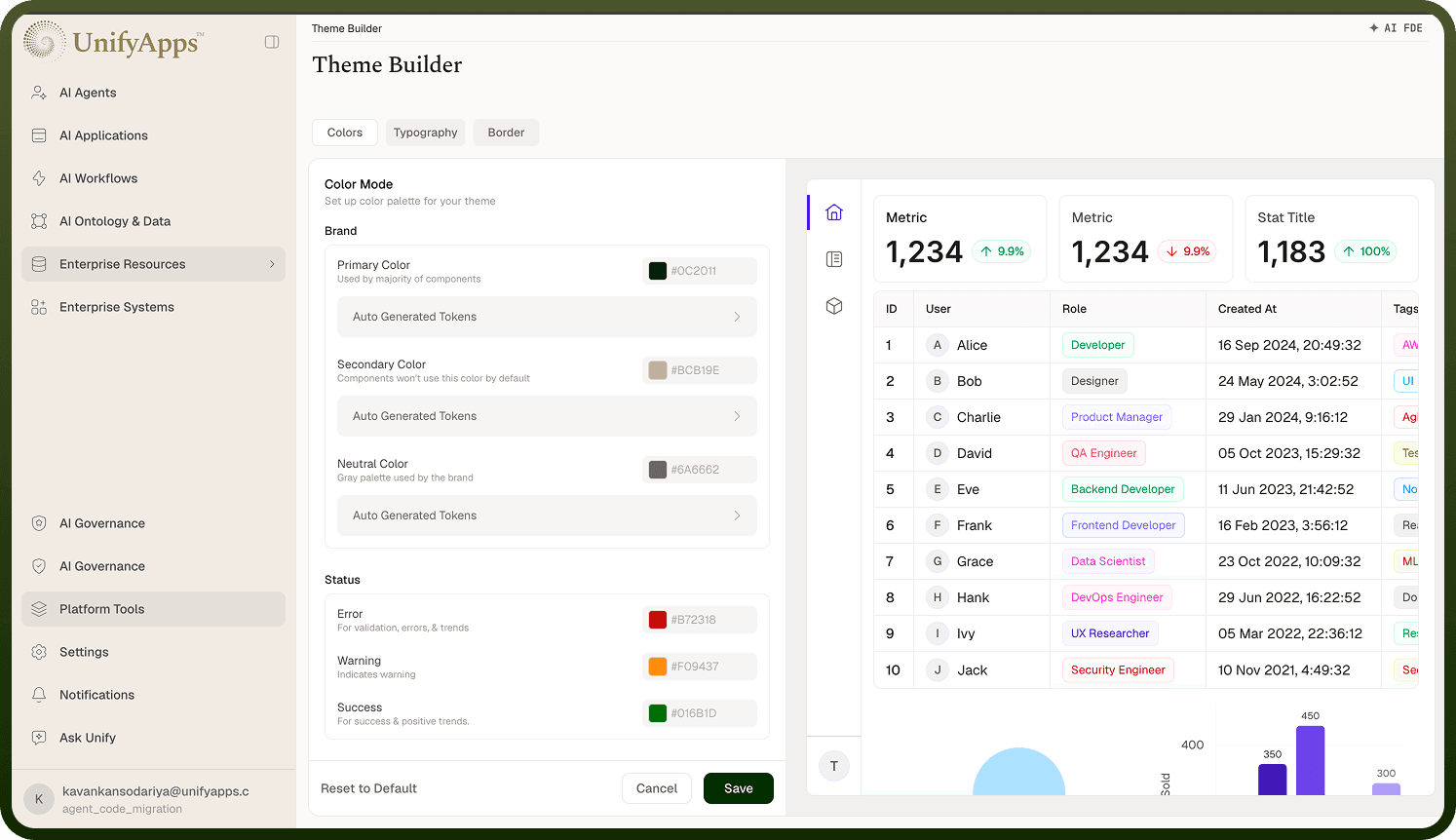
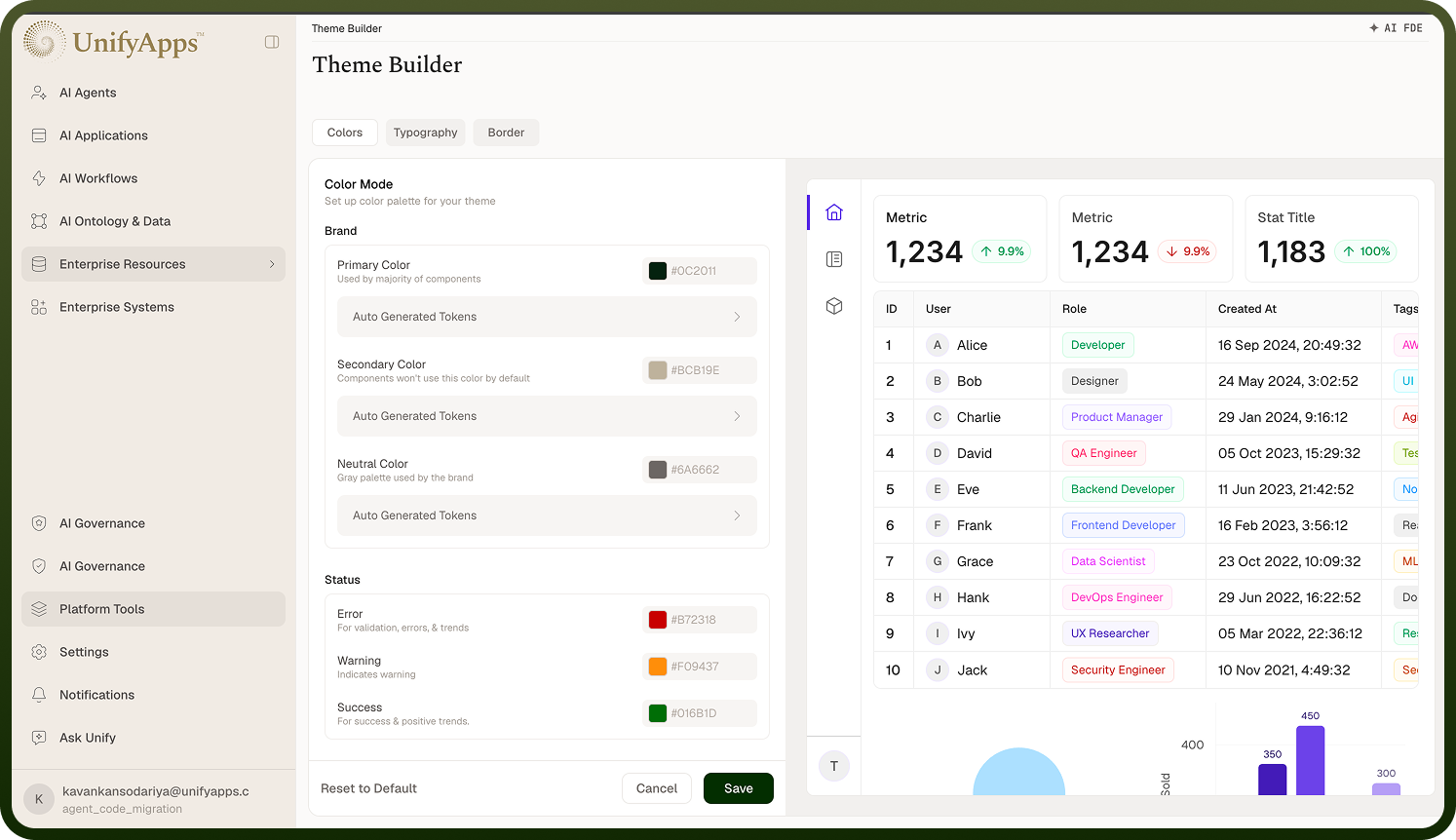
The editor is a split view: a settings panel on the left and a live preview of the platform UI on the right, updating as you edit.
Tab | Description |
|---|---|
Colors | The brand, status, text, and background color system. |
Typography | Fonts and the type scale. |
Border | The corner-radius style. |
This is a focused subset of the full app theme editor — the platform theme has no per-component, icon-set, or custom-CSS tabs.
Applying or Undoing Your Changes
Three footer actions control the platform theme.
Mode | Description | Business Use Case |
|---|---|---|
Save | Publishes the updated platform theme; the new look applies immediately, for everyone. | Rolling out finalized branding across the whole organization. |
Cancel | Discards the edits made in this session without saving. | Backing out of an in-progress experiment without affecting the live theme. |
Reset to Default | Removes the custom platform theme entirely and publishes the stock UnifyApps look. | Undoing a branding rollout across the platform. |
Note:
Save and Reset to Default require edit permission on the theme builder — without it, they're disabled and the screen is effectively read-only.
Notes
Review every tab's changes in the live preview before clicking Save — it publishes for everyone immediately, with no staged rollout.
Remember this only themes the platform workspace, not your applications — use the Design System area for app-level themes.
Use Cancel to discard an in-progress edit instead of manually reverting each change one by one.
Check that you have edit permission on the theme builder before assuming a disabled Save button is a bug.
Treat Reset to Default as an organization-wide rollback, not a per-user preference.