

Overview
Sources refer to the external systems, databases, and applications from which data is ingested, validated, and unified within the Unify Data Model (UDM).
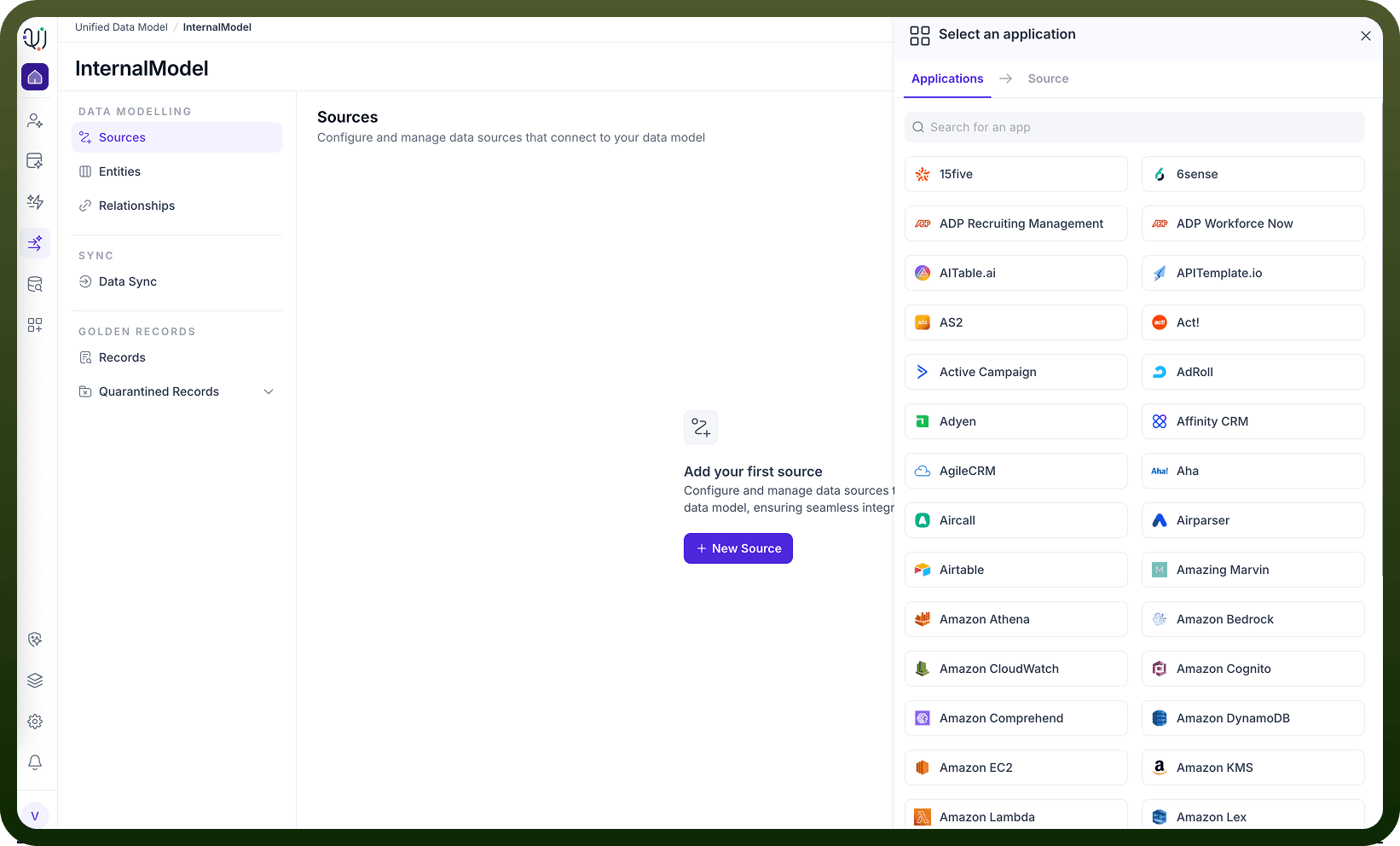
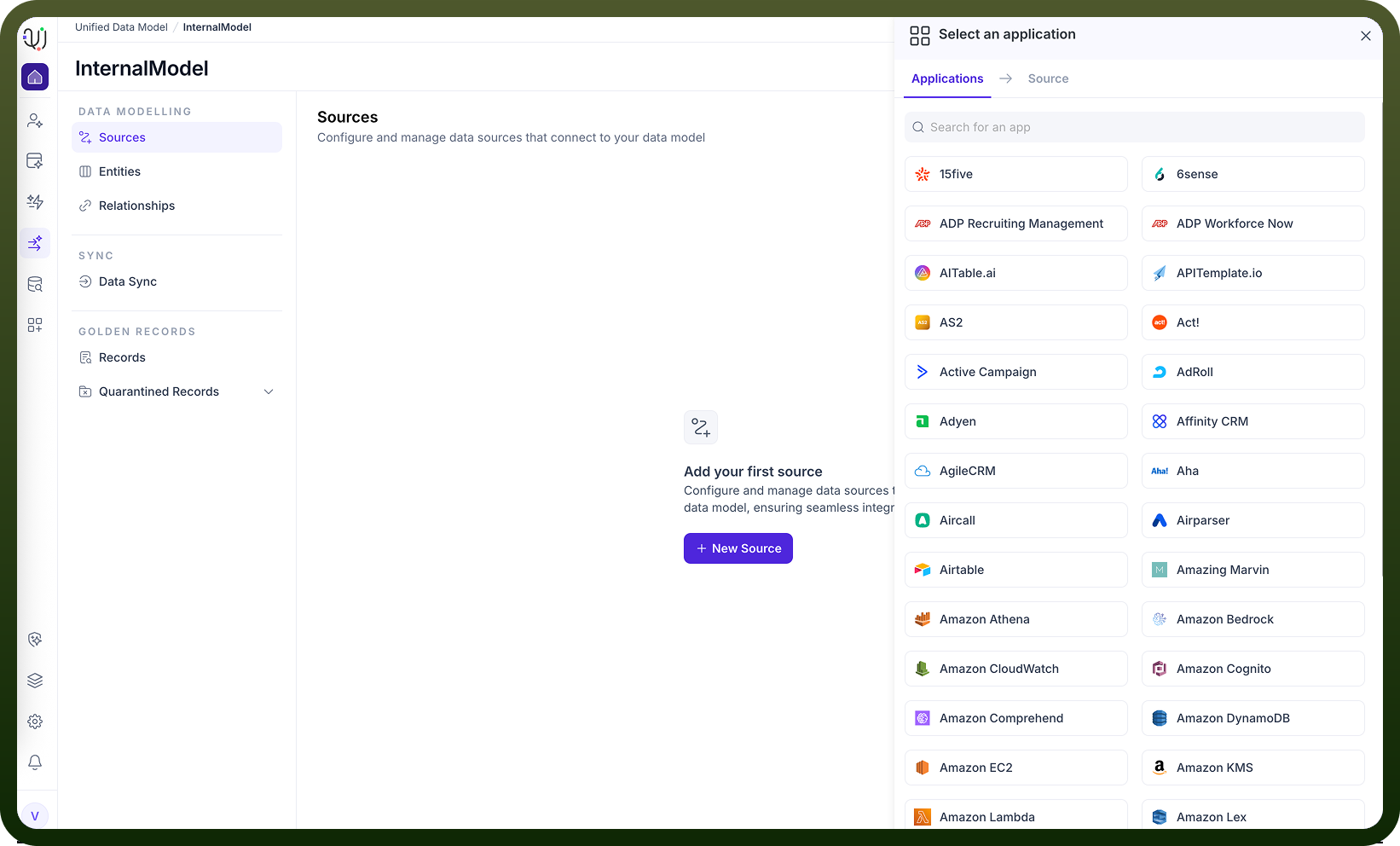
When configuring a UDM, users can simply select “Add Source” and choose from more than 600 supported applications, databases, and data warehouses. Each source can be individually configured with connection credentials, schema imports, and field mappings—enabling organizations to unify data from multiple disparate systems into a consistent, governed model.
Steps for Adding a Source to the UDM
1. Access the Data Platform and Open the UDM/MDM Module
Navigate to the UnifyApps Data Platform and open the Unified Data Model (MDM) module. This serves as the centralized workspace for managing master data across all connected systems.
2. Create or Select a Unified Data Model
Create a new model (e.g., “Banking Model”) or choose an existing one to which you want to add data sources.
3. Add a Data Source
Click “Add Source” or “New Source.” Search for the application, database, or API you wish to integrate. UnifyApps supports a wide range of connectors—including Salesforce, Microsoft SQL Server, Oracle, Snowflake, and many others.
Select the desired source (e.g., Oracle DB, Redshift, Salesforce) to continue.
4. Configure Connection Details
If a connection already exists in Connection Manager, simply select it. Otherwise, create a new connection by providing:
Host address (for databases)
Port number
Username and password or other authentication credentials
Any additional configuration required by the selected source Once created, the connection is stored in the Connection Manager for future reuse.