


The Model Library is your workspace's catalog of AI models — everything that appears in an agent's model pickers comes from here. It's where you add models, enable or disable them, and set each model's default parameters.
Overview
The catalog is data-driven: it reflects whatever models have been added for your workspace, organized by modality into Text, Image, and Audio tabs. The list shows each model's Name, Model, Connections in use, and created/modified details, with search and sort. Two more columns — Created On and Last Updated By — are available but hidden by default; turn them on from the column picker if you need to see who created or last touched a record.
The same catalog is also reachable as the AI Models screen from the main navigation, with a table view and per-model details pages described below.
Providers and Model Types
The library supports the major model providers, including OpenAI, Azure OpenAI, Anthropic (including Anthropic on Azure), AWS Bedrock, Google Vertex AI, Google Gemini, Mistral, Groq, DeepSeek, xAI (Grok), Databricks, and IBM watsonx.ai — plus custom OpenAI-compatible endpoints.
Models are grouped by what they do — text generation, image generation and processing, audio generation and processing, video processing, text extraction, and embeddings — so each agent function only offers models suited to it. Grouping also covers pipeline functions: a catalog model can be tagged for chunking, query rephrasal, answer generation, ranking (reranking), metadata enrichment, or guardrail checks such as hallucination and content filtering, which is what makes it appear in those specific pickers. Each entry also records its input and output modalities (text, image, PDF, audio, video) and capability flags like tool calling and streaming, so agents know what they can send it.
Note: The exact models available, their context windows, and pricing depend on what's been added to your workspace.
The AI Models Table
The AI Models screen's table lists every model with:
Column | Description |
|---|---|
Model | Name and provider logo. |
Type | A colored pill: LLM, TTS, STT, EMBEDDING, IMAGE GENERATION, or RERANKER. Can be blank if the backend hasn't finished classifying the model. |
Modality | Icons for input/output content types. Only drawn for LLM-type models, with a hover tooltip breaking out Input and Output; other types show a dash. |
Connection | The credential in use, tagged active or inactive. |
Cost (last 30 days) | Metered spend over the trailing 30 days — a dollar figure, $0 if the model has run but not been billed, or a dash while loading or unavailable. |
Last updated / Owner | Standard audit fields. |
Use the search box to filter by name; clicking a row opens that model's details page.
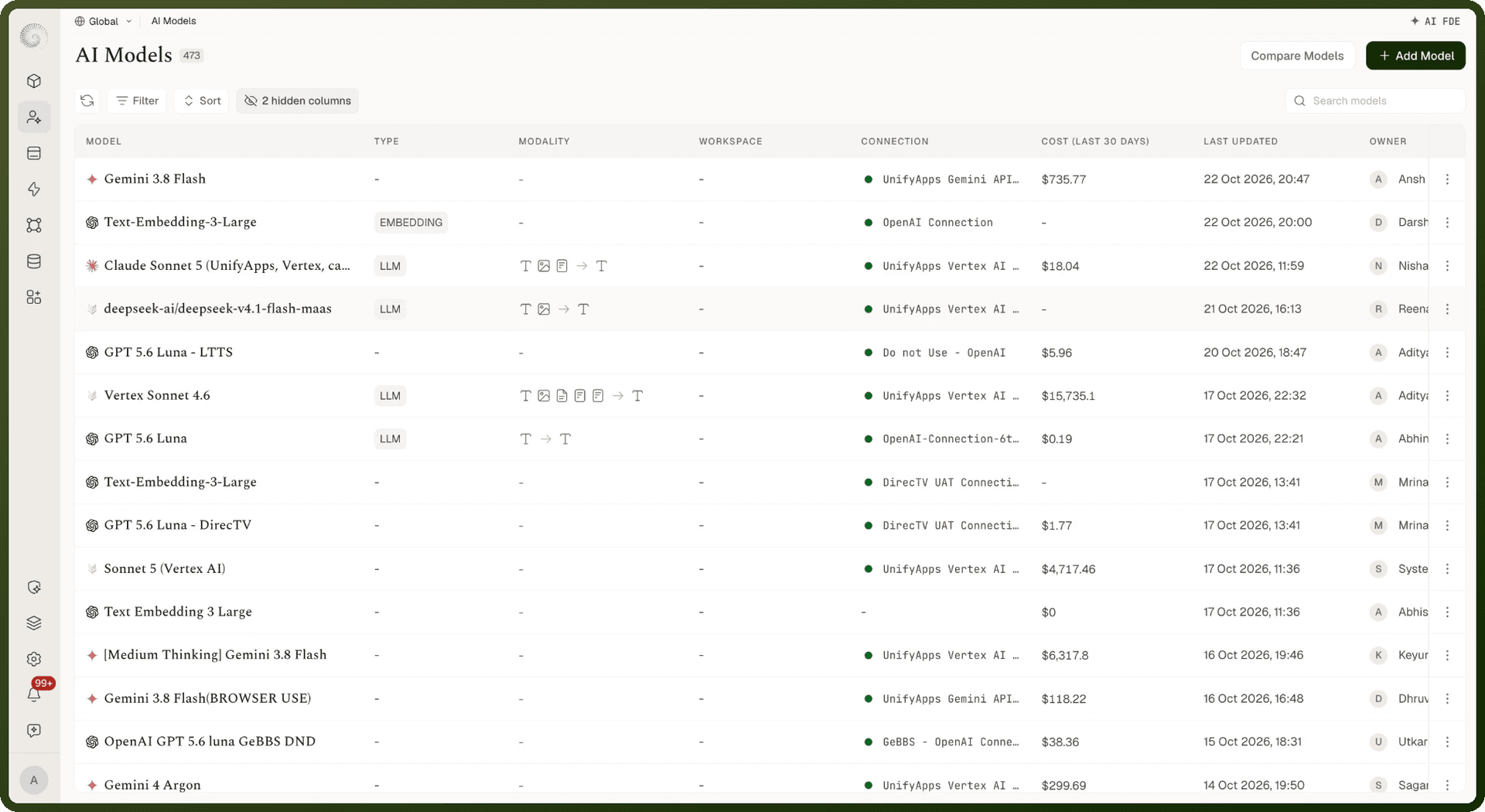
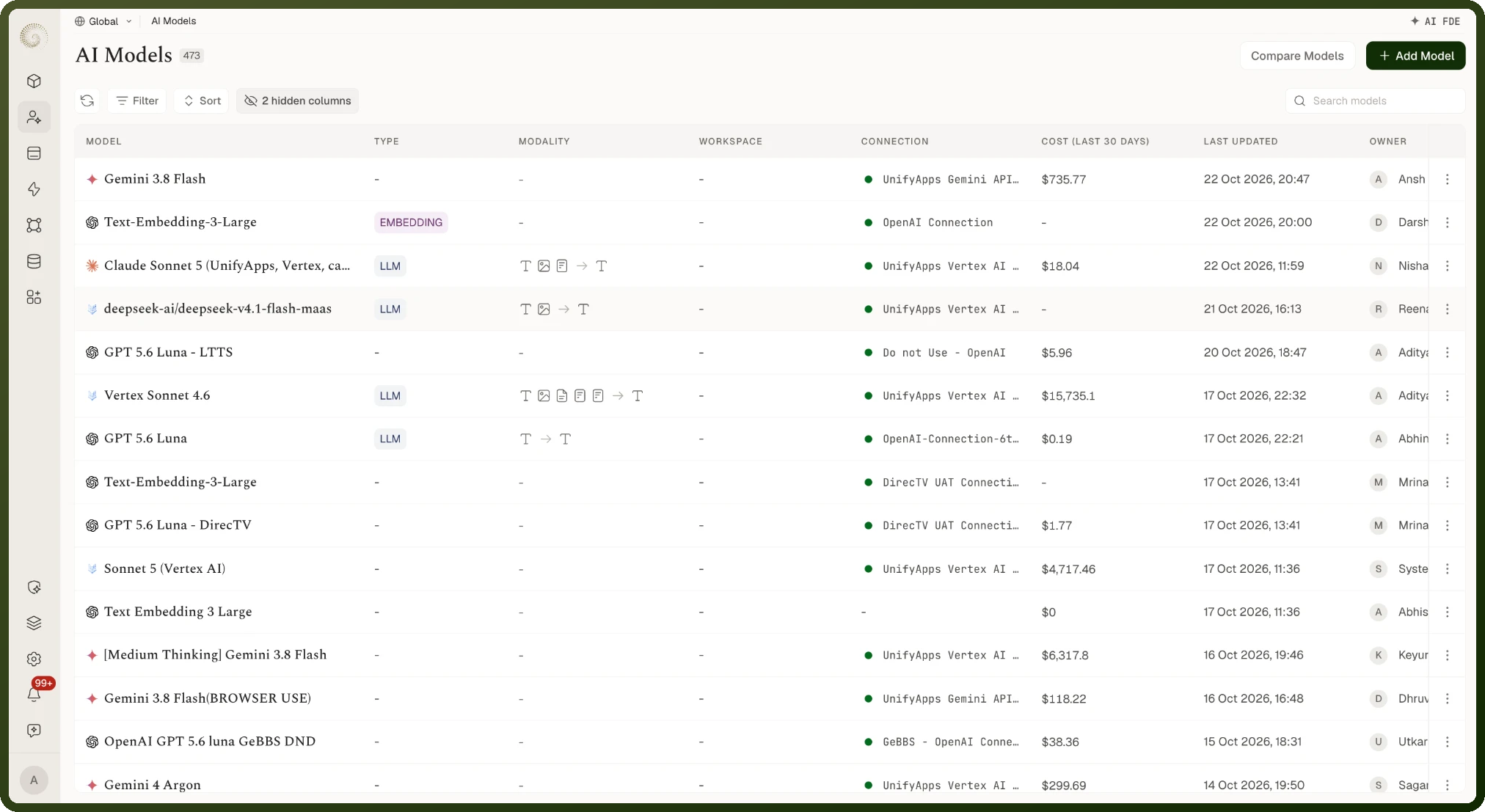
Note: A model router — a policy that picks between several underlying models for a given request — is excluded from this table, so what you see here is always a single, callable model, never a router. Routers have their own dedicated screen, listing, and editor.
Model Details Page
Clicking a model opens its details page. The header shows the model's logo, name, connection status dot, and Last updated date, with a Share button and a More actions menu (containing Delete) shown only if you have that permission. The tab strip lists Overview and Linked assets.
Overview tab
Shows a Modalities card (LLM-type models only), a Features grid of seven capabilities — Function calling, Structured output, Streaming, Extended thinking, Context caching, Batch, and Fine-tunable — each lit up or dimmed depending on support, and a Built-in tools grid of four — Web search, Code execution, File reading, and Image generation (the last two are inferred from the model's input/output modalities). A summary card alongside shows Pricing · per 1M (Input, Output, Cache read, in dollars per million tokens) and Specifications (Context window, Max output, Training cutoff). Any field the backend hasn't populated shows a dash.
Linked assets tab
Lists every agent and workflow in the project that calls this model, so you can check what depends on it before changing or retiring it. Switch between the Agents and Workflows pills (each shows a count), or search by name. Each row shows the asset's Name, Status (Active or Paused), Cost this month, Last updated, and Owner — a $0.00 cost means the asset is wired up but hasn't spent yet. Empty states read No assets yet or, if a filter matches nothing, No assets match.
Adding a Model
There are two paths from the Model Library:
Add Model from Library — a guided flow: "Select a Model Provider for your model" → "Choose a connection for your model" → "Select Models that you want to add" → "Set a name for your model" → "Set parameters of your models." Models already in your catalog show an Added marker.
Add Model with your own connection — register a custom or self-hosted model by adding a connection (with a Connection Id and API Key).
Once added, you can Edit, Delete, Share, or Switch Connection for a model, and search, sort, and filter the catalog. You'll see toasts like Model Added Successfully! on success.
The AI Models screen has its own Add Model button, which opens a shorter 3-step wizard: Select Model Provider, Select Connection (pick a connection, then click Next), then Select Models — check one or more models, hover for context window and per-million-token pricing, then Add Model (or Add N Models). A confirmation like "2 models added" appears when done.
In the global view, the second step is Select Workspace & Connection: also pick the Workspace the models belong to, or leave it empty to add them globally. Inside a workspace, the AI Models table lists only that workspace's own models, so models you add to a workspace appear only in that workspace's list.
Note: The AI Models wizard only imports models from a provider's catalog — it has no step for registering a fully custom or self-hosted endpoint (use Add Model with your own connection for that), and it doesn't set default inference parameters; those are configured through the Add Model from Library flow's Define Model Parameters step.
Model Parameters and Pricing
When you add or edit a model you set its default parameters — the inference controls that don't appear on the agent screens:
Parameter | Purpose |
|---|---|
Temperature, Top P, Top K | Sampling controls. |
Max Output Tokens | Caps response length. |
Frequency Penalty, Presence Penalty | Discourage repetition. |
Enable Thinking, Thinking Budget, Thinking Level | Reasoning controls for models that support extended thinking. |
The catalog also surfaces per-token pricing columns — Input, Output, Cache Input, Cache Read, and Cache Write — so you can compare model costs.
Enabling, Disabling, and the Default Model
Each model in the catalog has an active toggle — turn it on to make the model available in agent pickers, off to retire it without deleting it. If a model's connection has a problem, the library flags it with states like Connection Missing, Connection Unavailable, Inactive Connection, or Click to Select a Connection; use Switch Connection to point the model at a working connection.
Agents start each function on a workspace default model — shown with a Default pill in the agent's model picker — until you choose a specific one; the default is governed at the workspace level, so a newly created agent works out of the box. The default also acts as a safety net: if a call arrives with no model chosen, or the chosen model entry can't be found (for example, it was deleted), the call automatically falls back to the workspace default instead of failing. The fallback is capability-aware — image-generation and reranking functions each fall back to their own workspace default rather than the default text model.
How a Model Call Resolves
Every model call resolves through your Model Library entry — the entry is the contract between the agent and the provider:
The entry is looked up (by the model chosen for that agent function, or the workspace default).
Its connection is used — the credentials come from the connection saved on the model entry, not from the agent. Switch the connection on the entry and every agent using it follows immediately.
Provider details ride along — settings stored on the entry (AWS region for Bedrock, project and region for Vertex AI, project ID for watsonx.ai, service tier where supported) are applied to the call.
Parameters are merged — the model entry's default parameters apply unless the agent function sets its own value; a per-function value always wins over the model default.
The right provider path runs — the platform routes the call to the matching provider integration, with separate streaming and non-streaming paths. A custom model routes to the workflow you registered for it, and custom HTTP endpoints (OpenAI-compatible or Gemini-compatible payloads) are called directly.
Cost Metering and Failures
The pricing columns you see in the catalog — Input, Output, Cache Read, Cache Write — are USD per million tokens, and they are exactly what metering uses. After every call the platform computes the cost from the actual token counts: cached tokens are billed at the cache-read / cache-write rates and deducted from the regular input count, so you're never double-charged for a cached token. Each call's token counts and computed cost are recorded on the session trace, which is what usage dashboards and spending limits aggregate. Pricing can differ per modality (text, image, audio) where a provider prices them differently.
Failures are categorized automatically — rate limits, server overload, authentication problems, permission denials, model-not-found, oversized requests, quota/billing issues, timeouts, and server errors are each recognized from the provider's error. Transient failures are retried a limited number of times before the error is surfaced, and every attempt (including failures, with their error category) is recorded in the session trace. Pre-flight spending checks run before the call — if a workspace spending limit is breached, the call can be stopped rather than executed.