


Limits are the caps that stop spend before it runs away: one overall budget, a default for each scope, higher caps for teams, and exact caps for a single user, agent, automation, or model.
Overview
Every cap you create in Limits is built the same way:
Periods: turn on Daily, Weekly, Monthly, or any combination. Whichever is reached first applies.
Amount and unit: a value in USD or Tokens for each period.
Enforcement: Hard blocks the next call; Soft lets it through and raises a warning.
Per-query cap (overall budget, team caps, and overrides only): limits a single LLM call. A USD per-query cap limits the cost of one call. A Tokens per-query cap checks input and output tokens separately, which stops oversized prompts.
The Limits tab has four sections:
Section | Use it to |
Set the company-wide ceiling nothing can exceed. | |
Give every user, agent, or model the same baseline cap. | |
Raise the user cap for members of a team. | |
Pin an exact cap on one user, agent, automation, or model. |
Note: To view or change anything on the Limits tab, a user needs the Agent Spending Limits permission. It is turned off by default, so an admin has to grant it.
How Caps Resolve
When more than one cap covers the same entity, they apply in this order:
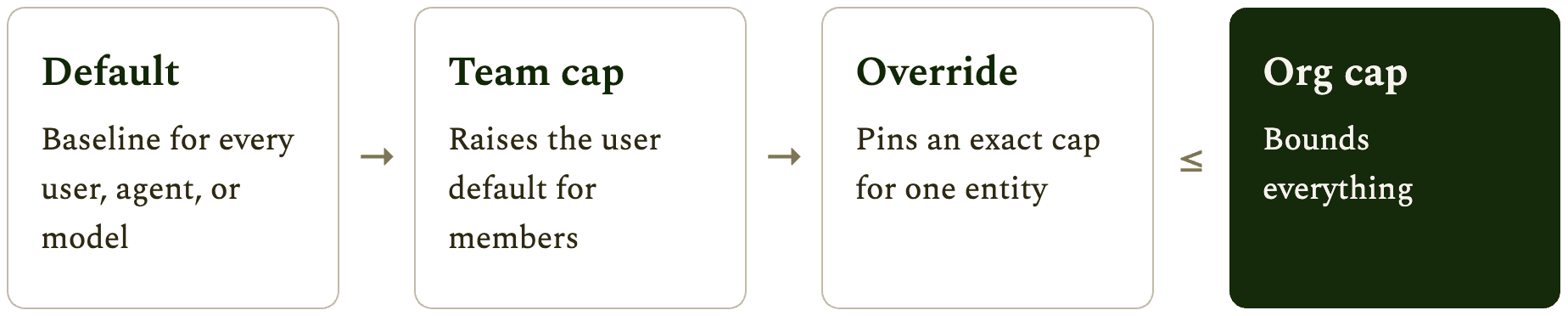
A user in several teams gets the highest team cap among them.
An override beats both the default and team caps, but never the org cap.
A single call must fit inside every cap that covers it: the org cap, plus the user, agent, automation, and model caps that apply. The first one reached blocks or warns.
Example: a user in the Eng team. The user default is $25 a day, the Eng team cap raises it to $200 a day, and no override applies, so the user's cap is $200 a day. Org spend is still capped at the $2,500 a day overall budget.
Where Each Scope Can Be Capped
Scope | Overall budget | Default | Team cap | Override |
Overall org | Yes | – | – | – |
User | – | Yes | Yes | Yes |
AI Agent | – | Yes | – | Yes |
Model | – | Yes | – | Yes |
Automation | – | Not yet | – | Yes |
Overall Budget
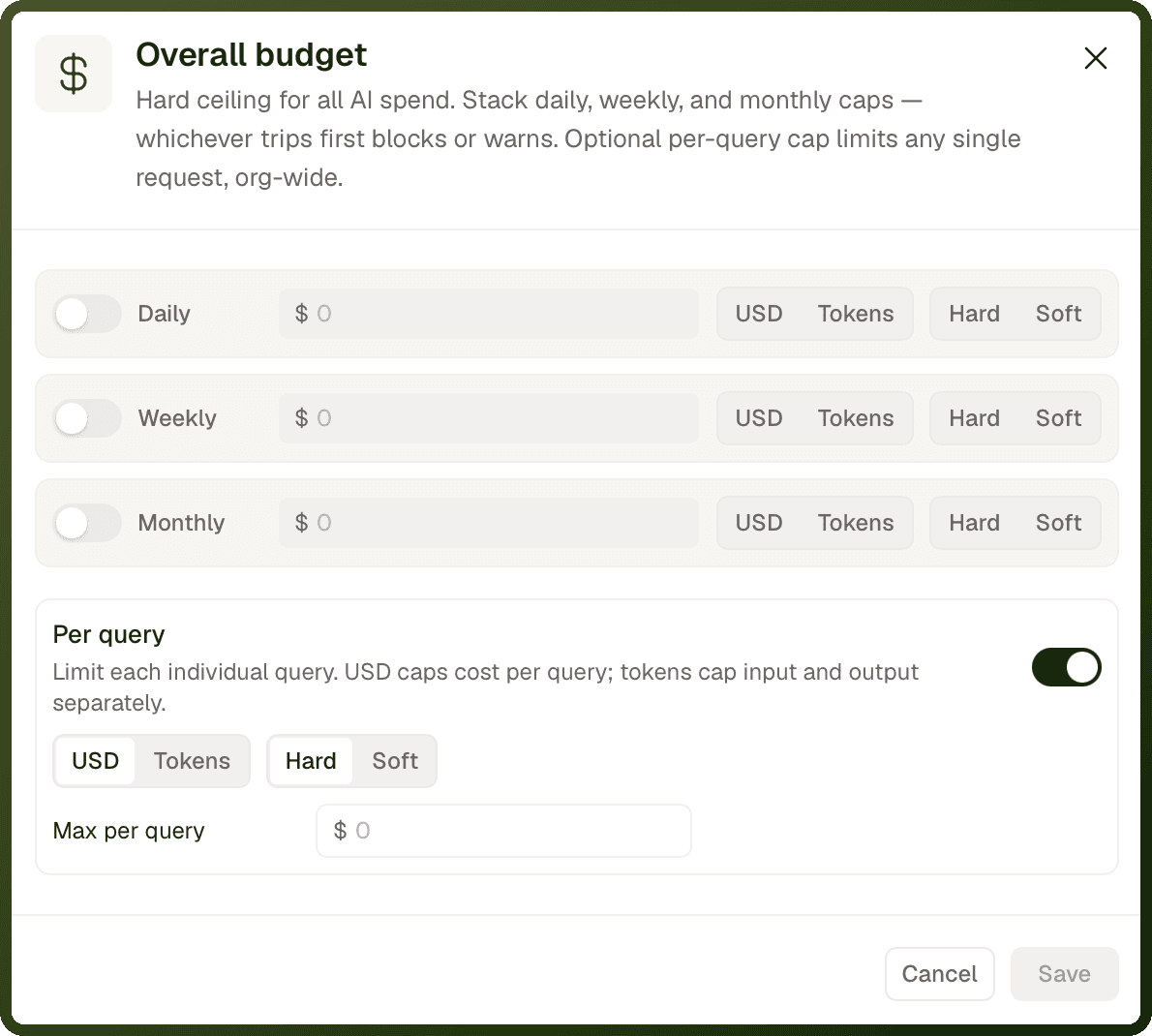
The overall budget is the company-wide ceiling. No team cap or override can go above it.
Click Set overall budget.
Turn on the periods you need (Daily, Weekly, Monthly) and enter the amount, unit, and enforcement for each.
Optional: turn on Set per-query cap to limit any single call org-wide.
Click Save.
Per-Scope Defaults
A default is the baseline cap every user, agent, or model gets when no team cap or override applies. There is one default per scope.
In Per-scope defaults, click Set default cap next to Users, Agents, or Models.
Set the Daily, Weekly, or Monthly rows and click Save.
The user default applies to each user individually: every user gets the full amount.
The agent and model defaults cap each agent's or model's combined spend across all sessions and callers.
Note: Per-query caps cannot be set on a default. Automations have no default yet: cap one with an override.
Teams
A team cap gives every member of a workspace team a different user cap. For example, give engineering a higher weekly cap for testing advanced models and keep sales and support on the user default.
Click Add team.
Search for and select a workspace team. Members come from the team itself; you do not manage them here.
Set the Daily, Weekly, or Monthly rows and, optionally, a per-query cap.
Click Create team cap.
Note: Team caps apply to users only. They do not change agent, model, or automation caps. A user in several teams gets the highest team cap, and a team cap never lowers a user below the user default. A user override replaces both.
Overrides
An override pins an exact cap on one user, AI agent, automation, or model. It beats the default and any team cap, but stays inside the overall budget. Use it for a one-off need, such as a product launch, a time-boxed campaign, or an evaluation run, or for one entity that needs a tighter cap than the rest.
Override type | Caps | Example |
User | All spend generated by one user. | A data scientist running an evaluation sprint gets $300 a week. |
AI Agent | The combined spend of one agent across all its sessions. | A support agent launching to all customers gets $1,000 a month. |
Automation | The combined spend of one automation across all its runs: its LLM steps and the agents it runs. | A nightly ticket summarizer is held to $50 a day. |
Model | The combined spend on one model across every caller. | An expensive reasoning model is capped at $200 a day. |
Add an override
Click Add override and choose User, AI Agent, Automation, or Model.
Search for and select the entity.
Enter a Reason, so others can see why the exception exists.
Turn on the Daily, Weekly, or Monthly rows, set the amount in USD or Tokens, and choose Hard or Soft.
Optional: turn on Set per-query cap to limit each single call.
Click Add override.
The overrides list can be filtered by type. To change or remove an override, open it from the list.
Note: An LLM call made inside an automation counts toward the automation that makes it. If one automation calls another, the call is charged to the inner automation, so give each automation that calls an LLM its own override.
Note: Agent turns are always checked against caps, including agents an automation runs. An automation's own LLM connector steps are checked only when connector spend enforcement is turned on for your environment. Where it is off, those steps are still tracked in Usage but are not blocked by any cap.
Where to Go Next
A hard cap stops work the moment it is reached. Set up Alerts on your most important limits so people hear about it at 70% or 90%, not at 100%.