Overview
The ultimate goal of the quarantine area is not just to store bad data, but to facilitate its correction.
The Edit & Resubmit workflow allows Data Stewards to remediate issues—whether by fixing the data at the source or adjusting the validation logic—and then send the records back into the pipeline for processing.
This ensures that valuable business data is not lost due to minor formatting errors or outdated validation rules.
The Remediation Workflow
Successfully processing a rejected record involves a three-step loop: Analyze, Correct, and Resubmit.
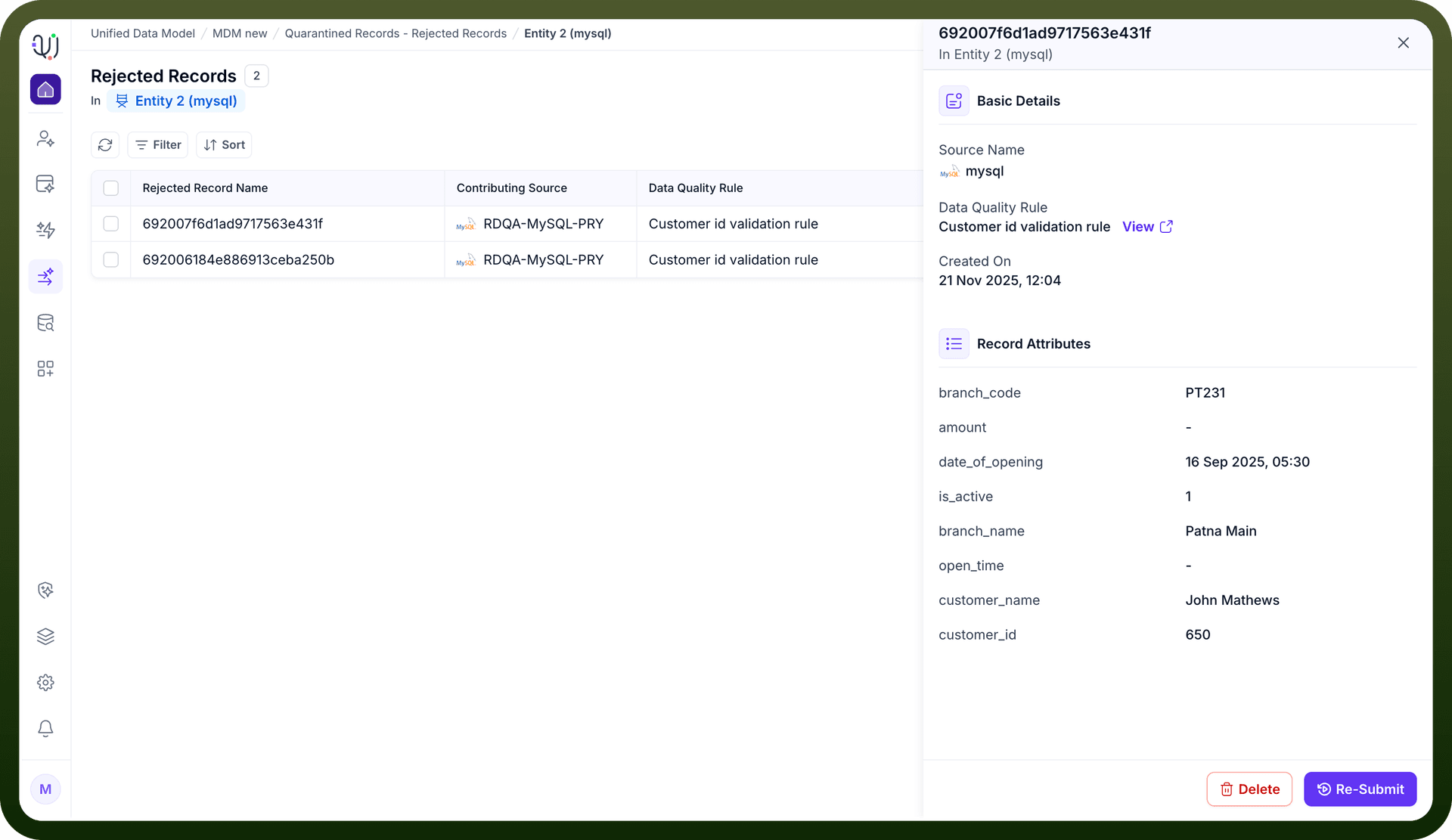
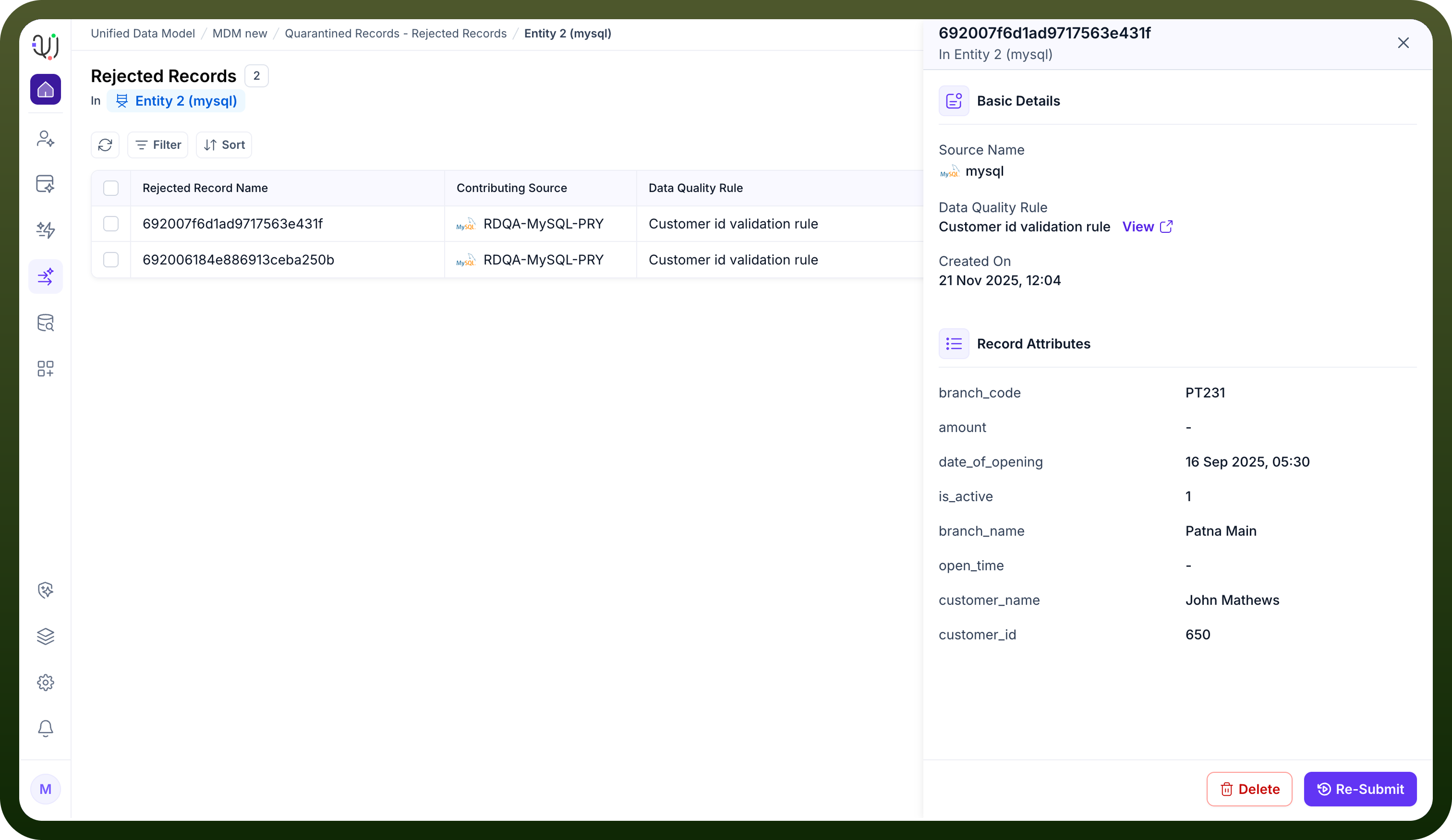
Analyze the Error Open the rejected record to view the Basic Details sidebar.
Identify the Rule: Look at the "Data Quality Rule" field (e.g., Customer id validation rule) to understand exactly why the record failed.
Inspect Attributes: Review the "Record Attributes" section to see the actual data values (e.g., checking if the customer_id of 650 meets the required format).
Correct the Issue Basedon your analysis, take the necessary corrective action:
Fix Data at Source: If the data itself is wrong (e.g., a typo in the source system), correct the record in the original application (like Salesforce or MySQL).
Adjust the Rule: If the data is valid but the rule is too strict, navigate to the Data Quality Rules tab to modify the validation logic.
Resubmit the Record Once the underlying issue is resolved, you can re-process the record
Action: Click the purple Re-Submit button located at the bottom right of the details panel.
Outcome: The system instantly sends the record back through the ingestion pipeline.
Success: If the record now passes validation, it leaves quarantine and contributes to a Golden Record.
Failure: If it still fails (e.g., passes the first rule but fails a second one), it will return to the Rejected Records list for further review.