


Unify Automations › Manage Automation › Compare Two Versions
Compare Two Versions
3 mins read
The Compare Two Versions view places two deployed automation versions side by side on read-only canvases and highlights every node that was added, removed, or modified between them, so you can audit changes before or after a deployment.
Overview
The Compare view places two deployed versions of an automation side by side on read-only canvases, highlighting every node that was added, removed, or modified between them. Use it to audit what changed between releases, understand the impact of a deploy before restoring, or review another team member's changes.
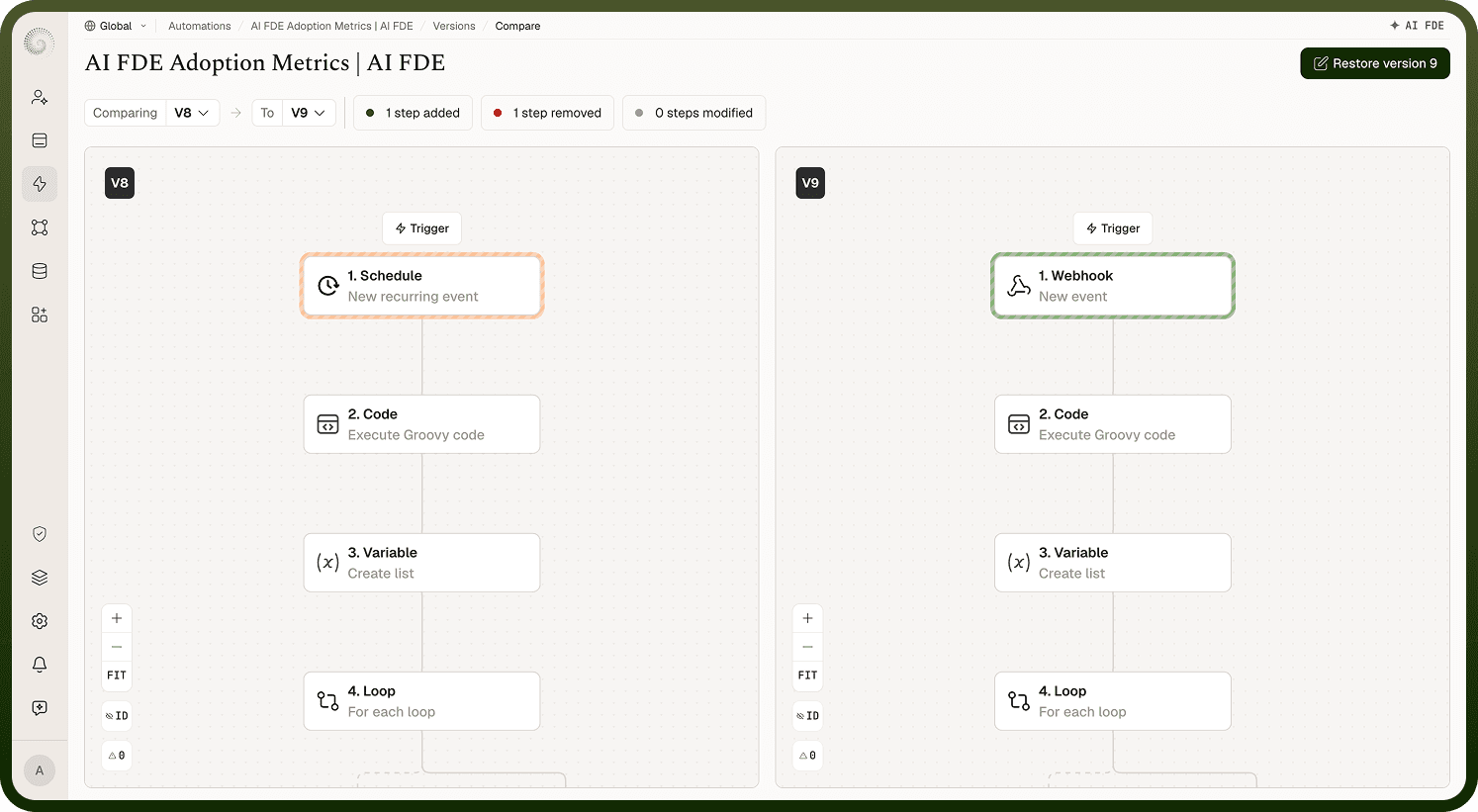
Compare works across any two deployed versions — you are not limited to comparing adjacent versions. Both canvases are read-only; no changes can be made from within the Compare view.
Note: The deploy panel does not show a summary of what changed. To review differences between versions, always use the Compare view.
How to Compare Versions
Opening Compare from the Versions tab
Open the Versions tab for the automation.
Click any deployed version row to open its detail view.
In the version detail header, click the compare button. The label reads "Compare to previous version" when you are viewing the latest deployed version, or "Compare to latest version" when you are viewing an older one.
The Compare view opens with the selected version pre-loaded in the Comparing picker on the left canvas.
In the To picker on the right canvas (labelled "Select version to compare" until a choice is made), select the second version you want to compare against.
The canvases update immediately to show the diff between the two selected versions.
Changing the selected versions
Each picker has its own dropdown. You can change either selection at any time — the canvases refresh to reflect the new pairing. To narrow the picker lists to tagged versions only, enable the Show tagged only filter in the dropdown.
Reading the Comparison
Summary chips
At the top of the Compare view, a row of chips summarises the total differences between the two versions:
Chip | What it counts | Highlight colour on the canvas |
|---|---|---|
N steps added | Nodes present in the second version that are absent from the first | Green |
N steps removed | Nodes present in the first version that are absent from the second | Red |
N steps modified | Nodes present in both versions whose configuration changed | Blue |
Clicking a chip scrolls both canvases to the affected nodes so you can locate them without manually panning the flow.
Node highlights
Each changed node is highlighted on both canvases using the same colour coding as the summary chips — green for added, red for removed, blue for modified. The highlight appears both as a coloured border on the node itself and as a coloured dot on the chip in the summary bar.
Field-level diff for modified nodes
For nodes flagged as modified (blue), you can inspect exactly which settings changed. Hover over or click the modified node and select View Changes. A panel opens showing a field-by-field diff of that node's configuration:
Added values — fields or values present in the second version but not the first, shown as additions.
Removed values — fields or values present in the first version but not the second, shown as deletions.
Unchanged values — fields whose values are identical in both versions, shown for context.
Notes
Compare is the primary tool for understanding the history and impact of your automation changes. To make the most of it:
Use Compare before restoring an older version — reviewing the diff first helps you confirm you are not accidentally reverting a deliberate improvement.
Use the "Show tagged only" filter in the version pickers when you maintain a tagging convention; it keeps the picker list short and focused on release milestones.
Clicking a summary chip is the fastest way to jump to changed nodes in a large, complex flow — avoid panning manually when the chip navigation is available.
The View Changes panel shows the full field-by-field diff for modified nodes; always check it for nodes whose top-level change may not be obvious from the canvas highlight alone.
Compare is read-only — you cannot edit either version from within this view. To act on the comparison, return to the Versions tab and use Restore or Deploy from the builder.